
1. Introduction
This manual provides essential information for the setup, operation, maintenance, and troubleshooting of your Jumper 15.6" Laptop EZbook X8. Please read this manual thoroughly before using your device to ensure proper function and longevity.
2. Product Overview
The Jumper EZbook X8 is a 15.6-inch laptop designed for various computing tasks. It features an Intel Core i5-12450H processor, 16GB DDR4 RAM, and a 512GB NVMe SSD, running on Windows 11. Key components are highlighted below.

Image 2.1: Front view of the Jumper EZbook X8 laptop, showcasing its 15.6-inch display and full-size keyboard.
2.1 Key Features
- Processor: 12th Gen Intel Core i5-12450H (8 Cores, 12 Threads, up to 4.4GHz)
- Memory: 16GB DDR4 RAM (expandable to 32GB)
- Storage: 512GB M.2 NVMe SSD (expandable to 4TB)
- Display: 15.6-inch Full HD (1920x1080) IPS Screen
- Operating System: Windows 11
- Battery: 62.7Wh high-performance battery
- Keyboard: Backlit keyboard with numeric keypad
- Audio: Four stereo speakers, dual microphone
- Connectivity: Wi-Fi (2.4G/5G), Bluetooth 5.1
2.2 Ports and Connectors
Familiarize yourself with the various ports available on your laptop for connecting peripherals and power.
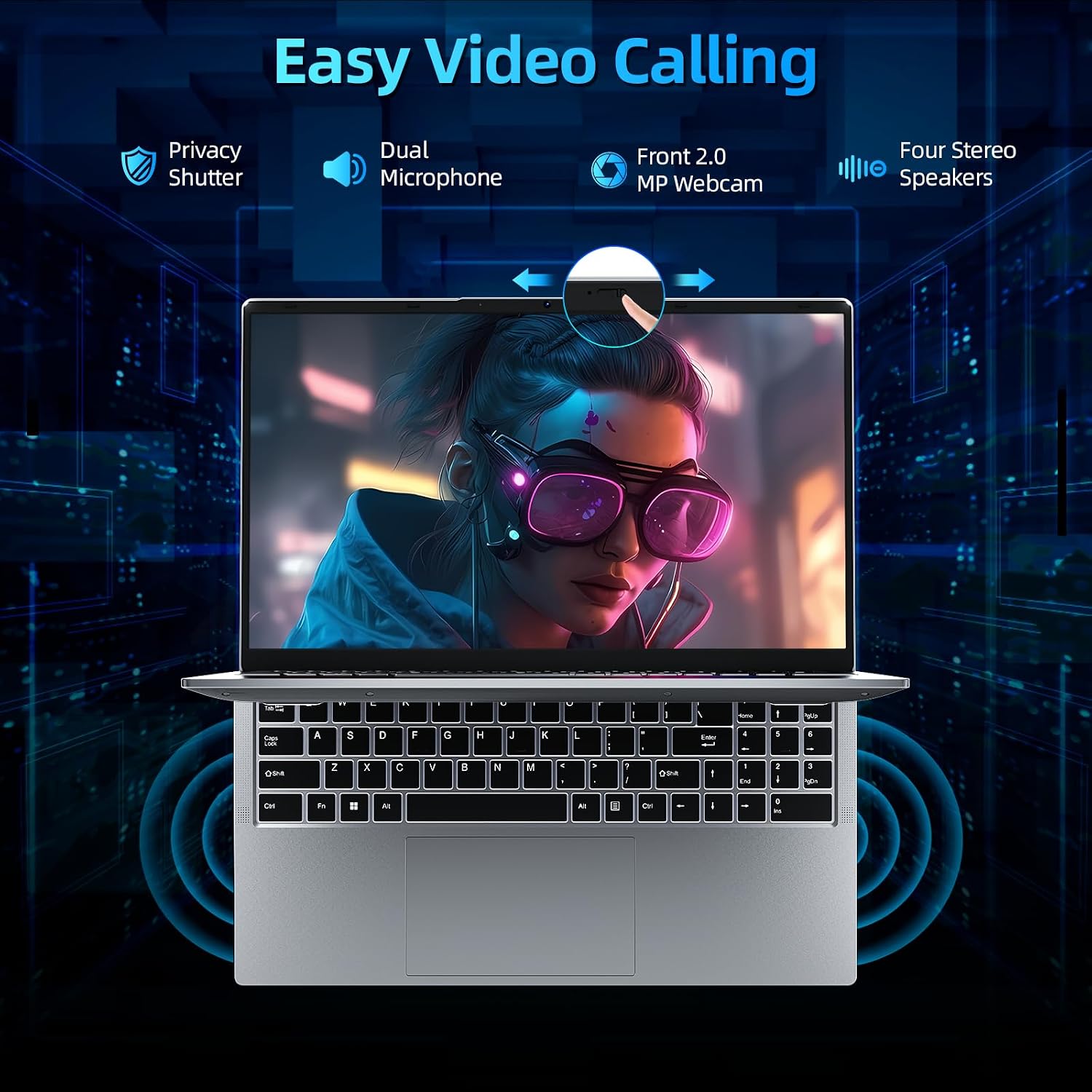
Image 2.2: Side view of the Jumper EZbook X8 laptop, illustrating the locations of the DC power port, full-function Type-C port, HDMI port, USB 3.2 ports, Micro TF slot, 3.5mm headphone jack, and safety lock.
- Left Side: DC Power Port, Full-function Type-C Port (supports PD fast charging, external monitor, audio/video output, data transfer), HDMI Port, USB 3.2 Port, Safety Lock.
- Right Side: Micro TF Slot, 2x USB 3.2 Ports, 3.5mm Headphone Jack.
3. Setup
3.1 Unboxing and Initial Inspection
Upon receiving your Jumper EZbook X8, carefully open the packaging and inspect the contents. The box should contain:
- Jumper EZbook X8 Laptop
- Power Adapter/Charger
- User Manual (this document)
If any items are missing or damaged, please contact customer support immediately.
3.2 Connecting the Power Adapter
- Connect the power adapter to the DC power port on the left side of the laptop.
- Plug the power adapter into a wall outlet.
- Allow the laptop to charge for at least 30 minutes before initial use, or until the battery indicator shows sufficient charge.
3.3 First Power On and Windows Setup
- Press the power button, typically located on the top right of the keyboard, to turn on the laptop.
- Follow the on-screen instructions to complete the Windows 11 initial setup. This includes selecting your region, language, connecting to a Wi-Fi network, and creating a user account.
- Ensure you have an active internet connection during setup for updates and account synchronization.
4. Operating Instructions
4.1 Power On/Off and Sleep Mode
- Power On: Press the power button.
- Power Off: Click the Start button in Windows, then select Power > Shut down.
- Sleep Mode: Close the laptop lid or click the Start button, then select Power > Sleep.
4.2 Keyboard and Touchpad
The laptop features a backlit keyboard and a large, responsive touchpad.

Image 4.1: Close-up view of the Jumper EZbook X8's backlit keyboard, highlighting the numeric keypad and touchpad area.
- Backlit Keyboard: The white backlight has three brightness levels. Use the appropriate function key combination (refer to keyboard legends) to adjust brightness.
- Numeric Keypad: A dedicated numeric keypad is integrated for efficient data entry.
- Touchpad: Supports multi-touch gestures for navigation. Ensure the touchpad is clean for optimal performance.
4.3 Display and Visual Experience
The 15.6-inch Full HD IPS screen provides a clear and vibrant visual experience.

Image 4.2: The Jumper EZbook X8 display showing an 88% screen-to-body ratio, emphasizing the immersive viewing experience.
- Resolution: 1920x1080 pixels for sharp images and text.
- IPS Technology: Offers wide viewing angles and consistent color reproduction.
- External Display: Connect an external monitor via the HDMI port or the full-function Type-C port for extended display options.
4.4 Webcam and Audio
The laptop is equipped with a 2.0MP front webcam, dual microphones, and four stereo speakers.

Image 4.3: Diagram illustrating the 2.0MP front webcam with privacy shutter, dual microphones, and four stereo speakers for video calls and audio output.
- Webcam: The 2.0MP webcam is suitable for video conferencing. It includes a physical privacy shutter for enhanced security. Slide the shutter to cover or uncover the camera lens.
- Microphones: Dual matrix noise-canceling microphones provide clear audio input.
- Speakers: Four stereo speakers deliver clear audio output.
4.5 Performance Modes
The laptop supports three performance modes to optimize power consumption and performance based on your needs. These modes can be switched using the Fn+F keyboard shortcut when the adapter is connected.
- Silent Mode: Reduces fan noise and power consumption for quiet operation.
- Balanced Mode: Offers a balance between performance and power efficiency.
- Turbo Mode: Maximizes performance for demanding tasks, potentially increasing fan noise and power usage.
5. Maintenance
5.1 Battery Care
To maximize battery life and longevity:
- Avoid fully discharging the battery frequently.
- Store the laptop in a cool, dry place when not in use for extended periods.
- The 62.7Wh battery provides approximately 5-8 hours of usage and takes 2-3 hours for a full charge.

Image 5.1: Illustration of the laptop's 62.7Wh battery capacity, 2-3 hour full charge time, and 5-8 hour battery life.
5.2 Cleaning Your Laptop
- Use a soft, lint-free cloth slightly dampened with water or a screen cleaner to clean the display.
- For the keyboard and chassis, use a soft, dry cloth. Avoid harsh chemicals or abrasive materials.
- Regularly clean the fan vents to prevent dust buildup, which can affect cooling performance.
5.3 Storage and Memory Upgrades
The Jumper EZbook X8 offers upgrade options for both memory and storage:
- Memory: Dual channel DDR4 memory slots support upgrades up to 32GB (2x16GB).
- Storage: Dual channel NVMe SSD slots support upgrades up to 4TB.
Note: Upgrading components should be performed by a qualified technician to avoid voiding the warranty or causing damage.
6. Troubleshooting
If you encounter issues with your laptop, refer to the following common solutions:
- Laptop does not power on: Ensure the power adapter is securely connected and the battery has sufficient charge. Try pressing the power button for 10-15 seconds.
- No display: Connect an external monitor to check if the issue is with the laptop's screen. Restart the laptop.
- Wi-Fi connectivity issues: Check if Wi-Fi is enabled in Windows settings. Restart your router and the laptop. Ensure drivers are up to date.
- Slow performance: Close unnecessary applications. Check for background processes. Ensure sufficient free storage space. Consider switching to 'Turbo Mode' if connected to power.
- Overheating: Ensure the laptop's vents are not blocked. Use the laptop on a hard, flat surface. The intelligent cooling fans are designed to minimize noise while maintaining optimal temperature.
- Keyboard or touchpad unresponsive: Restart the laptop. Check for any physical obstructions.
For persistent issues, please contact Jumper customer support.
7. Specifications
| Feature | Specification |
|---|---|
| Brand | jumper |
| Model Name | EZbook X8 |
| Processor | Intel Core i5-12450H (up to 4.4GHz, 8 Cores, 12 Threads) |
| Graphics | Intel UHD Graphics |
| RAM | 16GB DDR4 SDRAM (Expandable to 32GB) |
| Storage | 512GB NVMe SSD (Expandable to 4TB) |
| Display | 15.6 Inches, FHD (1920x1080) IPS |
| Operating System | Windows 11 |
| Battery | 62.7Wh Lithium Polymer (Average 5-8 hours) |
| Wireless Connectivity | 802.11ac (Dual-band Wi-Fi 2.4G/5G), Bluetooth 5.1 |
| Ports | 1x Full-function Type-C, 1x HDMI, 3x USB 3.2, 1x 3.5mm Headphone Jack, 1x Micro TF slot, DC Port, Safety Lock |
| Webcam | Front 2.0MP with Physical Privacy Shutter |
| Audio | Four Stereo Speakers, Dual Microphone |
| Dimensions (LxWxH) | 14.07 x 8.97 x 0.72 inches |
| Item Weight | 3.87 pounds |
8. Warranty and Support
Your Jumper EZbook X8 laptop comes with a one-year warranty from the date of purchase.
8.1 Contacting Customer Support
For any product-related inquiries, technical assistance, or warranty claims, please use the following methods:
- Amazon Order Support: Log in to your Amazon buyer account, find your order, and click "Get Product Support" or "Get Help."
- Direct Email: You can also reach out to Jumper customer support via email at service@jumper-customersupport.com.
Jumper is committed to providing assistance within 24 hours.
Image 8.1: Jumper customer support details, including Amazon order support and direct email contact for a one-year warranty.


