
1. Introduction
Thank you for choosing the taopodo Smart Watch. This device is designed to enhance your daily life with its advanced features, including a 1.96-inch HD screen, Bluetooth calling, comprehensive fitness tracking, and health monitoring capabilities. This manual will guide you through the setup, operation, and maintenance of your new smartwatch.
What's in the Box
- taopodo Smart Watch (T60-PE)
- Charging Cable
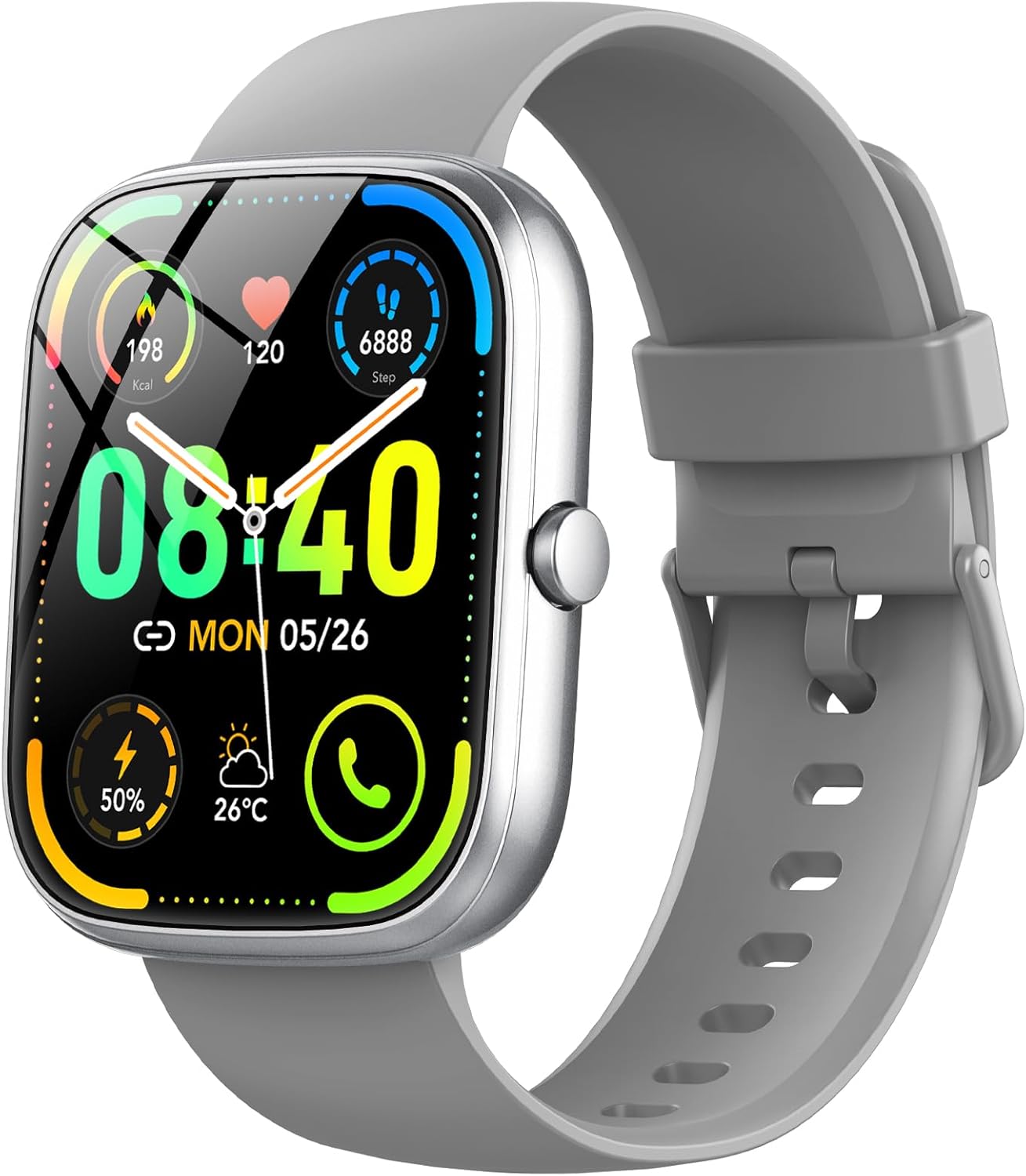
Image 1.1: taopodo Smart Watch (Grey) - Front View

Image 1.2: taopodo Smart Watch Retail Packaging
2. Setup
2.1 Initial Charging
Before first use, fully charge your smartwatch. Connect the magnetic charging cable to the charging contacts on the back of the watch and plug the USB end into a standard USB power adapter (not included) or a computer USB port. The watch display will indicate charging status.


Image 2.1: Smart Watch Charging and Contents in Packaging
2.2 App Download and Pairing
- Scan the QR code provided in the watch's quick start guide or search for the official companion app (e.g., 'GloryFit' or similar, as indicated in your watch's packaging) on the App Store (iOS) or Google Play Store (Android).
- Install the app on your smartphone.
- Open the app and follow the on-screen instructions to create an account and set up your profile.
- Enable Bluetooth on your smartphone.
- In the app, navigate to the device pairing section and select your taopodo Smart Watch from the list of available devices. Confirm the pairing request on both your phone and the watch.
Once paired, the watch will synchronize data with the app, and you can customize settings and view detailed health and activity reports.
3. Operating Instructions
3.1 Basic Navigation
- Touch Screen: Swipe left/right to navigate between main functions, swipe up/down for quick settings or notifications. Tap to select.
- Side Button: Press to wake the screen, return to the home screen, or access the app menu. Long press for power options.
3.2 Bluetooth Call and Answer
The smartwatch supports Bluetooth calls, allowing you to make and answer calls directly from your wrist when connected to your smartphone.
- Ensure the watch is connected to your phone via Bluetooth and the call function is enabled in the app.
- To answer a call, tap the green phone icon on the watch screen.
- To make a call, access the dial pad or contacts list on the watch.

Image 3.1: Bluetooth Call and Answer Functionality
3.3 Smart Notifications
Receive notifications for calls, messages, and social media apps directly on your watch. Configure notification settings within the companion app.
3.4 Customizing Watch Faces
Personalize your watch with over 200 available watch faces. You can also customize your own watch face using photos from your phone through the companion app.
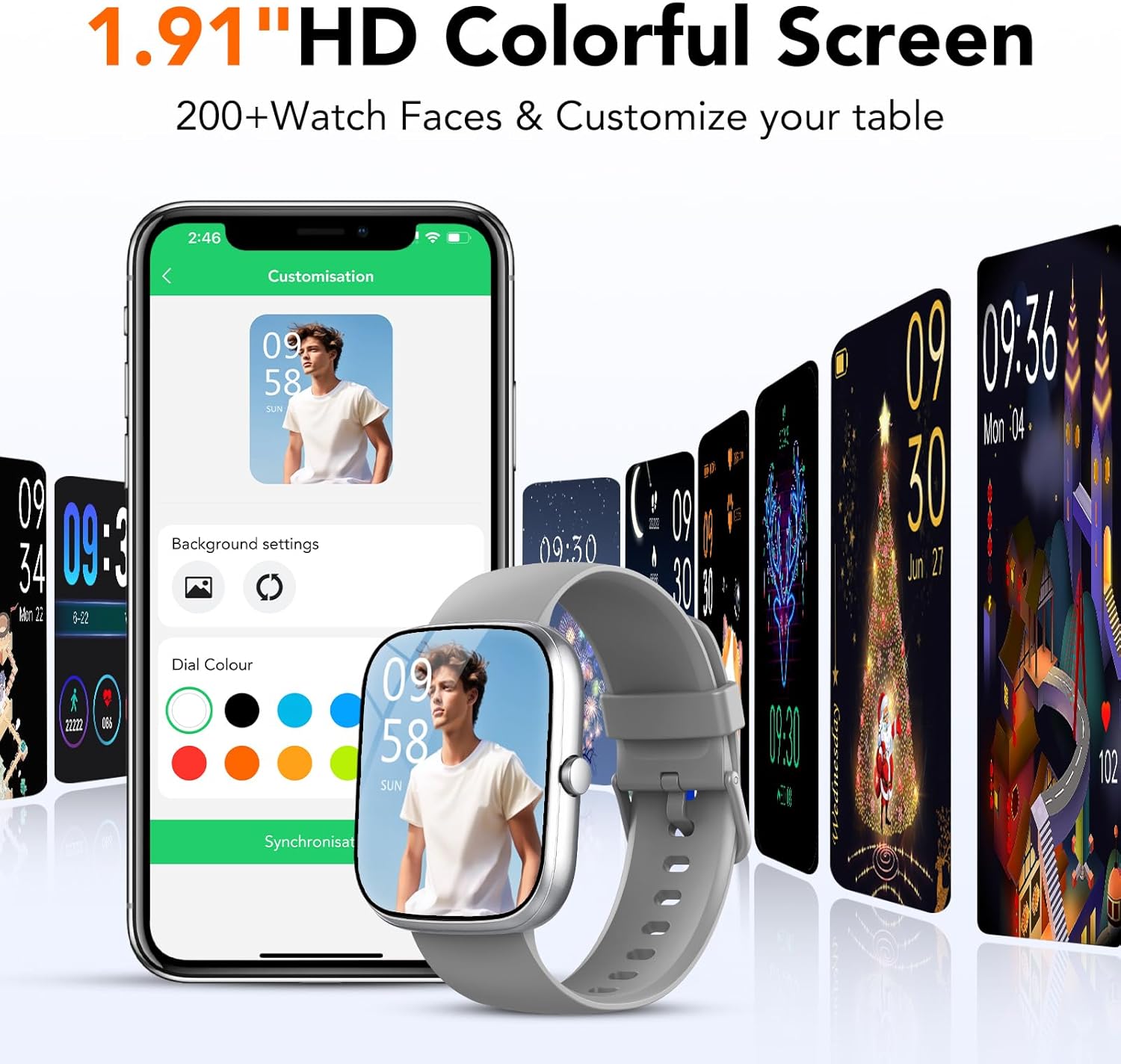
Image 3.2: 1.91" HD Colorful Screen and Watch Face Customization
3.5 Sports Modes and Activity Tracking
The watch features over 110 sports modes to track various activities. It also provides 24-hour activity tracking, including steps, distance, and calories burned.
- Select your desired sport mode from the watch menu to start tracking.
- View real-time data on the watch and detailed summaries in the app.

Image 3.3: 115+ Sports Modes and Activity Tracking
3.6 Health Monitoring
Monitor your heart rate, blood oxygen levels, and sleep patterns directly from your wrist. The watch also supports breath training exercises.
- Heart Rate: Access the heart rate function on the watch to measure your current heart rate.
- Blood Oxygen: Use the SpO2 function to check your blood oxygen saturation.
- Sleep Monitor: Wear the watch to bed to track your sleep stages (deep sleep, light sleep, wake up time).

Image 3.4: Sleep and Health Monitoring Features
3.7 Battery Life
The taopodo Smart Watch offers an ultra-long battery life, providing up to 30 days of standby time and 7 days of typical usage on a single 1.5-hour charge.
4. Maintenance
4.1 Cleaning and Care
- Regularly clean your watch and strap with a soft, damp cloth. Avoid using harsh chemicals or abrasive materials.
- Ensure the charging contacts are clean and dry before charging to prevent corrosion.
4.2 Water Resistance (IP68)
The watch is IP68 waterproof, meaning it is resistant to dust and can withstand immersion in water up to 1.5 meters for 30 minutes. It is suitable for daily use, hand washing, and light rain. However, it is not recommended for hot showers, saunas, or diving, as steam and high water pressure can damage the seals.
4.3 Strap Care
The watch comes with a natural silicone strap, designed for comfort and durability. Ensure the strap is not overly tight to allow skin to breathe, preventing irritation.

Image 4.1: Natural Silicone Strap Quality
5. Troubleshooting
If you encounter issues with your taopodo Smart Watch, please refer to the following common solutions:
| Problem | Possible Cause / Solution |
|---|---|
| Watch does not turn on | Battery is depleted. Connect to charger for at least 30 minutes. |
| Cannot pair with phone | Ensure Bluetooth is enabled on both devices. Restart both watch and phone. Check if the watch is already paired with another device. Ensure the app is updated. |
| Inaccurate health data | Ensure the watch is worn snugly on the wrist (not too tight or loose). Clean the sensor on the back of the watch. Avoid excessive movement during measurement. |
| Notifications not received | Check app notification permissions on your phone. Ensure the app is running in the background. Verify notification settings within the watch app. |
| Short battery life | Reduce screen brightness. Turn off unnecessary features like continuous heart rate monitoring if not needed. Limit frequent screen wake-ups. |
If the problem persists, please contact customer support for further assistance.
6. Specifications
Detailed technical specifications for the taopodo Smart Watch (Model T60-PE):
| Feature | Detail |
|---|---|
| Model Number | T60-PE |
| Screen Size | 1.96 inches (HD Colorful Screen) |
| Display Type | TFT LCD |
| Waterproof Rating | IP68 |
| Connectivity | Bluetooth |
| Battery Capacity | 300 mAh (Lithium Ion) |
| Battery Life (Typical) | Up to 7 days |
| Standby Time | Up to 30 days |
| Charging Time | Approx. 1.5 hours |
| Operating System | Android Wear 1.0 (Compatible with Android 5.0+ / iOS 9.0+) |
| Sensors | Green light rate sensor, Three-axis sensor |
| Item Weight | 1.36 ounces (38.5 Grams) |
| Package Dimensions | 6.81 x 5.87 x 0.75 inches |
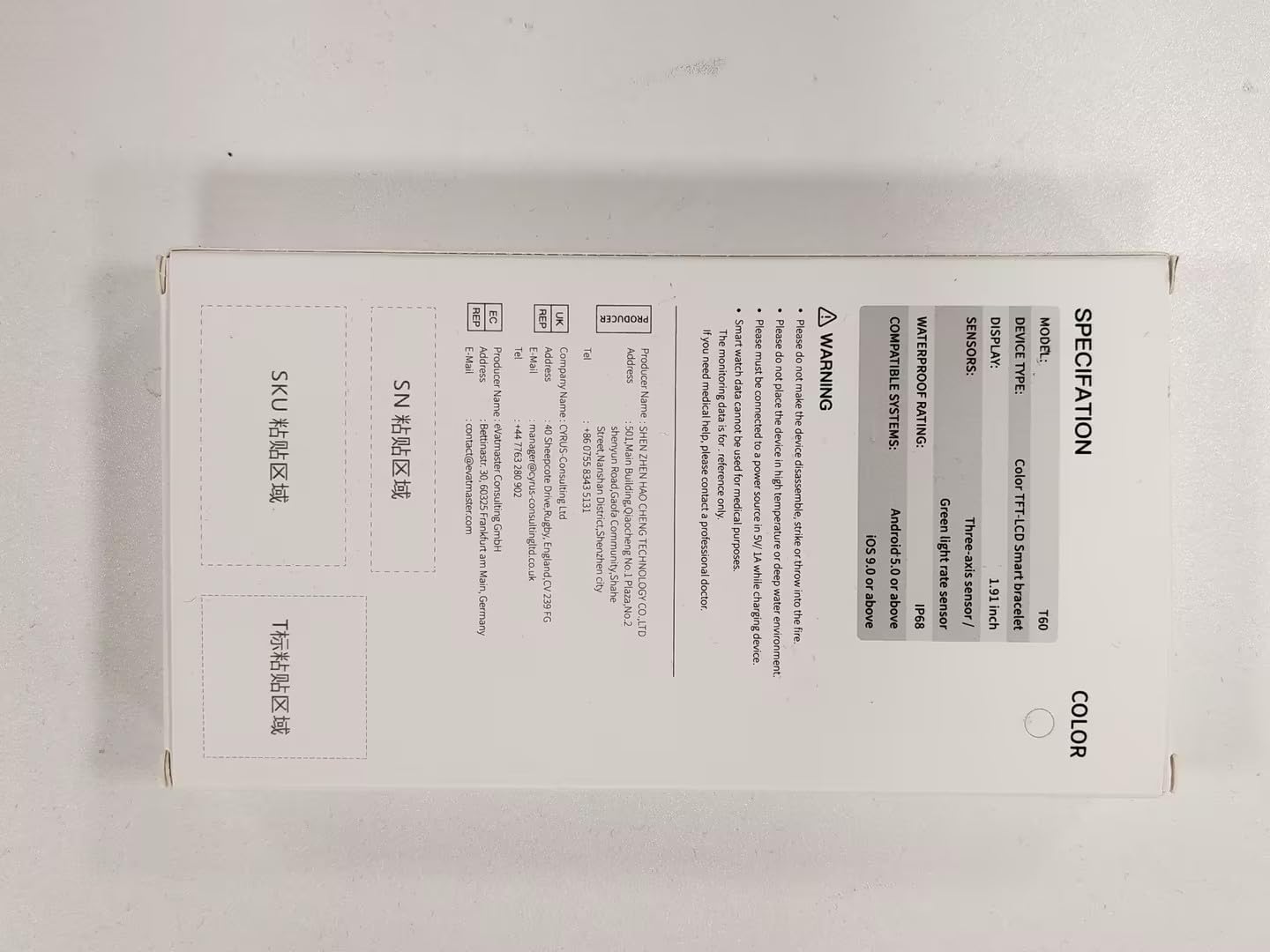
Image 6.1: Product Specifications on Packaging
7. Warranty and Support
7.1 Warranty Information
Warranty terms and conditions for your taopodo Smart Watch are typically provided with your purchase documentation or can be found on the manufacturer's official website. Please retain your proof of purchase for warranty claims.
7.2 Customer Support
For technical support, troubleshooting assistance, or any inquiries regarding your taopodo Smart Watch, please visit the official taopodo website or contact their customer service department. Contact information may also be available on the product packaging or within the companion app.