
MAIWO K35262U3S
MAIWO Dual Bay RAID Enclosure User Manual
Model: K35262U3S
1. Introduction
Thank you for choosing the MAIWO Dual Bay RAID Enclosure. This device is designed to provide flexible and expandable storage solutions for your 3.5-inch SATA hard drives, supporting up to 44TB total capacity. It features USB 3.0 connectivity for high-speed data transfer and multiple RAID modes to suit various data management needs, all while maintaining optimal operating temperatures with its built-in cooling fan.
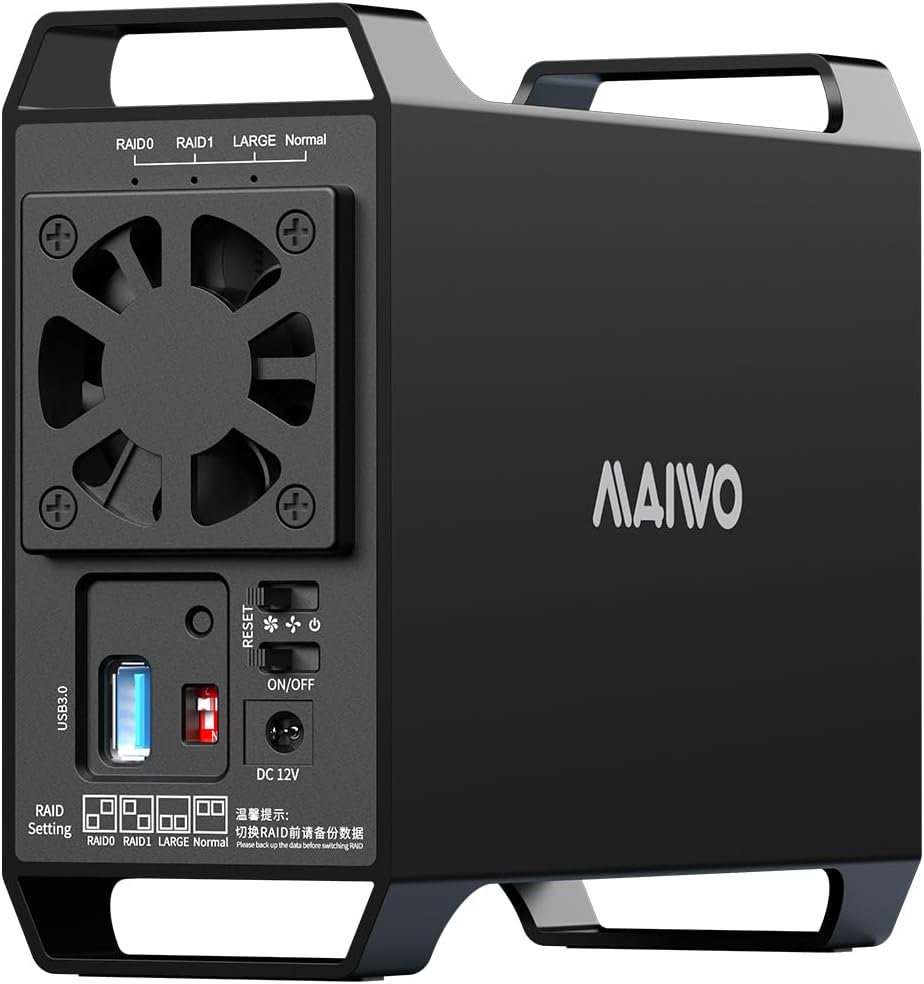
Image: Front and side view of the MAIWO Dual Bay RAID Enclosure, showcasing its compact design and ventilation.
2. Package Contents
Please check the package carefully to ensure all items are present:
- MAIWO Dual Bay RAID Enclosure (K35262U3S)
- USB 3.0 Data Cable
- Power Supply (48W)
- Screws for HDD installation
- Screwdriver
- User Manual (this document)
3. Product Features
- Compatibility: Supports two 3.5-inch SATA HDDs, with a maximum single disk capacity of 22TB, totaling up to 44TB storage expansion.
- Multiple RAID Modes: Offers RAID 0, RAID 1, JBOD (Large), and Normal modes for flexible data management and protection.
- High-Speed Transfer: USB 3.0 interface provides data transfer rates up to 5Gbps.
- Efficient Cooling: Constructed from aluminum alloy and equipped with a built-in cooling fan to prevent overheating.
- Stable Power Supply: Includes a 48W power adapter for reliable and stable operation.
4. Setup Guide
4.1 Hard Drive Installation
- Ensure the enclosure is powered off and disconnected from your computer.
- Gently slide open the drive bay cover.
- Insert your 3.5-inch SATA hard drives into the designated slots (HDD1 and HDD2). Ensure they are firmly seated. For 2.5-inch SATA drives, an additional 2.5 to 3.5 mounting bracket is required (not included).
- Secure the hard drives with the provided screws and screwdriver if necessary.
- Close the drive bay cover.

Image: Illustration of two 3.5-inch SATA hard drives being inserted into the MAIWO Dual Bay RAID Enclosure.
4.2 Connecting to Computer
- Connect one end of the USB 3.0 data cable to the USB 3.0 port on the back of the enclosure.
- Connect the other end of the USB 3.0 data cable to an available USB 3.0 port on your computer.

Image: The MAIWO enclosure connected to a laptop, demonstrating the USB 3.0 connection.
4.3 Power Connection
- Connect the provided 48W power adapter to the DC 12V port on the back of the enclosure.
- Plug the power adapter into a wall outlet.
- Flip the ON/OFF switch on the back of the enclosure to the "ON" position. The power indicator light should illuminate.

Image: The MAIWO enclosure connected to its power adapter, ensuring stable data transmission.
5. Operating Instructions
5.1 RAID Mode Configuration
The enclosure supports four RAID modes: RAID 0, RAID 1, JBOD (Large), and Normal. Important: Always back up your data before changing RAID modes, as data loss may occur.
To configure the RAID mode:
- Ensure the enclosure is powered off.
- Locate the RAID mode switches (Switch 1 and Switch 2) on the back of the enclosure.
- Set the switches according to the desired RAID mode as shown in the table below.
- Press and hold the "RESET" button while powering on the enclosure. Continue holding the "RESET" button for approximately 5-10 seconds until the indicator lights confirm the new RAID mode.
- Release the "RESET" button. The new RAID configuration is now active.
- Initialize and format the drives through your operating system's disk management utility if they are new or if you have changed the RAID mode.

Image: A table illustrating the different RAID modes (RAID 0, RAID 1, LARGE, Normal), their functions, and the corresponding switch settings on the enclosure.
| RAID Mode | Function Specification | Switch 1 | Switch 2 |
|---|---|---|---|
| RAID 0 | Combines drives for increased speed and capacity. Data is striped across both drives. No redundancy. | ON | OFF |
| RAID 1 | Mirrors data across both drives for redundancy. Provides data backup; capacity is limited to the smallest drive. | OFF | ON |
| JBOD (Large) | Concatenates drives to create one large volume. No redundancy or performance benefits. | ON | ON |
| Normal | Each hard drive operates independently as a separate volume. | OFF | OFF |
Warning: If there is data on the hard disk, please back it up before regrouping the array. Otherwise, data may be lost.
5.2 Data Transfer
Once the enclosure is connected and the drives are recognized by your operating system, you can transfer data at speeds up to 5Gbps via the USB 3.0 interface. Actual transfer speeds may vary depending on the hard drive's performance and system configuration.

Image: A visual representation of the 5Gbps data transfer speed, with the enclosure connected to a laptop during a file transfer operation.
6. Maintenance
6.1 Cooling Fan Operation
The enclosure features a built-in cooling fan to dissipate heat from the hard drives. The fan speed can be adjusted using the fan control switch on the back panel.
- Low Speed: Recommended for ambient temperatures around 25°C or lower to maintain optimal drive temperature.
- High Speed: Recommended for ambient temperatures above 25°C or during intensive data operations to effectively reduce hard drive heat.

Image: Close-up of the rear panel of the enclosure, highlighting the cooling fan and the fan speed adjustment switch.
6.2 General Care
- Keep the enclosure in a well-ventilated area to ensure proper airflow.
- Avoid exposing the device to extreme temperatures, humidity, or direct sunlight.
- Clean the exterior with a soft, dry cloth. Do not use liquid cleaners.
- Ensure the power supply is stable to prevent data corruption.
7. Troubleshooting
| Problem | Possible Cause | Solution |
|---|---|---|
| Enclosure not recognized by computer. |
|
|
| Hard drives not appearing in "My Computer" or "Finder". |
|
|
| Slow data transfer speeds. |
|
|
| Enclosure or drives overheating. |
|
|
| Data loss or corruption. |
|
|
8. Specifications
| Feature | Detail |
|---|---|
| Model Number | K35262U3S |
| Brand | MAIWO |
| Supported Drives | 2 x 3.5-inch SATA HDDs (SATA III and below) |
| Max Single Disk Capacity | 22TB |
| Max Total Capacity | 44TB |
| RAID Modes | RAID 0, RAID 1, JBOD (Large), Normal |
| Interface | USB 3.0 (5Gbps) |
| Power Supply | DC 12V, 48W Adapter |
| Cooling System | Built-in Cooling Fan with adjustable speeds |
| Material | Metal (Aluminum Alloy) |
| Compatible OS | Windows (Win7 and above), Mac OS (Mac10 and above), Linux |
| Product Dimensions | 18.39 x 6.6 x 14.3 cm |
| Item Weight | 580.6 g |
9. Warranty and Support
MAIWO products are designed for reliability and performance. For specific warranty details, please refer to the warranty card included with your product or visit the official MAIWO website. If you encounter any issues or require technical assistance, please contact MAIWO customer support through their official channels.
For the latest support information and contact details, please visit: MAIWO Official Website