1. Introduction
Thank you for choosing the Visual Beat 15.6-inch FHD Portable Monitor. This user manual provides essential information for setting up, operating, and maintaining your new monitor. Designed for versatility and portability, this monitor enhances your productivity and entertainment experience by providing an extended display for a wide range of devices.

2. Product Overview
2.1 Package Contents
- Visual Beat 15.6-inch Portable Monitor (V15)
- Smart Cover
- USB-C to USB-C Cable
- HDMI to Mini HDMI Cable
- USB-A to USB-C Power Cable
- Power Adapter
- User Manual
2.2 Monitor Features and Components
The Visual Beat V15 monitor is equipped with features designed for optimal performance and user convenience:
- 15.6-inch Full HD (1920x1080) IPS Panel: Delivers crisp, clear images with wide viewing angles.
- HDR Support: Provides enhanced contrast and color accuracy for a more immersive visual experience.
- Dual USB-C Ports: For power and video signal transmission with compatible devices.
- Mini HDMI Port: For connecting to a wide range of devices.
- 3.5mm Audio Jack: For connecting external headphones or speakers.
- Dual Integrated Speakers: For audio output.
- VESA Mount Compatibility (75x75mm): Allows for flexible mounting options.
- Smart Cover: Protects the screen and doubles as an adjustable stand.
- Roll Key (3-way): For intuitive OSD menu navigation and power control.


2.3 Usage Scenarios
The V15 monitor is highly adaptable for various uses:
- Business & Productivity: Extend your laptop screen for multitasking, presentations, and collaborative work.
- Gaming: Connect to popular gaming consoles like PS4, PS5, Xbox, and Nintendo Switch for an enhanced portable gaming experience.
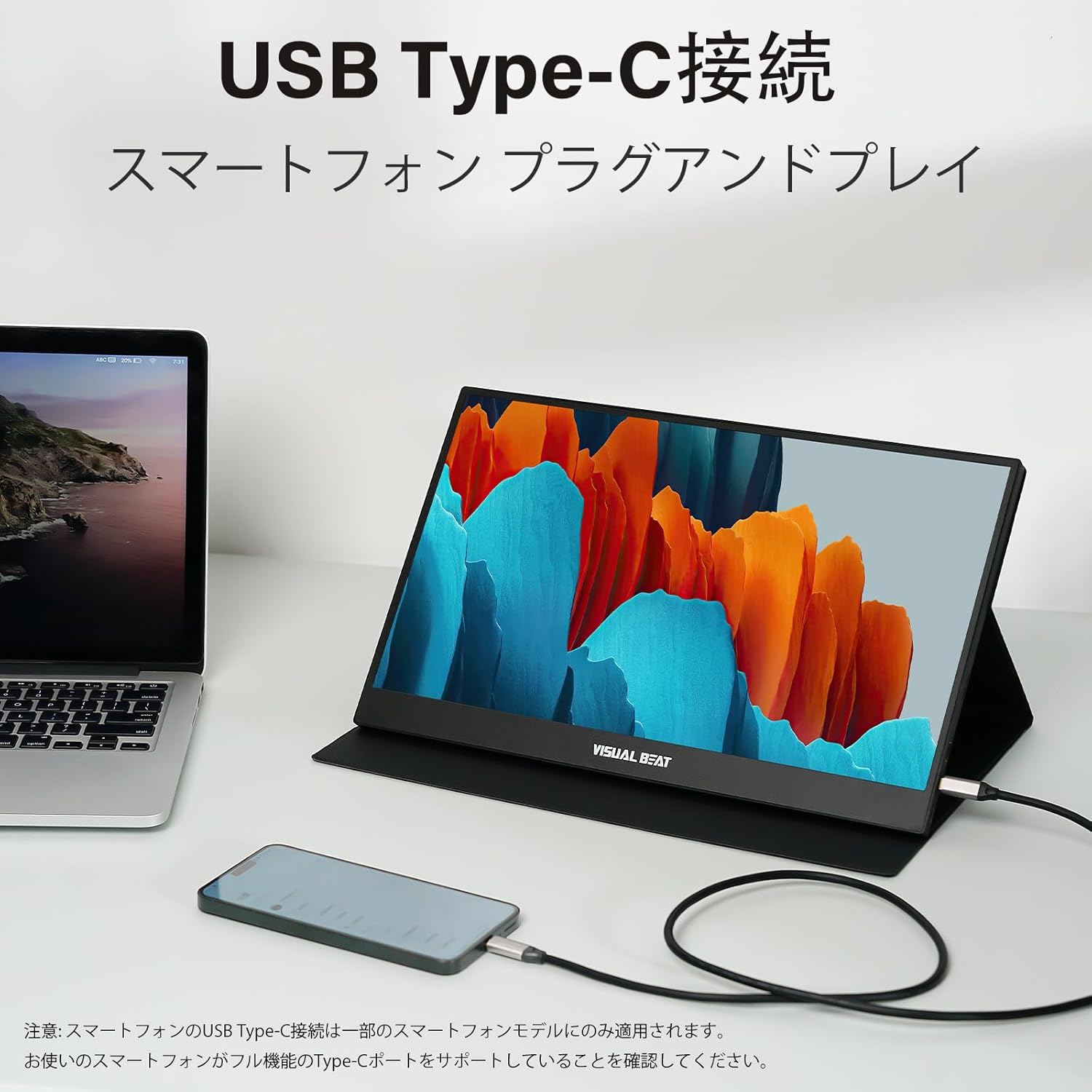
- Mobile Entertainment: Mirror or extend your smartphone or tablet display for watching movies or browsing.
- Creative Work: Use as a secondary display for graphic design, video editing, or coding.


3. Setup
3.1 Connecting to Devices
The Visual Beat V15 monitor supports both USB-C and HDMI connections for video and power.
- Power Connection:
- Connect the provided power adapter to a power outlet and then to one of the USB-C ports on the monitor.
- Alternatively, if your device supports power delivery via USB-C, a single USB-C cable can provide both power and video.
- Video Connection:
- USB-C Connection: Use the provided USB-C to USB-C cable to connect the monitor to a compatible laptop, PC, Mac, or smartphone with a full-featured USB-C port (supporting DisplayPort Alternate Mode and Power Delivery).
- HDMI Connection: Use the provided HDMI to Mini HDMI cable to connect the monitor to a device with an HDMI output (e.g., PC, laptop, gaming console). You will also need to connect a USB-A to USB-C power cable from your device's USB port or a power adapter to the monitor for power.
- Audio Connection (Optional): If you prefer external audio, connect headphones or speakers to the 3.5mm audio jack on the monitor.

3.2 VESA Mount Installation (Optional)
The monitor features 75x75mm VESA mounting holes for alternative setup options, such as wall mounts or monitor arms.
- Carefully remove the smart cover if attached.
- Align the VESA mount holes on the back of the monitor with your VESA-compatible stand or arm.
- Secure the monitor using appropriate VESA screws (not included).

4. Operating Instructions
4.1 Power On/Off
- To power on the monitor, press and hold the Roll Key (Power/Return button) for a few seconds until the screen lights up.
- To power off, press and hold the Roll Key again until the screen turns off.
4.2 OSD (On-Screen Display) Menu Navigation
The Roll Key (3-way) allows you to navigate the OSD menu to adjust monitor settings.
- Press the Roll Key: To enter the OSD menu.
- Roll Up/Down: To navigate through menu options.
- Press the Roll Key (short press): To select an option or confirm a setting.
- Press the Roll Key (long press / Power/Return function): To go back to the previous menu or exit the OSD menu.
Common OSD Menu Options:
- Brightness/Contrast: Adjust display luminance and contrast levels.
- Color Settings: Adjust color temperature, hue, and saturation.
- Input Source: Manually select between USB-C and HDMI inputs.
- Aspect Ratio: Change the display's aspect ratio (e.g., 16:9, 4:3).
- HDR Mode: Enable or disable HDR.
- Volume: Adjust the volume of the integrated speakers or connected audio devices.
- Language: Select the OSD menu language.
- Reset: Restore all settings to factory defaults.
5. Maintenance
Proper care and maintenance will ensure the longevity of your Visual Beat portable monitor.
- Cleaning the Screen: Gently wipe the screen with a soft, lint-free cloth. For stubborn marks, slightly dampen the cloth with water or a non-abrasive screen cleaner. Do not spray liquid directly onto the screen.
- Cleaning the Casing: Use a soft, dry cloth to wipe the monitor's casing. Avoid using harsh chemicals or abrasive materials.
- Storage: When not in use, store the monitor in a cool, dry place, preferably in its original packaging or with the smart cover attached to protect the screen.
- Avoid Extreme Conditions: Do not expose the monitor to extreme temperatures, humidity, or direct sunlight.
- Handle with Care: Avoid dropping or subjecting the monitor to strong impacts.

6. Troubleshooting
If you encounter issues with your monitor, please refer to the following common problems and solutions:
| Problem | Possible Cause | Solution |
|---|---|---|
| No Signal / Black Screen | Incorrect input source selected; Loose cable connection; Device not outputting signal. | Check all cable connections. Ensure the correct input source is selected in the OSD menu. Restart the connected device. |
| No Power | Power cable not connected; Insufficient power supply. | Ensure the power adapter is securely connected to the monitor and a power outlet. If using a single USB-C cable, ensure your device provides sufficient power (at least 5V/2A). Try a different power source or cable. |
| Flickering Screen | Faulty cable; Interference; Graphics driver issue. | Try a different cable. Ensure cables are not near strong electromagnetic sources. Update graphics drivers on your connected device. |
| No Sound | Volume too low/muted; Incorrect audio output selected on device. | Increase monitor volume via OSD. Check audio output settings on your connected device to ensure the monitor is selected. |
| Image is Distorted / Incorrect Resolution | Incorrect display settings on connected device. | Adjust the display resolution on your connected device to 1920x1080. Check aspect ratio settings in the OSD menu. |
7. Specifications
| Feature | Specification |
|---|---|
| Brand | Visual Beat |
| Model Number | V15 |
| Screen Size | 15.6 inches |
| Resolution | 1920 x 1080 (FHD) |
| Panel Type | IPS |
| Aspect Ratio | 16:9 |
| Surface Treatment | Non-glare |
| HDR Support | Yes |
| Connectivity | 2x USB-C, 1x Mini HDMI, 1x 3.5mm Audio Jack |
| Speakers | Dual Integrated Speakers |
| VESA Mount | 75 x 75 mm |
| Product Dimensions (W x H x D) | 359 x 230 x 15 mm (approx.) |
| Product Weight | 594 g (approx.) |
| Power Input | 5V DC |
8. Warranty and Support
Visual Beat products are designed and manufactured to the highest quality standards. For information regarding warranty coverage, technical support, or service inquiries, please refer to the warranty card included in your package or visit the official Visual Beat website. Please retain your proof of purchase for warranty claims.


