
MAIWO Enclosure Only
MAIWO USB-C M.2 2230 SSD Enclosure
Instruction Manual
1. Introduction
Thank you for choosing the MAIWO USB-C M.2 2230 SSD Enclosure. This manual provides detailed instructions for setting up, operating, and maintaining your new device. Please read this manual thoroughly before use to ensure optimal performance and longevity of your product.

Figure 1: MAIWO M.2 2230 SSD Enclosure, showcasing its compact size.
2. Product Overview
The MAIWO USB-C M.2 2230 SSD Enclosure is a high-performance, portable solution designed for M.2 2230 PCIe NVMe and NGFF SATA SSDs. Its full metal construction ensures efficient heat dissipation, while the USB 3.2 Gen2 Type-C interface provides data transfer speeds up to 10Gbps. This enclosure is ideal for expanding storage, backing up data, or enabling 4K ProRes recording with compatible devices like the iPhone 15 Pro/Pro Max.
- High-Speed Transmission: USB 3.2 Gen2 Type-C interface, up to 10Gbps.
- Broad Compatibility: Supports M-KEY and B+M KEY SSDs, compatible with Windows, macOS, Linux, Android, and iPhone 15/16 Pro/Pro Max.
- Efficient Heat Dissipation: Aluminum alloy casing and silicone thermal pad ensure optimal operating temperatures.
- Tool-Free Installation: Simple clip-type design allows for quick and easy SSD installation without screws.
- Portable Design: Compact and lightweight, perfect for on-the-go use.
3. What's in the Box
Verify that all items are present in your package:
- 1x USB3.2 10Gbps 2230 M.2 SSD Enclosure
- 1x USB C-C+A Data Cable
- 1x Silicone Thermal Pad
- 1x Braided Strap
- 3x Silicone Plugs

Figure 2: Package contents including the enclosure, cables, and accessories.
4. Setup and Installation
Follow these steps to install your M.2 2230 SSD into the enclosure:
- Open the Case: Gently slide open the cover of the enclosure.
- Install Silicone Screw: If your SSD requires it, install the provided silicone screw into the SSD's mounting hole.
- Insert SSD: Carefully insert your M.2 2230 SSD into the slot inside the enclosure. Ensure it is fully seated.
- Apply Thermal Pads: Place the silicone thermal pad directly onto the SSD chip, then place the aluminum thermal pad on top of the silicone pad. This aids in heat dissipation.
- Close the Cover: Slide the enclosure cover back into place until it clicks securely.
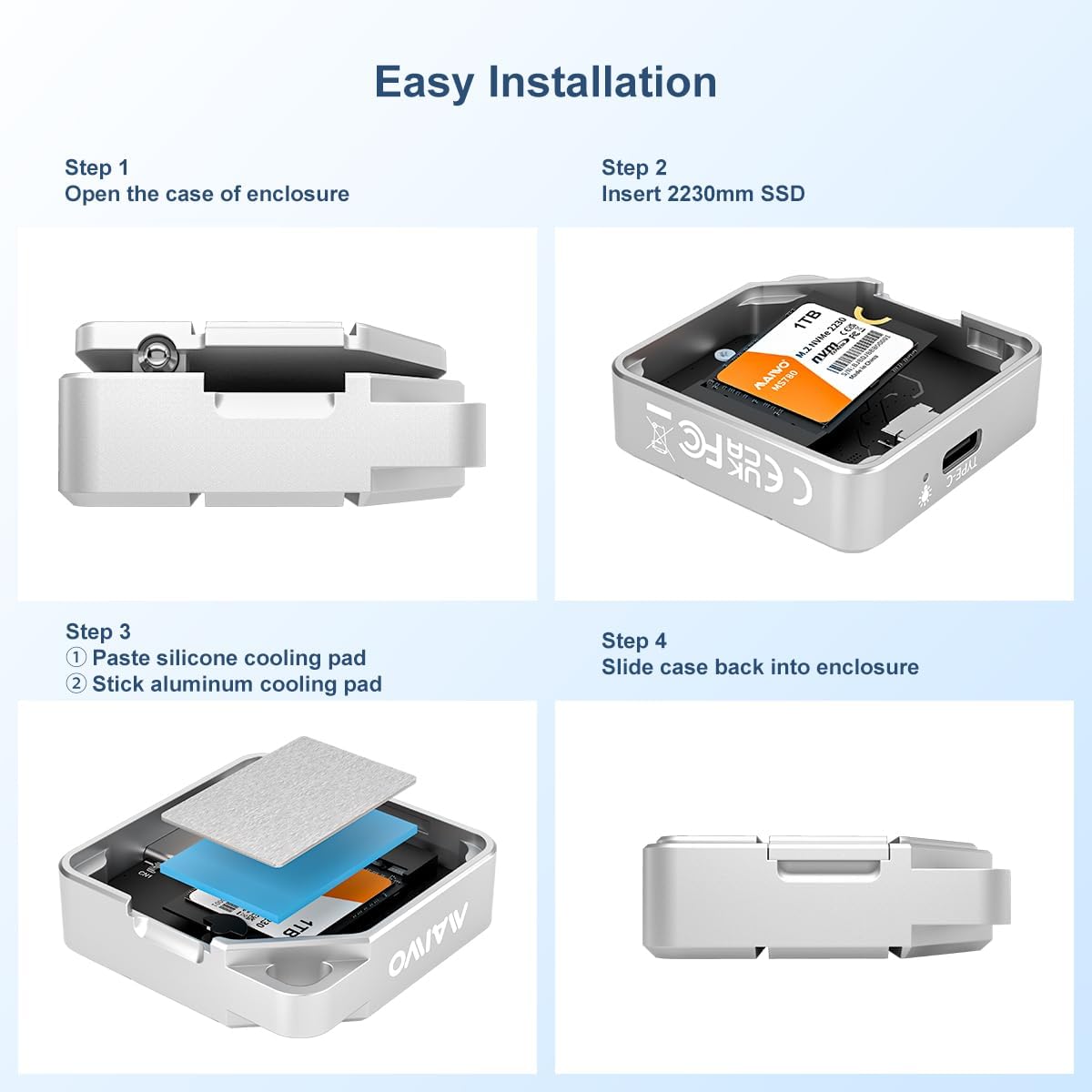
Figure 3: Visual guide for the tool-free SSD installation process.
Video 1: Official MAIWO guide demonstrating the installation of an M.2 2230 SSD into the enclosure and its use with an iPhone 15 Pro for ProRes recording.
5. Operating Instructions
Once your SSD is installed, connect the enclosure to your device using the provided USB-C to USB-C/A data cable.
- Connect Cable: Insert one end of the USB-C cable into the enclosure's Type-C port.
- Connect to Device: Plug the other end of the cable into a compatible USB-C or USB-A port on your computer, smartphone (with OTG support), or other device.
- Power Indicator: The blue indicator light on the enclosure will illuminate, signifying a successful connection and power.
- Drive Initialization (First Use): If this is a new SSD, it may need to be initialized and formatted before use. Refer to your operating system's disk management tools (e.g., Disk Management on Windows, Disk Utility on macOS) to initialize the drive and create a new volume.
- Data Transfer: You can now drag and drop files to and from the enclosure, enjoying high-speed data transfers up to 10Gbps.

Figure 4: The enclosure connected to a laptop, demonstrating its 10Gbps data transfer capability.
6. Compatibility
This enclosure offers wide compatibility with various devices and operating systems:
- SSD Types: M.2 2230mm PCIe NVMe and NGFF SATA SSDs (M-KEY and B+M KEY).
- Operating Systems: Windows 8.1 or above, macOS, Linux, Android.
- Devices: Desktop PCs, Laptops, MacBooks, iPhone 15/16 Pro/Pro Max (for 4K ProRes recording), Android phones (with OTG support), Xbox, Smart TVs, Routers, etc.

Figure 5: Compatibility details for M.2 SSDs and supported operating systems.
7. Heat Dissipation
The MAIWO enclosure is engineered for superior heat management, crucial for maintaining SSD performance and longevity. It utilizes a multi-layered heat dissipation system:
- Aluminum Alloy Shell: The robust aluminum casing acts as a large heatsink, drawing heat away from the internal components.
- Silicone Thermal Pad: This pad ensures efficient thermal contact between the SSD and the aluminum casing, transferring heat effectively.
These combined methods help keep the enclosure cool even during high-speed data transfers, preventing thermal throttling and improving the overall efficiency of your hard drive.

Figure 6: Internal components illustrating the heat dissipation design.
8. Specifications
| Feature | Detail |
|---|---|
| Product Dimensions | 1.65 x 1.65 x 0.47 inches (42 x 42 x 12 mm) |
| Item Weight | 3.52 ounces (42.8g) |
| Digital Storage Capacity | Up to 2 TB |
| Hard Disk Interface | Solid State (M.2 2230 PCIe NVMe/NGFF SATA) |
| Connectivity Technology | USB 3.2 Gen2 Type-C (10Gbps) |
| Material | Aluminum Alloy |
| Special Features | Backward Compatible, Portable, Shock Resistant, Tool-Free |
9. Troubleshooting
- Drive Not Detected:
- Ensure the SSD is fully seated in the enclosure.
- Try a different USB port on your device.
- Verify the USB cable is securely connected at both ends.
- For new SSDs, ensure the drive has been initialized and formatted via your operating system's disk management utility.
- Slow Transfer Speeds:
- Ensure your device's USB port supports USB 3.2 Gen2 (10Gbps) or higher. Older USB 2.0/3.0 ports will result in slower speeds.
- Check if your operating system supports UASP (USB Attached SCSI Protocol) for optimized performance.
- Verify the SSD itself is capable of high speeds (NVMe SSDs are generally faster than SATA SSDs).
- Excessive heat can cause performance throttling. Ensure proper airflow around the enclosure.
- Enclosure Gets Warm:
- It is normal for the aluminum alloy enclosure to become warm during operation, especially during high-speed data transfers. This indicates that the heat dissipation system is working effectively to transfer heat away from the SSD.
10. Maintenance
- Cleaning: Use a soft, dry cloth to clean the exterior of the enclosure. Avoid liquid cleaners or abrasive materials.
- Storage: Store the enclosure in a cool, dry place away from direct sunlight and extreme temperatures.
- Handling: While durable, avoid dropping the enclosure or subjecting it to strong impacts to prevent damage to the internal SSD.
11. Warranty and Support
For warranty information and technical support, please refer to the official MAIWO website or contact your retailer. Keep your purchase receipt as proof of purchase for any warranty claims.
Ask a question about this manual
Ask about setup, troubleshooting, compatibility, parts, safety, or missing instructions. Manuals+ will review the question and use this page’s manual context to help answer it.