
DVNXDPXJ DVNXDPXJ
DVNXDPXJ WiFi LED Strip Lights User Manual
Model: DVNXDPXJ
1. Product Overview
The DVNXDPXJ WiFi LED Strip Lights are versatile RGB 5050 LED tapes designed to enhance your living space with dynamic lighting. These smart lights can be controlled via the Tuya Smart Life App, offering features such as voice control, timer settings, music synchronization, and customizable DIY modes. Ideal for party rooms, home decor, and various indoor applications, these LED strips provide vibrant illumination and smart functionality.
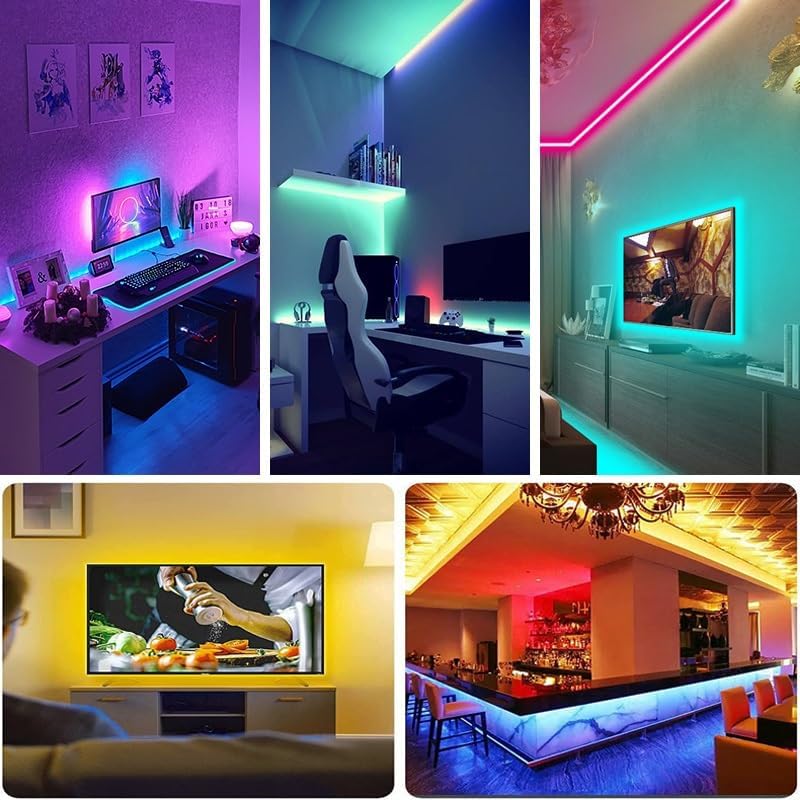
Image 1: Examples of DVNXDPXJ WiFi LED Strip Lights in various room applications, including under desks, behind TVs, and along ceilings.
2. Package Contents
Please check the package carefully to ensure all components are present:
- 1 x DVNXDPXJ WiFi LED Strip (10m)
- 1 x Smart Controller with USB Power Cable

Image 2: The DVNXDPXJ WiFi LED Strip Lights, shown coiled, with its integrated smart controller and USB power cable.
3. Setup and Installation
3.1 Physical Installation
- Clean the Surface: Ensure the surface where you intend to install the LED strip is clean, dry, and smooth. Dust or moisture can affect adhesion.
- Measure and Cut (Optional): If necessary, measure the desired length and cut the LED strip only at the designated cutting marks (usually indicated by a scissor icon or copper pads).
- Peel and Stick: Carefully peel off the adhesive backing from the LED strip. Press the strip firmly onto the prepared surface, ensuring good contact along its entire length.
- Connect Power: Plug the USB power cable from the smart controller into a compatible USB power source (e.g., USB wall adapter, power bank, computer USB port).
3.2 App Connection (Tuya Smart Life App)
To connect the LED strip to the Tuya Smart Life App:
- Download and install the Tuya Smart Life app from your device's app store (iOS App Store or Google Play Store).
- Register or log in to your account.
- Initialize the Light Strip: The light strip needs to be initialized before connecting to the app. Choose one of the following methods:
- Method 1: Repower the light strip ON/OFF 5 times.
- Method 2: Long press the button on the controller for 5 seconds.
The light strip will start flashing, indicating successful initialization and readiness for pairing.
- In the Tuya Smart Life app, tap the "+" icon to add a new device.
- Follow the on-screen instructions to add the LED strip. Ensure your phone is connected to a 2.4GHz Wi-Fi network.
4. Operating Instructions
4.1 Smart App Control
Once connected to the Tuya Smart Life App, you can control various aspects of your LED strip lights:
- Color Selection: Choose from a wide spectrum of colors.
- Brightness Adjustment: Dim or brighten the lights to your preference.
- Scene Modes: Select from pre-set scenes for different moods or occasions.
- Customization: Create and save your own unique lighting effects.
4.2 Voice Control
The LED strip lights support voice control through compatible smart home assistants (e.g., Amazon Alexa, Google Assistant) when integrated with the Tuya Smart Life App. Link your Tuya Smart Life account to your voice assistant app and use commands like:
- "Alexa, turn on the LED strip."
- "Hey Google, set the LED strip to blue."
- "Alexa, dim the LED strip to 50%."

Image 3: Demonstrates both voice control functionality with a smart speaker and the user interface for smart app control on a mobile device.
4.3 Music Mode
Activate the music mode in the app. The light band will synchronize with external music detected by your mobile phone's microphone, changing colors and patterns according to the rhythm and beat of the music.
4.4 Timer Setting
Use the app to set schedules for your LED strip lights. You can program them to turn on or off at specific times, or to change colors/modes automatically throughout the day.
4.5 DIY Modes
The DIY Modes feature allows you to create personalized lighting effects. You can set any color and mode by editing scenes within the Tuya Smart Life App, offering endless possibilities for custom ambiance.

Image 4: A visual representation of the DIY Modes feature, showing how users can select and edit scene colors and modes within the application.
5. Maintenance
To ensure the longevity and optimal performance of your LED strip lights:
- Cleaning: Gently wipe the LED strip with a soft, dry cloth to remove dust. Avoid using harsh chemicals or abrasive cleaners.
- Handling: Do not bend the LED strip excessively or at sharp angles, as this can damage the internal circuitry.
- Power: Disconnect power before performing any cleaning or maintenance.
- Environment: Ensure the installation environment is dry and free from extreme temperatures or direct water exposure, as the strip is designed for indoor use.
6. Troubleshooting
- Lights Not Turning On:
- Check if the USB power cable is securely connected to both the controller and the power source.
- Ensure the power source is active and providing sufficient power.
- Verify the LED strip is not damaged.
- Cannot Connect to App / Lights Not Flashing for Initialization:
- Ensure your mobile device is connected to a 2.4GHz Wi-Fi network.
- Try initializing the light strip again by repowering it ON/OFF 5 times or long-pressing the controller button for 5 seconds until it flashes.
- Move the LED strip closer to your Wi-Fi router during the pairing process.
- Restart your router and try again.
- Incorrect Colors or Flickering:
- Check the app settings to ensure the correct color or mode is selected.
- Ensure the controller is not damaged.
- Try resetting the strip by unplugging and replugging the power.
- Voice Control Not Working:
- Ensure your Tuya Smart Life account is correctly linked to your smart home assistant (Alexa/Google Home).
- Check your internet connection.
- Verify the voice commands are correct and clear.
7. Specifications
| Attribute | Value |
|---|---|
| Brand | DVNXDPXJ |
| Model Number | DVNXDPXJ |
| ASIN | B0D2D8C6S7 |
| Light Type | LED Strip Lights (RGB 5050) |
| Control Method | App Control (Tuya Smart Life), Voice Control |
| Package Dimensions | 1.18 x 0.79 x 0.39 inches |
| Item Weight | 1.76 ounces |
| Assembly Required | No |
| Country of Origin | China |
8. Warranty and Support
For warranty information or technical support, please contact the manufacturer DVNXDPXJ directly through the retailer's platform or their official website. Please retain your purchase receipt as proof of purchase for any warranty claims.