
YUDEG YZC-07S
YUDEG RGB LED Wireless Pro Controllers Instruction Manual
Model: YZC-07S
Introduction
Thank you for purchasing the YUDEG RGB LED Wireless Pro Controllers. These controllers are designed to enhance your gaming experience with features such as RGB lighting, vibration feedback, 6-axis gyro sensing, and programmable buttons. This manual provides detailed instructions for setup, operation, maintenance, and troubleshooting to ensure optimal performance.

Image: YUDEG Wireless Controller highlighting features like 9 Colors LED, Vibration, 6-AXIS gyro, Programming buttons, Turbo, and High capacity battery.
Setup
1. Initial Charging
Before first use, fully charge the controllers using the provided USB-C cable. Connect the USB-C end to the controller and the USB-A end to a power source (e.g., console, PC, or USB wall adapter). The LED indicators on the controller will show charging status and turn off when fully charged.
2. Pairing with Nintendo Switch
- From the Switch HOME Menu, select Controllers, then Change Grip/Order.
- On the controller, press and hold the Home button (house icon) and the X button simultaneously for 3-5 seconds until the LED indicators start flashing rapidly.
- Once the controller is successfully paired, the corresponding player LED(s) on the controller will light up solid.
- To connect again after initial pairing, simply press the Home button on the controller.
3. Pairing with Other Platforms (PC, iOS, Android)
These controllers are compatible with multiple platforms. The pairing method may vary slightly depending on the device. Generally, enable Bluetooth on your device and search for "Pro Controller" or "Wireless Controller" in the Bluetooth settings. Refer to your device's manual for specific Bluetooth pairing instructions.

Image: YUDEG Wireless Controller shown with various compatible devices including a PC, Nintendo Switch, and mobile phones, illustrating multi-platform compatibility.
Operating Instructions
1. Button Layout and Basic Functions
The controller features standard gaming buttons including A, B, X, Y, directional pad, left and right analog sticks, L/R shoulder buttons, ZL/ZR triggers, Home button, Capture button, Plus (+), Minus (-) buttons, and programmable M1/M2 buttons on the back.
2. RGB LED Lighting
The controller features customizable RGB LED lighting. Specific button combinations or a dedicated button (if present) can be used to cycle through different colors and lighting modes. Refer to the quick start guide included in the packaging for exact button sequences to change LED settings.
3. Vibration Feedback
The controller includes adjustable vibration motors on both the left and right sides, providing immersive haptic feedback during gameplay. The intensity of the vibration may be adjustable through the console settings or specific in-game options.

Image: Diagram illustrating the internal vibration motors and the Hall Lineess Trigger mechanism, emphasizing adjustable vibration and stable output.
4. 6-Axis Gyro Sensor
Equipped with a 6-axis gyroscope sensor, the controller offers highly accurate motion control for games that support this feature. This allows for precise direction, angle control, and field of view adjustments by tilting the controller.

Image: Diagram showing the 6-axis gyro sensor in action, with text indicating its use for direction, angle control, and field of view adjustment in a racing game scenario.
5. Programmable Buttons (M1/M2)
The M1 and M2 buttons on the back of the controller can be programmed to perform complex button combinations (macros) or reassign single button functions. This allows for more efficient and smoother operation across multiple platforms. Consult the quick start guide for detailed instructions on how to program these buttons.

Image: Rear view of the YUDEG Wireless Controller highlighting the M1 and M2 programmable buttons, with examples of custom macro button assignments.
6. Turbo Function
The controller features an adjustable turbo speed function, allowing you to set a button to rapidly repeat its input. This can enhance performance in games requiring quick, repeated presses. The turbo speed can typically be adjusted between different rates (e.g., 5, 12, or 25 shots/second).

Image: YUDEG Wireless Controller overlayed on a game screen, illustrating the adjustable turbo speed feature with options for 5, 12, and 25 shots per second.
Maintenance
- Cleaning: Use a soft, dry cloth to clean the controller. Do not use harsh chemicals or abrasive materials.
- Storage: Store the controller in a cool, dry place away from direct sunlight and extreme temperatures.
- Battery Care: To prolong battery life, avoid fully discharging the controller frequently. Charge it regularly, even if not in use for extended periods.
- Avoid Drops: While durable, repeated drops can damage internal components. Handle the controller with care.
Troubleshooting
| Problem | Possible Cause / Solution |
|---|---|
| Controller does not connect/pair. |
|
| Input lag or unresponsiveness. |
|
| Buttons or joysticks not working correctly. |
|
| RGB LEDs not lighting up. |
|
Specifications
- Model Number: YZC-07S
- Product Dimensions: 5.12 x 5.12 x 2.76 inches
- Item Weight: 1.23 pounds
- Connectivity: Wireless (Bluetooth)
- Features: RGB LED, Vibration Feedback, 6-Axis Gyro Sensor, Programmable Buttons, Turbo Function
- Compatibility: Nintendo Switch, Switch Lite, Switch OLED, PC, iOS, Android
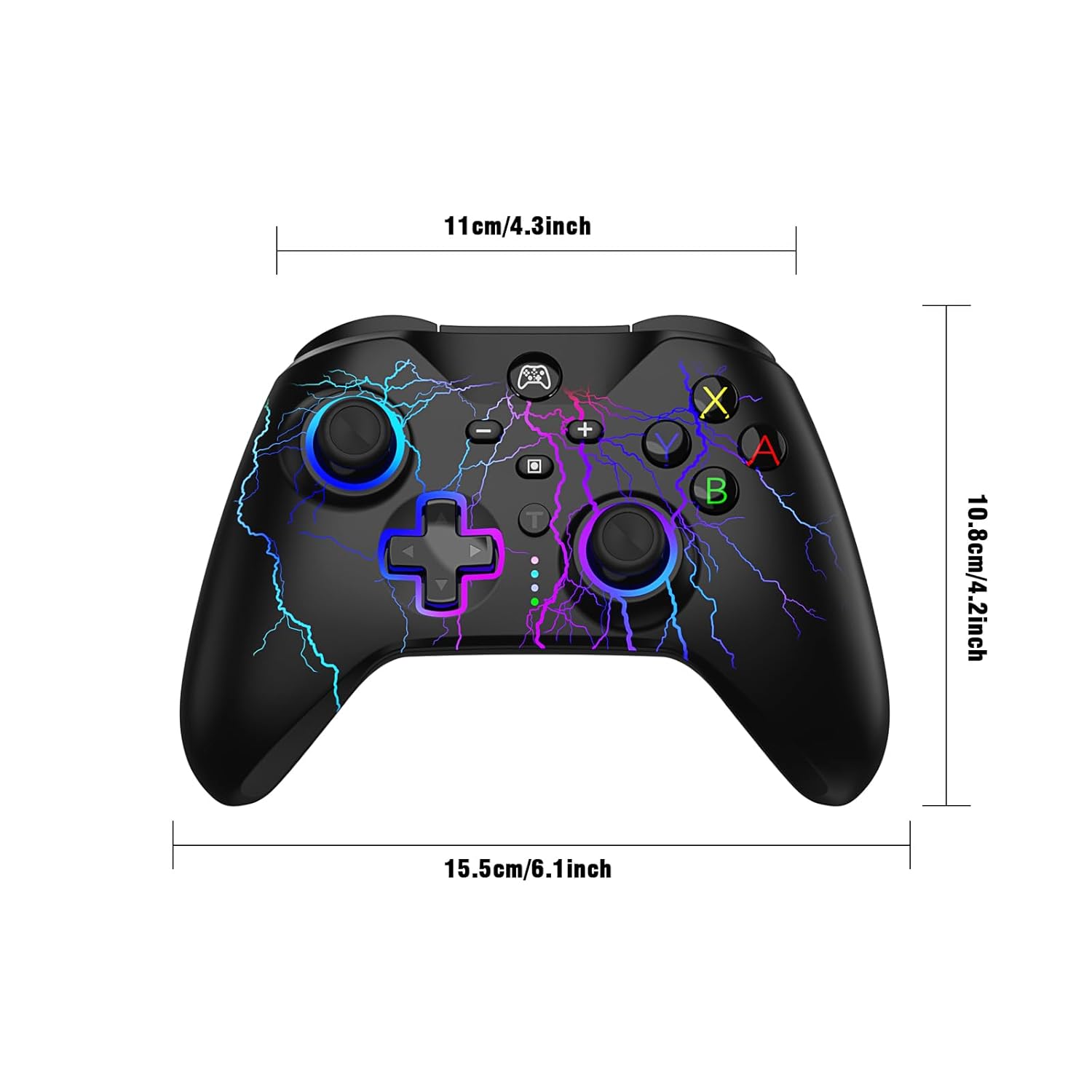
Image: YUDEG Wireless Controller with its approximate dimensions (15.5cm/6.1inch width, 10.8cm/4.2inch height, 11cm/4.3inch depth) labeled.
Warranty and Support
YUDEG products are manufactured with high-quality standards. For warranty information or technical support, please refer to the contact details provided on the product packaging or visit the official YUDEG website. Please retain your proof of purchase for warranty claims.
Related Documents - YZC-07S
 |
YZC-07S Wireless Controller Product Manual This manual provides instructions for the YZC-07S wireless controller, detailing its features, connection methods for various devices (N-Switch, PC, Android, iOS), button functions, vibration settings, back button programming, LED customization, and technical specifications. |
 |
FG-07S Bluetooth Headset User Manual User manual for the FG-07S Bluetooth headset by Shenzhen Huayitai Technology Co., Ltd. Includes instructions and compliance information. |
 |
Project EV 7KW Single Phase AC Charger User Manual: Installation & Operation Guide Comprehensive user manual for Project EV's 7KW Single Phase AC Chargers (EVA series). Covers installation, features, specifications, smart app integration (Project EV App, Electric Miles), troubleshooting, and warranty for models like EVA-07S-S, EVA-07S-SE, and EVA-07S-PE-RFID. |
 |
EXTSUD YZC-07S Game Controller - Product Manual Comprehensive product manual for the EXTSUD YZC-07S wireless gamepad controller, detailing features, connection modes for N-Switch, PC, Android, and iOS, turbo functions, vibration settings, programmable buttons, LED customization, and technical specifications. |
 |
Shenzhen Power-Tomorrow QT-07S Soil Sensor User Manual and Guide Comprehensive user manual for the Shenzhen Power-Tomorrow QT-07S Soil Sensor, detailing product features, specifications, application, setup instructions, and warranty information for smart gardening. |
 |
5-in-1 Wireless Controller for Nintendo Switch/Switch Lite User Manual Comprehensive guide for the 5-in-1 wireless controller, detailing button functions, connection methods for Nintendo Switch, PC, P3 consoles, and Android devices, turbo function, charging, sleep/wake functions, specifications, upgrade instructions, and precautions. |
Ask a question about this manual
Ask about setup, troubleshooting, compatibility, parts, safety, or missing instructions. Manuals+ will review the question and use this page’s manual context to help answer it.