
1. Introduction
This document provides detailed instructions for the setup, operation, maintenance, and troubleshooting of your Samsung 27-inch Odyssey G4 Series FHD Gaming Monitor. Please read this manual thoroughly before using the product to ensure proper functionality and to prevent damage.
The Samsung Odyssey G4 monitor is designed for high-performance gaming, featuring a 240Hz refresh rate, 1ms response time, and support for both NVIDIA G-Sync and AMD FreeSync Premium technologies. Its IPS panel delivers clear colors and wide viewing angles for an immersive visual experience.
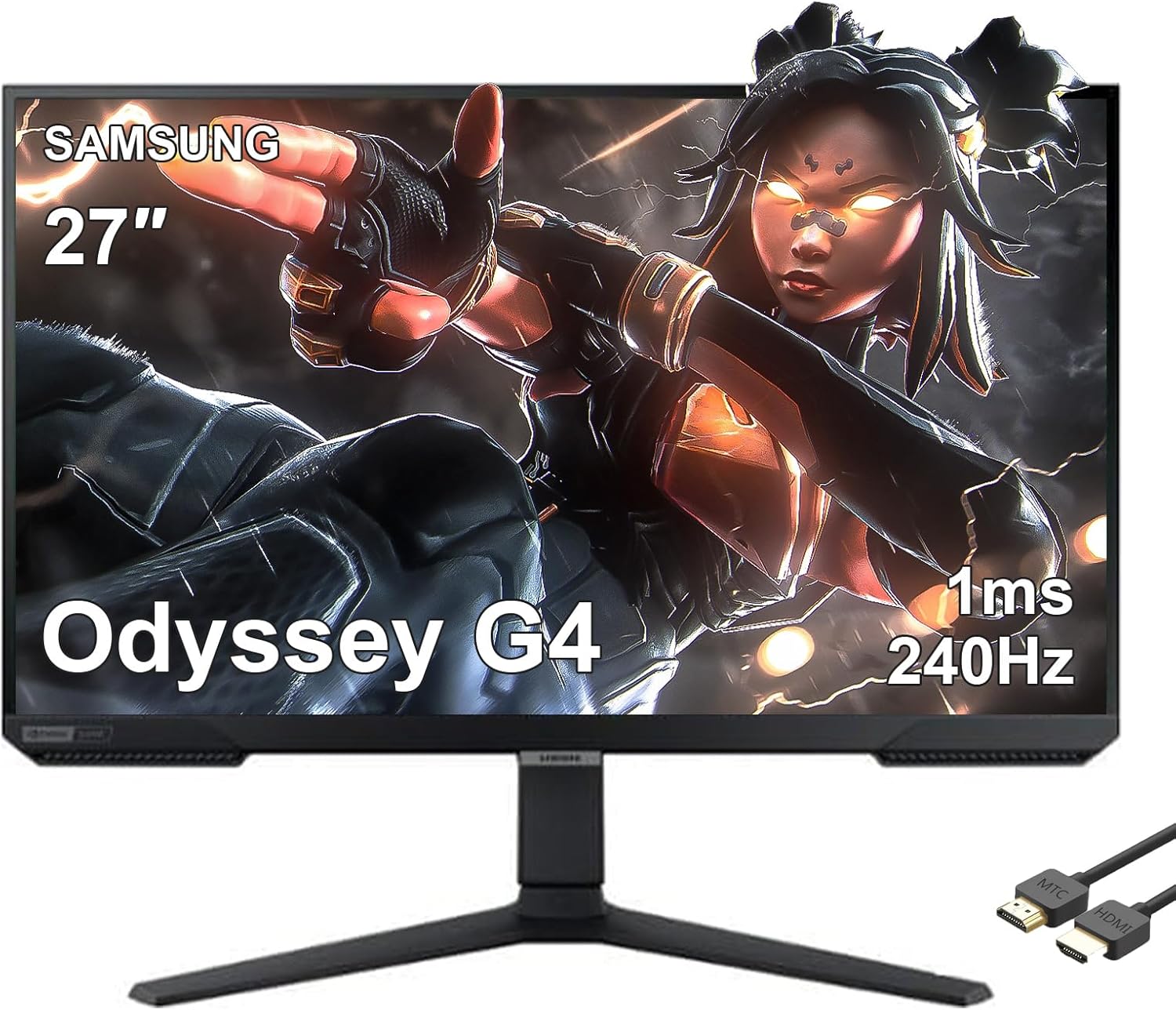
Figure 1: Front view of the Samsung 27" Odyssey G4 Gaming Monitor.
2. Product Features
- 240Hz Refresh Rate & 1ms Response Time: Provides ultra-smooth action and minimizes motion blur for fast-paced gaming.
- NVIDIA G-Sync Compatible & AMD FreeSync Premium: Synchronizes the monitor's refresh rate with your GPU's frame rate to eliminate screen tearing and stuttering.
- FHD Resolution & IPS Panel: Delivers crisp 1920 x 1080 visuals with vibrant colors and a wide 178° viewing angle.
- Ergonomic Stand: Allows for height adjustment, tilt, swivel, and pivot functionality to optimize viewing comfort.
- Auto Source Switch+: Automatically detects when connected devices are turned on and switches to the new source signal.
3. Setup
3.1 Unboxing and Stand Assembly
- Carefully remove the monitor and all components from the packaging.
- Attach the stand neck to the monitor panel. Ensure it clicks securely into place.
- Attach the stand base to the stand neck. Tighten the thumb screw located at the bottom of the base to secure it.

Figure 2: Monitor assembled on its stand.
3.2 Connecting Cables
Connect the necessary cables to the rear of the monitor. The monitor includes HDMI and DisplayPort inputs.
- Power Cable: Connect the power cable to the monitor's power input and then to a wall outlet.
- Video Cable: Connect either an HDMI cable or a DisplayPort cable from your computer or gaming console to the corresponding port on the monitor.
- Audio (Optional): If using external speakers or headphones, connect them to the headphone output port.
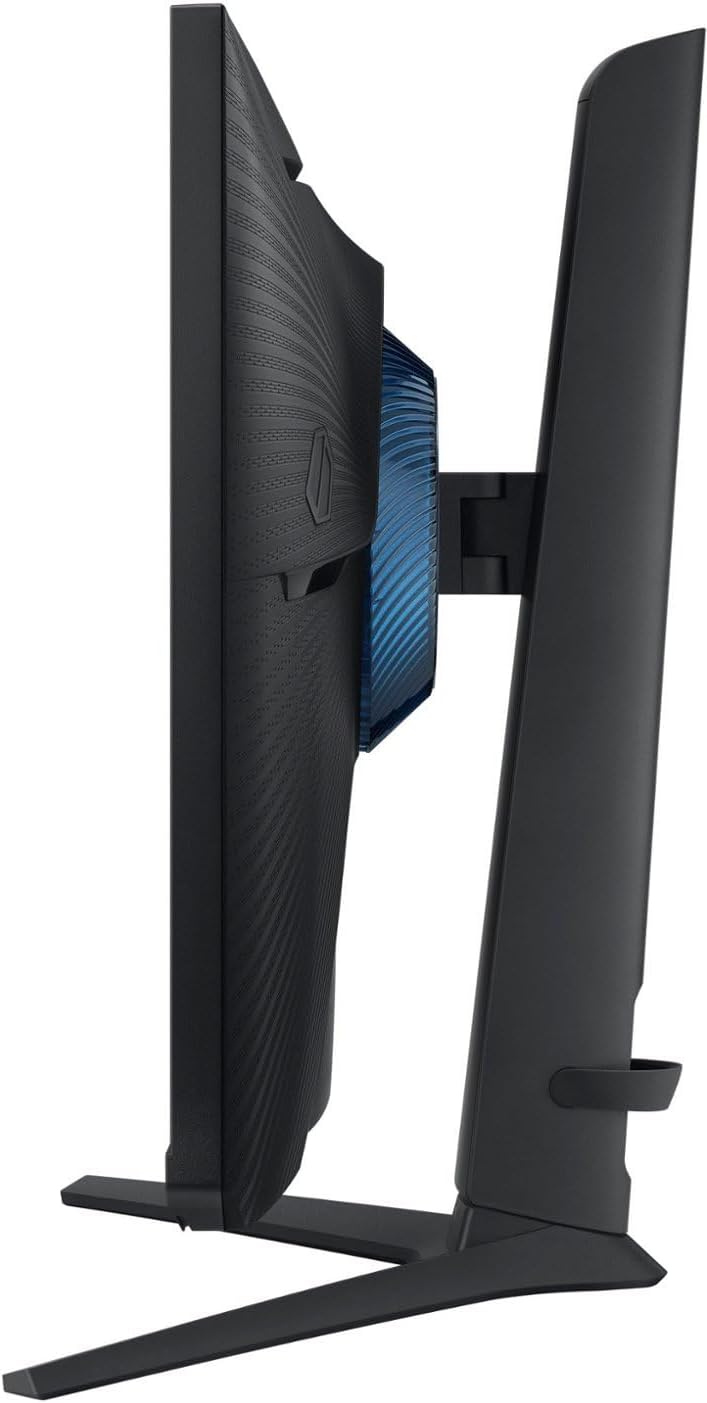
Figure 3: Rear view with input ports highlighted.
4. Operating
4.1 Power On/Off
To power on the monitor, press the joystick button located on the bottom center of the monitor. Press and hold the button to power off.
Figure 4: Joystick button for power and menu navigation.
4.2 On-Screen Display (OSD) Menu
The OSD menu allows you to adjust various monitor settings. Use the joystick button to navigate the menu:
- Press the joystick button to open the OSD menu.
- Move the joystick up/down/left/right to navigate through options.
- Press the joystick to select an option or confirm a setting.
Key OSD Menu Options:
- Game: Adjust settings like Refresh Rate, Response Time, Adaptive-Sync, Ultrawide Game View, Black Equalizer, and Virtual Aim Point.
- Picture: Control Brightness, Contrast, Sharpness, Color, and Eye Care modes.
- OnScreen Display: Configure OSD language and display time.
- System: Manage Volume, Eco Saving Plus, Off Timer Plus, PC/AV Mode, DisplayPort Version, Input Port, Auto Source Switch, and Key Repeat Time.
4.3 Ergonomic Adjustments
The monitor stand offers flexibility for optimal viewing:
- Height Adjustment: Gently push or pull the monitor up or down to your desired height.
- Tilt: Tilt the screen forward or backward to adjust the vertical viewing angle.
- Swivel: Rotate the monitor left or right on its base.
- Pivot: Rotate the screen 90 degrees to switch between landscape and portrait orientation.

Figure 5: Monitor demonstrating tilt and pivot capabilities.
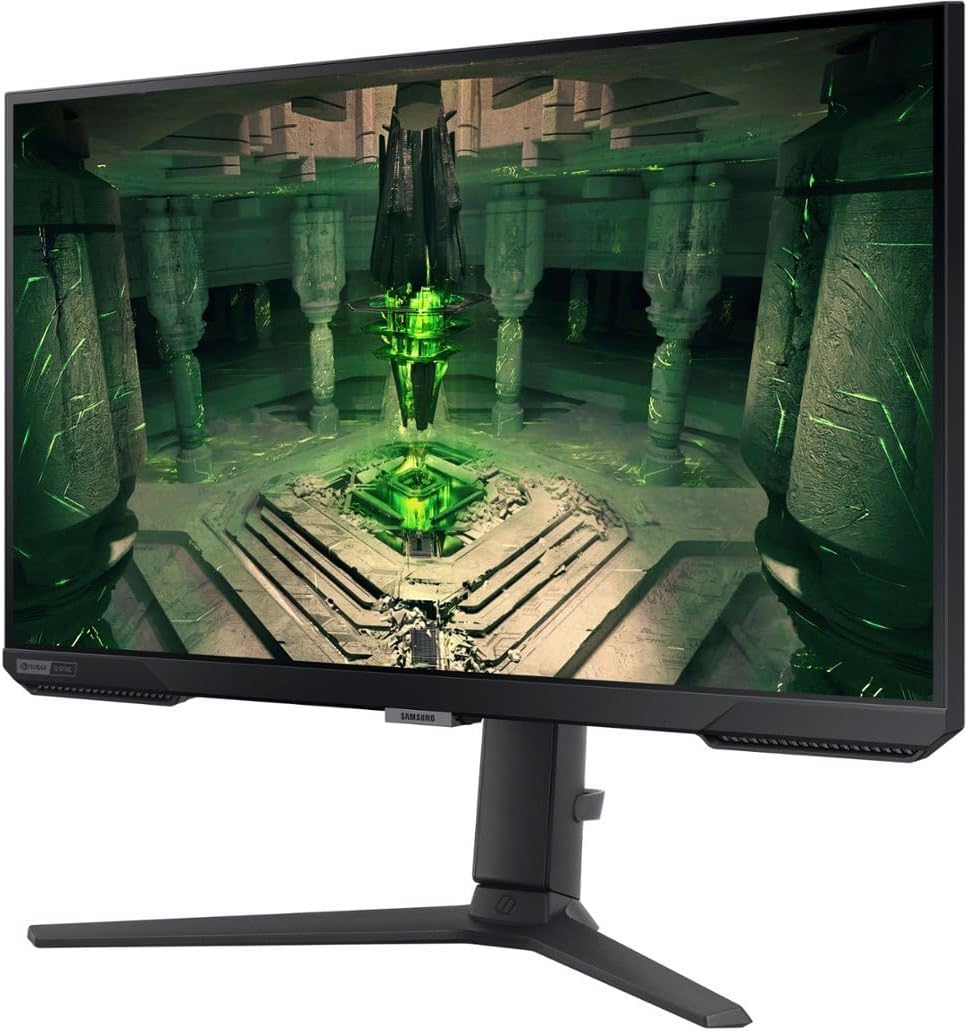
Figure 6: Monitor demonstrating height adjustment.
5. Maintenance
To ensure the longevity and optimal performance of your monitor, follow these maintenance guidelines:
- Cleaning the Screen: Gently wipe the screen with a soft, lint-free cloth. For stubborn marks, lightly dampen the cloth with water or a specialized screen cleaner. Avoid harsh chemicals or abrasive materials.
- Cleaning the Casing: Use a soft, dry cloth to wipe the monitor's casing.
- Ventilation: Ensure the monitor's ventilation openings are not blocked to prevent overheating.
- Power Off When Not in Use: Turn off the monitor when not in use to conserve energy and extend its lifespan.
6. Troubleshooting
If you encounter issues with your monitor, refer to the following common troubleshooting steps:
- No Power: Check if the power cable is securely connected to both the monitor and the power outlet. Ensure the power outlet is functional.
- No Signal/Black Screen: Verify that the video cable (HDMI or DisplayPort) is securely connected to both the monitor and your computer/console. Ensure the correct input source is selected in the OSD menu.
- Image Distortion/Flickering: Check the video cable for damage. Ensure your graphics card drivers are up to date. Adjust the refresh rate or Adaptive-Sync settings in the OSD menu or your system's display settings.
- Color Issues: Reset picture settings to default in the OSD menu. Check your graphics card color settings.
- Stand Stability: Ensure all stand components are correctly assembled and tightened.
For persistent issues, consult the Samsung support website or contact customer service.
7. Specifications
| Feature | Specification |
|---|---|
| Brand | Samsung |
| Model Number | Odyssey G4 |
| Screen Size | 27 Inches |
| Resolution | FHD 1080p (1920 x 1080) |
| Aspect Ratio | 16:9 |
| Refresh Rate | 240Hz |
| Response Time | 1ms (GTG) |
| Panel Type | IPS |
| Brightness | 400 cd/m2 |
| Adaptive Sync | NVIDIA G-Sync Compatible, AMD FreeSync Premium |
| Product Dimensions (W x H x D) | 24.2 x 22.5 x 9.6 inches (with stand) |
| Item Weight | 14 pounds |
| Connectivity | DisplayPort, HDMI |

Figure 7: Product dimensions.
8. Warranty and Support
For detailed warranty information and technical support, please refer to the warranty card included with your product or visit the official Samsung support website. You may also find additional resources and FAQs there.
Please retain your proof of purchase for any warranty claims.