
SV3C A02
SV3C 4K POE Security Camera Outdoor User Manual
Model: A02-2
Introduction
The SV3C 4K POE Security Camera (Model A02-2) is an advanced surveillance solution designed for both indoor and outdoor use. This manual provides detailed instructions for setting up, operating, and maintaining your camera to ensure optimal performance and security.
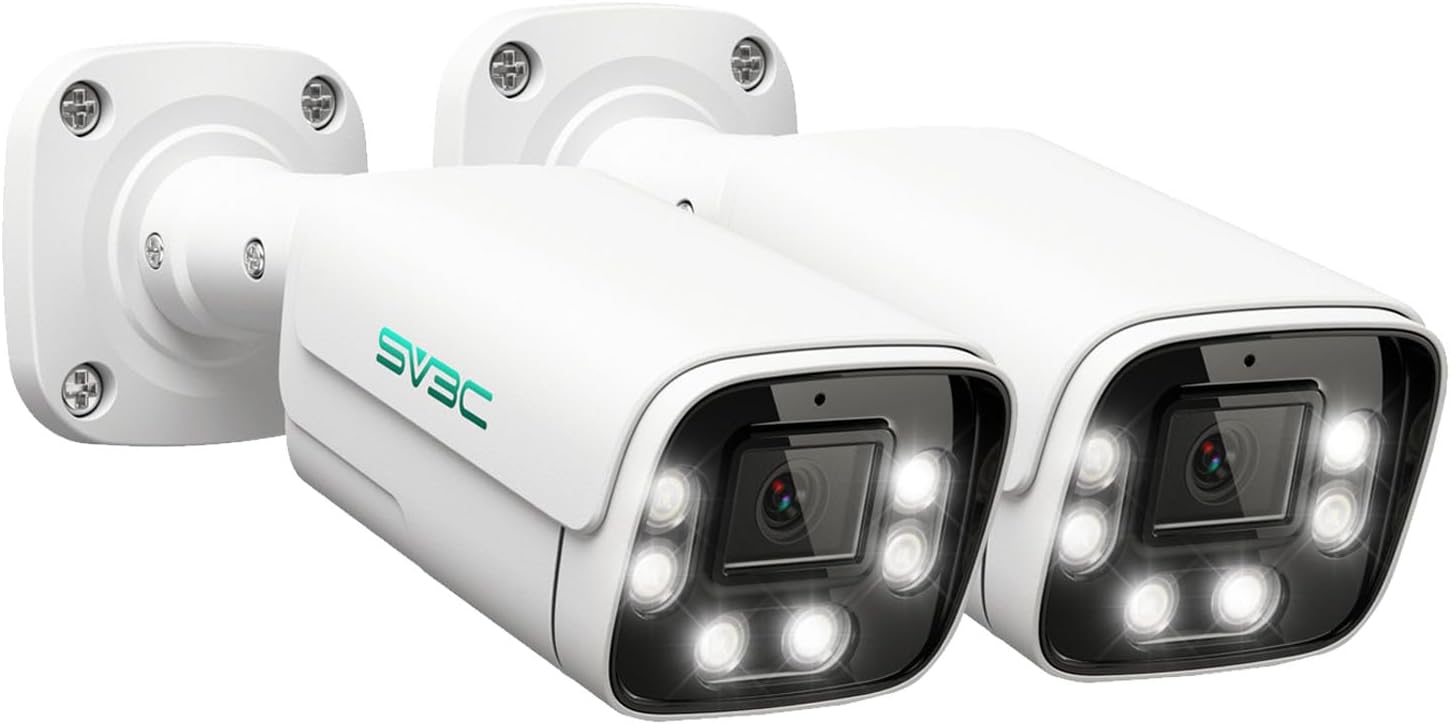
Image: Two SV3C 4K POE Security Cameras, showcasing their design and form factor.
What's in the Box
Please verify that all components are present before proceeding with installation:
- POE Cameras (2 Pack)
- Network Cable
- Power adapter (for non-POE setup or testing)
- Screws for mounting
- Waterproof lid for cable connections
- Instruction Manual (this document)
Key Features
4K Ultra HD Image & 120° Wide Angle
Experience crystal-clear surveillance with 4K (8MP) resolution, providing nearly four times the clarity of 1080p. The 120° wide-angle lens ensures a broad field of view, capturing more details of your property.

Image: A wide-angle view from the camera, demonstrating 4K resolution and 120-degree coverage of a residential area.
Smart Motion Detection & Timely Alert
The camera features intelligent detection settings for humans, vehicles, day, and night, significantly reducing false alarms. Customize detection areas and sensitivity. Upon detection, receive instant alerts via the Videolink app push, email, or a speaker alarm.

Image: Visual representation of smart motion detection, highlighting human and vehicle detection capabilities around a property.
3 Modes Night Vision & 2-Way Audio
Choose from Infrared Mode for discreet monitoring, White Light Mode for full-color night vision, or Intelligent Mode which activates white light upon motion detection. The built-in microphone and speaker enable clear two-way audio communication, allowing you to speak with visitors or deter intruders.

Image: Demonstrates the three night vision modes: infrared (black and white), white light (full color), and intelligent dual-mode (activates white light on motion).

Image: Illustrates the two-way audio function, showing a user communicating with a delivery person via the camera's app.
Onvif Conformant & RTSP Support
Our 4K POE camera is Onvif Conformant, ensuring compatibility with most third-party Onvif Conformant software and Network Video Recorders (NVRs). It also supports RTSP (Real-Time Streaming Protocol), allowing direct access to the camera's video streams via RTSP URLs (Main stream: rtsp://admin:PW@IP/stream0; Sub stream: rtsp://admin:PW@IP/stream1).
Multiple Recording Methods & Device Support
The camera supports various recording options, including up to 256GB SD card storage for 24/7 recording and alarm-triggered recording. NVR and cloud storage options are also available. Access your camera feed and recordings from mobile phones, PCs, and iPads.

Image: Depicts the flexible recording solutions: local Micro SD card, integration with NVR systems, and cloud storage.
Powered Over Ethernet (POE)
As a POE IP camera, it receives both power and data through a single Ethernet cable, simplifying installation and providing a more stable network connection with less signal loss and disruption. This offers a convenient plug-and-play solution.

Image: A simplified diagram showing how Power over Ethernet (POE) connects the camera to a network and power source.
All-Metal Shell & IP67 Weatherproof
Constructed with a durable all-aluminum casing, the camera offers excellent oxidation and corrosion resistance. Its IP67 weatherproof rating ensures reliable outdoor performance in various environmental conditions.

Image: Close-up of the camera with water droplets, visually confirming its IP67 weatherproof design.
Specifications
| Attribute | Value |
|---|---|
| Model Name | A02 |
| Indoor/Outdoor Usage | Indoor, Outdoor |
| Compatible Devices | Smartphone, Desktop, Laptop, iPad |
| Power Source | Corded Electric |
| Connectivity Protocol | Ethernet |
| Mounting Type | Wall Mount |
| Video Capture Resolution | 4K (8MP) |
| Color | A02-2 |
| Material | Aluminum |
| Wireless Communication Technology | POE |
| Viewing Angle | 120 Degrees |
| Frame Rate | 4K@20fps |
| Water Resistance Level | IP67 Weatherproof |
| Item Dimensions L x W x H | 7.08 x 2.68 x 2.36 inches |
| Item Weight | 2.64 pounds |

Image: An exploded view diagram highlighting key components such as the metal base, aluminum shell, IR/floodlights, lens, speaker, microphone, SD card slot, power port, RJ45 Ethernet port, and reset button, along with dimensions.
Setup Guide
1. Planning Your Installation
Before mounting, identify optimal locations for your cameras. Consider areas that provide a clear, unobstructed view of the desired surveillance zone, are within reach of an Ethernet cable run, and offer protection from direct impact if possible. The camera's 120° wide angle and IP67 weatherproof rating allow for flexible placement.
2. POE Connection
The SV3C 4K POE camera simplifies installation by using Power over Ethernet (POE). This means a single Ethernet cable provides both power and data connectivity.
- Connect one end of the Ethernet cable to the camera's RJ45 Ethernet port. Ensure the waterproof lid is properly installed over the connection for outdoor use.
- Connect the other end of the Ethernet cable to a POE-enabled switch, POE NVR, or a POE injector.
- If you are not using POE, connect the included power adapter to the camera's 12V DC power input and plug it into a power outlet. Then, connect a standard Ethernet cable from the camera to your router or NVR.
Image: A visual guide to connecting the camera using a POE switch or NVR, illustrating the single cable solution for power and data.
3. Physical Mounting
Use the provided screws to securely mount the camera to a wall or ceiling. The camera's adjustable bracket allows for 360° rotation and 180° tilt to achieve the desired viewing angle.

Image: Illustrates the camera's flexible mounting bracket, allowing for precise adjustment of the viewing angle with 360-degree rotation and 180-degree tilt.
4. Initial Configuration
Once powered, the camera will boot up. You can access the camera's live feed and settings via the Videolink app on your smartphone/tablet or through a web browser on your PC. Refer to the separate "Videolink App Guide" or "PC Client Software Guide" for detailed software setup and configuration steps, including setting up network parameters, user accounts, and recording schedules.
Operating Instructions
Live View and Playback
Access the live video feed from your camera using the Videolink app on your mobile device or the PC client software. From the interface, you can switch between cameras (if you have multiple), take snapshots, manually record, and access recorded footage for playback.

Image: A smartphone displaying a human detection alert and the live camera feed, demonstrating real-time monitoring.
Configuring Motion Detection
To optimize motion detection and minimize false alarms:
- Navigate to the "Detection Settings" in the camera's software/app.
- Enable Human/Vehicle/Day/Night smart detection as needed.
- Define specific detection zones to focus on critical areas and exclude irrelevant ones (e.g., public roads).
- Adjust sensitivity levels to suit your environment. Higher sensitivity detects smaller movements but may increase false alarms.
- Set up alert actions: app push notifications, email alerts, or audible siren activation.
Night Vision Modes
The camera offers three night vision modes:
- Infrared Mode: Provides clear black and white images in low light using IR LEDs.
- White Light Mode: Activates built-in floodlights for full-color night vision. This can also act as a deterrent.
- Intelligent Mode: Operates in Infrared Mode normally, but automatically switches to White Light Mode and records in color when motion is detected. You can customize the lighting on/off schedule.

Image: A user interface screenshot showing options to customize night vision lighting, including auto mode and timed schedules for white light activation.
Two-Way Audio
To use the two-way audio feature, simply tap the microphone icon in the live view interface of the app or software. Speak into your device's microphone to transmit audio through the camera's speaker. Tap the speaker icon to listen to audio from the camera's microphone.
Recording and Storage
The camera supports several recording methods:
- SD Card Recording: Insert a Micro SD card (up to 256GB, not included) into the camera's SD card slot. Configure continuous 24/7 recording or event-triggered recording (e.g., motion detection).
- NVR Recording: Connect the camera to a compatible Onvif Conformant NVR for centralized recording and management.
- Cloud Storage: Utilize optional cloud storage services (subscription may be required) for off-site backup of your recordings.

Image: A smartphone screen displaying a video playback timeline, indicating recorded motion events for easy review.
Maintenance
- Lens Cleaning: Regularly clean the camera lens with a soft, lint-free cloth to ensure clear image quality. Avoid abrasive cleaners.
- Housing Inspection: Periodically check the camera's aluminum casing for any signs of damage or corrosion.
- Cable Connections: Ensure all cable connections, especially the Ethernet and power connections, are secure and the waterproof lid is properly sealed for outdoor installations.
- Firmware Updates: Check the SV3C official website or app for available firmware updates to ensure your camera has the latest features and security enhancements.
Troubleshooting
No Image/Offline Camera
- Check Power: Ensure the camera is receiving power, either via POE from your switch/NVR or from the dedicated power adapter. Check power indicators on your POE device.
- Check Network Cable: Verify the Ethernet cable is securely connected at both ends and is not damaged. Try a different cable if possible.
- Network Connectivity: Ensure your network (router, switch, NVR) is functioning correctly and has internet access if you are trying to view remotely.
- IP Address Conflict: If manually configured, ensure the camera's IP address does not conflict with other devices on your network.
- Reboot: Power cycle the camera and your network equipment (router, POE switch/NVR).
Poor Image Quality
- Clean Lens: Dust or smudges on the lens can significantly degrade image quality. Clean it gently with a soft cloth.
- Resolution Settings: Ensure the camera's resolution is set to 4K (8MP) in the software/app settings.
- Lighting: Check for strong backlighting or insufficient lighting in the scene. Adjust camera position or add supplementary lighting if needed.
- Night Vision Issues: If night vision is poor, ensure the IR/white lights are not obstructed and are functioning. Check night vision mode settings.
Excessive False Alarms
- Adjust Sensitivity: Lower the motion detection sensitivity in the camera settings.
- Refine Detection Zones: Exclude areas with frequent irrelevant motion (e.g., trees swaying, busy roads, reflections).
- Smart Detection: Ensure Human/Vehicle detection is enabled if you only want alerts for these specific types of motion.
Audio Issues
- Volume Levels: Check volume settings on your viewing device and within the camera's software.
- Microphone/Speaker Obstruction: Ensure the camera's microphone and speaker are not blocked.
- Network Bandwidth: Insufficient bandwidth can affect audio quality.
Warranty and Support
For any questions, technical assistance, or warranty inquiries regarding your SV3C POE Security Camera, please contact SV3C customer support directly through your Amazon order or visit the official SV3C website for contact information. Please have your product model number (A02-2) and purchase details ready when contacting support.
SV3C Store Link: Visit the SV3C Store on Amazon
Related documentsA02

Ask a question about this manual
Ask about setup, troubleshooting, compatibility, parts, safety, or missing instructions. Manuals+ will review the question and use this page’s manual context to help answer it.