
Introduction
This manual provides detailed instructions for the XTU 4K 64MP Solar Trail Camera (Model XTU-TCQSW). Designed for robust outdoor use, this camera is equipped with advanced features for capturing high-quality photos and videos of wildlife. Please read this manual carefully to ensure correct setup and operation.
What's in the Box
- Trail Camera x 1
- 32GB SD Card x 1
- Mounting Strap x 1
- USB-C Cable x 1
- Mounting Bracket x 1
- Metal Base x 1
- Hex Key x 1
- Screws x 4
- Plastic Anchors x 4
- User Manual x 1

Image: All items included in the XTU 4K 64MP Solar Trail Camera package.
Product Features
- Infrared Night Vision: Equipped with 2x850nm IR LEDs, the camera captures clear wildlife footage up to 65 ft in total darkness without disturbing animals.
- Fast 0.2s Trigger: A rapid 0.2s trigger speed and 70 ft detection range minimize missed shots, ideal for capturing fast-moving subjects.
- 4K Video & 64MP Photos: Delivers crisp 4K video and high-resolution 64MP photos with enhanced low-light tuning for clear images and videos.
- Local WiFi App Viewing: Connects to the “TrailCamGO” app via local WiFi hotspot (up to 49 ft) for on-site footage viewing and downloading without monthly fees.
- Reliable Solar + Flexible Backup Power: Features an internal rechargeable battery, solar charging, USB-C recharge option, DC 6V input, and support for 4xAA backup batteries (not included).
- IP66 All-Weather Protection: Rugged, waterproof housing ensures durability in rain, snow, and heat.
- Smart Capture & Monitoring Modes: High-sensitivity PIR motion detection with adjustable range, ultra-fast trigger speed, intelligent false-trigger filtering, 1–5 adjustable burst mode, customizable trigger intervals, scheduled recording, and Time-Lapse video.
Setup
Quick Start Guide
- Insert the provided 32GB SD card.
- Switch the camera to "TEST" position.
- If the camera does not respond, insert 4 AA batteries or use a 5V/2A USB-C power cord to charge the camera for 8 hours.
- Click the "MENU" button to enter the setting mode. It is recommended to set the mode: motion detection, work time: OFF, photo/video resolution: select according to your needs, the recording duration, and adjust the detection delay duration, turn on the motion detection filter function, Time/Date and so on.
- Find "Memory Card Format" to format the SD card before using it.
- After the settings are completed, turn the camera to the "ON" button, the screen will automatically turn off, the buttons will become invalid, and the camera will enter surveillance mode. Once an animal is recognized, the PIR will be triggered and photos/videos will be automatically taken.
Power Options
The camera offers flexible power options:
- Main Power Supply: An internal 18650 lithium battery (2600mAh) charged via the camera's solar panel or USB-C port.
- Backup Battery Pack: Uses 4 AA batteries (1.5V recommended, 1.2V not supported).
- External Power Supply: DC 6V/1.5A power supply via an external interface (power plug size: 3.5x1.35mm).

Image: The XTU Solar Trail Camera highlighting its various power options: solar panel, 4xAA batteries (not included), USB-C recharge port, and DC power input (not included).
Video: A seller-provided guide demonstrating how to set up the trail camera settings, including power options.
Important Notes for Power:
- For optimal use, charge the lithium battery pack before use via USB-C (5V/2A).
- Do not mix old and new AA batteries. Do not use rechargeable lithium or NiMH batteries.
- Only 1.5V AA batteries are supported. 1.2V batteries are not supported.
- The camera will only charge the internal battery when the switch is in the "TEST" position.
App Connection & Usage
The XTU Trail Camera features local WiFi and Bluetooth connectivity for convenient management via the "TrailCamGO" app.
APP Installation
Before using the WiFi function, install the "TrailCamGO" app from Google Play/APP Store on your Android or iPhone device, or scan the QR codes below:

Android
iOS
Image: QR codes for downloading the "TrailCamGO" app for Android and iOS devices.
Preparation Before Use
- Ensure the camera is turned on (TEST/ON mode).
- Turn on your phone's Bluetooth and WiFi functions.
- When running the app for the first time, allow all system permissions.
Adding a New Camera
- In the "My Devices" interface, click the "+" button in the upper right corner.
- Select "Wi-Fi Camera" in the next interface.
- Ensure the camera is turned on, then click "Next".
- The app will display discovered devices. Click "connect camera".
- During connection, a system prompt will ask to connect to the camera's hotspot. Choose "Yes" or "Join".
- After successful connection, you can set an alias (name) for your camera.
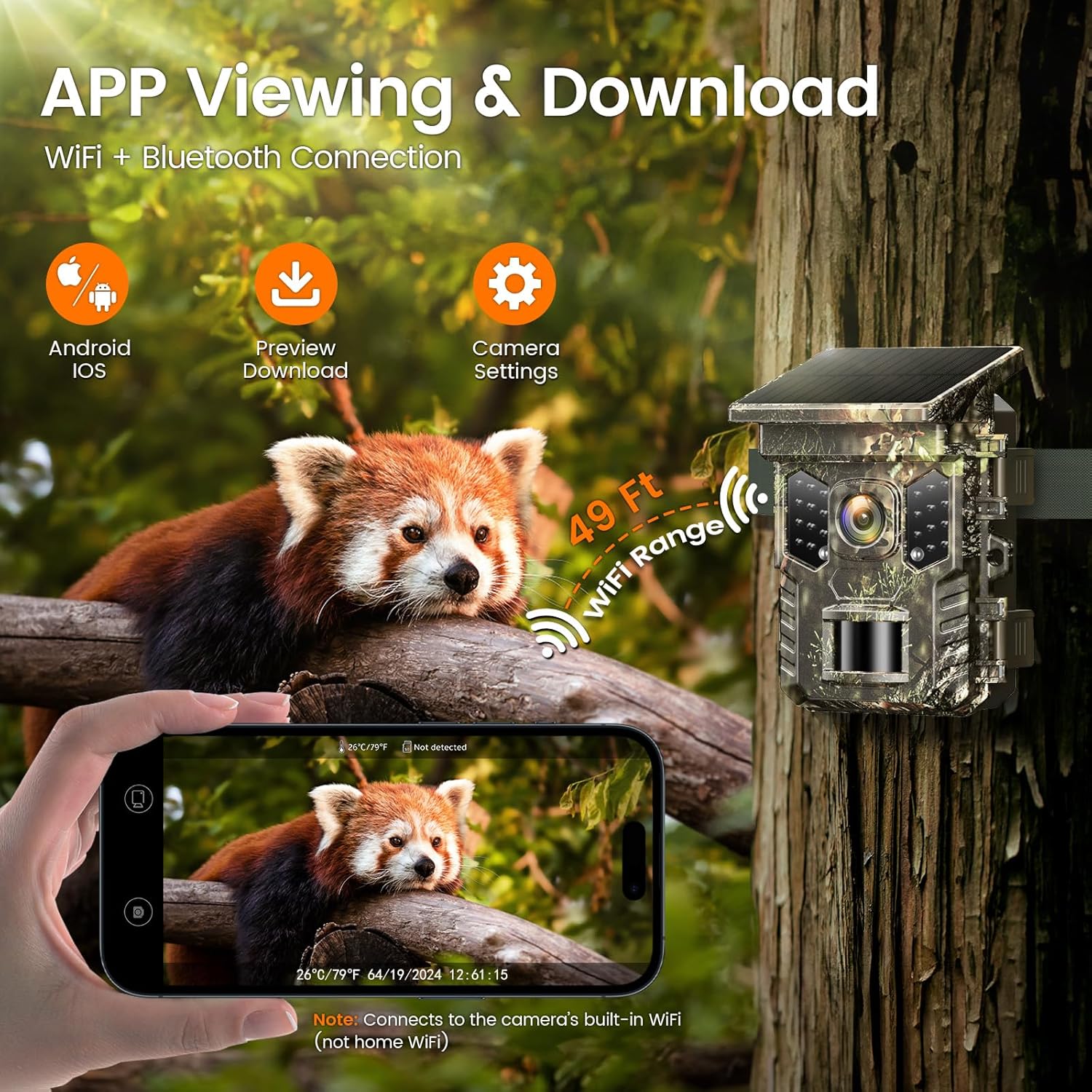
Image: A smartphone displaying the "TrailCamGO" app interface, showing live viewing and download options for the XTU Solar Trail Camera.
Video: A seller-provided guide demonstrating the Wildlife Camera Setup, including app connection steps.
Operating Modes & Settings
The camera features various modes and settings to customize its operation.
Power Switch (ON/TEST/OFF)
- ON: Monitor mode. The camera enters low power standby. The screen turns off, buttons are disabled. It only reacts to the PIR sensor. When an animal is detected, the camera takes photos or videos and returns to standby.
- TEST: In this mode, the camera screen turns on, allowing manual recording, photo taking, file viewing, or setting changes. The PIR sensor is on, and the PIR indicator light flashes when triggered.
- OFF: The camera is completely switched off. Only in this mode can you remove the memory card and replace batteries.
Mode Setting
- Motion Detection: In standby mode (ON mode), the camera starts shooting or recording moving objects through PIR detection.
- Timelapse Normal: Takes photos/videos/photo + video according to the "Photo or video" setting in the time interval you set in ON mode.
- Timelapse Video: Takes photos at set intervals, which are then formed into a video.
Work Time Setting
If the function is turned off, the device will work 24 hours a day by default. If it is turned on, the camera will operate according to the set time. If the start time is earlier than the current time, the schedule will take effect the next day; if the start time is later than the current time, it will take effect the same day.
Browsing Videos and Photos
- Slide the switch to "TEST" position (The screen is on).
- Press "PLAY" Key to enter the picture or video interface.
- Press ▲ Key and ▼ Key to select the photo or video to preview.
- When playing a video, press the "OK" button to play or pause, press the "MENU" button to exit the video playback.
- Press "PLAY" Key to exit.
Video: A seller-provided overview of the XTU 64MP 4K WiFi Trail Camera, showcasing its night vision and motion-activated features.
PIR Sensor & Motion Detection
The PIR sensor is crucial for motion-activated recording.
- PIR Sensitivity: The sensitivity of the PIR sensor is affected by ambient temperature. Use "High" setting for high temperatures (summer) to capture distant animals, and "Medium"/"Low" for cold weather.
- Motion Filter: If the recording duration has not ended and there are no moving objects, the recording will end early. This helps reduce unnecessary recording.
- PIR Test: You can test the PIR function by waving your hand in front of the sensor. A red light will flash, and the menu page will display the number of triggers.
Note: If the "Timing" and "Time-lapse" functions are turned on, the PIR will not work.

Image: Demonstrates the camera's clear night vision capabilities, showing optimal results with IR light compared to too dark or overexposed conditions.
Video & Photo Resolution
- Photo Resolution: Select the desired photo resolution. Higher resolution results in better quality but larger file sizes. Effective still resolution is 64 MP.
- Video Resolution: Higher video resolution provides better quality but larger file sizes. Video capture resolution is 4K.
- Photo Burst (Continuous Shooting): Set the number of photos taken in sequence (1-5) each time the camera enters standby mode.
- Video Length (Recording Duration): Set the video duration. It is best to set the video length within 10s to save battery and memory.

Image: Comparison showing the superior detail of XTU's 4K/64MP capture versus typical 1080P/20MP cameras.
Memory Card Management
- Loop Record: When turned on, the SD card will record in a loop, automatically overwriting the oldest video when the card is full.
- Memory Card Format: When using the SD card for the first time, please format it. Formatting deletes all data, so back up important data in advance. The camera supports up to 256GB Micro SD cards.
Mounting & Placement
- Position the Wildlife Camera as desired and pull the loose end of the securing strap tight until the camera is firmly secured.
- Mount the camera about 0.5-2m (1.6-6.5 ft) high with the camera pointed at a slight downward angle.
- Install the camera in a location where sunlight can directly hit the solar panel to ensure the built-in lithium battery is well charged.
- Keep the camera facing north or south, NOT east or west, to avoid false triggers and overexposed images due to sunrise and sunset.
- Clear all obstructions in front of the camera lens or PIR sensor to avoid obscuring.

Image: The XTU Solar Trail Camera securely mounted on a tree using the provided strap.
Product Maintenance
- Keep the lens and PIR and IR light sensors clean. If dirty, wipe with glasses cloth and alcohol. Do not touch the lens, the PIR with your hands or sharp objects.
- Keep the battery compartment closed and clean to ensure good dustproof and waterproof performance.
- If the performance of the external alkaline battery is low, remove and replace the battery in time to prevent battery electrolyte leakage.
- If the camera is not used for a long time, remove the AA alkaline batteries and SD card. It is recommended to charge the lithium battery every three months and clean the surface of the solar panel regularly.
Troubleshooting (Frequently Asked Questions)
Q: The camera did not detect object movement in ON mode?
A: Please check the following details:
- Is the motion detection mode turned on? Have you set the working hours of the camera?
- Enter the camera's system menu -PIR test function. Move your hand in front of the camera lens to see if there is a red light flashing and whether the menu page displays the number of triggers. If both are present, it means that the PIR function is effective.
- Is the camera hung at a height of 1.5-2m? The camera is pointed at a slightly downward angle. PIR cannot be triggered if the height is too low or the angle is horizontal.
- The effective distance of monitoring cannot exceed 22-25m. Moving objects that are too small may not be detected. For example, a rabbit or mouse 20 meters away may not trigger the PIR.
- The lens protective film and PIR film must be removed, otherwise it will affect the triggering.
Technical Specifications
| Name | Value |
|---|---|
| Display Screen | 2.0" Inch |
| Number of IR LED | 22PCS 850nm Infrared LEDs |
| Lens | F=6.0mm, F/NO=2.0, FOV=72° |
| Bluetooth & WiFi Effective Distance | 20 meters |
| Image Sensor Type | 2MP CMOS sensor |
| Image Resolution | 64/32/24/20/16/8/4/2MP |
| Video Resolution | 4K/2.7K/1080P/720P/30FPS |
| Trigger Speed | 0.2 second |
| PIR Sensor Angle | 90° |
| PIR Sensing Distance | 70ft/21 meters |
| Micro SD Card | Up to 256GB |
| Stand-by Current | Less 0.2mA |
| Operation Temperature | -15 ~ 60°C |
| Solar Panel Battery Capacity | 2600mAh |
| Power Supply | 4PCS AA battery / 1PCS 18650 battery / DC 6V-1.5A |
| Waterproof | IP66 |
Warranty & Support
The XTU 4K 64MP Solar Trail Camera comes with a 1-year manufacturer warranty. For any technical assistance or inquiries, please contact customer service at support@xtucam.com. You can also visit the official website: www.xtucam.com.