
laiyonggr laiyong1987 (S60 V60 Model A)
Fitcamx 4K Dash Camera User Manual
Model: laiyong1987 (S60 V60 Model A)
1. Introduction
This manual provides detailed instructions for the installation, operation, and maintenance of your Fitcamx 4K Dash Camera. Please read this manual thoroughly before using the product to ensure proper function and safety.
Product Overview
The Fitcamx 4K Dash Camera is designed to seamlessly integrate into your vehicle, offering high-resolution video recording and advanced features for driving safety and security. Key features include:
- 4K UHD Video Recording: Captures clear video up to 2160P resolution with an advanced Novatek chip and f/1.6 large aperture lens.
- Superior Night Vision: Enhanced low-light performance for clear recordings even at night, capturing details like license plates and road signs.
- Seamless Integration: Designed to replace the original rearview mirror cover for a factory-fitted appearance.
- Plug and Play Installation: No damage installation, powered directly from the auto-dimming rearview mirror.
- Loop Recording: Automatically overwrites older footage when the memory card is full, ensuring continuous recording.
- G-Sensor: Detects sudden collisions, automatically saving and locking relevant footage to prevent overwriting.
- Parking Monitoring: Records video when parked to capture potential incidents or collisions.
- Instant Video Playback: Allows immediate review of recorded footage.

Image: Overview of Fitcamx Dash Camera features.
2. Compatibility
This Fitcamx Dash Camera (Model A) is specifically designed for the following Volvo S60 and V60 models:
- Volvo S60/V60: Model Years 2019-2022
Please refer to the compatibility chart below to confirm your vehicle's model and year.

Image: Detailed compatibility chart for Fitcamx Dash Camera across different Volvo and Polestar models and model years.
3. What's in the Box?
Before beginning installation, please verify that all components are present:
- 1 × Fitcamx Dash Camera
- 1 × Memory Card (64GB)
- 1 × Front Camera Cable
- 1 × Disassembly Tool
- 1 × User Manual (this document)
4. Setup and Installation
The Fitcamx Dash Camera is designed for a "plug and play" installation, requiring no damage to your vehicle's existing wiring. It is powered by the auto-dimming rearview mirror.
Installation Steps:
- Prepare the Area: Ensure your vehicle is turned off. Carefully locate the original rearview mirror cover.
- Remove Original Cover: Use the provided disassembly tool to gently pry off the original rearview mirror cover. Refer to the image below for guidance.
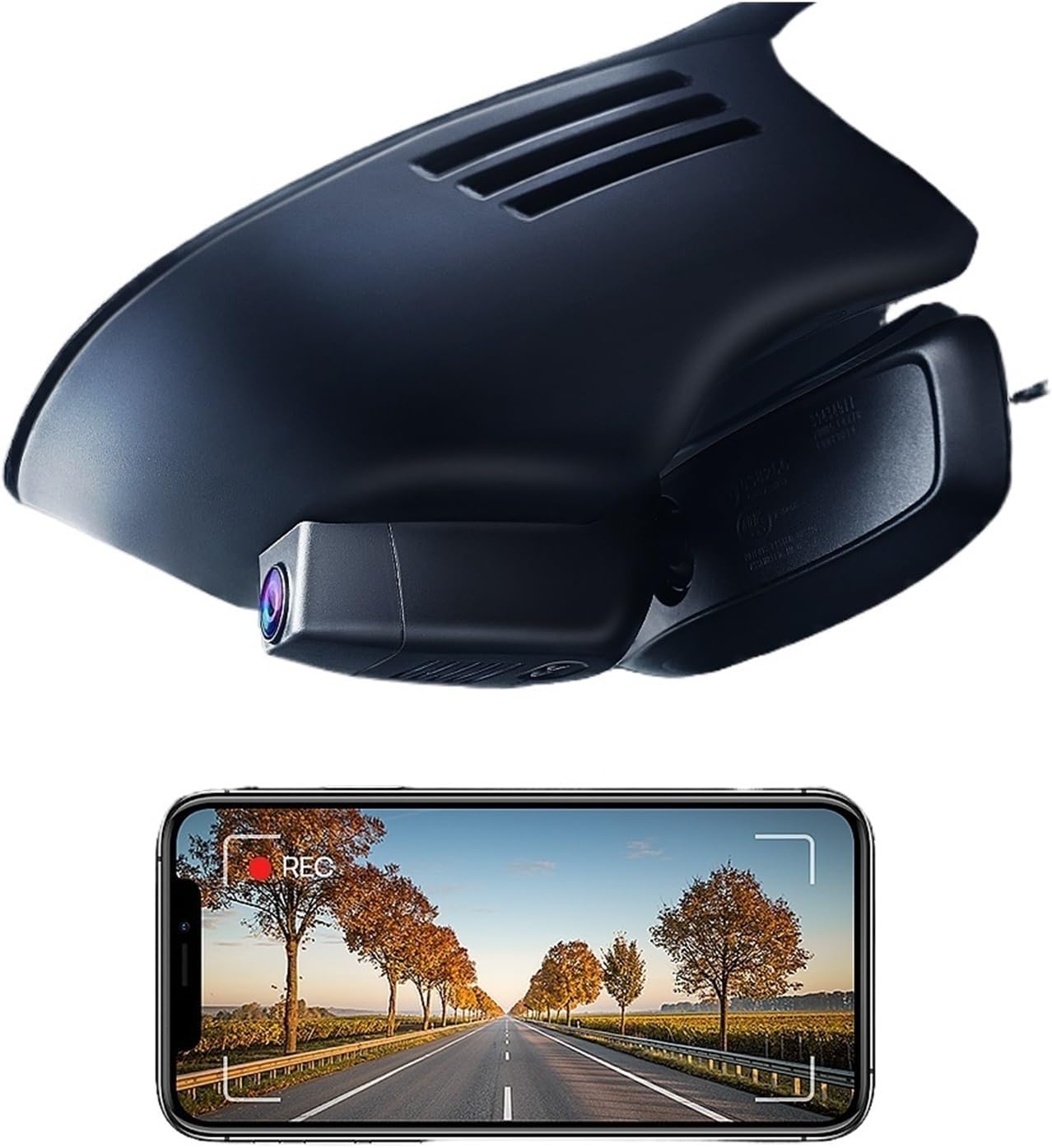
Image: The original rearview mirror cover before removal.
- Connect the Dash Camera: Connect the front camera cable to the Fitcamx Dash Camera. The camera is designed to fit precisely where the original cover was.
- Install the Dash Camera: Align the Fitcamx Dash Camera with the mounting points and firmly press it into place until it clicks securely. Ensure all cables are neatly tucked away.

Image: The Fitcamx Dash Camera seamlessly installed, replacing the original cover.
- Final Check: Once installed, the dash camera should blend seamlessly with your vehicle's interior, appearing as an original accessory.
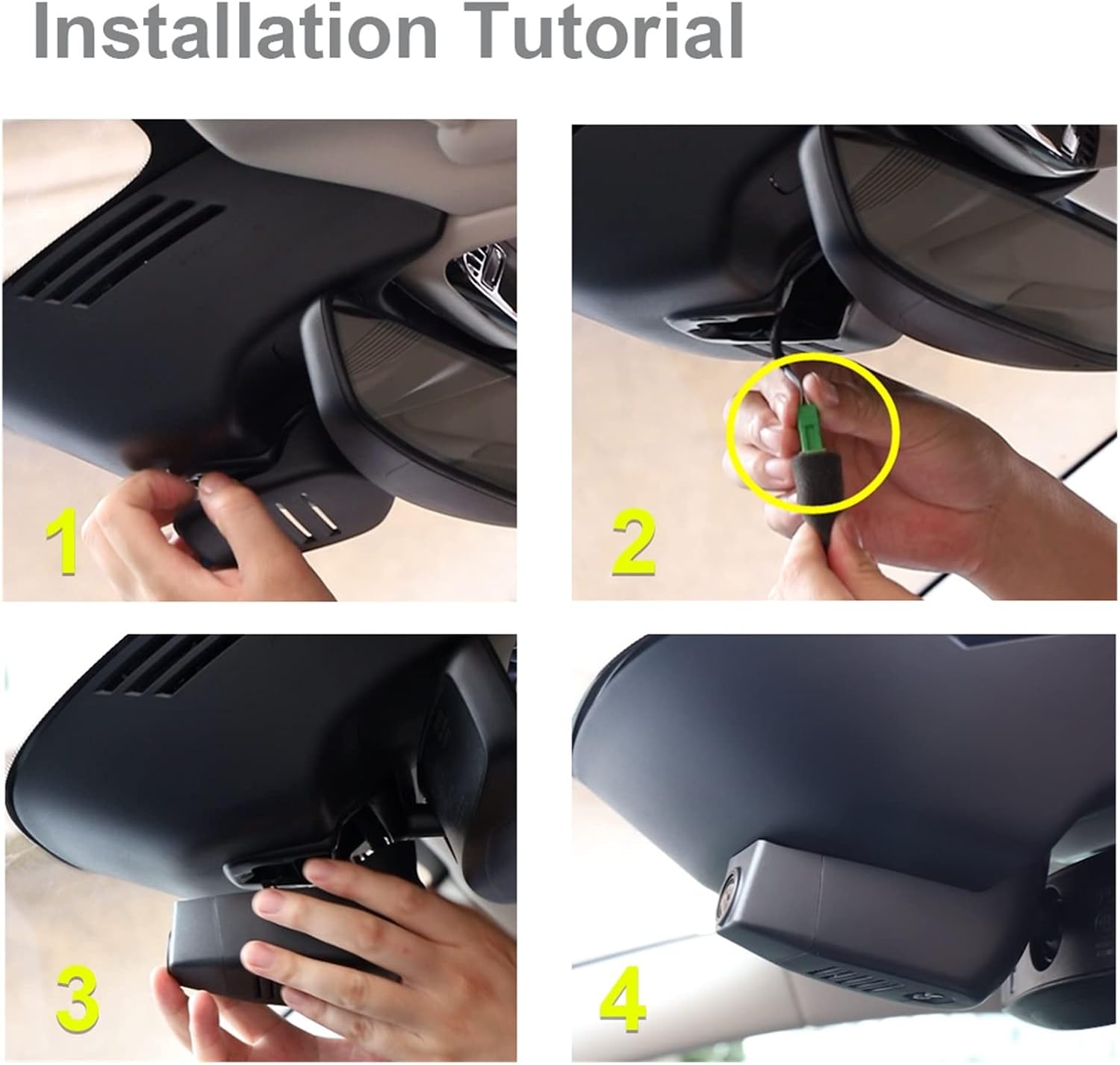
Image: Before and after installation comparison, highlighting the integrated design.
Note: By default, the camera is powered via the auto-dimming rearview mirror cable. If you require a fuse box cable or OBD cable, please contact customer support.
5. Operating Instructions
Power On/Off
The dash camera will automatically power on and begin recording when your vehicle's ignition is turned on. It will power off automatically when the ignition is turned off.
Memory Card
The camera comes with a 64GB memory card pre-installed. Ensure the memory card is properly inserted before use. The camera supports loop recording, which means it will automatically overwrite the oldest files when the card is full to ensure continuous recording.
G-Sensor Functionality
The built-in G-Sensor detects sudden impacts or collisions. In the event of such an incident, the camera will automatically lock the current video segment, preventing it from being overwritten by loop recording. These locked files are crucial for accident evidence.
Parking Monitoring
When your vehicle is parked and the ignition is off, the parking monitoring feature can detect impacts and automatically record short video clips to protect your vehicle.
Connecting to Mobile App
The Fitcamx Dash Camera can be connected to a mobile application for video management and settings adjustments. Follow these general steps:
- Download the official Fitcamx app from your smartphone's app store.
- Turn on the dash camera (start your car).
- Open the Fitcamx app and follow the on-screen instructions to connect to the camera's Wi-Fi network.
- Once connected, you can view live footage, download recorded videos, edit clips, and share them directly from your phone.

Image: Fitcamx mobile application interface for managing videos.
6. Maintenance
- Cleaning the Lens: Regularly clean the camera lens with a soft, lint-free cloth to ensure clear video recording. Avoid abrasive materials or harsh chemicals.
- Memory Card Management: While loop recording manages space, it is recommended to periodically format the memory card (e.g., once a month) through the camera settings or app to maintain optimal performance and prevent data corruption. Back up any important files before formatting.
- Firmware Updates: Check the official Fitcamx website or app for any available firmware updates. Keeping the firmware updated can improve performance and add new features.
- Environmental Conditions: Avoid exposing the dash camera to extreme temperatures for prolonged periods, as this can affect battery life and component longevity.
7. Troubleshooting
| Problem | Possible Cause | Solution |
|---|---|---|
| Camera not powering on. | No power supply; loose connection. | Ensure the vehicle ignition is on. Check the power cable connection to the rearview mirror and the camera. |
| Recording stops or freezes. | Memory card full or corrupted; faulty memory card. | Format the memory card. Try a different, high-quality memory card. |
| Poor video quality. | Dirty lens; protective film still on lens; low light conditions. | Clean the camera lens. Remove any protective film. Ensure adequate lighting if possible. |
| Cannot connect to mobile app. | Incorrect Wi-Fi password; camera Wi-Fi not active; app issues. | Ensure camera is powered on. Verify Wi-Fi password. Restart the app and camera. Check app permissions. |
| G-Sensor not working. | Sensitivity settings too low. | Adjust G-Sensor sensitivity in the camera settings via the mobile app. |
8. Specifications
| Feature | Detail |
|---|---|
| Brand | laiyonggr |
| Model Name | laiyong1987 |
| Product Dimensions | 1 x 1 x 1 cm |
| Item Weight | 50 Grams |
| Video Recording Resolution | 2160p (4K UHD) |
| Connectivity Technology | USB |
| Vehicle Service Type | Car, Passenger Car, Off-Road Vehicle, Electric Car |
| Mounting Type | Rearview Mirror Mount |
| Control Method | Touch (via app) |
| Included Components | Dash Camera, Memory Card, Front Camera Cable, Disassembly Tool, User Manual |
9. Warranty and Support
For warranty information and technical support, please refer to the seller's policy or contact the manufacturer directly. Keep your purchase receipt as proof of purchase.
Seller: laiyong1987
Return Policy: 30-day refund/replacement policy.