
1. Introduction
This manual provides detailed instructions for the H-TECH HT-9700CA 9.7-inch Vertical Tesla Multimedia System. Designed to enhance your driving experience, this multimedia unit integrates advanced technology with intuitive features. Please read this manual thoroughly before installation and operation to ensure proper use and to maximize the system's capabilities.
The H-TECH HT-9700CA offers Bluetooth connectivity for music and calls, smartphone mirroring (CarPlay and Android Auto), USB input, and a full Android operating system, allowing you to download applications directly to the unit. This system aims to make your journeys safer and more enjoyable.

Image 1.1: H-TECH HT-9700CA Multimedia System with included rear camera.
2. Key Features
- 9.7-inch Vertical Tesla-style Display: Offers an immersive and intuitive viewing experience, seamlessly integrated into your vehicle for a modern and personalized feel.
- Android Operating System: Allows direct download and use of applications, enhancing entertainment and navigation options.
- CarPlay and Android Auto Integration: Supports both wireless and wired connections for seamless smartphone integration (iOS and Android devices). Access apps, make calls, send messages, and control music safely while driving.
- Customizable Side Buttons: Features 7 color options for side buttons, allowing personalization to match your vehicle's interior or personal preference. Provides quick and easy access to essential multimedia functions.
- Advanced Connectivity: Includes Bluetooth 4.1, Wi-Fi, 1 USB input, 1 rear camera input, 1 front camera input, 1 audio/video input, and 1 audio/video output (for simultaneous rear screen display).
- High-Performance Hardware: Equipped with 2GB RAM, 32GB internal memory, and a Quad-Core processor for smooth operation.
- Integrated GPS: Built-in GPS functionality (maps sold separately).
- High-Resolution IPS Screen: 1024x768p resolution with an IPS panel for clear and sharp visuals.
- Steering Wheel Control (SWC): Two SWC wires support up to 10 programmable functions.
- EasyConnect Application: For smartphone mirroring.

Image 2.1: Visual representation of the H-TECH HT-9700CA's main features.
3. Package Contents
The following items are included in your H-TECH HT-9700CA Multimedia System package:
- 1x 9.7-inch Android Multimedia Unit
- 1x Rear Camera
- 1x GPS Antenna
- Installation Wiring Harnesses
- Instruction Manual (this document)
4. Setup and Installation
Important Note: For installation, a 2-DIN panel frame is required. This multimedia unit is compatible with all vehicles that use a 2-DIN panel frame. Professional installation is recommended to ensure correct wiring and functionality.
4.1. Physical Installation
The multimedia unit is designed to fit into a standard 2-DIN opening. The side panels are removable, allowing for easier integration with various vehicle dashboards.

Image 4.1: Multimedia unit with removable side panels for adaptable installation.
4.2. Wiring Connections
Connect the provided wiring harnesses to the corresponding ports on the rear of the multimedia unit and to your vehicle's electrical system. Ensure all connections are secure to prevent malfunctions.
- Power Harness: Connects to your vehicle's power supply (constant 12V, accessory 12V, ground).
- Speaker Harness: Connects to your vehicle's speakers.
- GPS Antenna: Connect the GPS antenna to the dedicated port and mount it in a location with a clear view of the sky.
- Rear Camera Input: Connect the included rear camera to its dedicated input.
- Front Camera Input: If using an optional front camera, connect it here.
- USB Input: Connect the USB extension cable for external storage or device charging.
- Audio/Video Inputs/Outputs: Use these for connecting external audio/video sources or for outputting video to rear monitors.
- SWC (Steering Wheel Control) Wires: Connect these to your vehicle's steering wheel control wires to enable button functionality.
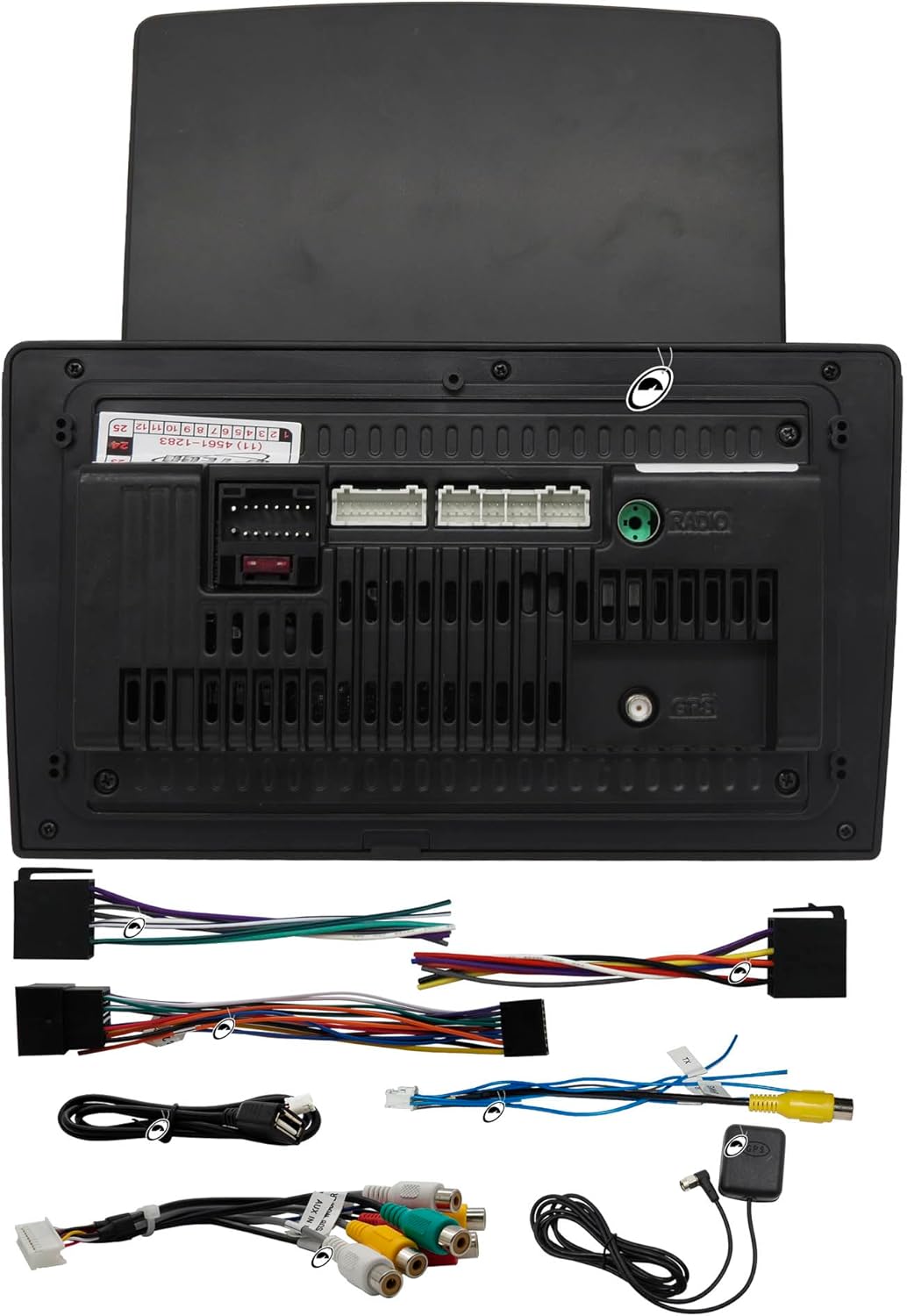
Image 4.2: Rear panel connections and included wiring harnesses.
5. Operating Instructions
5.1. Power On/Off and Basic Navigation
Press the power button (usually integrated with the volume knob) to turn the unit on or off. The touchscreen interface allows for intuitive navigation through menus and applications. Swipe, tap, and drag gestures are used similar to a smartphone.

Image 5.1: Android operating system interface.
5.2. Android System and Applications
The unit runs on an Android operating system. You can connect to Wi-Fi to access the internet and download applications directly from the app store, similar to a tablet or smartphone. Popular apps like Spotify, YouTube, and navigation tools can be installed.
5.3. CarPlay and Android Auto
The system supports both wireless and wired CarPlay and Android Auto. Connect your compatible iOS or Android smartphone to access navigation, music, messages, and calls through the multimedia screen. Follow the on-screen prompts for initial setup.
5.4. Side Buttons
The physical buttons on the side of the unit provide quick access to essential functions such as volume control, menu navigation, and mode selection. These buttons can be customized with 7 different color options to match your preference.

Image 5.2: Side buttons for quick function access.
5.5. Audio and Video Playback
- Radio: Access FM radio stations.
- Bluetooth: Pair your smartphone via Bluetooth 4.1 for hands-free calling and audio streaming.
- USB: Play media files from a USB drive connected to the USB input.
- Rear Camera: The system automatically displays the rear camera feed when the vehicle is in reverse.
- Video Output: The unit features a video output that allows for simultaneous display on rear headrest monitors, providing entertainment for passengers.
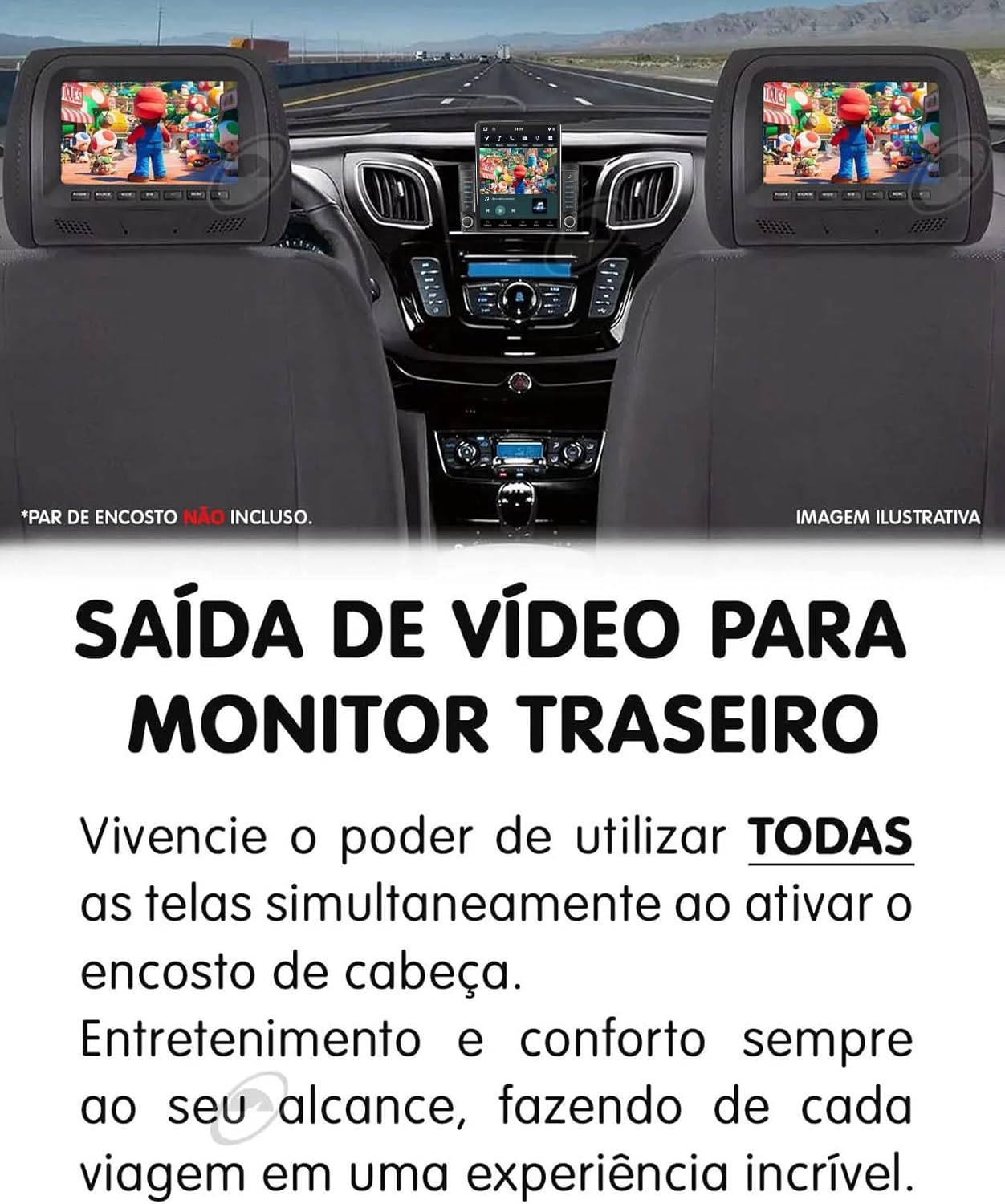
Image 5.3: Video output to rear monitors for passenger entertainment.
5.6. GPS Navigation
The unit has an integrated GPS module. While the hardware is present, navigation maps need to be acquired and installed separately. Once installed, you can use the GPS functionality for turn-by-turn directions.
6. Maintenance
To ensure the longevity and optimal performance of your H-TECH HT-9700CA multimedia system, follow these maintenance guidelines:
- Cleaning the Screen: Use a soft, lint-free cloth to gently wipe the screen. For stubborn smudges, slightly dampen the cloth with water or a screen-safe cleaner. Avoid harsh chemicals or abrasive materials.
- Software Updates: Periodically check for software updates through the system settings. Keeping the software updated can improve performance, add new features, and fix bugs.
- Environmental Conditions: Avoid exposing the unit to extreme temperatures, direct sunlight for prolonged periods, or excessive moisture.
- Cable Connections: Periodically check all wiring connections to ensure they are secure and free from damage.
7. Troubleshooting
If you encounter issues with your multimedia system, refer to the following common troubleshooting steps:
- No Power: Ensure all power connections are correctly installed and secure. Check the vehicle's fuse box for any blown fuses related to the stereo system.
- No Sound: Verify that the volume is not muted or set to minimum. Check speaker connections. Ensure the correct audio source is selected.
- Touchscreen Unresponsive: Try restarting the unit. If the issue persists, a factory reset might be necessary (note: this will erase all user data and settings).
- Bluetooth Connection Issues: Ensure Bluetooth is enabled on both the multimedia unit and your smartphone. Delete previous pairings and try pairing again. Move the devices closer to each other.
- GPS Not Working: Ensure the GPS antenna is properly connected and mounted in a location with a clear view of the sky. Verify that navigation maps are correctly installed.
- CarPlay/Android Auto Not Connecting: Ensure your smartphone is compatible and that the USB cable (if wired) is functional. Check app permissions on your phone. Try restarting both the unit and your phone.
- Rear Camera Not Displaying: Check the camera's power and video signal connections. Ensure the vehicle is in reverse gear.
If these steps do not resolve the issue, please contact H-TECH customer support or a qualified technician.
8. Specifications
| Feature | Specification |
|---|---|
| Brand | H-TECH |
| Model | HT-9700CA |
| Screen Size | 9.7 inches |
| Screen Type | Vertical IPS Glass Panel |
| Resolution | 1024x768p |
| Operating System | Android |
| RAM | 2GB |
| Internal Memory | 32GB |
| Processor | Quad-Core |
| Bluetooth Version | 4.1 |
| Connectivity | Wi-Fi, HDMI, USB |
| Compatible Devices | Smartphone (Android, iOS) |
| Audio Output Mode | Stereo |
| Output Power | 4x60W RMS (240 Watts total) |
| Inputs | 1x USB, 1x Rear Camera, 1x Front Camera, 1x Audio/Video |
| Outputs | 1x Audio/Video (simultaneous rear screen), 1x Subwoofer |
| Steering Wheel Control | 2 SWC wires (up to 10 functions) |
| Certifications | Anatel: 14755-22-14701 |
| Product Weight | 950 g |
| Dimensions (Approx.) | 27 x 25 x 10 cm (Package) |

Image 8.1: Approximate dimensions of the multimedia unit.
9. Warranty and Support
9.1. Manufacturer's Warranty
The H-TECH HT-9700CA Multimedia System comes with a 1-year manufacturer's warranty from the date of purchase.
Important: The warranty DOES NOT cover installation errors or misuse of the product. Any damage resulting from improper installation, unauthorized modifications, or neglect will void the warranty.
9.2. Customer Support
For technical assistance, warranty claims, or any questions regarding your H-TECH multimedia system, please contact your retailer or the H-TECH customer support channel provided at the point of purchase.