
1. Product Overview
The MINISFORUM UN150P is a compact mini PC designed for various applications, including home entertainment, office tasks, surveillance, digital signage, and multimedia centers. It features an Intel Twin Lake N150 processor, expandable memory and storage options, and versatile connectivity.
- Processor: Intel Twin Lake N150 CPU with 4 cores/4 threads, up to 3.60GHz, 6MB cache, and a 6W TDP for efficient performance.
- Memory & Storage: Supports 16GB DDR4 SO-DIMM memory (3200MHz), includes a 256GB M.2 SSD, and offers additional slots for a 2.5-inch SATA drive and a TF card for storage expansion.
- Connectivity: Features HDMI 2.1 (4K@60Hz) x2, USB 3.2 Gen2 Type-A, and USB-C (supporting DisplayPort and 15W PD). Supports up to three 4K displays. Includes a 2.5G LAN port, Wi-Fi, and Bluetooth.
- Design: Compact dimensions (127.5 x 112.4 x 40 mm) and lightweight (350g), making it suitable for space-saving setups and quiet environments.
- Versatility: An affordable and reliable desktop solution with low power consumption, suitable for various computing needs.

Figure 1.1: Front view of the MINISFORUM UN150P Mini PC, showcasing its compact design and various ports.
2. Package Contents
Please check the package contents upon unboxing to ensure all components are present:
- MINISFORUM UN150P Mini PC
- Power Adapter
- HDMI Cable
- User Manual (this document)
- Mounting Bracket (optional, may vary by region/bundle)
3. Hardware Layout and Ports
Familiarize yourself with the ports and features of your UN150P Mini PC.

Figure 3.1: Detailed view of the UN150P's ports, including USB, HDMI, LAN, and power input.
- Front Panel:
- Power Button
- Audio Jack
- USB 3.2 Gen1 Type-A ports (x2)
- USB 3.2 Gen1 Type-C port (x1, supports DisplayPort and 15W PD)
- Rear Panel:
- 2.5G LAN RJ45 port
- USB 3.2 Gen2 Type-A ports (x2)
- HDMI 2.1 TMDS ports (x2)
- DC 12V Power Input
- Side Panel:
- Kensington Lock Slot
- TF Card Slot
- CMOS Clear Button (small pinhole)
4. Setup Guide
4.1 Initial Connection
- Connect Display: Connect your monitor or TV to one of the HDMI 2.1 ports or the USB-C port (with DisplayPort support) using a compatible cable. The UN150P supports up to three displays simultaneously.
- Connect Peripherals: Plug in your USB keyboard and mouse to the available USB Type-A ports.
- Connect Network (Optional): For a wired internet connection, connect an Ethernet cable from your router/modem to the 2.5G LAN RJ45 port. For wireless, ensure Wi-Fi is enabled during OS setup.
- Connect Power: Connect the power adapter to the DC 12V power input port on the rear of the mini PC, then plug the adapter into a power outlet.
4.2 Physical Placement
The UN150P Mini PC is designed for versatile placement, including horizontal desktop use or mounting behind a monitor.

Figure 4.1: The UN150P Mini PC can be wall-mounted or placed horizontally, showcasing its compact form factor.
4.3 First Boot and Operating System Setup
- Press the power button on the front panel. The power indicator light will illuminate.
- Follow the on-screen instructions to complete the operating system setup (e.g., Windows initial configuration). This typically involves setting language, region, user accounts, and network settings.
- Once the OS setup is complete, your MINISFORUM UN150P is ready for use.
5. Operating Instructions
5.1 Power On/Off
- Power On: Press the power button once.
- Shut Down: Use the operating system's shutdown function (e.g., Start Menu > Power > Shut down in Windows).
- Force Shut Down: If the system is unresponsive, press and hold the power button for approximately 5-10 seconds until the device powers off. Use this only as a last resort to prevent data loss.
5.2 Display Configuration
The UN150P supports up to three independent 4K displays. You can configure display settings through your operating system.
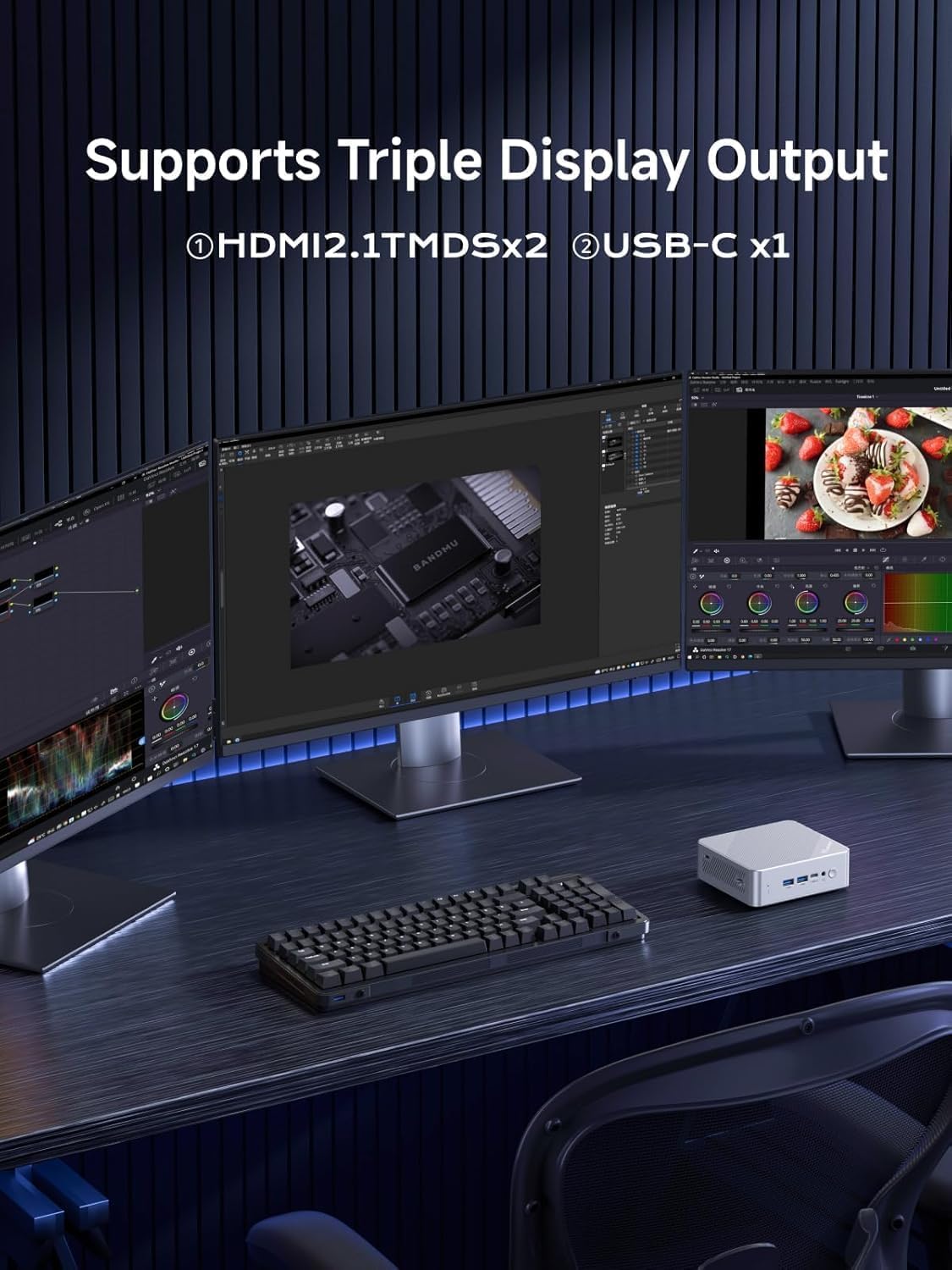
Figure 5.1: Illustration of the UN150P supporting a triple display setup via HDMI and USB-C.
- Connect monitors to the two HDMI 2.1 ports and the USB-C port (requires a USB-C to DisplayPort/HDMI adapter if your monitor doesn't have direct USB-C input).
- In Windows, right-click on the desktop, select "Display settings," and arrange your displays as desired (extend, duplicate, or show only on one).
5.3 Network and Wireless Connectivity
- Wired Connection: Ensure an Ethernet cable is connected to the 2.5G LAN port. The system should automatically detect the connection.
- Wi-Fi: Access network settings in your operating system to connect to available Wi-Fi networks. The UN150P supports Wi-Fi 6.
- Bluetooth: Enable Bluetooth in your operating system settings to pair with Bluetooth devices such as keyboards, mice, or headphones.

Figure 5.2: The UN150P supports 2.5G RJ45, Wi-Fi 6, and Bluetooth 5.2 for comprehensive connectivity.
6. Storage and Memory Expansion
The MINISFORUM UN150P offers flexible options for expanding its storage and memory.

Figure 6.1: Internal layout showing the M.2 2280 SSD slot, DDR4 Memory Slot, 2.5-inch SATA HDD Slot, and TF Card Slot.
- M.2 2280 SSD: The device comes with a pre-installed M.2 2280 SSD (PCIe 3.0x1/SATA) and supports up to 1TB.
- 2.5-inch SATA HDD/SSD: An additional slot is available for a 2.5-inch SATA HDD or SSD, supporting up to 2TB.
- DDR4 Memory: The UN150P supports up to 16GB DDR4 SO-DIMM memory (3200MHz).
- TF Card Slot: A TF card slot is available for additional portable storage.
For detailed instructions on installing or upgrading components, please refer to the official MINISFORUM support resources or consult a qualified technician.
7. Maintenance and Care
- Cleaning: Use a soft, dry cloth to clean the exterior of the mini PC. For dust in vents, use compressed air. Do not use liquid cleaners directly on the device.
- Ventilation: Ensure the ventilation openings are not blocked to prevent overheating. Place the mini PC in a well-ventilated area.
- Temperature: Operate the device within recommended temperature ranges. Avoid extreme heat or cold.
- Power Supply: Use only the original power adapter provided with the device.
- Software Updates: Regularly update your operating system and drivers to ensure optimal performance and security.
8. Troubleshooting
| Problem | Possible Solution |
|---|---|
| No display output |
|
| Mini PC does not power on |
|
| No internet connection (wired) |
|
| Wi-Fi or Bluetooth not working |
|
| System is slow or unresponsive |
|
9. Technical Specifications
| Feature | Specification |
|---|---|
| Brand | MINISFORUM |
| Model Number | UN150P |
| Processor | Intel Twin Lake N150 (4 Cores/4 Threads, up to 3.6 GHz, 6MB Cache) |
| Graphics | Integrated Graphics |
| RAM | 16GB DDR4 SO-DIMM (3200MHz), expandable up to 16GB |
| Storage | 256GB M.2 2280 PCIe/SATA SSD, expandable with 2.5" SATA HDD/SSD slot (up to 2TB) and TF Card slot |
| Video Output | 2x HDMI 2.1 (4K@60Hz), 1x USB-C (DisplayPort support) - Triple Display Support |
| USB Ports | 2x USB 3.2 Gen1 Type-A, 2x USB 3.2 Gen2 Type-A, 1x USB 3.2 Gen1 Type-C (with 15W PD) |
| Network | 2.5G RJ45 LAN, Wi-Fi 6, Bluetooth 5.2 |
| Audio | Audio Jack |
| Power Supply | DC 12V |
| Dimensions | 127.5 x 112.4 x 40 mm |
| Weight | Approximately 350g |
| Operating System | OS (as per product specifications, typically Windows 11 Pro) |
10. Warranty and Support
Warranty Information: The product specifications indicate "No Warranty" for manufacturer warranty. Please refer to your purchase documentation or retailer for specific warranty terms and conditions applicable to your region.
Technical Support: For technical assistance, driver downloads, or further inquiries, please visit the official MINISFORUM website or contact their customer support directly. Keep your product model number (UN150P) and purchase details ready when seeking support.
Online Resources: You can often find FAQs, troubleshooting guides, and community forums on the manufacturer's website.


