
1. Introduction
The NOOX Wireless Numeric Keypad is designed to enhance data entry efficiency for various computing tasks. Its compact and portable design makes it suitable for office, accounting, education, and general desktop or laptop use. This manual provides comprehensive instructions for setting up, operating, and maintaining your keypad.

Figure 1: NOOX Wireless Numeric Keypad - Ultra Slim & Portable Design
2. Package Contents
Please check the package contents to ensure all items are present:
- 1 × NOOX Wireless Numeric Keypad
- 1 × USB Receiver (located inside the battery compartment)
- 1 × User Manual (this document)
3. Specifications

Figure 2: Keypad Dimensions and USB Receiver
| Feature | Detail |
|---|---|
| Model Number | NXA056-M1 |
| Connectivity | 2.4 GHz Wireless (USB Receiver) |
| Dimensions | 6.61 x 3.62 x 1.46 inches (approx. 16.8 x 9.2 x 3.7 cm) |
| Item Weight | 3.52 ounces (approx. 100 grams) |
| Power Source | 1 × AAA Battery (not included) |
| Key Type | Scissor-switch |
| Color | Black |
| Material | Plastic |
4. Setup
- Install Battery: Open the battery compartment cover on the back of the keypad. Insert one AAA battery, ensuring correct polarity.
- Retrieve USB Receiver: The USB receiver is stored inside the battery compartment for convenience. Carefully remove it.
- Connect USB Receiver: Plug the USB receiver into an available USB port on your computer or device.
- Power On: Turn on the keypad using the power switch (if available, usually on the side or back). The keypad is plug-and-play and should be recognized automatically by your operating system.
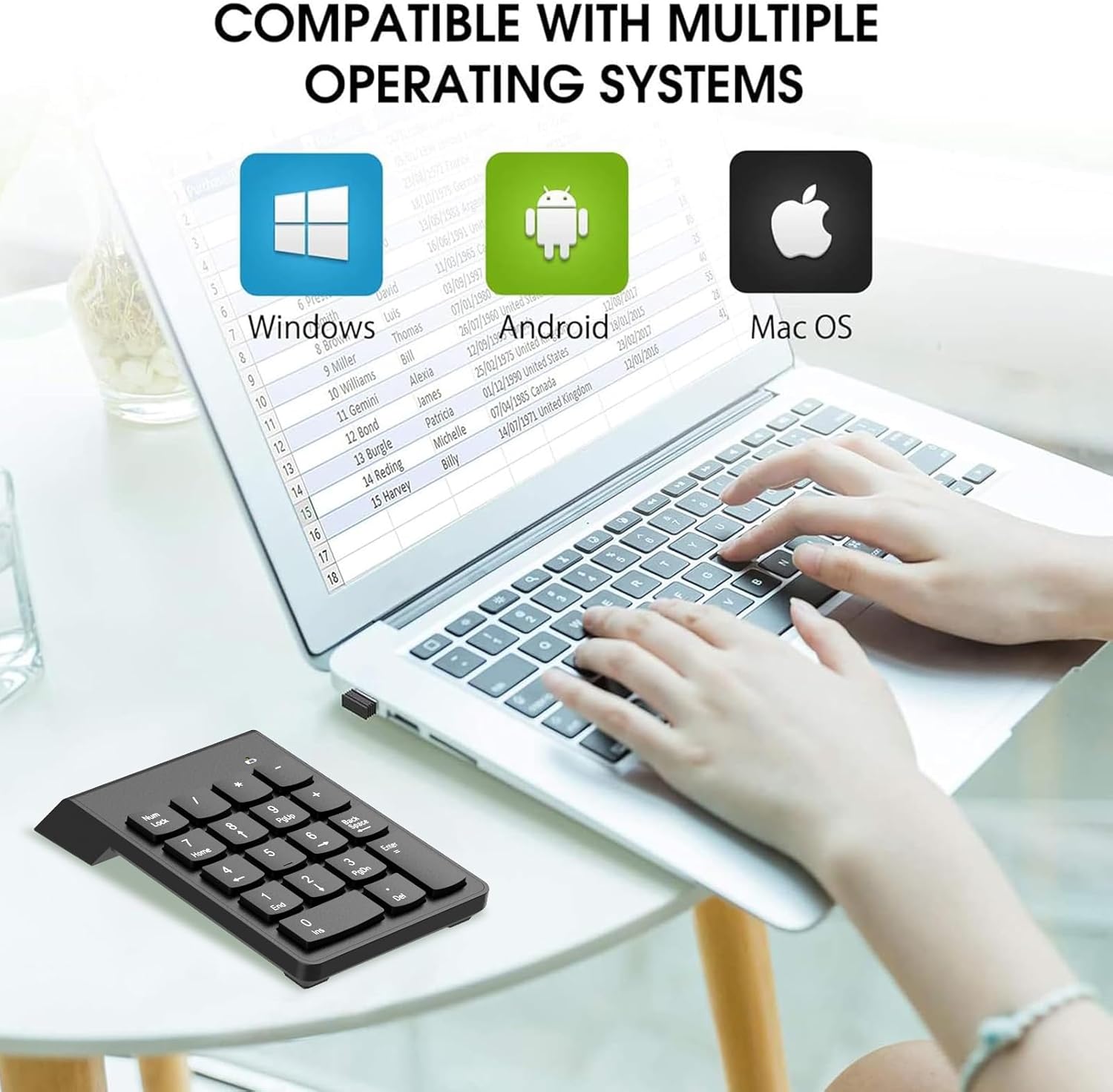
Figure 3: USB Receiver Location
Video 1: Demonstrates plugging the USB receiver into a laptop for wireless connection.
5. Operating Instructions
The NOOX Wireless Numeric Keypad provides a comfortable and efficient typing experience for numerical data entry.
5.1 Key Functions
- Numeric Keys (0-9): For entering numbers.
- Arithmetic Operators (+, -, *, /): For mathematical calculations.
- Enter Key: Confirms input or moves to the next field.
- Num Lock: Toggles the numeric keypad function. When Num Lock is off, some keys may function as navigation keys (Home, End, PgUp, PgDn, arrow keys).
- Back Space: Deletes the character to the left of the cursor.
- Del (Delete): Deletes the character to the right of the cursor.
- Ins (Insert): Toggles insert mode.

Figure 4: Ergonomic Design for Enhanced Typing
5.2 Enhanced Typing Experience
The keypad features responsive scissor-switch keys and a comfortable layout designed to minimize fatigue during extended use. The integrated ergonomic tilt further contributes to a satisfying typing experience, especially for tasks involving spreadsheets and accounting files.

Figure 5: Soft Touch & High Sensitivity Keys
6. Compatibility
The NOOX Wireless Numeric Keypad offers broad compatibility with various operating systems and devices:
- Windows: Fully supports Windows 2000, XP, Vista, Windows 7/8/98/10/11 and later versions.
- Chrome OS: Fully supported.
- Android: Fully supported.
- Linux: Fully supported.
- macOS: Numbers work correctly, but hotkeys may not be fully functional.
Note: Compatible only with devices equipped with USB ports for the receiver.

Figure 6: Multi-Operating System Compatibility
7. Maintenance
- Cleaning: Use a soft, dry cloth to clean the keypad. For stubborn dirt, a slightly damp cloth can be used, followed by immediate drying. Avoid harsh chemicals or abrasive materials.
- Battery Replacement: Replace the AAA battery when the keypad's performance degrades or it stops responding. Ensure correct polarity when inserting a new battery.
- Storage: When not in use, store the USB receiver in its designated slot within the battery compartment to prevent loss. Store the keypad in a cool, dry place away from direct sunlight and extreme temperatures.
8. Troubleshooting
| Problem | Solution |
|---|---|
| Keypad not responding |
|
| Keys typing incorrect characters or not functioning as expected |
|
| Intermittent connection |
|
9. Warranty & Support
NOOX products are designed for reliability and performance. For warranty information, technical support, or customer service inquiries, please refer to the contact details provided with your purchase or visit the official NOOX website.
We recommend registering your product to receive updates and support.