
Introduction
Thank you for choosing the Yunseity PTZ WiFi Security Camera. This manual provides essential information for the proper installation, operation, and maintenance of your security camera. Please read this manual thoroughly before use and retain it for future reference.

Image: Front view of the Yunseity PTZ WiFi Security Camera, showing its dual lens design and antennas.
Product Features
- Dual Lens Design: Features a fixed wide-angle lens for panoramic views and a PTZ (Pan-Tilt-Zoom) lens for detailed close-ups. Both views are accessible simultaneously via the application.
- Motion Detection & Human Tracking: Equipped with intelligent AI algorithms for accurate motion detection and automatic human tracking. Real-time notifications are sent to your mobile device upon detection.
- Two-Way Audio: Built-in microphone and speaker enable clear two-way communication with individuals near the camera.
- Color Night Vision: Provides 2 MPx2 Full HD images and videos day and night. Offers three night vision modes: full-color, infrared, and smart night vision. White lights activate automatically in low light for clear, colored images up to 65 feet.
- 2.4GHz WiFi Connectivity: Supports 2.4GHz WiFi for a stable and fast signal, ensuring smooth video streaming.
- IP66 Weatherproof Rating: Designed to operate reliably in various weather conditions.
- Storage Options: Supports cloud storage and local storage via a small memory card (up to 128GB, not included).
Package Contents
Please check the package for the following items:
- Yunseity PTZ WiFi Security Camera
- Power Adapter (EU Plug)
- Mounting Screws and Wall Plugs
- Waterproof Kit for Network Cable
- User Manual

Image: The Yunseity PTZ WiFi Security Camera shown with its included accessories, including the power adapter, mounting hardware, and waterproof connector.
Setup
1. Physical Installation
- Choose a Location: Select a suitable location for your camera, ensuring good WiFi signal coverage and a clear view of the area you wish to monitor.
- Mounting: Use the provided screws and wall plugs to securely mount the camera to a wall or ceiling. Ensure the mounting surface is strong enough to support the camera's weight.
- Power Connection: Connect the power adapter to the camera's power input and plug it into a standard electrical outlet.
- Network Connection (Optional): If using a wired connection, connect an Ethernet cable to the camera's RJ45 port and use the waterproof kit to protect the connection.

Image: Side view of the camera illustrating the mounting bracket and cable connections.
2. App Installation & Connection
- Download the App: Search for the recommended security camera app (refer to the packaging or quick start guide for the specific app name) on your smartphone's app store (iOS or Android) and install it.
- Register an Account: Open the app and follow the on-screen instructions to register a new user account.
- Add Camera: Power on the camera. In the app, select 'Add Device' or '+' and follow the prompts to connect your camera to your 2.4GHz WiFi network. This typically involves scanning a QR code on the camera or using an audio pairing method.
- Configuration: Once connected, you can configure camera settings such as device name, time zone, and storage preferences within the app.
Operating Instructions
1. Live View and Dual Lens Operation
Open the app to access the live view. The dual lens design allows you to view both the wide-angle panoramic feed and the PTZ camera feed simultaneously. You can switch between views or display both on a split screen within the app interface.
2. Pan, Tilt, and Zoom (PTZ) Control
Use the directional controls within the app to remotely pan the PTZ lens horizontally (350 degrees) and tilt it vertically (90 degrees) to adjust the viewing angle. Digital zoom functionality is also available.
3. Motion Detection and Tracking
Enable motion detection and human tracking in the app settings. When motion or a human figure is detected, the camera will automatically track the object, record footage, and send an alert to your phone. You can customize detection zones and sensitivity.
4. Two-Way Audio
To use the two-way audio feature, tap the microphone icon in the live view interface of the app. Speak into your phone to transmit audio through the camera's speaker. The camera's microphone will capture audio from its surroundings.
5. Night Vision Modes
The camera offers three night vision modes, configurable in the app:
- Full-Color Night Vision: Utilizes built-in white lights to provide clear, colored images in low-light conditions.
- Infrared Night Vision: Uses infrared LEDs for black and white images in complete darkness.
- Smart Night Vision: The camera automatically switches between infrared and full-color modes based on detected motion or specific triggers.
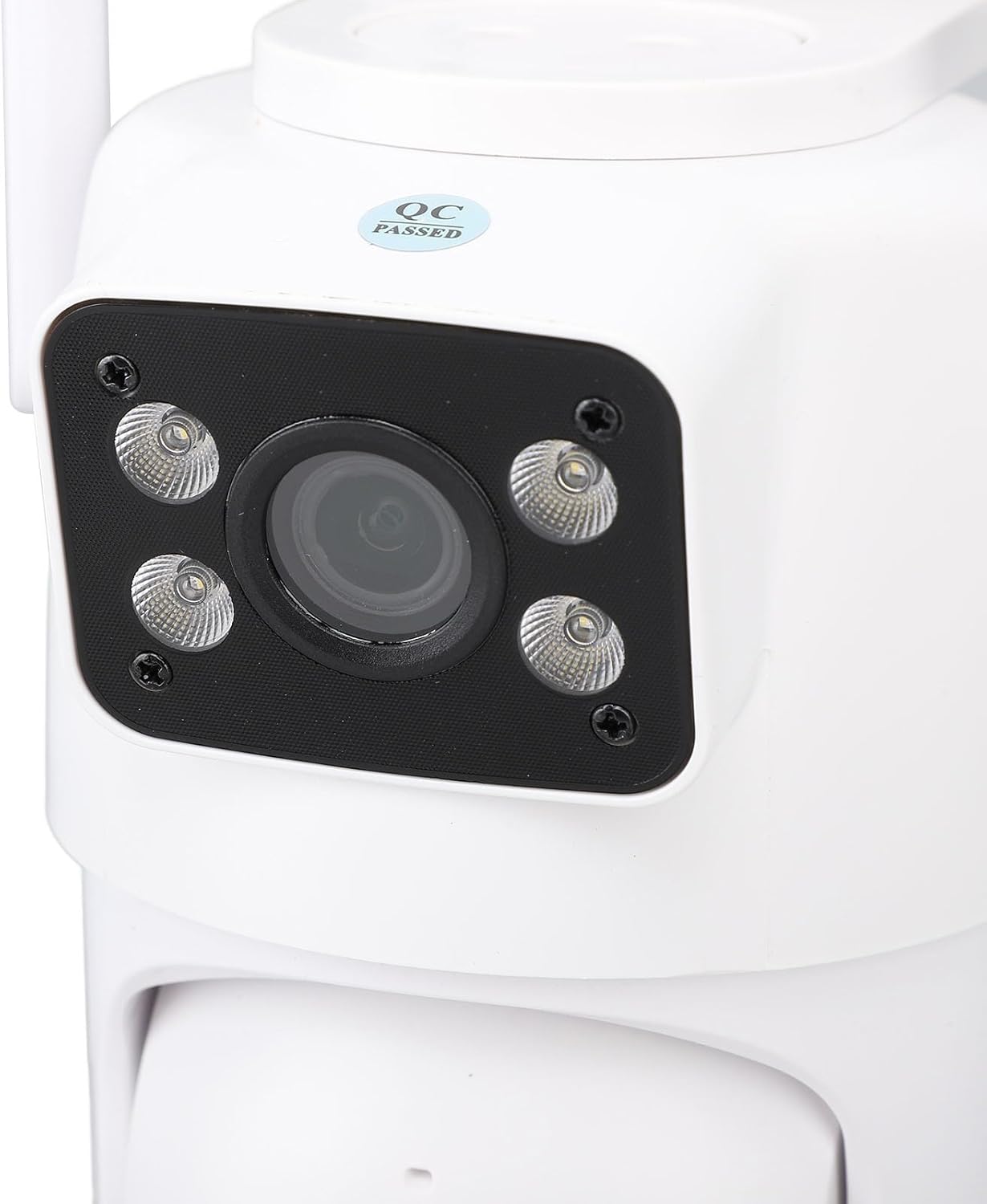
Image: Illustration showing the camera's compatibility with an NVR for 24/7 recording and the efficiency of the H.265 video format compared to H.264.
6. Recording and Playback
Recorded footage can be stored on a microSD card (up to 128GB, purchased separately) inserted into the camera's slot, or via cloud storage services (subscription may be required). Access and playback recordings through the app's timeline or event list.
Maintenance
- Cleaning: Gently wipe the camera lens and body with a soft, dry cloth. Avoid using harsh chemicals or abrasive materials.
- Firmware Updates: Regularly check the app for available firmware updates to ensure optimal performance and security.
- Power Supply: Ensure the camera is connected to a stable power source within the specified voltage range (100-240V).
- SD Card Management: If using a microSD card, periodically check its status and format it if necessary to maintain recording efficiency.
Troubleshooting
| Problem | Possible Solution |
|---|---|
| Camera not connecting to WiFi | Ensure your WiFi network is 2.4GHz. Check WiFi password. Move camera closer to router. Reset camera and try pairing again. |
| No image/video in app | Check power connection. Verify WiFi connection. Restart camera and app. |
| Motion detection not working | Check app settings for motion detection sensitivity and active zones. Ensure camera lens is clean. |
| Two-way audio issues | Check volume settings on your phone and in the app. Ensure microphone and speaker are not obstructed. |
| SD card not recording | Ensure SD card is inserted correctly and formatted. Check app recording settings. Replace SD card if faulty. |
If you encounter issues not listed here, please refer to the app's help section or contact customer support.
Specifications
| Feature | Detail |
|---|---|
| Model Name | Yunseity5ehuqf3o9n-11 |
| Connectivity Technology | Wireless (Wi-Fi) |
| Wireless Technology | Wi-Fi (2.4 GHz) |
| Special Feature | Night Vision (Color Night Vision) |
| Alarm Type | Motion Only |
| International Protection Rating | IP66 |
| Control Method | App |
| Number of Items | 1 |
| Storage | Cloud / Micro SD Card (up to 128GB) |
Warranty and Support
This product comes with a standard manufacturer's warranty. For specific warranty details, please refer to the warranty card included in your package or contact your retailer.
For technical support, troubleshooting assistance, or any questions regarding your Yunseity PTZ WiFi Security Camera, please contact Yunseity customer service through the contact information provided in the product packaging or on the official Yunseity website.