
GOHHDL A2742A4MI2
GOHHDL Android 13 Double Din Car Stereo User Manual
Model: A2742A4MI2
1. Introduction
This manual provides detailed instructions for the installation, operation, and maintenance of your GOHHDL Android 13 Double Din Car Stereo. Please read this manual thoroughly before using the product to ensure proper function and safety. Keep this manual for future reference.
2. Safety Information
- Do not attempt to operate the device while driving. Distracted driving can lead to accidents.
- Ensure all wiring is correctly connected to prevent short circuits or damage to the vehicle's electrical system.
- Professional installation is recommended for optimal performance and safety.
- Avoid exposing the unit to extreme temperatures, direct sunlight for prolonged periods, or excessive moisture.
- Use only specified accessories and parts.
3. Package Contents
Verify that all items listed below are included in your package:
- 1 x Android 13 Car Radio (Main Unit)
- 2 x Power Cable
- 1 x GPS Antenna
- 1 x Rear Camera Input Cable
- 1 x RCA Cable
- 2 x USB Cable
- 1 x Canbus Box
- 1 x Radio Antenna
- 1 x AHD Backup Camera
- 1 x Microphone
- 1 x User Manual (This document)

Image: Package contents and main unit dimensions. This image illustrates the various cables, accessories, and the car stereo unit itself, along with its physical measurements (220mm width, 130mm height, 50mm depth).
4. Product Overview
The GOHHDL Android 13 Double Din Car Stereo is a 7-inch IPS touchscreen unit designed for select Volkswagen models. It integrates advanced features such as GPS navigation, wireless smartphone connectivity (CarPlay/Android Auto), Bluetooth, FM/RDS radio, and support for a backup camera.

Image: Front view of the car stereo. This image displays the main unit with its 7-inch touchscreen interface, showing various application icons, and the physical control buttons on the left and right sides.
5. Setup and Installation
This section outlines the general steps for installing your car stereo. Due to variations in vehicle models, specific wiring and mounting procedures may differ. Professional installation is recommended.
5.1 Compatibility
This unit is designed for VW Passat, Golf MK5, Jetta, Caddy, EOS, and Tiguan models. Ensure the physical dimensions (220mm x 130mm x 50mm) fit your vehicle's dashboard opening.
5.2 Wiring Connections
Refer to the included wiring harness and the 'Package Contents' image for cable identification. Connect the power cables, GPS antenna, rear camera input, RCA cables, USB cables, and radio antenna as per your vehicle's wiring diagram. The included Canbus box facilitates integration with your vehicle's existing systems, including steering wheel controls.
5.3 Physical Installation
- Carefully remove your existing car stereo unit.
- Connect all necessary wiring harnesses to the new GOHHDL unit.
- Mount the new stereo securely into the dashboard opening.
- Test all functions (power, audio, radio, touchscreen, camera) before fully reassembling the dashboard trim.

Image: Installation effect. This image shows a side-by-side comparison of a car dashboard before and after the GOHHDL car stereo has been installed, demonstrating how it integrates into the vehicle's interior.
6. Operating Instructions
6.1 Basic Operation
- Power On/Off: Press and hold the power button (usually a rotary knob) to turn the unit on or off. A short press may mute the audio.
- Volume Control: Rotate the volume knob or use the touchscreen controls to adjust the audio level.
- Touchscreen Interface: Navigate through menus and applications by tapping, swiping, and dragging on the 7-inch IPS touchscreen.
6.2 Radio (FM/RDS)
Access the Radio application from the main menu. The unit supports FM radio with RDS (Radio Data System) for displaying station information.
- Automatic Search: Use the auto-scan function to find and save available radio stations (frequency range 87.5-108 FM).
- Preset Stations: Save up to 18 favorite stations for quick access.

Image: Bluetooth and FM/RDS Radio functions. This image displays the car stereo screen showing a Bluetooth call interface and the FM radio interface with frequency display and station presets.
6.3 Bluetooth Connectivity
The built-in Bluetooth 4.2 module allows for hands-free calling and audio streaming.
- Enable Bluetooth on your mobile device.
- On the car stereo, navigate to the Bluetooth settings and search for available devices.
- Select your mobile device from the list and pair.
- Once connected, you can make/receive calls, stream music, and access your phone book.
6.4 Wireless CarPlay and Android Auto
Connect your iPhone or Android smartphone for seamless integration of navigation, music, messages, and voice commands.
- Connection: Can be established wirelessly via Bluetooth and WiFi, or via a wired USB connection.
- Functionality: Access supported apps from your phone directly on the car stereo screen. Use voice assistants like Siri or Google Assistant for control.

Image: Wireless CarPlay, Android Auto, and Mirror Link. This image shows how smartphones connect to the car stereo for CarPlay, Android Auto, and Mirror Link, displaying the respective interfaces on the screen.
6.5 Mirror Link
Mirror Link allows you to display your smartphone's screen content directly on the car stereo.
- Connection: Connect via WiFi or USB cable for both iOS and Android devices.
- Android Specific: For Android devices, ensure necessary permissions are granted in developer options before connecting.
6.6 GPS Navigation & WiFi/Hotspot
The unit features built-in GPS and WiFi capabilities for navigation and internet access.
- Navigation: Use pre-installed navigation apps like 'Here WeGo' for offline maps or download online maps via WiFi.
- WiFi/Hotspot: Connect to a WiFi network or use your phone's hotspot to access online services, stream music, watch videos, and download apps.

Image: GPS Navigation and WiFi/Hotspot. This image illustrates the car stereo displaying a navigation map with route information and also shows social media applications running, indicating internet connectivity.
6.7 HiFi/EQ Sound Effects
Customize your audio experience with the integrated HiFi and 12-segment EQ sound effects.
- Equalizer: Adjust various frequency bands to tailor the sound output to your preference.
- Presets: Select from predefined sound modes (e.g., Pop, Rock, Jazz) or create custom settings.

Image: HiFi/EQ Sound Effects and Steering Wheel Control. This image shows the car stereo's equalizer interface for sound adjustment and the menu for configuring steering wheel controls.
6.8 Steering Wheel Control (SWC)
The unit supports integration with your vehicle's original steering wheel buttons for convenient control of audio functions.
- Configuration: Access the SWC settings menu to map your steering wheel buttons to specific functions (e.g., volume, track skip, mode).
- Canbus: The included Canbus box facilitates this integration for compatible VW models.
6.9 Backup Camera Input
The system includes an AHD waterproof backup camera for enhanced safety during parking and reversing.
- Automatic Display: When reverse gear is engaged, the stereo automatically switches to the camera view.
- Features: Provides HD image quality, is waterproof, offers night vision, and a wide-angle view.
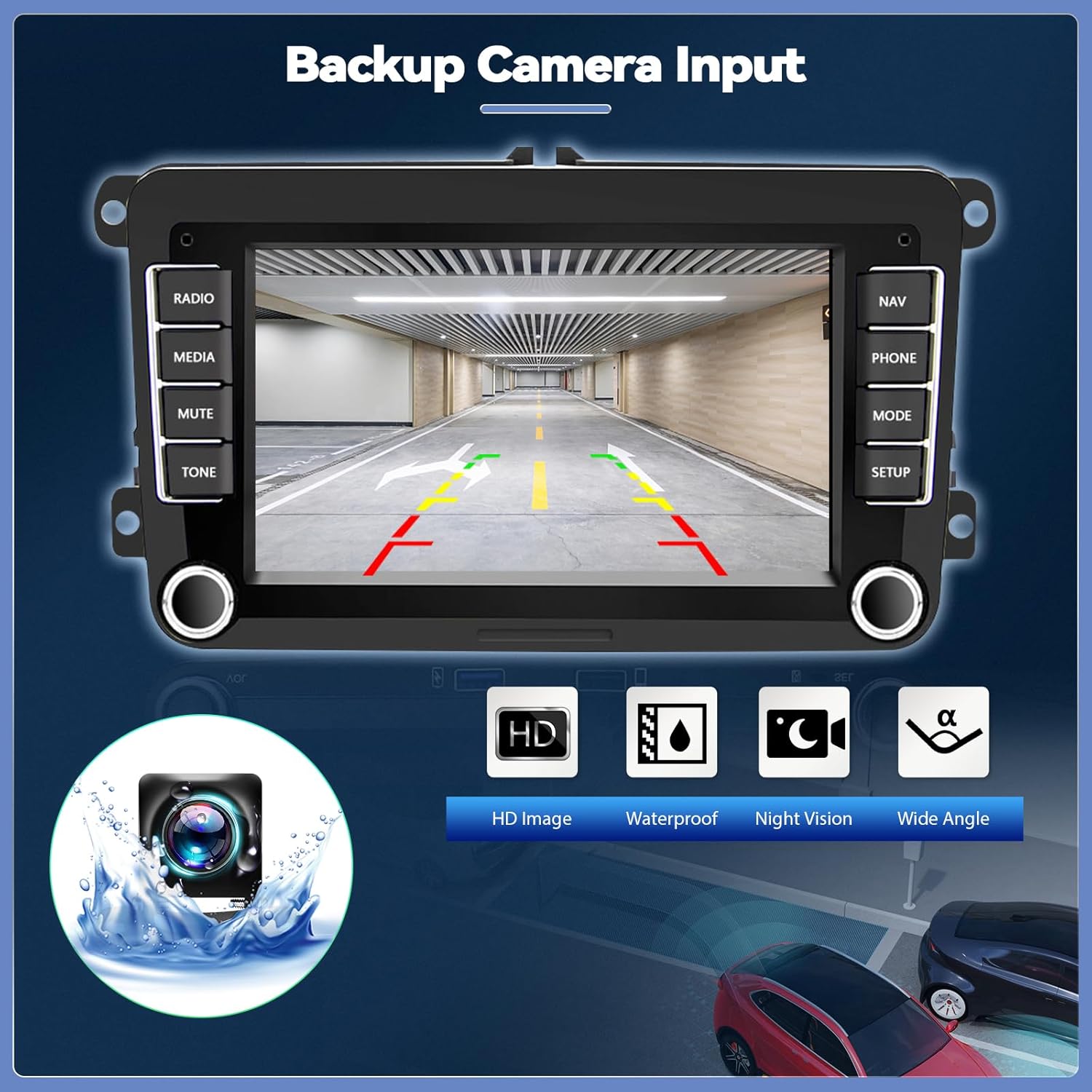
Image: Backup Camera Input. This image shows the car stereo screen displaying the view from the rear camera, complete with parking assist lines, and highlights the camera's features like HD image, waterproofing, night vision, and wide angle.
6.10 Split Screen Function
Utilize the split screen feature to run two applications simultaneously on the 7-inch display.
- Usage: For example, run navigation on one side and music playback on the other.
- Activation: Typically activated by long-pressing the recent apps button or dragging an app to one side of the screen.

Image: Split Screen Function. This image displays the car stereo screen divided into two sections, each running a different application, such as a music player and another app, demonstrating the split-screen capability.
7. Maintenance
- Cleaning: Use a soft, dry cloth to clean the screen and exterior. For stubborn marks, a slightly damp cloth with a mild, non-abrasive cleaner can be used. Avoid harsh chemicals.
- Software Updates: Periodically check the manufacturer's website or the unit's settings for available software updates to ensure optimal performance and access to new features.
- Environmental Conditions: Protect the unit from extreme temperatures and direct sunlight when parked for extended periods.
8. Troubleshooting
If you encounter issues with your GOHHDL car stereo, refer to the following common problems and solutions:
- No Power: Check all power connections and fuses. Ensure the vehicle's ignition is on.
- No Sound: Verify speaker connections, check volume levels, and ensure the unit is not muted. Check EQ settings.
- Bluetooth Connection Issues: Ensure Bluetooth is enabled on both devices and they are within range. Try unpairing and re-pairing.
- GPS Signal Loss: Ensure the GPS antenna is properly installed and has a clear view of the sky.
- Touchscreen Unresponsive: Try restarting the unit. If the issue persists, a factory reset might be necessary (note: this will erase all personal settings).
- Backup Camera Not Displaying: Check the camera's power and video input connections. Ensure the reverse gear signal wire is correctly connected.
For persistent issues not covered here, please contact GOHHDL customer support.
9. Specifications
| Model Name | GOHHDL 2+64G Android 13 Double Din Car Stereo for VW Passat Golf MK5 Jetta Caddy EOS Tiguan |
| Item Model Number | A2742A4MI2 |
| Operating System | Android 13 |
| Memory Storage Capacity | 64 GB |
| Screen Size | 7 Inches |
| Connectivity Technology | Bluetooth, USB, Wi-Fi |
| Special Features | Apple CarPlay, Android Auto, Mirror Link, HiFi/EQ, Split Screen, Backup Camera Input, Touchscreen, Bluetooth, Steering Wheel Control, WiFi/Hotspot, GPS Navigation, FM/RDS Radio |
| Map Type | Worldwide |
| Audio Output Mode | Stereo |
| Item Weight | 3 pounds |
| Package Dimensions | 11.65 x 8.27 x 4.13 inches |
10. Warranty and Support
GOHHDL products are designed for reliability and performance. For warranty information or technical support, please refer to the contact details provided with your purchase documentation or visit the official GOHHDL website. Please have your model number (A2742A4MI2) and purchase date ready when contacting support.