
LENSPOP ES-C1 12
Lenspop "Pixel Pop" Digital Camera User Manual
Model: ES-C1 12 | Brand: LENSPOP
1. Introduction and Overview
Thank you for choosing the Lenspop "Pixel Pop" Digital Camera. This compact and versatile device is designed to capture high-quality photos and videos, and even features an integrated MP3 player. With its 64MP photo interpolation, 4K/30FPS video recording, 18x digital zoom, and a clear 2.8-inch IPS screen, it's perfect for capturing your memories.
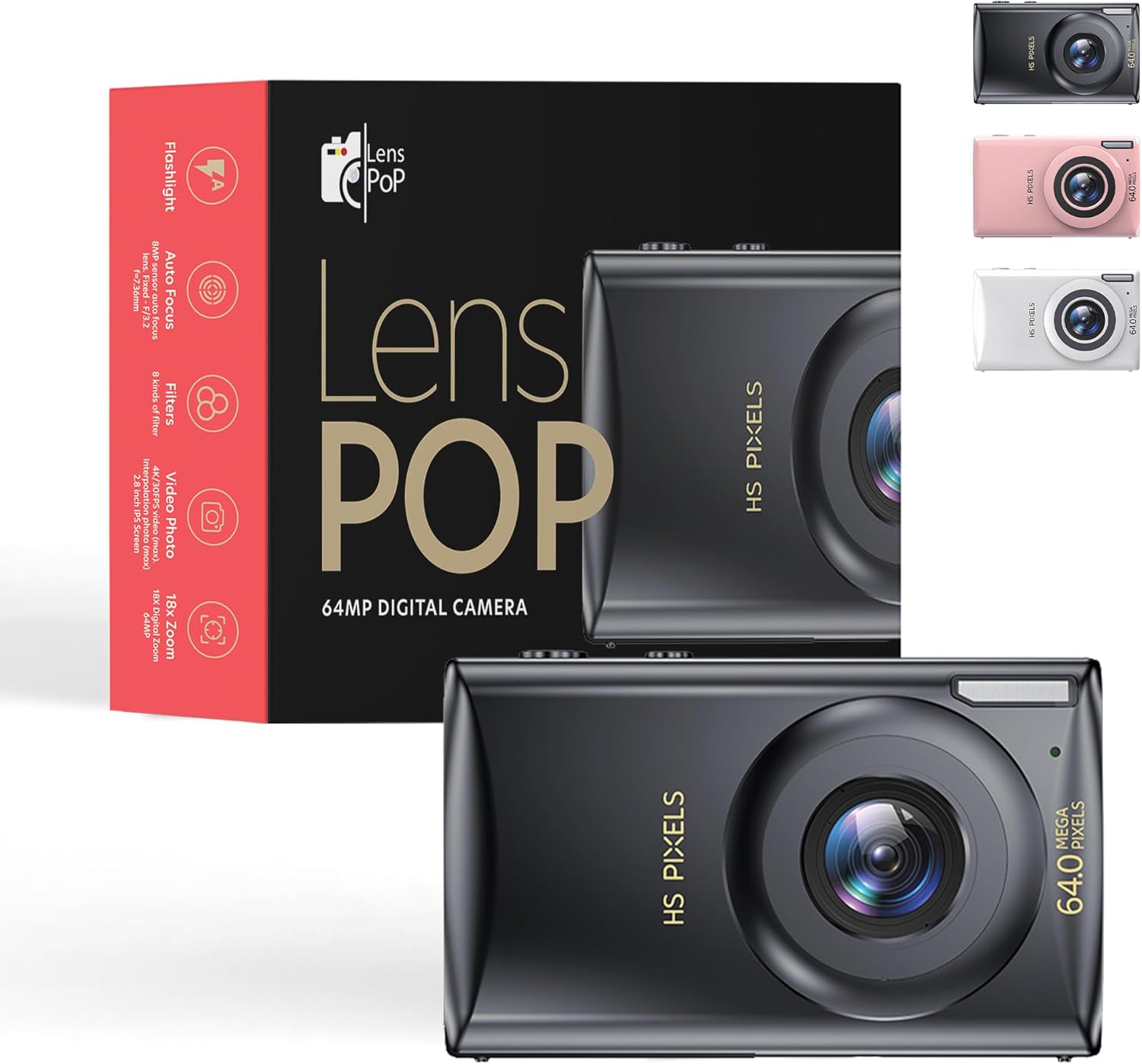
Image 1.1: The Lenspop Pixel Pop Digital Camera and its retail packaging, highlighting key features like flashlight, autofocus, filters, video/photo capabilities, and 18x zoom.
The camera is equipped with an 8MP sensor with autofocus, a fixed F/3.2 lens, and a built-in flash. It comes with a 128GB memory card and two batteries to ensure you're ready to start capturing moments right away.

Image 1.2: The compact design of the Lenspop Pixel Pop Digital Camera, shown being held in a hand and easily fitting into a pocket or bag, emphasizing its portability.
2. What's in the Box
Upon opening your Lenspop "Pixel Pop" Digital Camera package, please ensure all the following items are included:
- Lenspop "Pixel Pop" Digital Camera (Body)
- 128GB Memory Card
- 2x Rechargeable Batteries
- Type-C USB Cable
- Small Camera Bag
- Cleaning Cloth
- Lanyard
- User Manual

Image 2.1: A visual representation of all items included in the product box: the digital camera, 128GB memory card, small camera bag, cleaning cloth, Type-C cable, two batteries, lanyard, and the user manual.
3. Setup
3.1 Battery Installation
- Locate the battery compartment cover on the bottom of the camera.
- Slide the cover open.
- Insert the two included batteries, ensuring the correct polarity (+/-) as indicated inside the compartment.
- Close the battery compartment cover securely.
3.2 Memory Card Installation
- Locate the memory card slot, typically on the side or bottom of the camera.
- Gently insert the 128GB memory card into the slot with the gold contacts facing the correct direction (refer to the diagram near the slot).
- Push the card in until you hear a click, indicating it is securely locked in place. To remove, push the card in again until it springs out.
3.3 Charging the Camera
Before first use, it is recommended to fully charge the camera batteries.
- Connect one end of the provided Type-C USB cable to the camera's USB port.
- Connect the other end of the USB cable to a USB power adapter (not included) or a computer's USB port.
- The charging indicator light will illuminate. It will turn off or change color once charging is complete.
3.4 Initial Power On and Settings
- Press and hold the power button (usually on the top of the camera) for a few seconds to turn on the camera.
- Upon first power-on, you may be prompted to set the language, date, and time. Use the directional buttons to navigate and the 'OK' button to confirm your selections.
4. Operating Instructions
4.1 Power On/Off and Basic Navigation
- Power On/Off: Press and hold the power button to turn the camera on or off.
- Mode Selection: Use the 'M' (Mode) button to switch between Photo, Video, and MP3 Player modes.
- Navigation: Use the directional buttons (Up, Down, Left, Right) to navigate through menus and options. Press the 'OK' button to confirm selections.
4.2 Taking Photos
- Ensure the camera is in Photo mode.
- Frame your subject using the 2.8-inch IPS display.
- The camera features autofocus; allow it a moment to focus on your subject.
- Press the shutter button (usually on top of the camera) halfway down to focus, then fully press to capture the image.

Image 4.1: The Lenspop Pixel Pop camera screen showing a clear, captured image of a dog, demonstrating its photo capabilities.
4.3 Recording Videos
- Switch the camera to Video mode.
- Frame your scene using the display.
- Press the record button (often marked with a red dot or video camera icon) to start recording.
- Press the record button again to stop recording. The camera supports up to 4K resolution at 30 frames per second.

Image 4.2: The Lenspop Pixel Pop camera screen showing a video recording in progress, featuring a family and their dogs, illustrating its 4K/30FPS video capability.
4.4 Using Digital Zoom
The camera features an 18x digital zoom.
- While in Photo or Video mode, use the 'T' (Telephoto) button to zoom in and the 'W' (Wide) button to zoom out.
4.5 Applying Filters
Enhance your photos with 8 different filter types.
- In Photo mode, navigate to the filter settings (refer to your camera's on-screen menu for exact location).
- Select your desired filter from the available options.
4.6 Using the MP3 Player
Your camera doubles as an MP3 player.
- Transfer MP3 audio files to the 128GB memory card via a computer.
- Switch the camera to MP3 Player mode.
- Use the navigation buttons to browse your music library and the 'OK' button to play/pause tracks.
4.7 Flash and Autofocus
- Flash: The camera has a built-in flash. You can usually toggle its mode (Auto, On, Off, Red-eye Reduction) through the camera's menu settings, or via a dedicated flash button.
- Autofocus: The camera automatically focuses on your subject. For best results, ensure adequate lighting and hold the camera steady.
5. Maintenance
5.1 Cleaning the Camera
- Use the provided cleaning cloth or a soft, lint-free cloth to gently wipe the camera body, screen, and lens.
- Do not use liquid cleaners, solvents, or abrasive materials, as these can damage the camera's surfaces.
- For stubborn smudges on the lens, use a specialized lens cleaning solution applied to a lens cloth, not directly to the lens.
5.2 Storage
- When not in use, store the camera in a cool, dry place, away from direct sunlight, extreme temperatures, and high humidity.
- If storing for an extended period (more than a month), remove the batteries to prevent leakage and damage to the camera.
- Use the included small camera bag for protection during transport or storage.
5.3 Memory Card Management
- Regularly back up your photos and videos from the 128GB memory card to a computer or external storage device to prevent data loss.
- Periodically format the memory card using the camera's menu option (this will erase all data, so back up first) to maintain optimal performance and prevent corruption.
6. Troubleshooting
If you encounter any issues with your Lenspop "Pixel Pop" Digital Camera, please refer to the following common solutions:
| Problem | Possible Cause | Solution |
|---|---|---|
| Camera won't turn on. | Low or depleted battery. Incorrect battery insertion. | Charge the batteries fully. Ensure batteries are inserted with correct polarity. |
| Memory card not recognized or won't stay in. | Card not inserted correctly. Card is damaged or incompatible. | Ensure the 128GB memory card is pushed in until it clicks. Try reinserting. If issue persists, try a different compatible memory card. |
| Poor image/video quality. | Insufficient lighting. Dirty lens. Subject out of focus. | Ensure adequate lighting. Clean the lens with the provided cloth. Allow camera to autofocus before capturing. |
| Camera freezes or becomes unresponsive. | Software glitch. Low battery. | Remove and reinsert the battery to reset the camera. Ensure batteries are charged. |
| MP3 player not working. | No MP3 files on card. Incompatible file format. | Ensure MP3 files are correctly transferred to the memory card. Verify file format is MP3. |
If the problem persists after trying these solutions, please contact customer support.
7. Specifications
| Feature | Detail |
|---|---|
| Brand | LENSPOP |
| Model | ES-C1 12 (C1) |
| Color | Black |
| Effective Still Resolution | 8 Megapixels (Interpolated to 64MP) |
| Video Resolution | 4K/30FPS (Max), 1080p |
| Screen | 2.8 inches IPS Display |
| Digital Zoom | 18x |
| Focal Length | 7.36mm |
| Connectivity | USB Type-C |
| Storage | Supports up to 128GB memory card (128GB card included) |
| Batteries | 2x Alkaline (included) |
| Special Features | Autofocus, Built-in Flash, MP3 Player, 8 Filter Types, Digital Image Stabilization |
| Dimensions (Package) | 14.9 x 11.7 x 5.1 cm; 230 grams |
| Year of Model | 2024 |
8. Warranty and Support
For detailed warranty information, terms, and conditions, please refer to the warranty card included in your product packaging or visit the official LENSPOP website. Keep your proof of purchase for any warranty claims.
If you require technical support, have questions about product operation, or need assistance with troubleshooting beyond what is covered in this manual, please contact LENSPOP customer service through the contact information provided with your product or on the official brand website.
Related Documents - ES-C1 12
 |
Courant CATCH:1 Essentials Wireless Charger Quick Start Guide Quick start guide and user instructions for the Courant CATCH:1 Essentials wireless charger. Includes specifications, safety warnings, and warranty information. |
 |
Hollyland Vcore Quick Guide: Wireless Video Transmission System Get started with the Hollyland Vcore wireless video transmission system. This quick guide covers setup, features, app integration, specifications, and firmware updates for professional video creators. |
 |
Silhouette Electrostatic Mat Supplies Manual This manual provides essential information for using and maintaining the Silhouette Electrostatic Mat, including safety precautions, installation and removal guides for Portrait4 and CAMEO5 machines, media securing instructions, and roller guard tape replacement. |
 |
EPIC Digital Door Lock User Manual and Features Guide Comprehensive guide to EPIC digital door locks, covering product line-up, registration, deletion, settings, and advanced features. Learn how to manage PINs, RFID cards, fingerprints, and remote controls for enhanced security. |
 |
EPIC Digital Door Lock User Manual - Features, Registration, and Operation Comprehensive user manual for EPIC digital door locks, detailing product lineup, registration and deletion procedures for PINs, RFID cards, fingerprints, and remote controls. Covers various settings, functions, alarms, and self-diagnosis for enhanced security and convenience. |
 |
EPIC Digital Door Lock User Manual - Features and Operation Guide Comprehensive user manual for EPIC digital door locks, detailing product lineup, registration and deletion procedures for PINs, RFID cards, fingerprints, and remote controls, along with various operational modes and troubleshooting information. |
Ask a question about this manual
Ask about setup, troubleshooting, compatibility, parts, safety, or missing instructions. Manuals+ will review the question and use this page’s manual context to help answer it.