
1. Introduction
This manual provides detailed instructions for the installation, operation, and maintenance of your H-Tech HT-7864CA 7-inch Android Multimedia System. Designed to enhance your driving experience, this multimedia system offers a wide range of features and high-quality entertainment. It combines advanced technology with ease of use, integrating various functions such as Bluetooth for music and phone calls, smartphone mirroring, USB connectivity, and compatibility with popular applications like Spotify. Featuring an Android operating system, you can download applications directly to your multimedia screen. Please read this manual thoroughly before using the product to ensure proper function and safety.
2. Package Contents
Please verify that all items listed below are included in your package:
- 1x H-Tech HT-7864CA 7-inch Android 2-DIN Multimedia System
- 1x Rear View Camera
- 1x GPS Antenna
- 1x Set of Installation Harnesses
- 1x User Manual (This document)

Image: H-Tech HT-7864CA Multimedia System with its complete set of accessories, including the main unit, rear camera, GPS antenna, and various wiring harnesses for installation.
3. Product Overview and Key Features
The H-Tech HT-7864CA is a 2-DIN full-touch multimedia system designed for in-car entertainment and connectivity. It features a 7-inch glass IPS display and runs on the Android 13 operating system.
Key Features:
- Display: 7-inch Glass IPS Panel with HD 1280x800 resolution.
- Operating System: Android 13.
- Processor: Octa-core for smooth performance.
- Memory: 4GB RAM and 64GB Internal Storage.
- Connectivity:
- Bluetooth for hands-free calls and audio streaming.
- Integrated Wi-Fi.
- 2x USB inputs.
- CarPlay and Android Auto compatibility (wired and wireless).
- EasyConnect app for smartphone mirroring.
- Audio: 4x60W RMS power output, 1 audio output, 1 subwoofer output.
- Video: 1 audio and video input.
- Camera Inputs: 1 rear camera input, 1 front camera input.
- Navigation: Integrated GPS (maps sold separately).
- Controls: Full Touchscreen, 7 selectable button colors, 2 SWC wires for steering wheel control (supports up to 10 functions).

Image: Visual representation of the H-Tech HT-7864CA's key features, including USB, touchscreen, Android OS, Bluetooth, FM radio, steering wheel control, Android Auto, Apple CarPlay, wireless connectivity, GPS, and mirroring capabilities.

Image: Explanation of the IPS screen technology used in the multimedia system, highlighting its 1280x800 resolution and superior viewing angles compared to standard displays.
4. Setup and Installation
Professional installation is highly recommended for this product. Incorrect installation can lead to damage to the unit or vehicle and may void the warranty. Refer to the included wiring harnesses and diagrams for proper connections.
4.1 Wiring Connections:
- Connect the main power harness to your vehicle's electrical system, ensuring correct positive, negative, and accessory power connections.
- Connect the speaker wires to the corresponding vehicle speakers.
- Attach the GPS antenna to the designated port on the multimedia unit and position it in a location with a clear view of the sky for optimal signal reception.
- Connect the rear view camera to its dedicated input. Ensure the camera's power and ground wires are correctly connected, typically to the vehicle's reverse light circuit.
- If installing a front camera, connect it to the front camera input.
- Connect any external audio/video sources to the A/V input.
- For steering wheel controls, connect the two SWC wires to your vehicle's steering wheel control interface. Refer to your vehicle's specific wiring diagram for compatibility and configuration.
- USB cables should be routed to an accessible location for connecting USB devices.
4.2 Physical Installation:
- Carefully insert the 2-DIN unit into the vehicle's dashboard opening.
- Secure the unit using the provided mounting brackets and screws.
- Ensure all cables are properly routed and not pinched.
- Test all functions before fully reassembling the dashboard.
Note: This unit does NOT have an output for headrest monitors.
5. Operating Instructions
5.1 Basic Operation:
- Power On/Off: Press and hold the power button (usually located on the front panel) to turn the unit on or off.
- Touchscreen: Navigate the interface by tapping, swiping, and dragging on the 7-inch touchscreen.
- Volume Control: Use the on-screen controls or steering wheel controls (if configured) to adjust the volume.
- Home Screen: Access various applications and settings from the main home screen.

Image: The multimedia system screen showing the Android operating system logo, confirming its platform.
5.2 Bluetooth Connectivity:
- Go to the Bluetooth settings on the multimedia system.
- Enable Bluetooth on your smartphone.
- Search for available devices on your phone or the multimedia system.
- Select "HT-7864CA" (or similar name) from the list and pair the devices.
- Confirm the pairing code if prompted.
- Once connected, you can make/receive calls hands-free and stream audio from your phone.
5.3 CarPlay and Android Auto:
The system supports both wired and wireless CarPlay and Android Auto, allowing you to integrate your smartphone's features directly onto the multimedia screen.
- Wired Connection: Connect your smartphone to one of the USB ports using a high-quality USB cable. The system should automatically detect and launch CarPlay or Android Auto.
- Wireless Connection: Ensure Bluetooth and Wi-Fi are enabled on your phone and the multimedia system. Follow the on-screen prompts to establish a wireless connection for CarPlay or Android Auto.
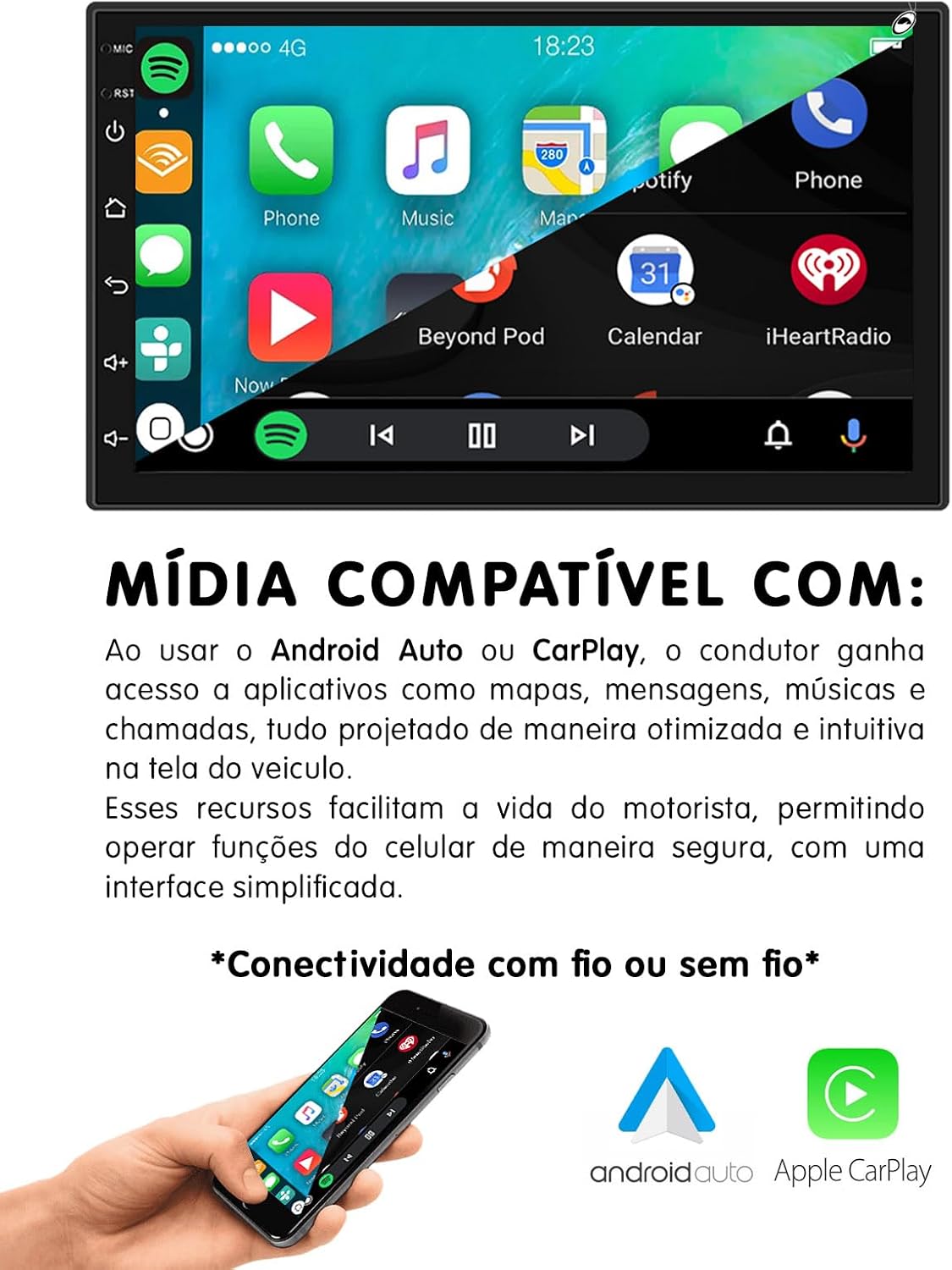
Image: The multimedia system's compatibility with Android Auto and Apple CarPlay, illustrating how a smartphone integrates with the system for optimized in-car use.
5.4 Smartphone Mirroring (EasyConnect):
Use the EasyConnect application to mirror your smartphone's screen onto the multimedia unit. This feature is compatible with both Android and iOS devices. Consult the EasyConnect app for specific compatibility versions and connection instructions.
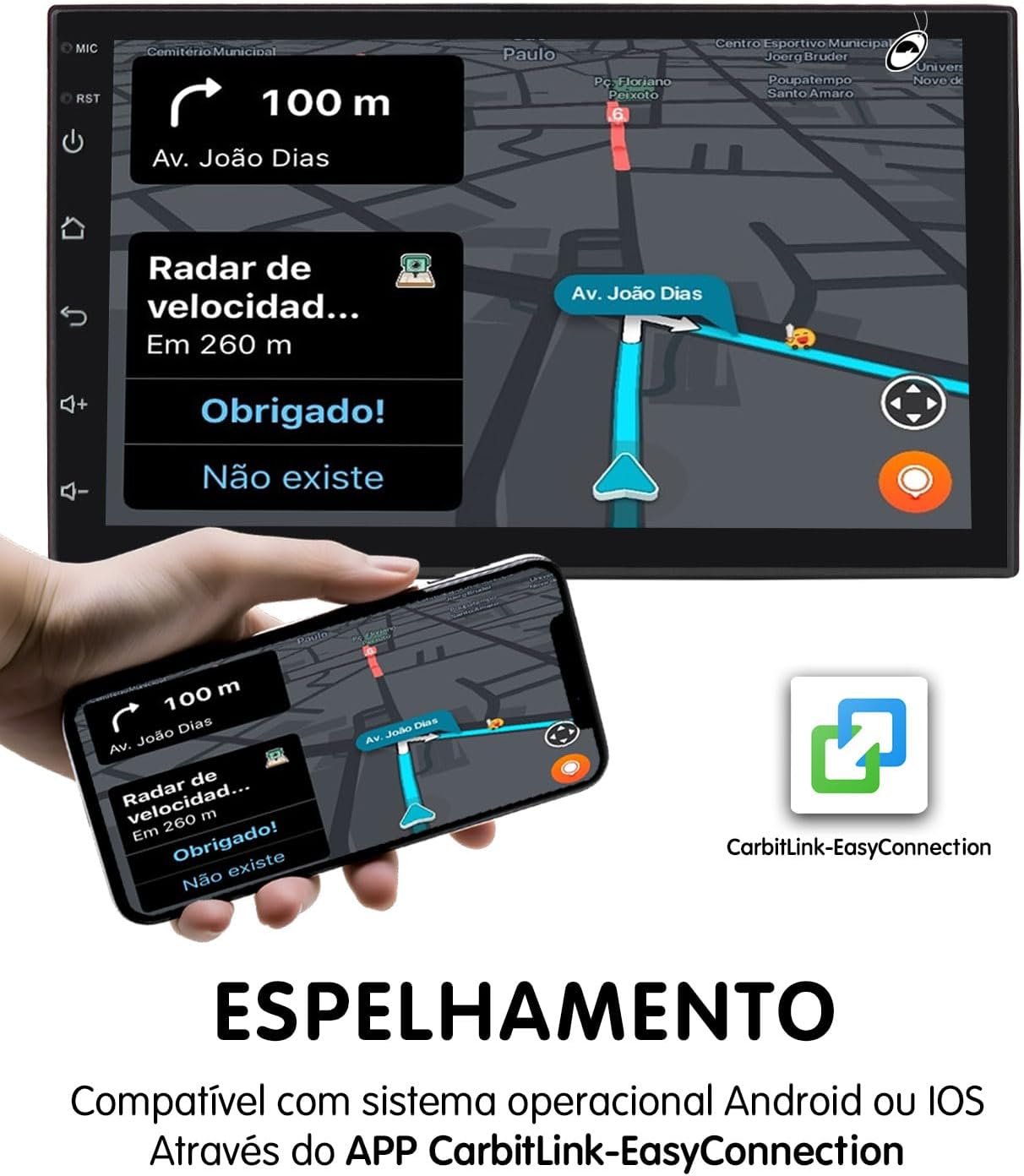
Image: The screen mirroring function of the multimedia system, enabled by the CarbitLink-EasyConnection app, displaying a smartphone's navigation interface on the larger unit screen.
5.5 GPS Navigation:
The system has integrated GPS hardware. To use navigation, you will need to install a compatible navigation application from the Google Play Store (requires Wi-Fi connection) and download maps. Ensure the GPS antenna is properly installed for accurate positioning.
5.6 Wi-Fi Connectivity:
Connect the multimedia system to a Wi-Fi network (e.g., a mobile hotspot) to access online features, download apps, and browse the internet.
- Go to Settings > Network & Internet > Wi-Fi.
- Turn on Wi-Fi and select your desired network.
- Enter the password if required.
5.7 Rear View Camera:
When the vehicle is shifted into reverse gear, the multimedia system will automatically display the feed from the connected rear view camera, aiding in safe parking and maneuvering.

Image: The H-Tech HT-7864CA multimedia system screen showing a navigation map, accompanied by an image of the included rear view camera and a smartphone demonstrating screen mirroring of the map.
6. Maintenance
- Cleaning: Use a soft, dry cloth to clean the screen and unit. For stubborn marks, a slightly damp cloth with a mild, non-abrasive cleaner can be used, but avoid direct spraying onto the unit.
- Software Updates: Periodically check for software updates through the system's settings or the manufacturer's website to ensure optimal performance and access to new features.
- Avoid Extreme Temperatures: Do not expose the unit to extreme heat or cold, as this can affect its performance and lifespan.
- Protect from Moisture: Keep the unit dry and away from liquids.
7. Troubleshooting
| Problem | Possible Cause | Solution |
|---|---|---|
| Unit does not power on. | Incorrect power wiring; Blown fuse; Vehicle battery issue. | Check power connections and fuses. Ensure vehicle battery is charged. Consult a professional installer. |
| No sound. | Volume too low; Mute activated; Incorrect speaker wiring. | Increase volume. Check if mute is active. Verify speaker connections. |
| Bluetooth not connecting. | Bluetooth off on phone/unit; Pairing issue; Interference. | Ensure Bluetooth is enabled on both devices. Delete previous pairings and re-pair. Move closer to the unit. |
| GPS signal weak or inaccurate. | GPS antenna improperly installed or obstructed. | Ensure GPS antenna has a clear view of the sky and is securely connected. |
| Rear camera not displaying. | Camera wiring issue; Reverse trigger wire not connected. | Check camera power and video connections. Verify the reverse trigger wire is correctly connected to the vehicle's reverse light circuit. |
| Touchscreen unresponsive. | Temporary software glitch; Screen calibration needed. | Restart the unit. If issue persists, perform a factory reset (refer to settings menu, note this will erase data). |
If you encounter problems not listed here or if the suggested solutions do not resolve the issue, please contact customer support or a qualified technician.
8. Specifications

Image: Approximate physical dimensions of the H-Tech HT-7864CA multimedia unit, showing width, height, and depth measurements.
| Feature | Detail |
|---|---|
| Brand | H-TECH |
| Model | HT-7864CA |
| Display Size | 7 inches |
| Display Type | IPS Glass Panel |
| Resolution | 1280x800 (HD) |
| Operating System | Android 13 |
| Processor | Octa-core |
| RAM | 4 GB |
| Internal Storage | 64 GB |
| Power Output | 4x60W RMS |
| Connectivity | Bluetooth, Wi-Fi, USB |
| Compatible Internet Services | Spotify (and others via Android apps) |
| Compatible Devices | Smartphones (iOS and Android) |
| Controller Type | Touch screen control, Voice control |
| Color | Black |
| Product Weight | 950 g |
| Package Dimensions | 23 x 20 x 9 cm |
| Certification | 04725-21-11538 |

Image: Details on the multimedia system's internal components, emphasizing the Octa-core processor, 4GB RAM, and 64GB storage for enhanced performance and capacity.
9. Warranty and Support
9.1 Manufacturer's Warranty:
This H-Tech HT-7864CA Multimedia System comes with a 1-year manufacturer's warranty from the date of purchase. This warranty covers defects in materials and workmanship under normal use.
Important: The warranty does NOT cover damages resulting from incorrect installation, misuse, accidents, unauthorized repairs, or modifications. Professional installation is strongly recommended to ensure proper function and maintain warranty validity.
9.2 Customer Support:
For technical assistance, warranty claims, or further inquiries, please contact your retailer or the H-Tech customer support channel. Refer to the product packaging or the official H-Tech website for contact information.