
1. Introduction
Thank you for choosing the Astibym 8 Zones Smart Sprinkler Controller. This device allows you to intelligently manage your irrigation system, offering remote control, timed watering, and water-saving features through the TUYA APP and compatibility with voice assistants like Google Assistant. This manual provides detailed instructions for installation, operation, and maintenance to ensure optimal performance and longevity of your sprinkler controller.
2. Safety Information
- Ensure the power adapter used is 24V 1A AC. Using an incorrect power supply may damage the device or pose a safety risk.
- Install the controller in a location with a good outdoor Wi-Fi signal for reliable remote operation.
- Keep the device away from direct water exposure unless specifically rated for outdoor use.
- Do not attempt to open or repair the device yourself. Refer to qualified personnel for service.
- Disconnect power before performing any wiring or maintenance.
3. Setup Guide
3.1 Unboxing and Component Check
Before installation, verify that all components are present:
- 1 x Sprinkler Controller
- 1 x Wiring Cap
- 3 x Screw
- 3 x Expansion Tube
- 1 x Manual
3.2 Physical Installation and Wiring
Choose a suitable location for the controller, preferably one with a strong Wi-Fi signal. Mount the controller securely using the provided screws and expansion tubes.

Image: Rear view of the controller displaying the wiring terminals for sprinkler zones and common wire.
Connect your sprinkler system's zone wires and common wire to the corresponding terminals on the controller. The terminals are labeled 1 through 8 for zones, and 'C' for the common wire. Ensure all connections are secure.
3.3 Power Connection
Connect a 24V 1A AC power adapter (not included) to the smart irrigation controller. Once connected, the device will power on.
3.4 App Installation and Device Pairing
Download the TUYA Smart or TUYA application from your mobile device's app store. Follow the in-app instructions to add and pair your Astibym Smart Sprinkler Controller. Ensure your mobile device is connected to the same 2.4GHz Wi-Fi network as the controller during the pairing process.
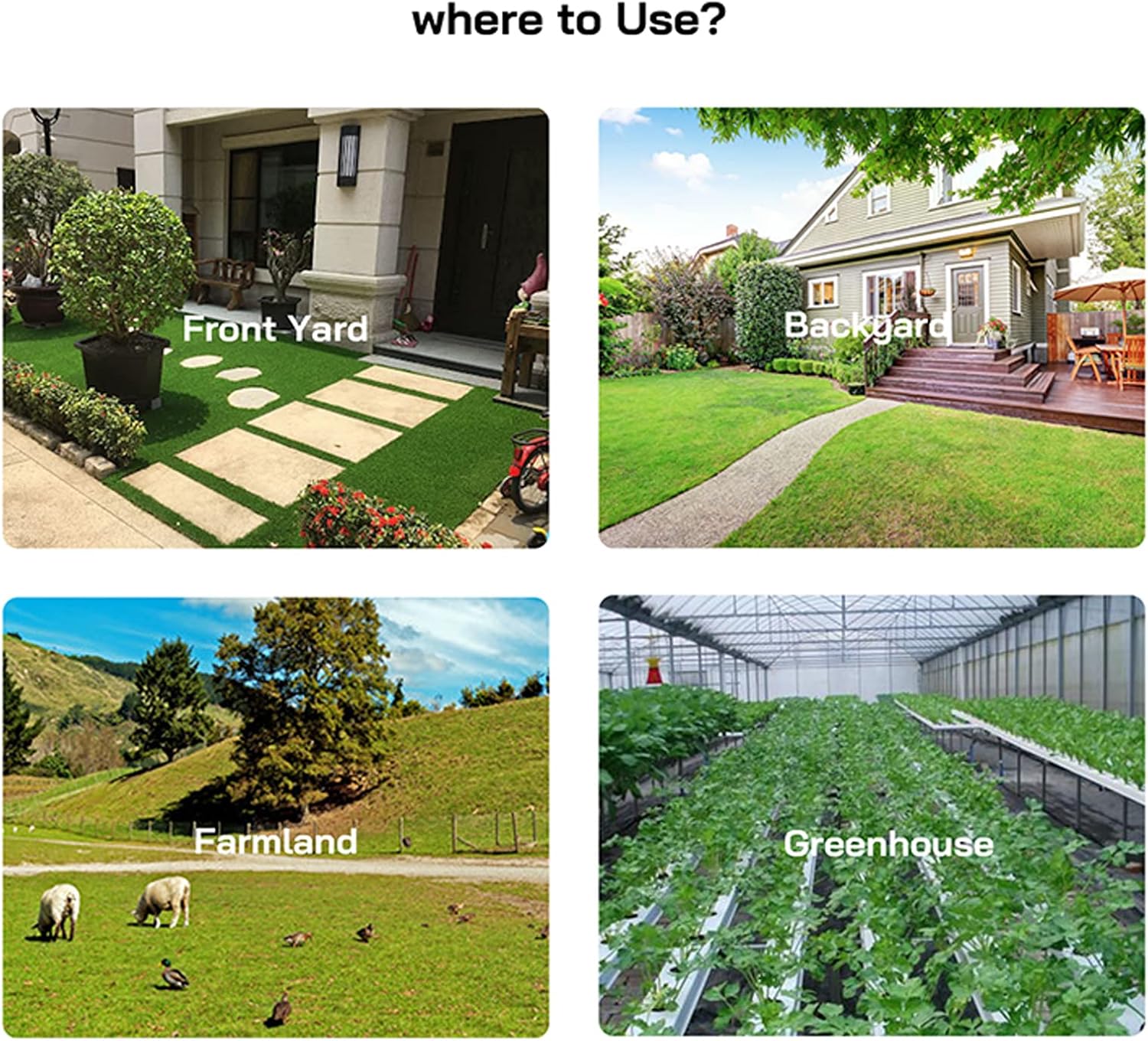
Image: The smart sprinkler controller, illustrating the need to download the TUYA APP and connect to Wi-Fi for remote control and integration with voice assistants like Google Assistant.
4. Operating Instructions
4.1 Remote Control via TUYA APP
Once paired, you can remotely control your sprinkler system from anywhere using the TUYA APP on your smartphone. This includes starting, stopping, and adjusting watering schedules for each zone.

Image: Users interacting with the smart sprinkler controller via a mobile application, highlighting the convenience of remote control from any location.
4.2 Timed Watering Schedules
The controller supports setting different watering times for each of its 8 zones. You can configure individual schedules for each zone or set all 8 zones to run for the same duration. The APP allows for flexible scheduling based on days of the week, odd/even days, or specific dates.

Image: Screenshots from the mobile application demonstrating how to set automatic watering times for different zones, such as 'Front yard Zone' and 'Backyard Zone', for efficient water management.
4.3 Manual Control and Countdown Function
The controller supports manual control directly from the device or through the APP. A countdown function is also available, allowing you to set a specific duration for immediate watering.
4.4 Water Saving Features
Utilize the APP's settings in conjunction with intelligent weather forecasts to optimize water usage. The system can automatically adjust or skip watering cycles on rainy or snowy days, preventing unnecessary water waste and potentially saving up to 50% on water bills.

Image: Visual representation of water-saving capabilities, including delays for windy, snowy, or rainy conditions, which can lead to significant reductions in water consumption.
4.5 Voice Control Integration
The controller is compatible with home voice control devices such as Google Assistant. Link your TUYA account to your voice assistant to enable voice commands for your sprinkler system.
4.6 Application Areas
The Astibym Smart Sprinkler Controller is suitable for various irrigation needs, including residential front yards, backyards, farmland, and greenhouses.

Image: Examples of diverse environments where the smart sprinkler controller can be effectively utilized, from residential gardens to agricultural settings.
5. Maintenance
The Astibym Smart Sprinkler Controller requires minimal maintenance. To ensure optimal performance:
- Keep the controller clean and free from dust and debris. Use a soft, dry cloth for cleaning.
- Periodically check wiring connections to ensure they remain secure.
- Ensure the power adapter is functioning correctly and is not damaged.
- Regularly check for firmware updates through the TUYA APP to benefit from new features and improvements.
6. Troubleshooting
6.1 Loss of Power / Wi-Fi Disconnection
If the power supply is interrupted, the controller will automatically attempt to reconnect to your Wi-Fi network once power is restored. No manual intervention should be required for reconnection.
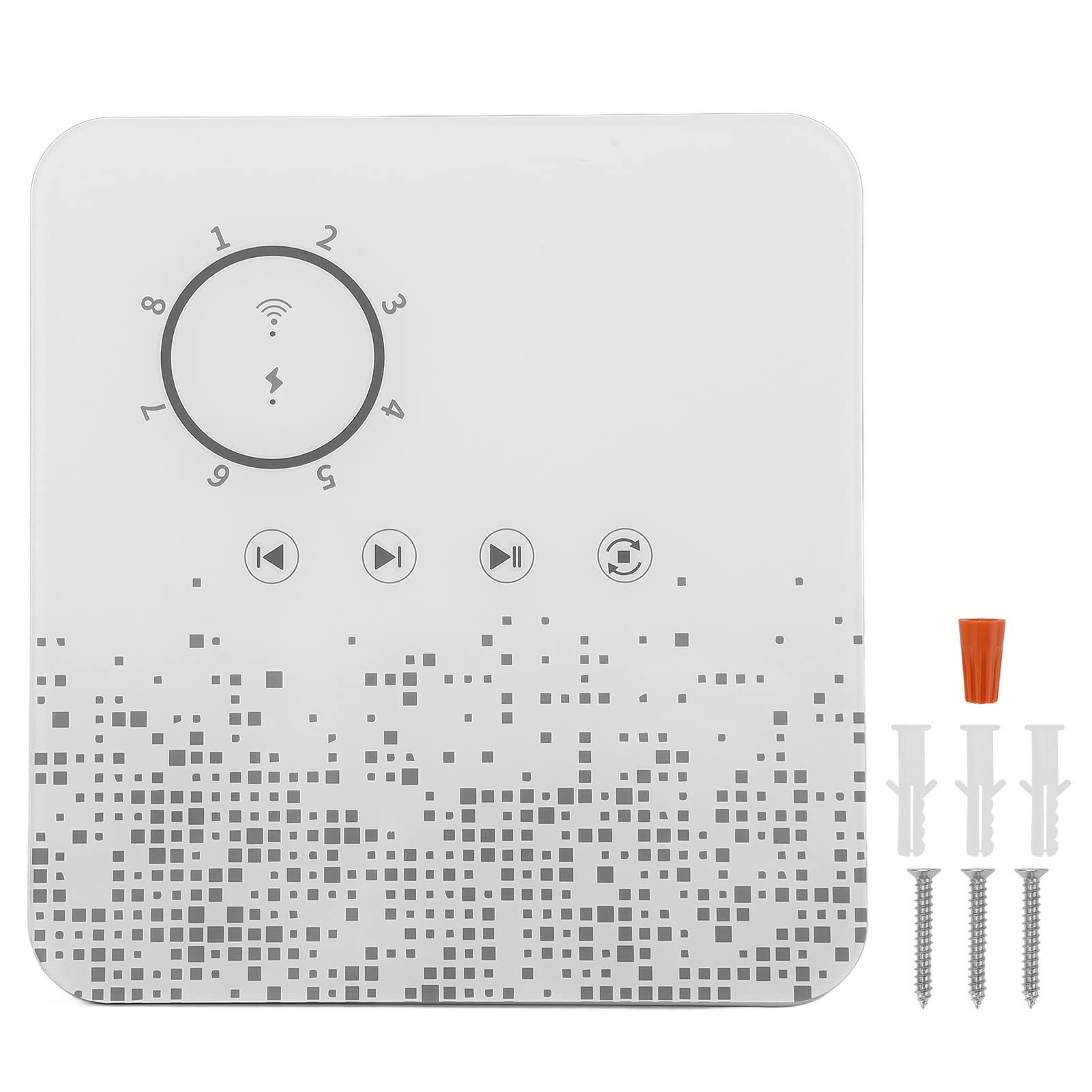
Image: A sprinkler system in operation, with the controller shown. Text clarifies that the controller automatically reconnects to Wi-Fi after a power cut and allows individual zone control via the app, but not voice control.
6.2 Individual Zone Control vs. Voice Control
You can control each irrigation zone individually through the TUYA APP. However, please note that individual zone control is not supported via voice commands through Google Assistant.
6.3 Connectivity Issues
- Ensure your Wi-Fi network is 2.4GHz, as the controller does not support 5GHz networks.
- Check that the controller is within range of your Wi-Fi router.
- Restart your Wi-Fi router and the sprinkler controller if connectivity problems persist.
- Verify your TUYA APP is updated to the latest version.
7. Specifications
| Item Type | Sprinkler Controller |
| Material | ABS |
| Voltage | AC 24V |
| Current | 1A |
| Working Frequency | 50/60HZ |
| Network Communication | 2.4GHz IEEE 802.11b/g/n |
| Use APP | For TUYA Smart or for TUYA |
| Support Voice Function | For Google Assistant |
| Irrigation Quantity | 8 channels |
| Manual Control | Support |
| Timing Function | Support |
| Countdown | Support |
| Package Dimensions | 7.87 x 7.09 x 3.94 inches |
| Item Weight | 13.6 ounces |
| Model Number | Astibymmiofgdcq3e |
8. Warranty Information
This product comes with a standard manufacturer's warranty. Please refer to the product packaging or contact Astibym customer support for specific warranty terms and conditions. Keep your purchase receipt as proof of purchase for any warranty claims.
9. Customer Support
For technical assistance, troubleshooting, or any questions regarding your Astibym Smart Sprinkler Controller, please visit the official Astibym store or contact their customer service. You can find more information and support resources at the Astibym Store on Amazon.