
Introduction
This manual provides detailed instructions for the setup, operation, and maintenance of your HDTABLET Q8K Kids Tablet. Please read this manual thoroughly to ensure proper use and to maximize your child's experience with the device.

Image: Front and back view of the HDTABLET Q8K Kids Tablet in its pink protective case.
Product Overview
The HDTABLET Q8K is a 7-inch Android tablet designed specifically for children, featuring robust parental controls and a durable, child-friendly design.
Key Features:
- Operating System: Android 12 with a quad-core processor for smooth performance.
- Memory & Storage: 4GB RAM (2+2 Expandable), 32GB ROM, expandable up to 1TB.
- Connectivity: Wi-Fi, Bluetooth.
- Cameras: 5MP Rear Camera, 2MP Front Camera.
- Battery: 3,000 mAh battery for extended use.
- Display: 7-inch 1024x600 IPS screen with eye protection features.
- Protection: Shockproof silicone case with an easy-to-grip handle and stand.

Image: Overview of the tablet's technical specifications and features.
Setup
1. Initial Charging
Before first use, fully charge the tablet using the provided Type-C cable and a compatible power adapter (not included). The battery indicator will show charging status.

Image: The tablet features a 3000mAh battery for extended usage.
2. Power On/Off
- To power on: Press and hold the power button until the screen illuminates.
- To power off: Press and hold the power button, then select "Power off" from the options.
3. Wi-Fi Connection
- Go to Settings.
- Select Network & internet.
- Tap Wi-Fi and turn it on.
- Select your desired Wi-Fi network from the list.
- Enter the password if prompted and tap Connect.
4. Initial Configuration
Follow the on-screen prompts to complete the initial setup, including language selection, time zone, and Google account setup (optional, but recommended for app downloads).
Operating Instructions
1. Parental Control Mode
The tablet features a dedicated parental control mode to manage your child's usage. This mode allows you to:
- Personalize screen time limits.
- Set educational goals.
- Filter age-appropriate content.
- Manage app downloads and playtime.
Access the parental control settings through the pre-installed parental control application. A parent code is required to exit child-friendly applications or modify settings.

Image: The tablet's interface with pre-installed kid-friendly applications.
2. Kid-Friendly Content
This tablet comes preloaded with various kid-friendly applications that store cartoons, online books, songs, and photos to build skills and imagination. As your child grows, you can add new age-appropriate applications through the app store, managed via parental controls.
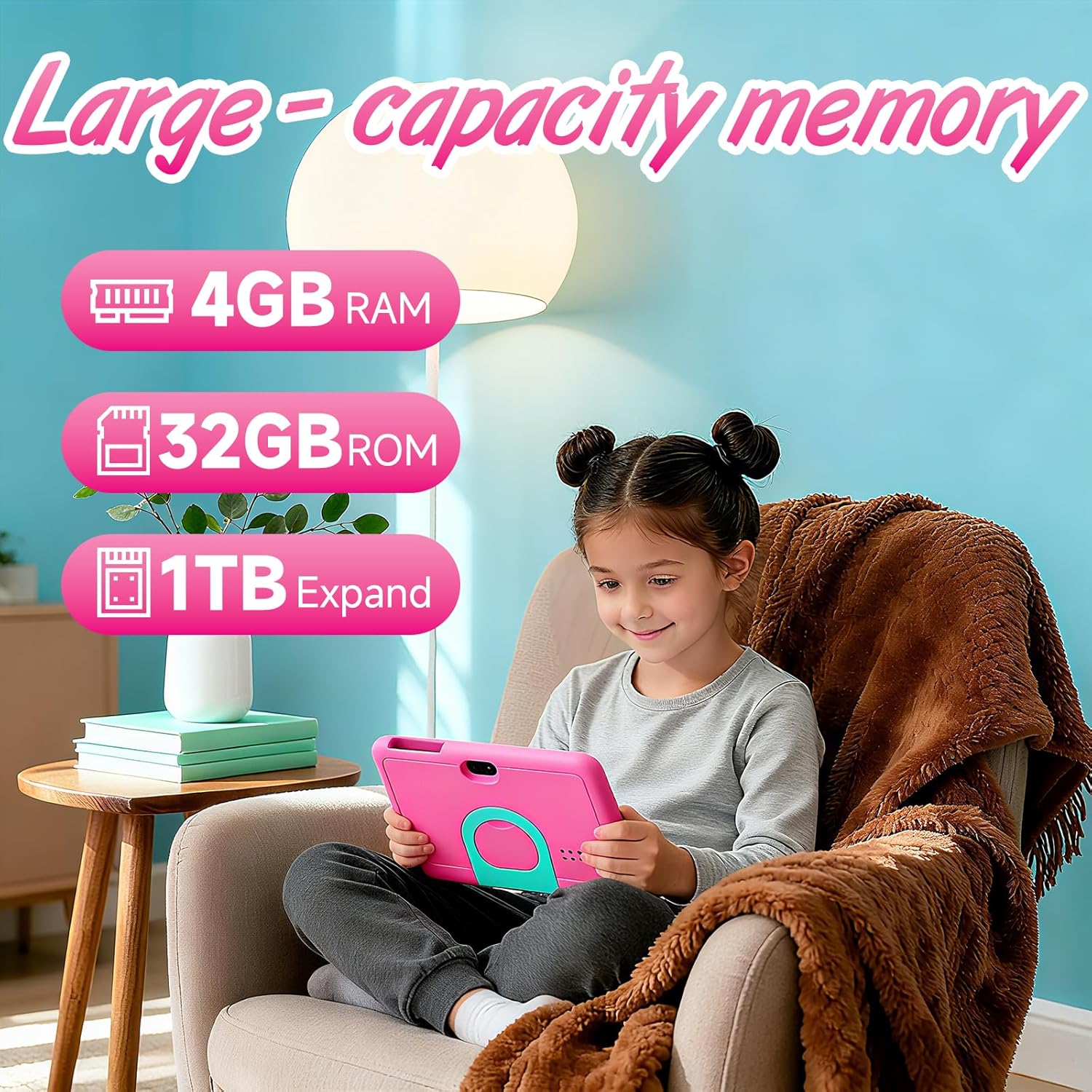
Image: The tablet offers ample memory for kid-friendly content and applications.
3. Eye Protection Screen
The 7-inch IPS display features a 1024x600 resolution and includes an automatic brightness adjustment function. This feature helps to protect your child's eyes and reduce eye fatigue during use.

Image: The 7-inch HD screen is designed with eye protection in mind.
4. Dual Cameras
The tablet is equipped with a 5MP rear camera and a 2MP front camera, allowing children to capture photos and videos.

Image: The tablet features high-definition front and rear dual cameras.
Maintenance
1. Cleaning the Tablet
Use a soft, lint-free cloth to clean the screen and body of the tablet. Do not use liquid cleaners or aerosols directly on the screen.
2. Case Care
The silicone protective case can be removed and cleaned with mild soap and water if necessary. Ensure the case is completely dry before reattaching it to the tablet.

Image: The tablet is protected by a durable EVA protective case.
3. Battery Care
- Avoid fully discharging the battery frequently.
- Do not expose the tablet to extreme temperatures.
- Use only the provided Type-C cable for charging.
Troubleshooting
| Problem | Possible Solution |
|---|---|
| Tablet does not power on. | Ensure the tablet is fully charged. Connect it to a power source and wait a few minutes before attempting to power on again. |
| Wi-Fi connection issues. | Check if Wi-Fi is enabled in settings. Restart your Wi-Fi router. Ensure the tablet is within range of the Wi-Fi signal. Some networks may require specific settings for non-5G devices; consult your router's manual. |
| Applications are running slowly. | Close unused applications running in the background. Clear cache for frequently used apps. Consider restarting the tablet. Ensure sufficient storage space is available. |
| Volume is too low. | Check the volume settings in the tablet's system and within the specific application being used. Ensure no external audio devices are connected. |
| Parental control mode does not stay active. | Verify that the parental control settings are correctly configured and saved. Ensure the tablet's software is up to date. |
Specifications
| Feature | Detail |
|---|---|
| Brand | HDTABLET |
| Model Name | Q8K |
| Operating System | Android 12 |
| Screen Size | 7 Inches |
| Screen Resolution | 1024 x 600 Pixels (IPS) |
| Processor | 1.8 GHz Quad-core |
| RAM | 4 GB (2+2 Expandable) |
| Internal Storage (ROM) | 32 GB |
| Expandable Storage | Up to 1 TB (via microSD card, not included) |
| Rear Camera | 5 MP |
| Front Camera | 2 MP |
| Battery Capacity | 3,000 mAh |
| Average Battery Life | 6 Hours |
| Wireless Type | 802.11b, 802.11g, 802.11n |
| Item Weight | 1.3 pounds |
| Product Dimensions (LxWxH) | 6.9 x 2.8 x 0.3 inches |
| Color | Pink |
| Included Components | Type-C Cable |
Warranty and Support
For any questions or assistance regarding your HDTABLET Q8K Kids Tablet, please contact our customer support. We aim to provide a satisfactory response within 24 hours.
Please refer to your purchase documentation for specific warranty details.