1. Introduction
This manual provides detailed instructions for the installation, operation, and maintenance of your RexingUSA CPDuo Pro 10.26" 4K Dash Cam. This device integrates a high-resolution dash camera with wireless Apple CarPlay and Android Auto functionalities, offering enhanced connectivity and safety features for your vehicle. Please read this manual thoroughly before use to ensure proper functionality and to maximize your user experience.
2. Package Contents
Please verify that all items listed below are included in your package. If any items are missing or damaged, please contact customer support.
- CPDuo Pro Main Unit (10.26" Touchscreen Display)
- Rear Camera
- Car Charger
- Car Mount (Dashboard Mount)
- Quick Guide
- Warranty Card
3. Product Overview
The CPDuo Pro is a versatile device designed to enhance your driving experience. It features a large touchscreen display, integrated front and rear cameras, and wireless connectivity for smartphone integration.

Image: The RexingUSA CPDuo Pro main unit, showcasing its 10.26-inch touchscreen display, integrated front camera, and a separate rear camera. The screen illustrates its dual functionality with navigation on one side and live dash cam footage on the other.
Key Features:
- 10.26-inch HD Touchscreen Display
- 4K UHD Front Dash Cam
- 1080p Full HD Rear Camera
- Wireless Apple CarPlay & Android Auto
- Built-in GPS
- Dual-band Wi-Fi & Bluetooth Connectivity
- WDR (Wide Dynamic Range) & Night Vision
- 24-Hour Parking Monitor
- Loop Recording & G-Sensor
4. Setup and Installation
Follow these steps to properly install your CPDuo Pro in your vehicle.
4.1 Mounting the Main Unit
- Choose a suitable location on your dashboard that does not obstruct your view of the road or interfere with airbags.
- Clean the dashboard surface thoroughly to ensure proper adhesion of the car mount.
- Attach the car mount to the main unit, then firmly press the mount onto the chosen dashboard location. Adjust the angle for optimal visibility and accessibility.
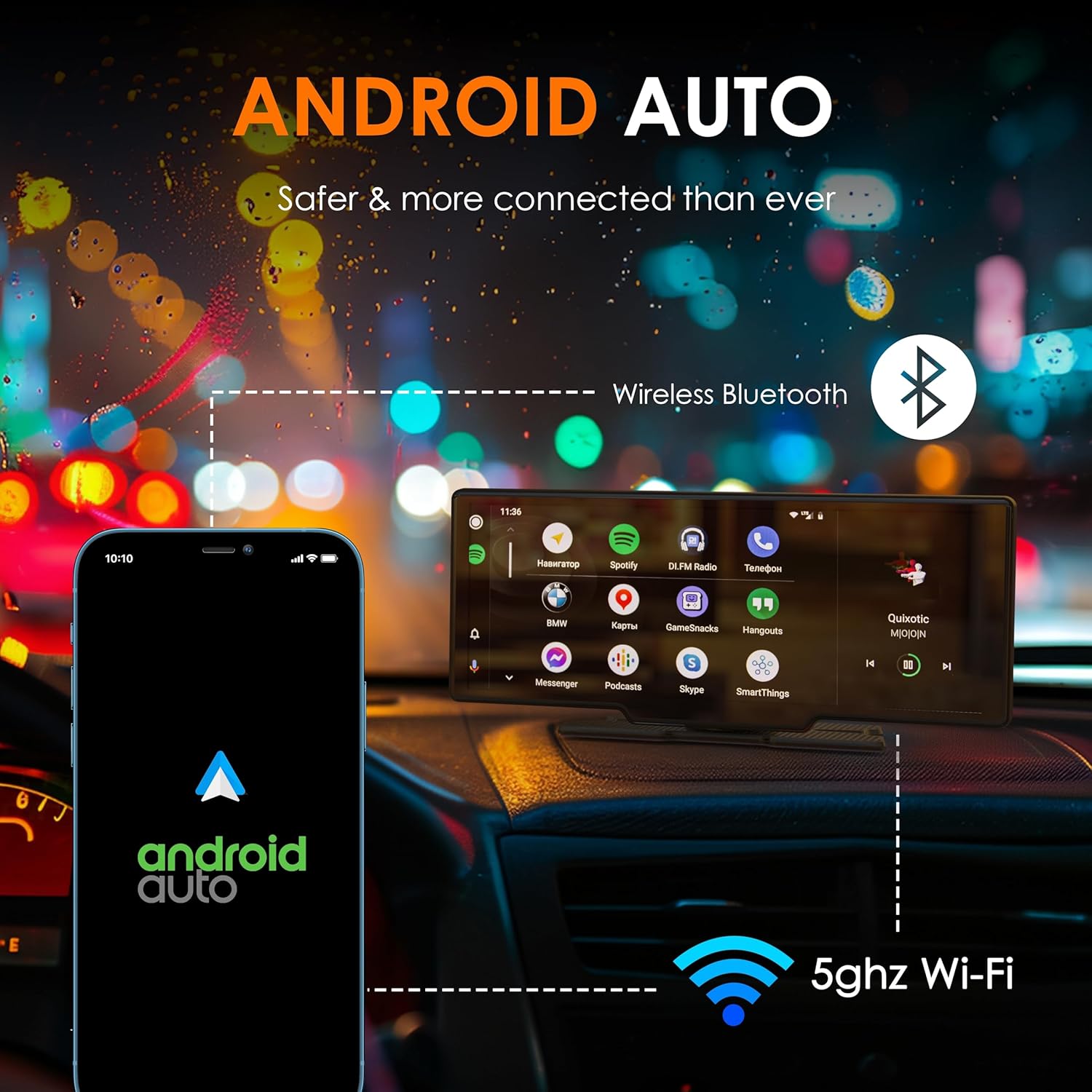
Image: The CPDuo Pro unit is shown mounted on a car's dashboard, positioned to provide optimal visibility for the driver while ensuring easy access to the touchscreen interface.
4.2 Connecting the Rear Camera
- Route the rear camera cable from the main unit to the rear of your vehicle. Ensure the cable is tucked away safely to avoid interference with vehicle operations.
- Mount the rear camera in a position that provides a clear view of the road behind your vehicle, typically near the license plate or inside the rear window.
- Connect the rear camera cable to the designated port on the main unit.
4.3 Power Connection
- Insert the car charger into your vehicle's 12V power outlet (cigarette lighter socket).
- Connect the other end of the car charger cable to the power input port on the CPDuo Pro main unit.
- The device will power on automatically when the vehicle's ignition is turned on.
5. Operating Instructions
This section details how to use the various features of your CPDuo Pro.
5.1 Wireless Apple CarPlay and Android Auto
The CPDuo Pro supports wireless connectivity for both Apple CarPlay and Android Auto, allowing seamless integration with your smartphone.
- Ensure Bluetooth and Wi-Fi are enabled on your smartphone.
- On the CPDuo Pro, navigate to the CarPlay or Android Auto icon and tap to activate.
- On your smartphone, search for the CPDuo Pro's Bluetooth signal and pair the devices.
- Follow the on-screen prompts on both the CPDuo Pro and your smartphone to establish the wireless connection. Once connected, your phone's compatible apps will appear on the CPDuo Pro display.

Image: The CPDuo Pro screen displays the Apple CarPlay interface, featuring icons for phone, music, maps, messages, and other compatible applications, demonstrating seamless iPhone integration.

Image: The CPDuo Pro screen displays the Android Auto interface, featuring icons for navigation, music, and communication apps, demonstrating seamless Android smartphone integration.
5.2 Dash Cam Recording (Front 4K & Rear 1080p)
The CPDuo Pro continuously records footage from both the front and rear cameras.
- Automatic Recording: Recording begins automatically when the device powers on.
- Loop Recording: Older files are overwritten by new recordings when the memory card is full. Ensure you have a high-quality microSD card (not included) inserted.
- G-Sensor: In the event of a sudden impact or collision, the G-sensor automatically locks the current recording to prevent it from being overwritten.
- WDR & Night Vision: The device utilizes WDR technology and advanced optical lenses to ensure clear footage even in low-light conditions or challenging lighting environments.
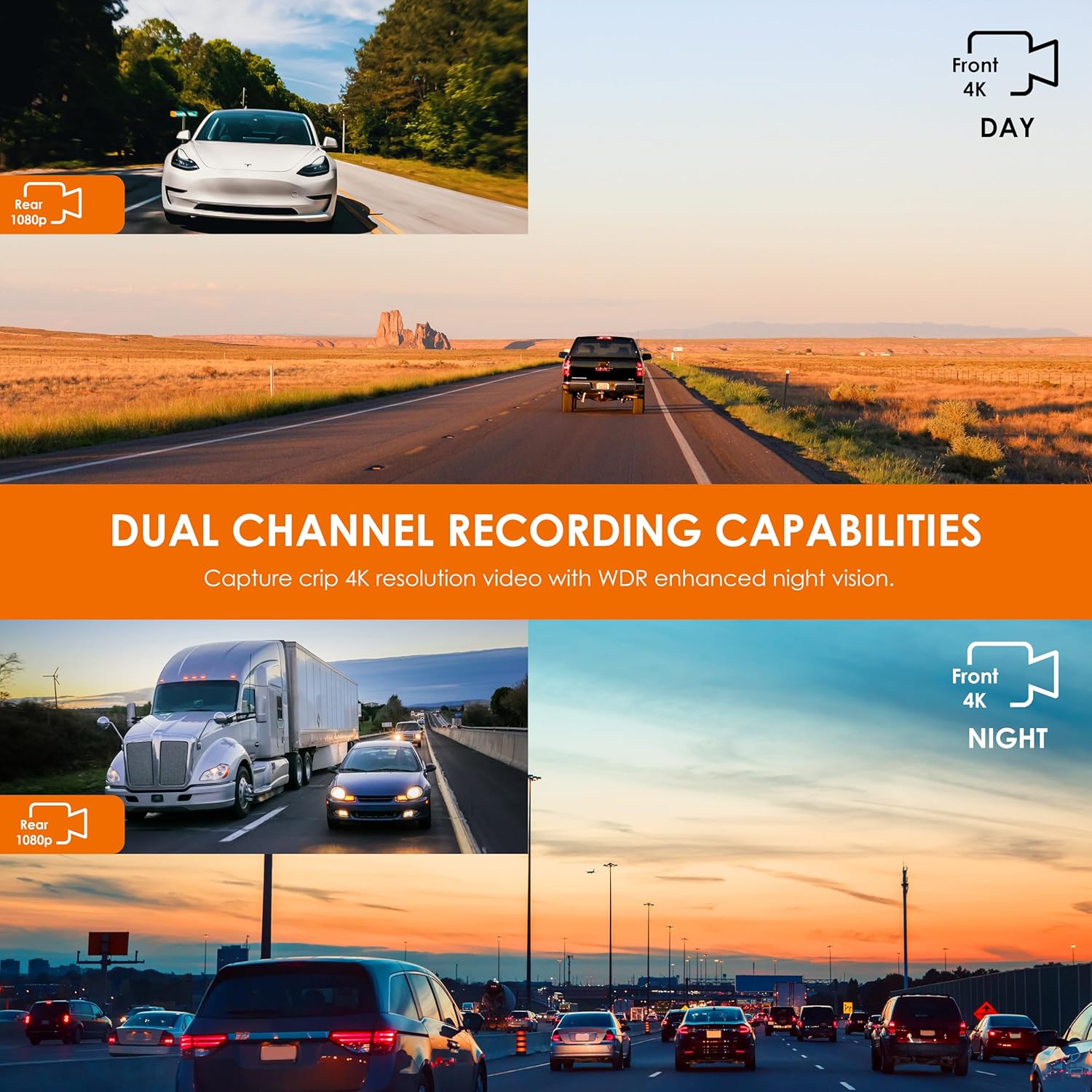
Image: A split-screen graphic illustrating the dual-channel recording capabilities, showing crisp 4K front camera footage during both day and night, alongside clear 1080p rear camera footage.

Image: The CPDuo Pro's screen displays a split view, with navigation on the left and live dash cam footage on the right, highlighting its integrated functionality.
5.3 GPS Navigation
Utilize your preferred navigation apps (e.g., Google Maps) through CarPlay or Android Auto for accurate route guidance and real-time traffic information.
5.4 24-Hour Parking Monitor
When the vehicle is parked, the CPDuo Pro can monitor for impacts or record time-lapse footage to provide surveillance around the clock. This feature requires a hardwire kit (sold separately) for continuous power.
5.5 Reverse Assistance
When you shift your vehicle into reverse, the CPDuo Pro automatically displays the full-screen view from the rear camera, providing clear visibility and parking guidelines to assist with safe maneuvering.

Image: The CPDuo Pro screen shows a wide-angle view from the rear camera, complete with colored parking guidelines (red, yellow, green) to assist with safe reversing and parking.
5.6 Audio Output Options
The CPDuo Pro offers multiple ways to output audio to your vehicle's sound system.
- FM Transmitter: Broadcast audio wirelessly from the CPDuo Pro to your car stereo by tuning both devices to the same FM frequency.
- AUX Audio: Connect the CPDuo Pro to your car's AUX input using a 3.5mm audio cable for a direct wired audio connection.

Image: The CPDuo Pro screen displays its FM transmitter interface, showing a selected frequency (e.g., 91.0 MHz), with a car's physical radio tuned to the same frequency in the background, illustrating wireless audio streaming.

Image: A person is shown connecting a 3.5mm AUX cable from the CPDuo Pro to the AUX input of a car's stereo system, demonstrating a wired audio connection.
6. Maintenance
Proper maintenance ensures the longevity and optimal performance of your CPDuo Pro.
- Cleaning the Screen: Use a soft, lint-free cloth to gently wipe the touchscreen. Avoid abrasive materials or chemical cleaners that could damage the display.
- Cleaning Lenses: Keep the front and rear camera lenses clean from dust and smudges for clear recording. Use a lens cleaning cloth or a soft, dry cloth.
- Memory Card Management: Regularly format your microSD card (at least once a month) within the device settings to prevent data corruption and ensure smooth loop recording. Replace the card if it shows signs of degradation or error.
- Temperature: Avoid exposing the device to extreme temperatures for extended periods.
7. Troubleshooting
If you encounter issues with your CPDuo Pro, refer to the following common problems and solutions.
- Device does not power on:
- Ensure the car charger is securely connected to both the device and the vehicle's 12V power outlet.
- Check if the vehicle's 12V power outlet is functioning (e.g., by testing with another device).
- Dash cam is not recording:
- Verify that a compatible microSD card is inserted correctly.
- Format the microSD card through the device settings.
- Check if loop recording is enabled in the settings.
- Wireless CarPlay/Android Auto not connecting:
- Ensure Bluetooth and Wi-Fi are active on your smartphone.
- Forget the device from your phone's Bluetooth settings and re-pair.
- Restart both the CPDuo Pro and your smartphone.
- Date and Time are incorrect:
- The device typically syncs time with your connected smartphone via CarPlay/Android Auto. Ensure your phone's date and time settings are correct.
- If the issue persists, check for firmware updates or contact customer support.
- Poor video quality:
- Clean the camera lenses.
- Ensure the protective film has been removed from the lenses.
- Check video resolution settings on the device.
8. Specifications
| Feature | Specification |
|---|---|
| Model Name | CPDuo-Pro |
| Display | 10.26-inch HD Touchscreen |
| Front Camera Resolution | 4K (2160p) |
| Rear Camera Resolution | 1080p |
| Connectivity | Wireless CarPlay, Android Auto, Bluetooth, Dual-band Wi-Fi, Auxiliary |
| Special Features | App Control, Built-In Display, Parking Monitor, Reverse Assist, WDR, Night Vision |
| Mounting Type | Dashboard Mount |
| Control Method | Touch |
| Product Dimensions | 9.5 x 3 x 4.5 inches |
| Item Weight | 2.35 pounds |
| Color | Black |
9. Warranty and Support
The RexingUSA CPDuo Pro comes with an 18-MONTH WARRANTY, ensuring peace of mind regarding your purchase. RexingUSA is committed to 100% customer satisfaction.
For technical assistance, warranty claims, or any other inquiries, please contact RexingUSA customer support. Refer to the Warranty Card included in your package for specific contact details and warranty terms.
Customer support is available 24/7 to address your needs and concerns.