
1. Introduction
This manual provides instructions for the installation, operation, and maintenance of your Biorunn 9-inch Car Stereo Radio. Please read this manual thoroughly before use to ensure proper functionality and safety. This unit is designed to enhance your driving experience with advanced features such as wireless CarPlay, Android Auto, GPS navigation, and multimedia playback.
2. Safety Information
- Ensure all connections are secure and correctly wired before powering on the device to prevent damage or electrical hazards.
- Do not attempt to disassemble, modify, or repair the unit yourself. Refer all servicing to qualified personnel.
- Avoid operating the device in extreme temperatures, direct sunlight for prolonged periods, or high humidity environments.
- Always prioritize safe driving. Do not operate features that distract from driving, and always adhere to local traffic laws and regulations.
- Keep the unit away from water and other liquids.
3. Package Contents
Verify that all items are present in the package before proceeding with installation:
- Biorunn 9-inch Car Stereo Head Unit
- Power Cable Harness
- GPS Antenna
- USB Cables (x2)
- External Microphone (if included)
- Installation Brackets and Screws
- User Manual (this document)
4. Product Overview
The Biorunn Car Stereo is an advanced infotainment system designed for specific Volvo models. It features a 9-inch IPS touchscreen, 8-core processor, 4GB RAM, and 64GB ROM, offering Wireless CarPlay, Android Auto, GPS navigation, Bluetooth 5.0, and FM/AM RDS radio functionality.
4.1 Front Panel
The front panel features the 9-inch high-resolution IPS touchscreen display, which serves as the primary interface for all functions. Essential control buttons are integrated into the design for quick access to common features.
4.2 Rear Connections
The rear of the unit contains various ports for power, speakers, USB devices, GPS antenna, and other accessories. Proper connection of these ports is crucial for the unit's full functionality.

Image: Rear view of the Biorunn car stereo, highlighting the various connection ports and the integrated cooling fan. This fan helps maintain stable operation in high-temperature environments.
5. Installation
This section provides general installation guidelines. Due to the complexity of automotive electronics, professional installation is highly recommended.
5.1 Compatibility Check
This unit is specifically designed for Volvo C30 C70 (2006-2013) and Volvo S40 V50 (2004-2012) models. Before installation, carefully compare your vehicle's dashboard and center console with the provided images to ensure compatibility.

Image: A comparison showing a Volvo dashboard where the Biorunn stereo fits correctly ("Fit") and another where it does not ("NO Fit"). This helps users verify compatibility before installation.
5.2 Wiring Diagram
Refer to the detailed wiring diagram included with your product for specific connections. Key connections typically include:
- Power: ACC (Accessory), B+ (Constant Power), GND (Ground)
- Speaker Outputs: Front Left (+/-), Front Right (+/-), Rear Left (+/-), Rear Right (+/-)
- Antennas: GPS Antenna Input, Wi-Fi Antenna (if external)
- USB Inputs: For external storage, CarPlay/Android Auto (wired), and charging
- Auxiliary Inputs/Outputs: For external audio/video sources or amplifiers
- Camera Inputs: Reverse Camera, Front Camera (optional)
- Steering Wheel Control (SWC): For integrating with existing vehicle controls
5.3 Mounting the Head Unit
Carefully remove the original head unit and dashboard trim. Connect all necessary cables to the Biorunn unit according to the wiring diagram. Secure the unit using the provided installation brackets and screws. Ensure all cables are neatly routed and not pinched. Reassemble the dashboard trim, ensuring all clips and fasteners are properly engaged.
6. Initial Setup
6.1 First Power On
After installation, turn on your vehicle's ignition. The unit should power on automatically. Follow the on-screen prompts for initial setup, which typically includes selecting your preferred language, setting the time zone, and agreeing to terms of service.
6.2 Wi-Fi Connection
To access online features, download apps, and receive software updates, connect the unit to a Wi-Fi network (e.g., a mobile hotspot or home Wi-Fi if within range).
- Go to Settings > Network & Internet > Wi-Fi.
- Turn on Wi-Fi and select your desired network from the list.
- Enter the Wi-Fi password if prompted and tap Connect.
The unit supports 5GHz Wi-Fi (802.11 b/g/n) for faster data transmission, lower latency, wider coverage, and a more stable connection.

Image: Graphic highlighting the benefits of 5GHz WiFi support (802.11 b/g/n), including fast transmission, low latency, wide coverage, and stable connection.
7. Operating Instructions
7.1 Wireless CarPlay / Android Auto
The unit supports both wireless CarPlay (for iOS devices) and wireless Android Auto (for Android devices), allowing seamless integration of your smartphone's features.
Connection Steps:
- Ensure Bluetooth is enabled on your smartphone.
- On the car stereo, open the "Car Link" application from the main menu.
- Connect your phone via Bluetooth to the car stereo. The device name will typically appear as "Biorunn_XXXX".
- Once paired, the system will automatically initiate Wireless CarPlay or Android Auto.
A wired connection via USB is also supported for both CarPlay and Android Auto, providing an alternative connection method.

Image: Visual guide detailing the connection steps for Wireless CarPlay (iOS) and Wireless Android Auto (Android), including Bluetooth pairing and using the "Car Link" app. It also notes the option for USB cable connection.
7.2 GPS Navigation
The unit features a built-in global positioning system supporting GPS, BDS, and GLONASS for accurate and rapid positioning. It allows for omni-directional map display and synchronous display of real-time traffic conditions.
Using Navigation:
- Ensure the GPS antenna is properly connected and positioned for optimal signal reception (e.g., on the dashboard with a clear view of the sky).
- Open the pre-installed navigation application (e.g., Google Maps, Waze, or other supported maps) from the main menu.
- Enter your destination using the touchscreen keyboard or voice commands to receive turn-by-turn directions and real-time traffic updates.
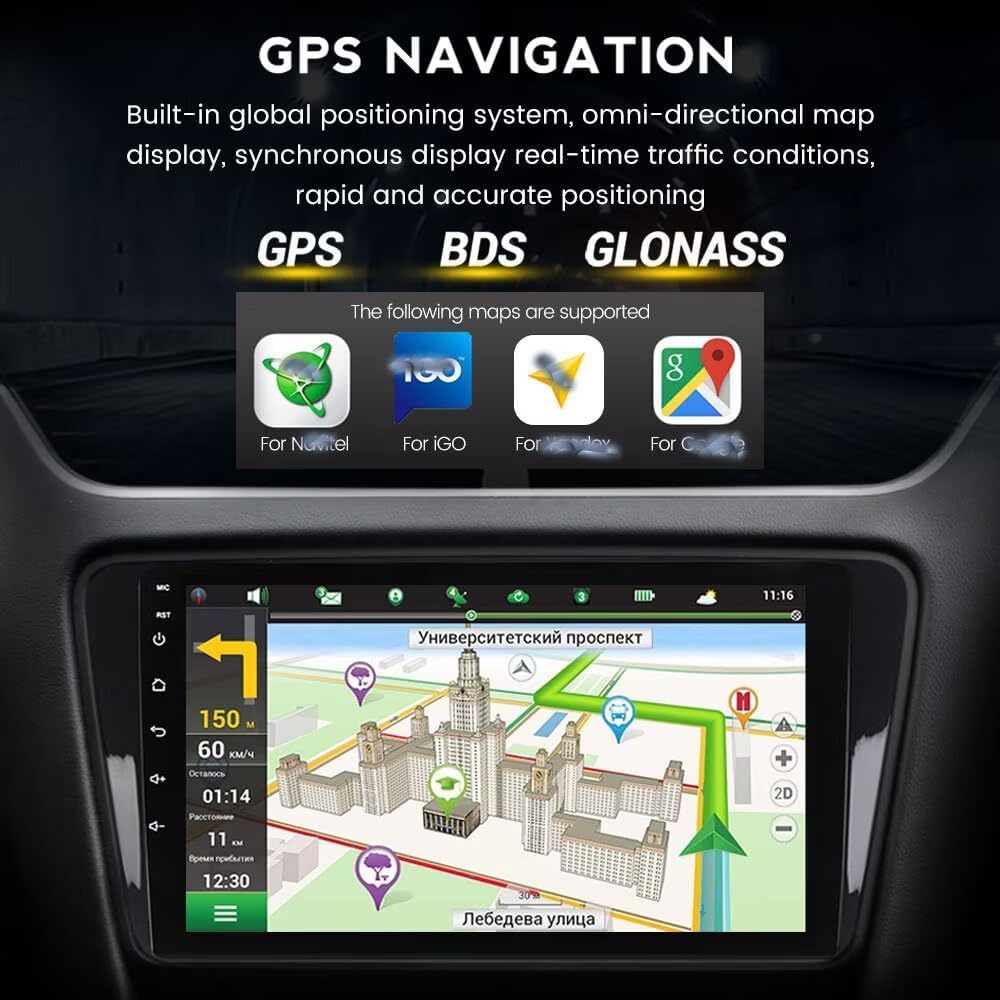
Image: A screenshot of the GPS navigation system in action, displaying a map with a route and real-time traffic conditions. It also indicates support for GPS, BDS, and GLONASS systems, and shows icons for various map applications.
7.3 Bluetooth Function
Connect your smartphone via Bluetooth 5.0 for hands-free calling, phonebook access, and audio streaming, enhancing safety and convenience while driving.
Pairing a Device:
- Enable Bluetooth on your phone and ensure it is discoverable.
- On the car stereo, open the Bluetooth application from the main menu.
- Search for available devices and select your phone from the list.
- Confirm the pairing code on both devices if prompted.
Once paired, you can make and receive calls directly through the stereo, access your phone's contact list, and stream music wirelessly.

Image: Illustration of the Bluetooth function, showing hands-free calling, contact synchronization, and Bluetooth music streaming. It emphasizes safe driving practices by not looking at the phone while driving.
7.4 FM/AM RDS Radio
The unit includes an FM/AM radio tuner with RDS (Radio Data System) support, allowing you to listen to your favorite radio stations with enhanced information display.
Radio Operation:
- Select the "Radio" application from the main menu.
- Use the on-screen controls to scan for stations automatically or manually.
- Save your favorite stations to the preset list for quick access.

Image: Screenshot of the FM/AM RDS radio interface, demonstrating automatic and manual station search capabilities, and the ability to drag and replace stations in the channel list. It also shows a visual equalizer.
7.5 Steering Wheel Control (SWC)
The unit supports integration with your vehicle's original steering wheel controls. After installation, you may need to configure the SWC settings in the system menu to map the functions of your steering wheel buttons to the stereo's controls (e.g., volume up/down, track skip, mode change).
8. Maintenance
- Screen Cleaning: Keep the touchscreen clean using a soft, dry, lint-free cloth. For stubborn smudges, lightly dampen the cloth with water or a screen-safe cleaner. Avoid abrasive cleaners, solvents, or harsh chemicals.
- Ventilation: Ensure proper ventilation around the unit to prevent overheating. The built-in cooling fan is designed to manage internal temperatures, but obstructions can hinder its effectiveness.
- Software Updates: Regularly check for software updates in the system settings. Updates can provide performance improvements, new features, and security enhancements. Connect to Wi-Fi to download and install updates.
- General Care: Avoid exposing the unit to extreme temperatures, direct sunlight for extended periods, or excessive moisture.
9. Troubleshooting
| Problem | Possible Cause | Solution |
|---|---|---|
| Unit does not power on. | Incorrect wiring (power, ground, ACC); Blown fuse in vehicle or unit; Vehicle ignition off. | Check all power connections for proper polarity and security. Inspect vehicle and unit fuses. Ensure vehicle ignition is on. |
| No sound from speakers. | Volume too low or muted; Incorrect speaker wiring; Amplifier not powered (if external). | Increase volume and check if mute is active. Verify speaker wire connections. Check external amplifier power and connections. |
| GPS signal lost or inaccurate. | GPS antenna not properly connected; Antenna obstructed; Poor satellite reception. | Ensure GPS antenna is securely connected and positioned with a clear view of the sky. Move vehicle to an open area. |
| CarPlay/Android Auto not connecting. | Bluetooth not enabled on phone; "Car Link" app not open; Phone compatibility issue; Incorrect USB cable. | Enable Bluetooth on your phone. Open the "Car Link" app on the stereo. Ensure your phone's OS is compatible. Try a different USB cable for wired connection. |
| Touchscreen unresponsive or lagging. | System overload; Temporary software glitch; Screen calibration issue. | Restart the unit (turn off/on vehicle ignition). Close unnecessary background applications. Perform a factory reset if issues persist (backup data first). |
10. Specifications
- Operating System: Android
- Core: 8-Core Processor
- Screen Size: 9 Inches
- RAM: 4GB
- ROM: 64GB
- Resolution: 1280 x 720 (IPS Screen)
- Bluetooth: 5.0
- Wi-Fi: 5GHz (802.11 b/g/n)
- Radio: FM/AM RDS
- Navigation: Built-in GPS, BDS, GLONASS
- Special Features: Wireless CarPlay, Wireless Android Auto, Built-in DSP Processor, Split Screen Function, Support for ADAS DVR (DVR not included), Support for OBD II (OBD II not included), Support for TPMS (TPMS not included), Multi-language support
- Audio Formats: MP3, WMA, AAC, RM, FALC, etc.
- Video Formats: MPEG-1/2/4, H264, H263, VC1, RV, RMVB, DivX, Sorenson SparK, Spark, VP8, AVS Stream
- Photo Formats: JPG/BMP/JEPG/GIF/PNG
11. Warranty and Support
This Biorunn product comes with a 1-year warranty from the date of purchase, covering manufacturing defects. Please retain your proof of purchase for warranty claims.
For warranty claims, technical support, or any inquiries regarding your product, please contact your retailer or visit the official Biorunn website. You may also refer to the contact information provided with your purchase.
Manufacturer: Shenzhen Rongnan International Electronics Co., Ltd.
For further assistance, please visit the Biorunn Store on Amazon.