
1. Introduction
This manual provides detailed instructions for the operation and maintenance of your PINHUI 64GB MP3 Player with Bluetooth 5.3. Please read this manual thoroughly before using the device to ensure proper functionality and to maximize your user experience. This device is designed for portable audio playback, recording, and other multimedia functions.
2. What's in the Box
- 64GB Bluetooth MP3 Player x 1
- Type-C USB Cable x 1
- 3.5mm Stereo Earphones x 1
- Bluetooth MP3 Player Lanyard x 1
- Protective Cover x 1
3. Product Overview
The PINHUI 64GB MP3 Player is a compact, portable device featuring a full touch screen and multiple functions. It includes physical buttons for power and volume control, along with a Type-C port for charging and data transfer, and a 3.5mm audio jack for wired headphones.

This image displays two PINHUI 64GB MP3 Players, highlighting their compact size and the included wired earphones. One player shows a music playback screen, while the other displays the time and date.

This image provides a size comparison of the PINHUI MP3 Player and details its packing list, which includes the user manual, headphones, lanyard, Type-C USB cable, and a protective cover.
4. Setup
4.1 Charging the Device
- Connect the provided Type-C USB cable to the MP3 player's charging port.
- Connect the other end of the USB cable to a USB power adapter (not included) or a computer's USB port.
- The battery indicator on the screen will show charging status. A full charge typically takes a few hours.
4.2 Transferring Music and Files
To transfer files from your computer to the MP3 player:
- Connect the MP3 player to your computer using the provided Type-C USB cable.
- The device will appear as a removable disk drive on your computer.
- Drag and drop your desired music, video, or e-book files into the appropriate folders on the MP3 player's internal storage.
- Once files are transferred, safely eject the device from your computer before disconnecting the cable.
Note: File transfer speeds may vary. Ensure your computer's USB port and cable support data transfer. Supported music formats include MP3, WMA, OGG, APE, FLAC, WAV, AAC-LC, ACELP, DRM. Supported video formats are AVI and AMV. E-books must be in TXT format.
4.3 Memory Expansion (TF Card)
The MP3 player has a TF card slot for expandable memory up to 128GB.
- Locate the TF card slot on the side of the device.
- Gently insert a compatible TF (microSD) card into the slot until it clicks into place.
- To remove, push the card inward until it springs out.

This image highlights the PINHUI MP3 Player's internal 64GB storage and its expandability up to 128GB via a TF (microSD) card, depicted alongside the device.
5. Operating Instructions
5.1 Power On/Off
- To power on: Press and hold the power button located on the side of the device until the screen illuminates.
- To power off: Press and hold the power button until the power-off prompt appears, then confirm on the screen. A short press will turn the screen off/on.
5.2 Basic Navigation (Touch Screen)
The device features a full touch screen for navigation. Swipe left/right or up/down to browse menus and tap icons to select functions. Use the back arrow icon on the screen to return to the previous menu.
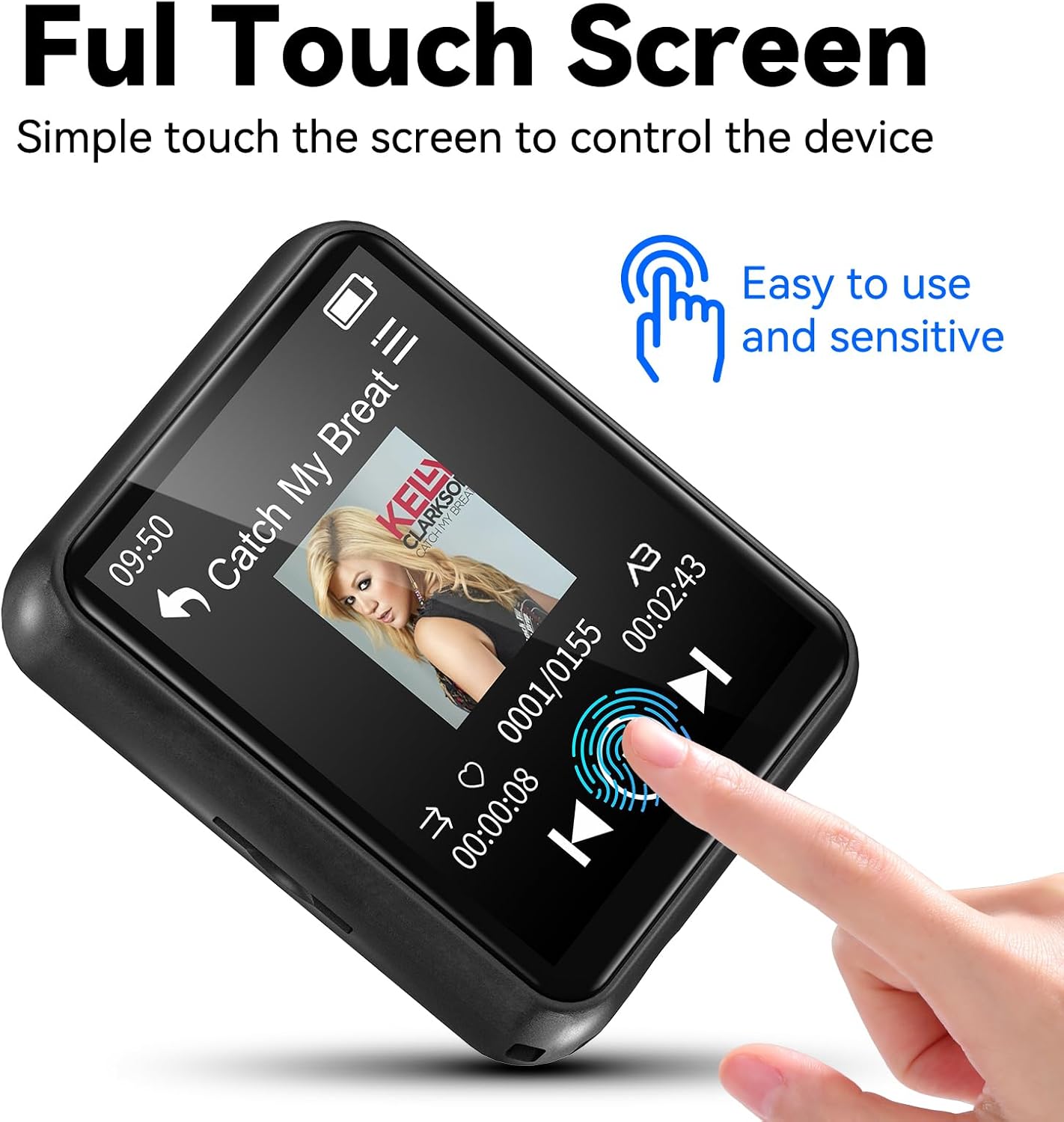
This image highlights the PINHUI MP3 Player's full touch screen interface, with a finger touching the screen to control music playback, indicating ease of use.
5.3 Music Playback
- From the main menu, tap the 'Music' icon.
- Browse your music library by artist, album, genre, or folder.
- Tap a song to begin playback.
- Use the on-screen controls for play/pause, skip track, and volume adjustment.
5.4 Bluetooth Connection
The MP3 player supports Bluetooth 5.3 for connecting to wireless headphones or speakers.
- From the main menu, tap the 'Bluetooth' icon or navigate to 'Settings' and select 'Bluetooth'.
- Turn on Bluetooth. The device will scan for available Bluetooth devices.
- Ensure your Bluetooth headphones or speaker are in pairing mode.
- Select your device from the list to pair.
Important Note: This MP3 player acts as a Bluetooth transmitter and cannot be paired with mobile phones or used as a Bluetooth receiver.

This image illustrates the PINHUI MP3 Player's Bluetooth 5.3 capability, showing it wirelessly connected to various audio devices such as over-ear headphones, true wireless earbuds, and a portable Bluetooth speaker.
5.5 FM Radio
To use the FM radio function, wired headphones must be connected as they serve as the antenna.
- Connect the wired earphones to the 3.5mm audio jack.
- From the main menu, tap the 'FM Radio' icon.
- Use the on-screen controls to scan for stations or manually tune to a frequency.
5.6 Voice Recorder
- From the main menu, tap the 'Record' icon.
- Tap the record button to start recording.
- Tap again to pause/stop. Recordings are saved in WAV or MP3 format.

This image demonstrates the voice recording function of the PINHUI MP3 Player, featuring a microphone icon on the screen and visual representations of sound waves.
5.7 Pedometer
The built-in pedometer tracks your steps and can estimate walking distance, calories burned, speed, and walking time.
- From the main menu, tap the 'Pedometer' icon.
- Start your activity, and the device will begin tracking.
This image illustrates the pedometer feature of the PINHUI MP3 Player, showing a step counter on the screen with a background image of two individuals running, emphasizing its use for sports and fitness.
5.8 E-book Reader
The device supports reading e-books in TXT format only.
- Transfer TXT files to the 'E-book' folder on the device.
- From the main menu, tap the 'E-book' icon and select your desired file.
5.9 Video Playback
The device supports video playback for AVI and AMV formats.
- Transfer AVI or AMV video files to the 'Video' folder on the device.
- From the main menu, tap the 'Video' icon and select your desired file.
5.10 Alarm Clock
The MP3 player includes an alarm clock function.
- From the main menu, tap the 'Alarm Clock' icon.
- Set the desired time and alarm preferences.

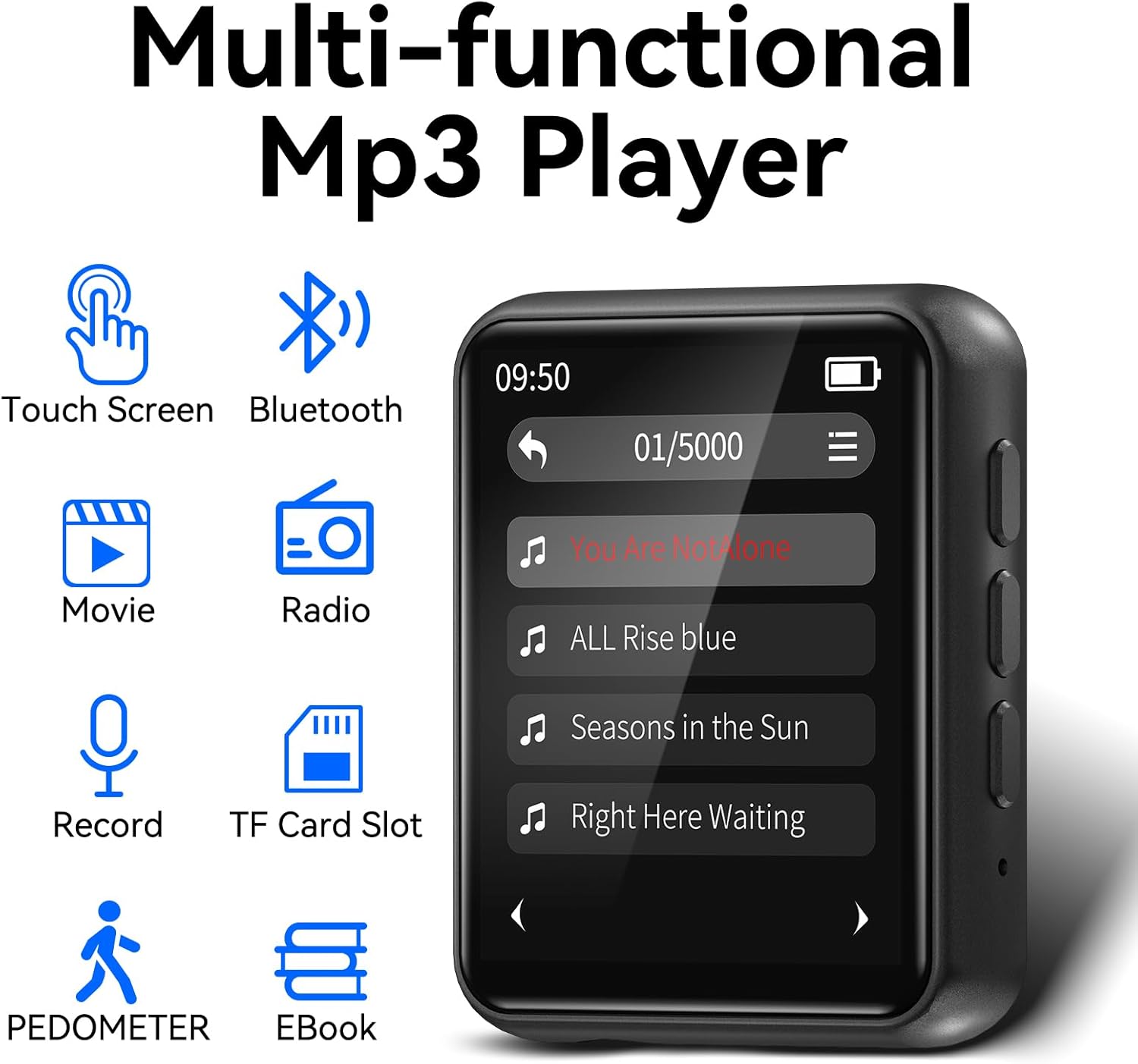
This image showcases the PINHUI MP3 Player's diverse functionalities, presenting icons for music, Bluetooth, video, FM radio, voice recording, TF card slot, pedometer, and e-book reading.
6. Maintenance
- Cleaning: Use a soft, dry cloth to clean the device. Avoid liquid cleaners or abrasive materials.
- Storage: Store the device in a cool, dry place away from direct sunlight and extreme temperatures.
- Battery Care: To prolong battery life, avoid fully discharging the battery frequently. Charge the device regularly, even if not in use for extended periods.
7. Troubleshooting
- Device will not turn on:
Ensure the device is sufficiently charged. Connect it to a power source and try again. If the issue persists, perform a hard reset by pressing and holding the power button for an extended period (e.g., 10-15 seconds). - Files not transferring to the device:
Verify that the USB cable is securely connected to both the MP3 player and the computer. Try a different USB port or cable. Ensure the device is recognized as a removable disk. Check if the file formats are supported (e.g., MP3 for music, TXT for e-books, AVI/AMV for video). - Bluetooth connectivity issues:
Ensure Bluetooth is enabled on both the MP3 player and the receiving device (headphones/speaker). Make sure the receiving device is in pairing mode. Keep the MP3 player and Bluetooth device in close proximity. Avoid placing the MP3 player in a pocket or behind obstacles that may interfere with the Bluetooth signal. Remember, the MP3 player cannot connect to mobile phones via Bluetooth. - Screen is unresponsive or frozen:
Perform a soft reset by pressing and holding the power button until the device restarts. If unresponsive, allow the battery to fully discharge and then recharge it. - Poor audio quality:
Check the volume settings on both the MP3 player and your headphones/speaker. Ensure headphones are fully plugged in. Try different audio files or headphones to isolate the issue.
8. Specifications
| Feature | Detail |
|---|---|
| Brand | PINHUI |
| Model | 64GB MP3 Player |
| Memory Storage Capacity | 64 GB (expandable up to 128GB via TF card) |
| Bluetooth Version | 5.3 |
| Screen Size | 1.8 Inches |
| Display Technology | LCD |
| Connectivity Technology | Aux, Bluetooth, USB |
| Special Features | Built-In Speaker, Equalizer, FM Radio, Touch Screen, Voice Recorder, Pedometer |
| Compatible Devices | Headphones, Earphones |
| Media Type | Micro SD |
| Item Weight | 5.3 ounces |
| Batteries | 1 Lithium Polymer battery (included) |
9. Warranty and Support
For warranty information or technical support, please refer to the contact details provided with your purchase or visit the official PINHUI website. Keep your proof of purchase for any warranty claims.