Introduction
This manual provides essential instructions for setting up, operating, maintaining, and troubleshooting your TechMagnet HP G3 Desktop PC. Please read this manual thoroughly before using your new computer system to ensure proper functionality and longevity.
Your TechMagnet HP G3 Desktop PC is a renewed high-performance computing system designed for both work and casual gaming. It features an Intel i7-6th Gen processor, 16GB DDR4 RAM, a 512GB SSD, and an NVIDIA GT 1030 graphics card, accompanied by dual 24-inch monitors and RGB peripherals.
Package Contents
Before proceeding with the setup, please verify that all components are present:
- TechMagnet HP G3 Desktop PC Tower
- Dual 24-Inch Monitors (x2)
- RGB Gaming Keyboard
- RGB Gaming Mouse
- RGB Speakers (x2)
- Power Cables (for PC and monitors)
- Video Cables (HDMI/DisplayPort for monitors)
- USB Cables (for keyboard, mouse, speakers)
- Wi-Fi Adapter (if external)
Setup Instructions
Follow these steps to set up your TechMagnet HP G3 Desktop PC:
1. Unpacking and Placement
- Carefully remove all components from their packaging.
- Place the desktop PC tower on a stable, flat surface with adequate ventilation. Ensure the side panels with ARGB fans are not obstructed.
- Position the two 24-inch monitors on your desk, ensuring they are stable and at a comfortable viewing height.

Image: Complete TechMagnet HP G3 Desktop PC setup with dual monitors and peripherals.
2. Connecting the Monitors
- Connect one end of the video cable (HDMI or DisplayPort) to the corresponding port on the back of the PC's graphics card (NVIDIA GT 1030).
- Connect the other end of the video cable to the input port on the first monitor.
- Repeat this process for the second monitor, connecting it to another available video output on the graphics card.
- Connect the power cables to both monitors and then to a power outlet.

Image: Rear view of a 24-inch monitor showing connectivity ports.
3. Connecting Peripherals
- Connect the USB cable from the RGB Gaming Keyboard to an available USB port on the back of the PC.
- Connect the USB cable from the RGB Gaming Mouse to another available USB port on the back of the PC.
- Connect the USB cable from the RGB Speakers to a USB port for power, and the 3.5mm audio jack to the audio output port on the back of the PC.

Image: TechMagnet RGB Gaming Keyboard and Mouse.

Image: TechMagnet RGB Speakers.
4. Power Connection
- Connect the PC's power cable to the power supply unit (PSU) on the back of the PC.
- Plug the other end of the power cable into a grounded electrical outlet or surge protector.
5. Initial Power On
- Press the power button on the front of the PC tower.
- Turn on both monitors using their respective power buttons.
- The system will boot into Windows 11 Pro. Follow any on-screen prompts for initial setup, such as connecting to Wi-Fi.
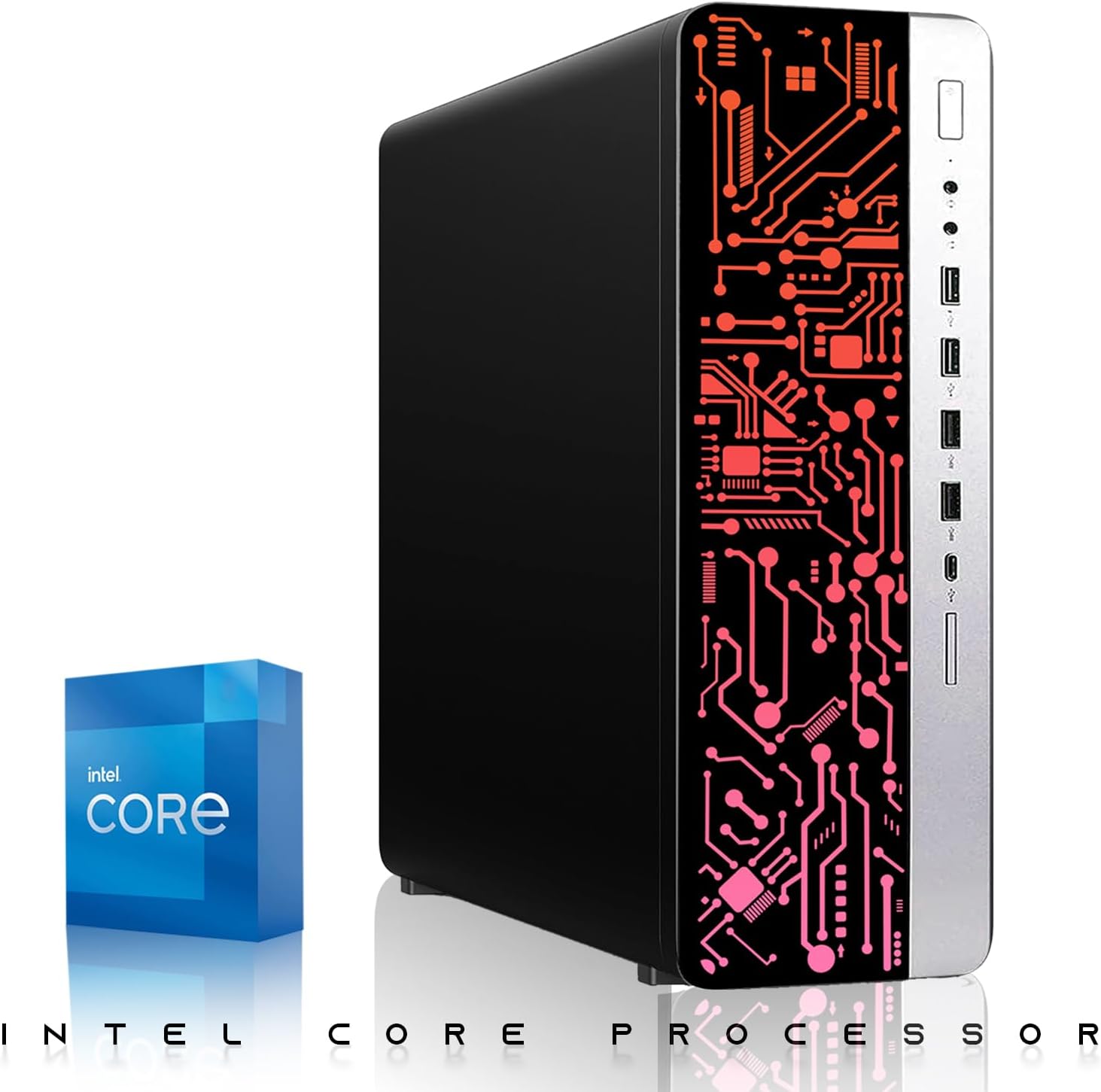
Image: Front view of the TechMagnet HP G3 Desktop PC tower.

Image: Side view of the TechMagnet HP G3 Desktop PC tower highlighting Windows 11.
Operating Instructions
Windows 11 Pro
Your PC comes with Windows 11 Pro pre-installed and activated. Familiarize yourself with the Windows 11 interface for optimal use. You can access the Start Menu, search bar, and various applications from the taskbar.
Dual Monitor Setup
Windows 11 automatically detects dual monitors. To configure display settings:
- Right-click on an empty area of the desktop.
- Select "Display settings."
- Here you can arrange your displays, change resolution, and set primary monitors.
RGB Lighting Control
Your system includes RGB lighting for the fans, keyboard, mouse, and speakers. Specific control methods may vary:
- ARGB Fans: The two ARGB fans on the PC tower are typically controlled via a button on the case or pre-configured to cycle through effects.
- RGB Keyboard & Mouse: These peripherals often have dedicated function keys (Fn + key combination) or software for changing lighting modes and colors. Refer to the specific peripheral's mini-manual if available.
- RGB Speakers: Speakers may have physical buttons for RGB control or cycle automatically.

Image: Top view of the TechMagnet HP G3 Desktop PC case showing the two ARGB fans.
Gaming Performance
The NVIDIA GT 1030 graphics card is suitable for casual 1080p gaming and popular eSports titles. For optimal gaming experience:
- Ensure your graphics drivers are up to date. You can download the latest drivers from the NVIDIA website.
- Adjust in-game graphics settings to balance visual quality and frame rate.
- Close unnecessary background applications while gaming to free up system resources.

Image: NVIDIA GT 1030 graphics card, indicating its capability for entry-level gaming.
Maintenance
Regular maintenance helps ensure the longevity and performance of your PC.
Cleaning
- Exterior: Use a soft, damp cloth to wipe down the exterior of the PC case, monitors, keyboard, and mouse. Avoid harsh chemicals.
- Dust: Periodically use compressed air to clean dust from the PC's vents and fans. Ensure the PC is powered off and unplugged before doing so. Pay attention to the ARGB fans on top and side panels.
- Monitor Screens: Use a microfiber cloth specifically designed for electronics to clean monitor screens. Do not spray cleaner directly onto the screen.
Software Updates
- Windows Updates: Regularly check for and install Windows updates to ensure security and performance. Go to Settings > Windows Update.
- Driver Updates: Keep your graphics card drivers (NVIDIA) and other hardware drivers updated. This can improve performance and stability.
System Optimization
- Disk Cleanup: Use Windows' built-in Disk Cleanup tool to remove temporary files.
- Antivirus: Ensure your antivirus software is active and up-to-date to protect against malware.
- Startup Programs: Disable unnecessary programs from launching at startup to improve boot times and system responsiveness. Access via Task Manager > Startup tab.
Troubleshooting
This section addresses common issues you might encounter.
No Power / System Not Turning On
- Ensure all power cables are securely connected to the PC, monitors, and power outlet.
- Check if the power switch on the back of the PC's power supply unit (PSU) is in the "On" position.
- Try a different power outlet or power cable to rule out faulty components.
No Display on Monitors
- Verify that the monitors are powered on.
- Ensure video cables (HDMI/DisplayPort) are firmly connected to both the PC's graphics card and the monitors.
- Confirm that the correct input source is selected on each monitor (e.g., HDMI 1, DisplayPort).
- If only one monitor is working, try swapping the video cables or ports to identify a faulty cable or monitor.
Keyboard or Mouse Not Responding
- Check if the USB cables for the keyboard and mouse are securely plugged into the PC's USB ports.
- Try connecting them to different USB ports.
- Restart the PC.
No Sound from Speakers
- Ensure the speakers are powered on and their volume is turned up.
- Verify the 3.5mm audio jack is fully inserted into the PC's audio output port.
- Check Windows sound settings to ensure the correct output device is selected and not muted.
Slow Performance
- Close unnecessary programs running in the background.
- Run a full system scan with your antivirus software.
- Check for and install any pending Windows or driver updates.
- Ensure the PC has adequate ventilation and is not overheating.
Specifications
Below are the key technical specifications for your TechMagnet HP G3 Desktop PC (Model: TM24):
| Component | Specification |
|---|---|
| Processor | Intel Core i7-6th Generation (3.5 GHz) |
| RAM | 16 GB DDR4 |
| Storage | 512 GB SSD (Solid State Drive) |
| Graphics Card | NVIDIA GeForce GT 1030 (2 GB Dedicated) |
| Operating System | Windows 11 Pro |
| Monitors | Dual 24-Inch (1920x1080 resolution) |
| Wireless Connectivity | 802.11ac Wi-Fi |
| Cooling | 2x ARGB Fans |
| Peripherals Included | RGB Gaming Keyboard, RGB Gaming Mouse, RGB Speakers |
| Model Number | TM24 |
| Platform | PC |
Warranty Information
This TechMagnet HP G3 Desktop PC is a renewed product. Renewed products typically come with a limited warranty provided by the seller or refurbisher. According to the product information, a 90-day refund/replacement return policy is available.
For specific warranty details and terms, please refer to the documentation provided at the time of purchase or contact the seller directly. Keep your proof of purchase for any warranty claims.
Customer Support
If you encounter any issues not covered in this manual or require further assistance, please contact Tech Magnet customer support. You can typically find their contact information on the seller's page where you purchased the product or through the Amazon order details.
When contacting support, please have the following information ready:
- Product Model: TM24
- ASIN: B0D1M682VP
- Date of Purchase
- A detailed description of the issue
For general inquiries or to visit the seller's store, you can often find a link on the product's Amazon page under "Sold by Tech Magnet".