
1. Introduction
The SELFSAT MWR 5550 is a comprehensive internet router solution designed for mobile environments such as motorhomes and caravans. It provides stable and reliable Wi-Fi connectivity by utilizing both mobile network signals (4G LTE, 5G) and existing Wi-Fi networks (2.4 GHz, 5 GHz) from campsites or parking areas. This manual provides detailed instructions for installation, operation, and maintenance of your MWR 5550 router system.

Image 1.1: SELFSAT MWR 5550 Router system components.
2. Package Contents
The SELFSAT MWR 5550 package includes the following components:
- MWR 5550 Router
- 12V Cigarette Lighter Cable
- 100-240V EU Power Supply 18W
- 2 SIM Card Adapters (Micro SIM or Nano SIM to Mini SIM)
- 1.5m Ethernet Cable
- SELFSAT Outdoor Antenna
- Threaded Extension for Outdoor Antenna
- WiFi Indoor Antenna
- Velcro Adhesive Dots for WiFi Indoor Antenna
- Mounting and Operating Manual (this document)
3. Key Features
The MWR 5550 router system offers advanced features for robust mobile internet connectivity:
- High-Speed Connectivity: Supports 5G (up to 3.3 Gbps), 4G LTE (Cat 20 up to 2.0 Gbps), and 3G mobile networks.
- Dual-Band Wi-Fi: Provides 2.4 GHz and 5 GHz Wi-Fi for both receiving external signals and broadcasting your private network.
- Dual SIM Slots: Features two Mini SIM (2FF) card slots, allowing for flexible use of different mobile providers or international SIMs without SIM lock.
- Robust Outdoor Antenna: IP67 rated, dust and water-resistant outdoor antenna for optimal signal reception.
- MIMO Technology: Utilizes Multiple Input Multiple Output technology for enhanced data transmission speeds and reliability.
- GNSS Support: Integrated Global Navigation Satellite System for location services and time synchronization.
- Multiple Ethernet Ports: Includes 1 WAN and 4 LAN RJ45 Ethernet interfaces for wired connections.
- User-Friendly Interface: Configuration and operation via a simplified, web-based interface accessible from smartphones, tablets, or laptops (no app required).
- Captive Portal Support: Connects to Wi-Fi networks requiring a login page, common at campsites.
- VPN Capable: Supports Virtual Private Network functionalities for secure connections.
- Starlink Compatible: Designed to integrate with Starlink systems for satellite internet access.

Image 3.1: Key features of the MWR 5550, including Captive Portal, GPS, VPN, and Starlink compatibility.

Image 3.2: Illustration of the MWR 5550 providing internet connectivity within a mobile home.
4. Setup Instructions
4.1 SIM Card Installation
- Ensure the router is powered off.
- Locate the two SIM card slots on the front panel of the router.
- If your SIM card is Micro or Nano size, use the provided SIM card adapters to convert it to Mini SIM (2FF) size.
- Insert the SIM cards into the slots until they click into place. The router supports two SIM cards for redundancy or different network providers.
4.2 Outdoor Antenna Installation
The outdoor antenna is designed for roof mounting on your motorhome or caravan.
- Choose a suitable location on the roof, ensuring it is clear of obstructions and allows for cable routing.
- Drill a hole of appropriate diameter (e.g., 35mm for the threaded extension) through the roof.
- Mount the outdoor antenna. It can be directly screwed onto the roof, or the provided threaded extension can be used for thicker roofs. Ensure the rubber seal is properly seated to prevent water ingress. For additional sealing, Sikaflex or similar sealant can be used.
- Route the antenna cables (4 for mobile, 1 for Wi-Fi, 1 for GPS) through the threaded extension or an existing roof penetration into the vehicle's interior. The cables are 1m long; optional 1m or 2m extensions are available if needed.
- Connect the antenna cables to the corresponding ports on the back of the router (MOBILE, WIFI, GPS). Ensure correct connector types (SMA male for mobile/GPS, RP-SMA female for Wi-Fi).

Image 4.1: Outdoor antenna underside with cables and mounting thread.

Image 4.2: Threaded extension for varying roof thicknesses.
4.3 Indoor Wi-Fi Antenna Installation
The indoor Wi-Fi antenna helps distribute the Wi-Fi signal within your vehicle.
- Connect the indoor Wi-Fi antenna to the designated Wi-Fi port on the router.
- Mount the indoor antenna in a central location within the vehicle using the provided Velcro adhesive dots for optimal signal distribution.
4.4 Power Connection
- Connect the router to a 9-50V DC power source using the 12V cigarette lighter cable, or to a 100-240V AC outlet using the provided EU power supply.
- Ensure the power connection is secure before proceeding.
4.5 Initial Configuration
The router can be configured via its web interface. Initial Wi-Fi connection details are often found on a label on the router itself.
- Power on the router. Wait for the status indicators to stabilize.
- On your smartphone, tablet, or laptop, search for available Wi-Fi networks. You should see networks named
SELFSAT_MWR_5550_2GandSELFSAT_MWR_5550_5G. - Connect to one of these networks. The default password is
S5e5M5w05. You can also use the QR codes provided on the router label for quick connection. - Once connected, open a web browser and navigate to the router's administration interface at http://10.10.10.10.
- Log in using the default credentials (usually printed on the router or in the quick start guide). It is recommended to change the default Wi-Fi password and router login password for security.

Image 4.3: QR codes for quick Wi-Fi connection to 2.4GHz and 5GHz networks.
5. Operating Instructions
5.1 Connecting Devices to Your Private Wi-Fi
After initial setup, your SELFSAT MWR 5550 broadcasts its own Wi-Fi network. Connect your devices (smartphones, tablets, laptops, smart TVs) to this network using the Wi-Fi name (SSID) and password you configured.
5.2 Managing Internet Sources (Mobile vs. External Wi-Fi)
The MWR 5550 can connect to the internet via its inserted SIM cards (4G/5G mobile network) or by connecting to an external Wi-Fi network (e.g., campsite Wi-Fi).
- Access the router's web interface (http://10.10.10.10).
- Navigate to the 'Network' or 'WAN' settings.
- Here you can select your preferred internet source:
- Mobile Network: Ensure your SIM cards are active and have data. The router will automatically connect to the strongest available 4G/5G signal.
- External Wi-Fi (Wi-Fi as WAN): Scan for available Wi-Fi networks, select the desired one (e.g., campsite Wi-Fi), and enter the password. If a captive portal is present, the router will redirect you to the login page.
- The router will then share this internet connection with all devices connected to its private Wi-Fi network.
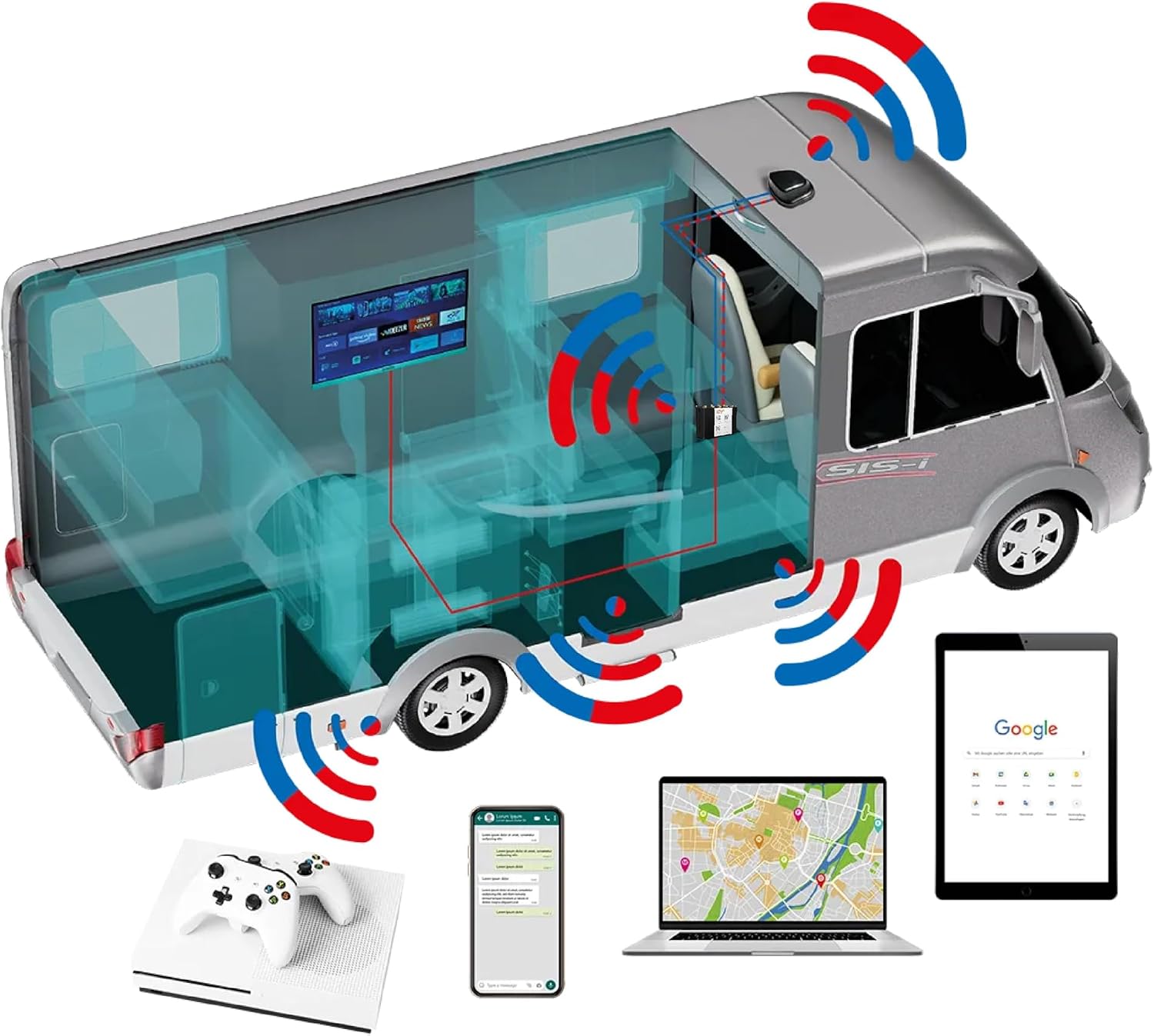
Image 5.1: Mobile interface for managing Wi-Fi and SIM connections.
5.3 Dual SIM Functionality
The MWR 5550 supports two SIM cards. You can configure the router to:
- Automatically switch to the second SIM if the first one loses signal or runs out of data.
- Manually select which SIM card to use.
These settings are managed within the router's web interface under the 'Network' or 'Mobile' settings.
6. Specifications
6.1 Router Specifications
| Feature | Specification |
|---|---|
| Supported Mobile Generations | 5G (up to 3.3 Gbps), 4G LTE (Cat 20 up to 2.0 Gbps), 3G (up to 42 Mbps) |
| Supported WiFi Frequency (Input/Output) | 2.4 GHz, 5 GHz |
| GNSS Support | Yes (for location and time synchronization) |
| SIM Card Slots | 2 x Mini SIM (2FF) |
| Ethernet Interfaces | 1 x WAN, 4 x LAN RJ45 |
| Power Supply | 9 - 50 V DC |
| Dimensions (L x W x H) | 132 x 45 x 96 mm |
| Weight | 533 g |
| Operating Temperature | -40 °C to 75 °C |
| Protection Class | IP30 |

Image 6.1: Front panel of the MWR 5550 router.

Image 6.2: Back panel of the MWR 5550 router.
6.2 Outdoor Antenna Specifications
| Feature | Specification |
|---|---|
| 4G / LTE / 5G MIMO Frequency Range | 698 - 960 MHz, 1710 - 2690 MHz, 2900 - 3600 MHz |
| 4G / LTE / 5G Signal Gain | 4 dBi |
| 4G / LTE / 5G Cable Type | 4 x LMR100 (low signal loss) |
| 4G / LTE / 5G Cable Length | 1 m (extensions optional) |
| 4G / LTE / 5G Connectors | SMA male |
| Wi-Fi 2.4 GHz / 5 GHz Frequency Range | 2400 - 2483.5 MHz, 4900 - 5825 MHz |
| Wi-Fi Signal Gain | 4 dBi |
| Wi-Fi Cable Type | 1 x LMR100 |
| Wi-Fi Cable Length | 1 m (extensions optional) |
| Wi-Fi Connectors | RP-SMA female |
| GPS Frequency Range | 1561.098 - 1610 MHz |
| GPS Signal Gain | 40 ± 2 dB |
| GPS Cable Type | 1 x LMR100 |
| GPS Cable Length | 1 m (extensions optional) |
| GPS Connectors | SMA male |
| Operating Temperature | -40 °C to 85 °C |
| Protection Class | IP67 (excluding cable outlet) |
| Dimensions (L x W x H) | 189 x 182 x 85 mm |
7. Maintenance
To ensure optimal performance and longevity of your SELFSAT MWR 5550 router system, follow these maintenance guidelines:
- Cleaning: Regularly clean the exterior of the router and outdoor antenna with a soft, dry cloth. Avoid using harsh chemicals or abrasive materials.
- Cable Connections: Periodically check all cable connections (power, Ethernet, antenna) to ensure they are secure and free from damage.
- Firmware Updates: Check the manufacturer's website for available firmware updates. Keeping your router's firmware up-to-date can improve performance, security, and add new features. Follow the instructions provided with the firmware update carefully.
- Environmental Protection: While the outdoor antenna is IP67 rated, ensure the router itself (IP30) is installed in a dry, protected environment within the vehicle.
8. Troubleshooting
If you encounter issues with your MWR 5550, refer to the following common troubleshooting steps:
- No Internet Connection:
- Check if the router is powered on and all cables are securely connected.
- Verify that your SIM card(s) are correctly inserted and have an active data plan.
- If using external Wi-Fi (Wi-Fi as WAN), ensure the external network is active and you have entered the correct password. Check if a captive portal login is required.
- Restart the router by disconnecting and reconnecting the power.
- Slow Internet Speeds:
- Ensure the outdoor antenna is mounted in a location with good signal reception.
- Check your mobile data plan for any speed limitations or data caps.
- If using external Wi-Fi, the speed may be limited by the external network provider.
- Try switching between 2.4 GHz and 5 GHz Wi-Fi bands for your connected devices. 5 GHz generally offers higher speeds but shorter range.
- Wi-Fi Network Not Visible:
- Ensure the router is powered on.
- Check the Wi-Fi settings in the router's web interface to ensure the Wi-Fi broadcast is enabled.
- Verify that your device's Wi-Fi is enabled and scanning for networks.
- SIM Card Not Detected:
- Ensure the SIM card is correctly inserted into the slot.
- Check if the SIM card is damaged or expired.
- Try inserting a different, known-working SIM card to rule out a router issue.
For further assistance, consult the manufacturer's support resources or contact your retailer.
9. Warranty and Support
For information regarding the warranty period and terms for your SELFSAT MWR 5550 router, please refer to the documentation provided at the time of purchase or contact your retailer. Manufacturer support may also be available through their official website.