
1. Product Overview
The TooCust Smart Fingerprint Deadbolt Lock offers multiple convenient and secure access methods for your home. This keyless entry deadbolt integrates advanced technology to provide enhanced security and ease of use.
Key Features:
- 5-in-1 Access Methods: Fingerprint, Bluetooth App Control (Tuya Smart), Anti-peeping Passcode, eKey Sharing, and Mechanical Keys.
- Smart App Management: Control the deadbolt, create temporary eKeys, manage users, view activity records, and monitor lock status via the Tuya Smart app.
- Enhanced Security: Features include auto-lock, wrong password alert, one-touch locking, anti-peeping password protection, ANSI Grade 3 certification, and IP54 waterproof rating.
- Fast Fingerprint Identification: Unlock the door within 1 second with advanced fingerprint technology, supporting up to 85 fingerprints and user codes.
- Emergency Power: Type-C emergency charging port prevents battery drain.
- Voice Control Compatibility: Supports Alexa voice control with a separately purchased G1 gateway.
- Wide Adaptability: Fits most standard left-handed and right-handed doors.
2. Setup and Installation
This section guides you through the physical installation of your TooCust Smart Fingerprint Deadbolt Lock. A screwdriver is the primary tool required for installation.
2.1. Package Contents
Ensure all components are present before beginning installation:
- Fingerprint Deadbolt Lock (Exterior Keypad and Interior Assembly)
- Deadbolt Latch Mechanism
- Strike Plate
- Mounting Plate
- Mechanical Keys (x2)
- Key Fobs (x2)
- Installation Screws and Hardware
- User Manual

Image: All components included with the TooCust Smart Fingerprint Deadbolt Lock.
2.2. Door Preparation
Verify your door dimensions are compatible with the lock. The lock fits most standard doors and can be installed on both left-handed and right-handed doors.
- Hole Diameter: 1-1/2" or 2-1/8" (38mm or 54mm)
- Backset: 2-3/8" or 2-3/4" (60mm or 70mm)
- Minimum Distance: 1-5/8" (40mm)
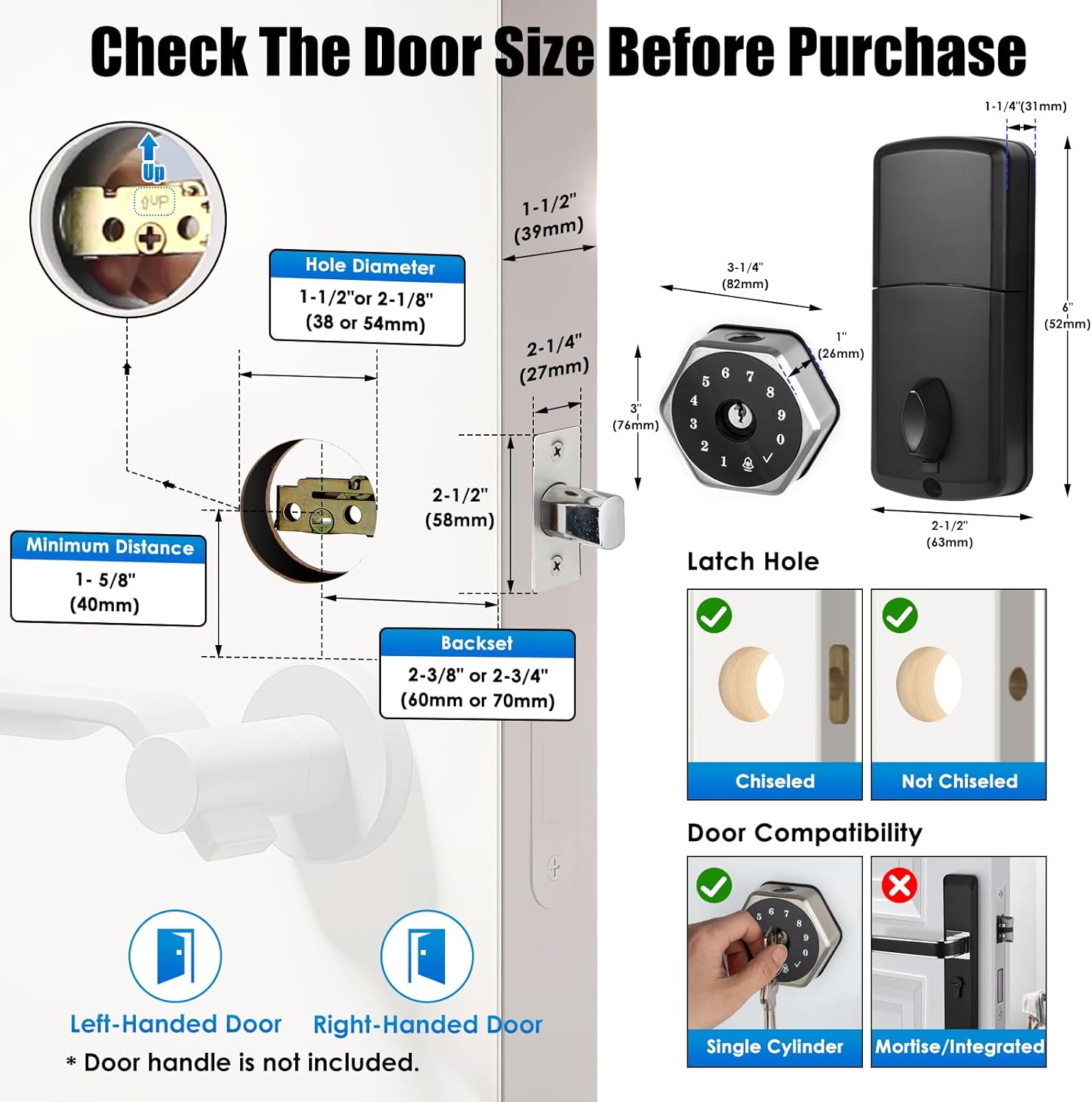
Image: Door measurement guide for proper installation.
2.3. Installation Steps
- Install the deadbolt latch into the side of the door. Ensure the latch is oriented correctly for your door's swing direction.
- Attach the exterior keypad assembly to the door, feeding the signal wires through the deadbolt mechanism.
- Secure the mounting plate to the interior side of the door.
- Connect the signal wires from the exterior keypad to the interior assembly.
- Install the interior assembly, ensuring all wires are tucked away and the assembly is flush with the door.
- Secure the interior assembly with screws.
- Install 4 AA batteries (not included) into the interior assembly.
- Test the lock's basic functionality with a mechanical key.
2.4. App Download and Initial Setup
Download the Tuya Smart app from your smartphone's app store (available on Android and iOS). Follow the in-app instructions to pair your lock via Bluetooth and set up your initial admin account.

Image: Tuya Smart app interface for lock management.
3. Operating Instructions
3.1. Unlocking the Door
- Fingerprint: Place your registered finger on the fingerprint sensor. The lock will unlock if the fingerprint is recognized.
- Passcode: Enter your 6-10 digit passcode on the touchscreen keypad, then press the checkmark (✓) to confirm.
- Key Fob: Tap the key fob against the keypad. The lock will unlock automatically.
- Mechanical Key: Insert the mechanical key into the hidden keyhole and turn to unlock.
- App Control (Bluetooth): Use the Tuya Smart app on your smartphone to unlock the door when within Bluetooth range.
- App Control (Wi-Fi/Remote): If a G1 gateway (sold separately) is connected, you can unlock the door remotely via the Tuya Smart app over Wi-Fi.

Image: Visual representation of the multiple access methods.
3.2. Locking the Door
- Auto-Lock: The deadbolt will automatically lock approximately 5 seconds after being unlocked.
- One-Touch Locking: Press and hold the checkmark (✓) button on the keypad to manually lock the door.
- App Control: Use the Tuya Smart app to lock the door.
3.3. User Management (via Tuya Smart App)
- Adding Users: Create new user profiles for family members or guests, assigning them unique fingerprints, passcodes, or eKeys.
- Temporary Access: Generate temporary eKeys or passcodes with specific validity periods for visitors or service providers.
- Activity Records: View a log of all lock and unlock events, including the method used and the user.
- Remote Control: With a G1 gateway, manage your lock from anywhere.
4. Maintenance
4.1. Battery Replacement
The lock requires 4 AA batteries. When the battery level is low, the lock will provide an audible and visual alert. To replace batteries:
- Remove the battery cover on the interior assembly.
- Remove the old batteries.
- Insert 4 new AA batteries, ensuring correct polarity.
- Replace the battery cover.
4.2. Emergency Power
In case of complete battery drain, you can use a portable power bank to temporarily power the lock via the Type-C emergency charging port located on the bottom of the exterior keypad. This allows you to unlock the door using any of the electronic access methods.
4.3. Cleaning
Wipe the lock's exterior surfaces with a soft, damp cloth. Avoid using abrasive cleaners or solvents that could damage the finish or electronic components.
5. Troubleshooting
5.1. App Connection Issues
- If the app cannot find the lock or connection is unsuccessful, ensure the lock's keypad backlight is on to activate it.
- Try resetting the lock if connection issues persist.
- For Bluetooth connection, ensure you re-connect the device if linking fails after more than 60 seconds.
5.2. Forgotten Passcode/Fingerprint
If you forget your admin password or fingerprint, remove and reinstall the batteries. Then, restart the lock by long-pressing the small square button on the back panel of the interior assembly. Follow the voice prompts to reset the lock.
5.3. Wrong Passcode Alert
After 5 failed passcode attempts, the deadbolt will temporarily shut down for 3 minutes and emit beeps as a security measure.
5.4. Deadbolt Moves in Wrong Direction
If the deadbolt moves in the wrong direction after installation, you may need to switch between "Inswing Mode" and "Outswing Mode" in the system settings. Refer to the user setting instructions for details on accessing the management system and adjusting this setting.
6. Specifications
| Feature | Detail |
|---|---|
| Brand | TooCust |
| Model Name | VK-SMARTDEADBOLT-001 |
| Item Model Number | VK-SMARTDEADBOLT |
| Lock Type | Deadbolt, Keypad |
| Material | Metal, Plastic |
| Color | Silver |
| Item Dimensions (L x W x H) | 9 x 7.5 x 4.3 inches |
| Item Weight | 2 Pounds |
| Special Features | Anti-Peeping Password, Auto-Lock, Fingerprint, Fob Unlock, Passcode Unlock |
| Connectivity Protocol | Bluetooth |
| Controller Type | Android, Touch, iOS |
| Batteries Required | Yes (4 AA, not included) |
7. Warranty and Support
For product support, troubleshooting assistance, or warranty inquiries, please refer to the contact information provided with your purchase or visit the official TooCust website.
Protection Plans:
Optional protection plans may be available for purchase:
- 3-Year Protection Plan
- 4-Year Protection Plan
- Complete Protect (monthly billing option)
Please check the terms and conditions of any purchased protection plan for full coverage details.