
1. Introduction
The Tolatoyus TL16 GPS Drone is a lightweight, foldable quadcopter designed for aerial photography and recreational flight. It features a 4K camera, brushless motors, and advanced GPS-assisted flight modes to enhance user experience and flight stability. This manual provides essential information for safe operation, setup, maintenance, and troubleshooting.

Image 1: Tolatoyus TL16 GPS Drone, remote control, and carrying case.
2. What's in the Box
Verify that all components are present before initial use:
- TL16 GPS Drone
- Remote Control
- Flight Battery (2200mAh Lithium Polymer)
- 4K Camera (integrated)
- Carrying Case
- USB Charging Cable
- Screwdriver
- Spare Propellers

Image 2: All included components of the TL16 GPS Drone package.
3. Specifications
| Brand | Tolatoyus |
| Model Name | TL16GPS |
| Item Weight | 201.5 Grams (7.1 ounces) |
| Product Dimensions | 8.6"L x 7.8"W x 2.3"H |
| Video Capture Resolution | 4K |
| Video Capture Format | MP4 |
| Supported Image Format | JPEG |
| Connectivity Technology | Wi-Fi (5GHz) |
| Control Type | Remote Control |
| Battery Capacity | 2200 Milliamp Hours (Lithium Polymer) |
| Special Features | Auto Follow, Auto-Landing, First Person View (FPV), Integrated GPS, One Button Return |
| Skill Level | All |
4. Setup
4.1 Battery Installation & Charging
Ensure the flight battery is fully charged before first use. Connect the USB charging cable to the battery and a power source. The battery indicator will light up red while charging and turn green when fully charged.
Video 1: Demonstrates battery installation and charging for the drone.
4.2 Remote Control Setup & Charging
The remote control features an integrated LCD screen. Ensure the remote control is charged using the provided USB cable. The charging indicator will light up while charging and turn off when complete.
Video 2: Shows the remote control with its integrated screen and charging process.
4.3 Propeller Installation
The drone uses two types of propellers, A and B. Ensure you match the correct propeller type to the corresponding motor arm. Use the provided screwdriver to secure the propellers.
Video 3: Illustrates the process of installing and replacing drone propellers.
4.4 App Download & Connection
Scan the QR code in the instruction manual to download the companion app. Connect your smartphone to the drone's Wi-Fi network (HF GPS5G_84060308) and then open the app to view the camera feed and control the drone.
Video 4: Shows the app download and connection process for the drone.
4.5 Calibration
Before flight, calibrate the drone's geomagnetism and gyroscope for stable operation. Follow the on-screen instructions on the remote control or app for the calibration sequence.
Video 5: Demonstrates the calibration process for the drone's geomagnetism and gyroscope.
5. Operating the Drone
5.1 Basic Flight Controls
Use the joysticks on the remote control to maneuver the drone. The left joystick controls altitude (up/down) and rotation (left/right). The right joystick controls forward/backward and left/right strafing.
5.2 Intelligent Flight Modes
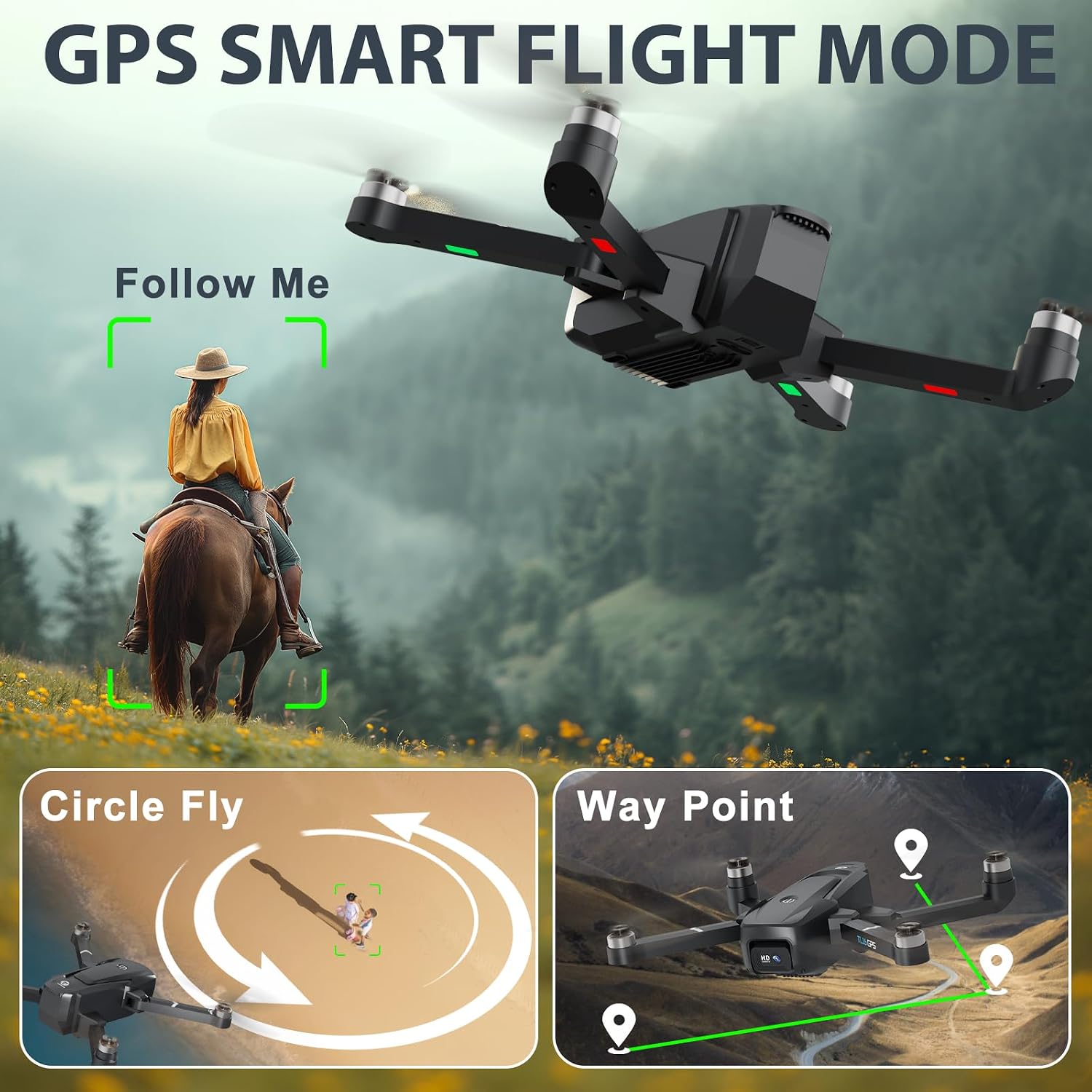
Image 3: The drone's intelligent flight modes, including Follow Me, Circle Fly, and Way Point.
- Follow Me: The drone will automatically follow the remote control or connected smartphone.
- Tap Fly (Way Point): Tap points on the map in the app, and the drone will fly along the designated path.
- Point of Interest (Circle Fly): Select a central point, and the drone will orbit around it, capturing footage.
5.3 Camera Operation
The TL16 GPS Drone is equipped with a 4K UHD camera with a 110° wide-angle lens. The camera angle can be adjusted remotely using the controls on the remote. Gesture control allows for hands-free photo and video capture.
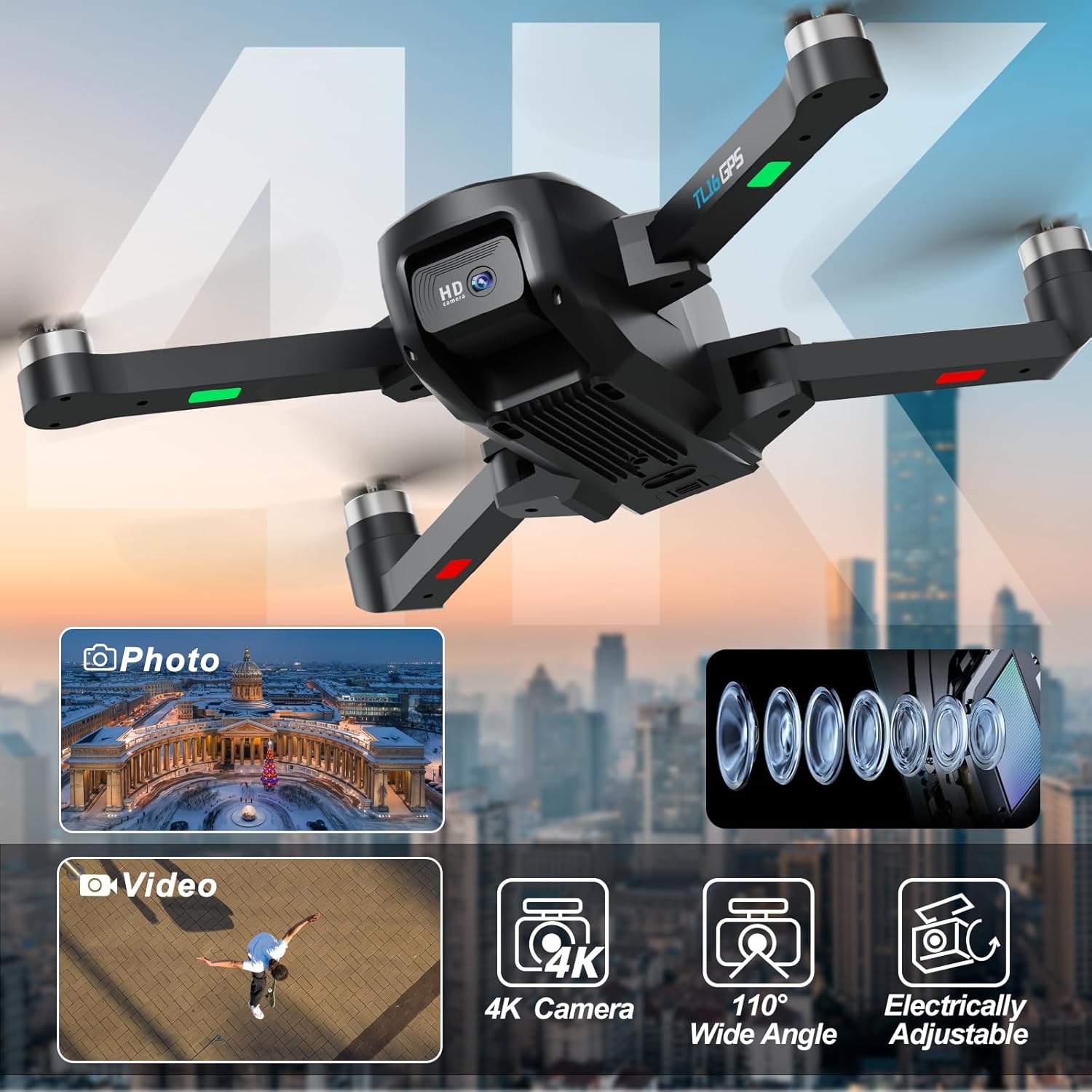
Image 4: Details of the drone's 4K UHD camera capabilities.
5.4 Optical Flow Positioning & Auto Hover
For stable indoor or low-altitude flight, the drone utilizes an optical flow positioning system. This feature helps maintain a steady hover without GPS. When flying indoors, ensure GPS mode is turned off.

Image 5: The drone's intelligent hover feature using optical flow positioning.
5.5 One Key Takeoff/Landing & Headless Mode
Simplify flight with one-key takeoff and landing functions. Headless mode eliminates the need to orient the drone's front, making it easier for beginners to control.
5.6 Speed Modes
The drone offers 3 adjustable flight speeds. Beginners are recommended to start with lower speeds and increase as proficiency grows. Higher speeds are recommended in windy conditions.
6. Maintenance
6.1 Battery Care
Always use the original USB charging cable for the drone and remote control batteries. Store batteries in a cool, dry place away from direct sunlight. Do not overcharge or completely drain the batteries.
6.2 Propeller Replacement
If propellers are damaged, replace them immediately using the spare parts and screwdriver provided. Ensure the correct A/B type propellers are installed on the corresponding motor arms.
7. Troubleshooting
- Drone does not take off: Ensure batteries are fully charged in both the drone and remote. Check if propellers are correctly installed and free from obstruction. Perform calibration steps.
- Drone drifts during flight: Recalibrate the gyroscope. Ensure flight is in an open area away from magnetic interference.
- Remote control beeps: This usually indicates a low battery in the remote. Land the drone immediately and charge the remote.
- Loss of signal: The drone's GPS auto-return feature should activate, bringing the drone back to its takeoff point. Maintain line of sight and avoid flying beyond recommended range.
- App connection issues: Ensure the drone's Wi-Fi is enabled and your smartphone is connected to the correct network. Restart both the drone and the app if issues persist.
8. Safety Guidelines
- FAA Registration: This drone weighs less than 250 grams, so FAA registration and remote ID are not required in the U.S. for recreational use. Always check local regulations before flying.
- Flight Environment: Fly in open, unobstructed areas away from people, animals, and buildings. Avoid flying near airports or restricted airspace.
- Indoor Flight: When flying indoors or at low altitudes, turn off GPS mode and rely on optical flow positioning for stability.
- Weather Conditions: Avoid flying in strong winds, rain, or other adverse weather conditions.
- Obstacle Avoidance: If using obstacle avoidance equipment, ensure it is installed correctly. Note that indoor space limitations may affect its normal function.
9. Warranty & Support
Tolatoyus provides comprehensive after-sales support. If you encounter any problems during product receipt or use, please contact our customer service team. We aim for 100% customer satisfaction and offer 24-hour support to provide solutions.


