
Introduction
The Samsung Smart Monitor M5 (M50D) is an integrated streaming TV and desktop monitor solution. It allows users to stream content directly, access live TV channels, and manage multiple tasks with a single mouse and keyboard across various devices. The monitor features the Samsung Gaming Hub for instant gameplay, embedded productivity applications like Microsoft 365, and multiple connectivity ports. It also includes a SmartThings IoT hub for managing smart home devices and offers tools for workout tracking and vision accessibility.

Figure 1: Front view of the Samsung 32-inch M5 Smart Monitor.
Setup
What's in the Box
- Power Cable
- Remote Control
- Batteries
- Stand
Physical Assembly
Carefully remove all components from the packaging. Attach the stand to the monitor following the instructions provided in the quick setup guide. Ensure all connections are secure before powering on the device.
Connections
The monitor is equipped with multiple ports for various devices. Connect the power cable to the monitor and a power outlet. Use HDMI ports for video input from computers, gaming consoles, or other media devices. USB-A ports are available for connecting peripherals such as a mouse, keyboard, or external storage.

Figure 2: Rear view of the monitor detailing available ports.
Initial Power On
After connecting the power cable, press the power button on the monitor or the remote control. Follow the on-screen prompts to complete the initial setup, including network connection and Samsung account login. A stable internet connection is required for full smart features.
Operating Instructions
Smart TV and Streaming
The Smart Monitor M5 provides direct access to Over-The-Top (OTT) content and Samsung TV Plus for live channels and on-demand content. Navigate through the smart hub using the remote control to select your desired streaming applications.

Figure 3: Monitor displaying the Smart Hub interface with streaming applications.
Gaming Hub
Access the Samsung Gaming Hub to play games from various streaming partners without needing a separate PC or console. A separate controller may be required for certain games. An internet connection is necessary for this feature.

Figure 4: The Samsung Gaming Hub interface.
Workspace and Productivity
The monitor allows remote access and control of your PC. Embedded productivity applications, such as Microsoft 365, enable a streamlined working environment without requiring a connected computer. A Microsoft account and subscription may be necessary for full functionality.

Figure 5: Monitor used for productivity with a connected laptop.
Multi-Device Control
Control multiple compatible devices, including Galaxy Tabs and mobile devices, using a single mouse and keyboard connected to the Smart Monitor. This feature facilitates seamless content transfer and workflow management.
Smart Home Control
Utilize the integrated SmartThings IoT hub to manage smart home devices. The 3D Map View provides an overview of devices in different rooms, allowing for easy control and monitoring of energy usage. Requires a Wi-Fi connection and registered SmartThings devices.

Figure 6: SmartThings 3D Map View on the monitor.
Workout Tracker
Stream workout content or perform exercises while watching TV on the Smart Monitor. Pair a compatible Galaxy Watch to display real-time health data on the screen, enhancing your fitness routine.
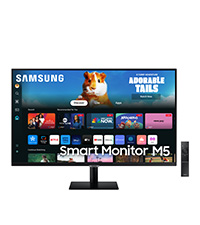
Figure 7: Workout tracking feature with a Galaxy Watch.
Vision Accessibility Tools
The Smart Monitor includes accessibility tools designed for low vision users. These features include screen magnification, color switching options, and audio descriptions for TV settings to improve usability.

Figure 8: Examples of vision accessibility tools.
Maintenance
Cleaning the Monitor
To clean the screen, gently wipe it with a soft, lint-free cloth. For stubborn marks, slightly dampen the cloth with water or a screen-safe cleaning solution. Avoid using harsh chemicals, abrasive materials, or direct spraying of liquids onto the screen. Ensure the monitor is powered off and unplugged before cleaning.
General Care
- Keep the monitor away from direct sunlight and heat sources.
- Avoid placing heavy objects on the monitor or its cables.
- Ensure proper ventilation around the monitor to prevent overheating.
- Protect the monitor from dust by covering it when not in use for extended periods.
Troubleshooting
No Power
- Check if the power cable is securely connected to both the monitor and the power outlet.
- Verify that the power outlet is functional by plugging in another device.
- Ensure the power button on the monitor or remote control has been pressed.
No Signal/Blank Screen
- Confirm that the input source (e.g., HDMI 1, HDMI 2) is correctly selected on the monitor.
- Check the connection cable between the monitor and the source device (e.g., PC, console).
- Ensure the source device is powered on and outputting a signal.
Network Connection Issues
- Restart your Wi-Fi router and modem.
- Go to the monitor's network settings and attempt to reconnect to your Wi-Fi network.
- Ensure the Wi-Fi password is entered correctly.
Remote Control Not Working
- Replace the batteries in the remote control.
- Ensure there are no obstructions between the remote control and the monitor's sensor.
- If the remote is paired via Bluetooth, try re-pairing it according to the on-screen instructions.
Specifications
| Feature | Specification |
|---|---|
| Brand | Samsung |
| Series | M50D |
| Model Number | LS32DM500ENXGO |
| Screen Size | 32 Inches |
| Screen Resolution | 1920x1080 (FHD 1080p) |
| Max Screen Resolution | 1920 x 1080 Pixels |
| Aspect Ratio | 16:9 |
| Screen Surface Description | Matte |
| Number of USB 3.0 Ports | 1 |
| Item Weight | 13.7 pounds |
| Product Dimensions | 76.2 x 28.2 x 20.4 inches |
| Color | Black |
| Voltage | 240 Volts |
| Manufacturer | Samsung |
| Date First Available | June 4, 2024 |
Warranty and Support
This Samsung Smart Monitor M5 (M50D) is covered by a limited manufacturer's warranty. For specific warranty terms, duration, and conditions, please refer to the warranty card included with your product or visit the official Samsung support website. Keep your proof of purchase for warranty claims.
Customer Support
For technical assistance, troubleshooting, or service inquiries, please contact Samsung Customer Support. Contact information can typically be found on the Samsung website or in the documentation provided with your monitor.