1. Introduction
This manual provides detailed instructions for the setup, operation, and maintenance of your Cheerlux C50 Projector. Please read this manual thoroughly before using the product to ensure proper function and to prevent damage.
The Cheerlux C50 is a high-performance projector featuring Android 9.0, Wi-Fi 5.0G, Bluetooth 5.1, autofocus, and 4P keystone correction. It offers a brightness of 4000 Lumens and a contrast ratio of 2500:1, delivering a full HD 1920x1080 resolution display.
2. Safety Information
- Do not block the ventilation openings of the projector. Ensure adequate space around the device for proper airflow.
- Avoid looking directly into the projector lens when the lamp is on, as the bright light can cause eye damage.
- Do not place the projector on unstable surfaces.
- Keep the projector away from water, moisture, and extreme temperatures.
- Use only the power adapter supplied with the projector.
- Do not attempt to disassemble or repair the projector yourself. Contact qualified service personnel for assistance.
- Keep out of reach of children.
3. Package Contents
Verify that all items are present in the package:
- Cheerlux C50 Projector
- Remote Control
- Power Plug
- AV Signal Cable
- User Manual (this document)
- Support Base (1x)
- Lens Cleaning Cloth
- VGA Cable
- Cleaning Kit
4. Product Overview
Familiarize yourself with the projector's components and ports.
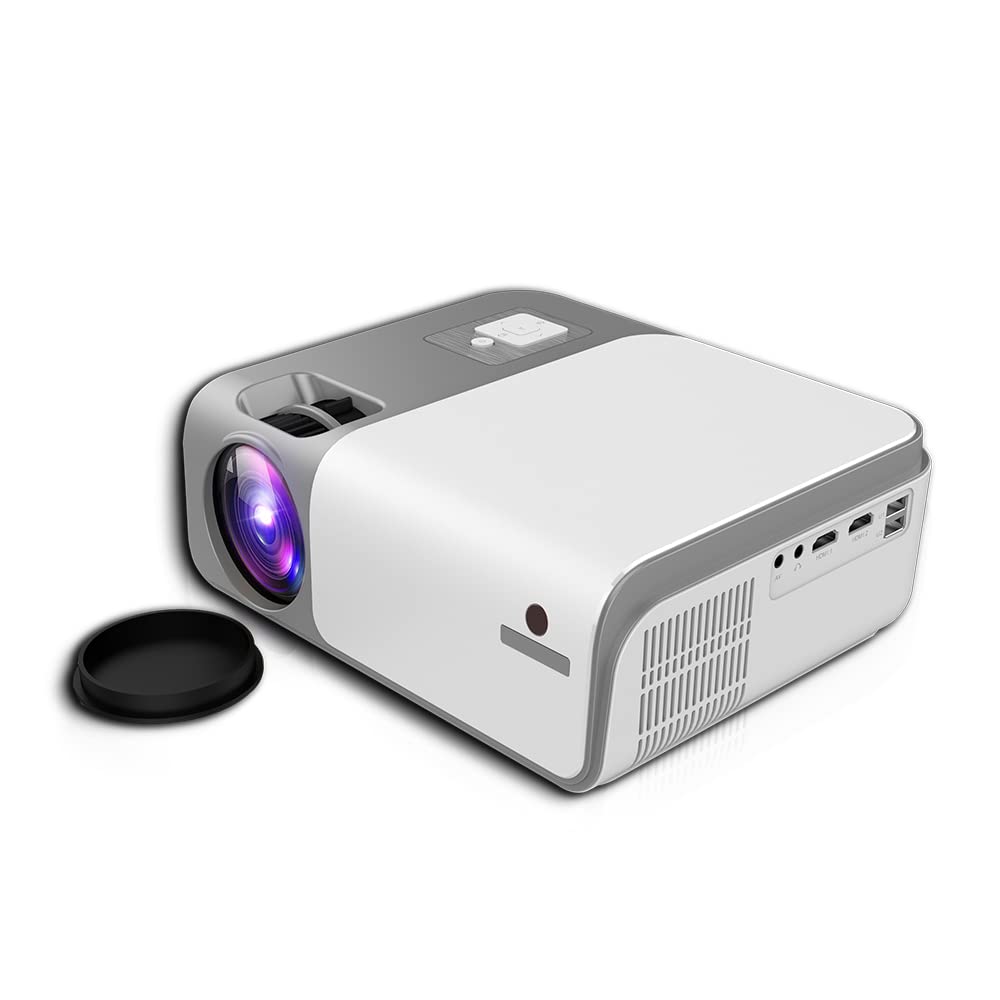
Figure 4.1: Front and side view of the Cheerlux C50 Projector. This image shows the projector's lens, ventilation grilles, and various input ports on the side, including USB and HDMI.

Figure 4.2: The Cheerlux C50 Projector demonstrating screen mirroring with a smartphone. A wireless signal icon indicates the mirroring function, allowing content from a mobile device to be displayed on the projector.
Input/Output Ports:
- 2x USB Sockets: For connecting USB drives or other USB devices.
- 2x HDMI Sockets: For connecting HDMI-enabled devices like laptops, gaming consoles, or media players.
- 1x Composite AV Socket: For connecting older devices using AV cables.
- Headphone Socket: For connecting external audio devices or headphones.
5. Setup
5.1 Placement
Position the projector on a stable, flat surface or mount it securely. Ensure the projector lens is perpendicular to the projection surface for optimal image quality.
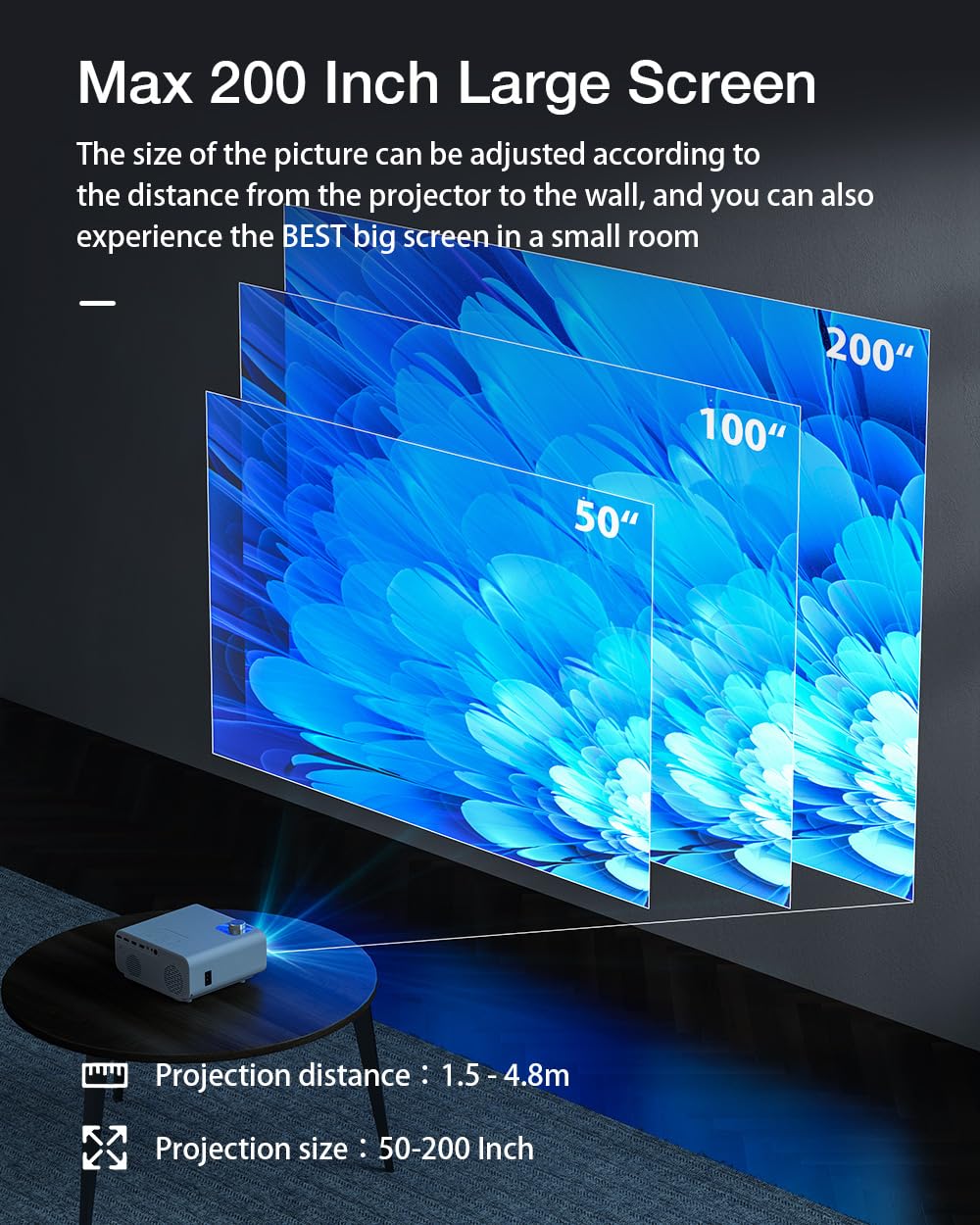
Figure 5.1: Projection distance and screen size guide. The projector can achieve a screen size of 50 to 200 inches with a projection distance ranging from 1 to 8 meters (approximately 3.3 to 26.2 feet).
- Projection Distance: 1 - 8 meters (3.3 - 26.2 feet)
- Projected Image Size: 50 - 200 inches
- Aspect Ratio: 16:9
5.2 Power Connection
- Connect the power cable to the projector's power input port.
- Plug the other end of the power cable into a suitable electrical outlet.
- The power indicator light on the projector should illuminate.
5.3 Focus and Keystone Correction
- Autofocus: The Cheerlux C50 features an autofocus function. The projector will automatically adjust the image clarity upon startup or movement.
- 4P Keystone Correction: If the projected image appears distorted (trapezoidal), use the 4P keystone correction feature to adjust each corner of the image independently until it forms a perfect rectangle. This is particularly useful when the projector is not perfectly aligned with the screen. Refer to the on-screen menu for keystone adjustment options.
6. Operating Instructions
6.1 Power On/Off
- Power On: Press the power button on the projector or the remote control. The projector will start up and display the Android 9.0 home screen.
- Power Off: Press the power button again. A shutdown confirmation prompt may appear. Select "Power Off" to safely shut down the projector.
6.2 Android 9.0 OS
The Cheerlux C50 Projector runs on Android 9.0, providing access to a smart interface and various applications.

Figure 6.1: The Android 9.0 operating system interface on the Cheerlux C50 Projector. The screen shows various streaming and social media application icons, indicating smart functionality.
- Navigation: Use the remote control to navigate through the Android interface.
- Applications: Access pre-installed applications or download new ones from the app store (if available) to watch videos, browse the internet, and more.
- Settings: Adjust system settings, network connections, display options, and other preferences through the settings menu.
6.3 Screen Mirroring
The projector supports screen mirroring from compatible smartphones and tablets.
- Ensure both your mobile device and the projector are connected to the same Wi-Fi network.
- On the projector's Android interface, select the "Mirroring" or "Screen Share" application.
- On your mobile device, activate its screen mirroring feature (e.g., "Smart View" on Samsung, "Screen Cast" on Android, "AirPlay" on iOS).
- Select the projector's name from the list of available devices on your mobile device.
- The mobile device's screen content will now be displayed on the projector.
7. Connectivity
7.1 Wi-Fi Connection
Connect the projector to a wireless network to access online content and enable screen mirroring.
- Go to the projector's "Settings" menu.
- Select "Network & Internet" or "Wi-Fi".
- Turn on Wi-Fi and select your desired network from the list.
- Enter the Wi-Fi password if prompted and connect.
7.2 Bluetooth Connection
Connect Bluetooth speakers, headphones, or other compatible devices for audio output.
- Go to the projector's "Settings" menu.
- Select "Connected Devices" or "Bluetooth".
- Turn on Bluetooth and put your Bluetooth device into pairing mode.
- Select your device from the list of available devices on the projector and pair.
7.3 Wired Connections (HDMI, USB, AV)
- HDMI: Connect an HDMI cable from your source device (e.g., laptop, gaming console) to one of the projector's HDMI ports. Select the corresponding HDMI input source from the projector's input menu.
- USB: Insert a USB flash drive or external hard drive into a USB port. The projector's media player will typically detect the device, allowing you to browse and play media files.
- AV: Connect an AV cable from your source device to the projector's AV input. Select the AV input source from the projector's input menu.
8. Maintenance
- Lens Cleaning: Use the provided lens cleaning cloth or a soft, lint-free cloth to gently wipe the projector lens. Do not use abrasive cleaners or solvents.
- Dust Removal: Regularly clean the projector's ventilation openings with a soft brush or compressed air to prevent dust buildup, which can affect performance and lifespan.
- Storage: When not in use for extended periods, store the projector in a cool, dry place, protected from dust and direct sunlight.
9. Troubleshooting
- No Power:
- Ensure the power cable is securely connected to both the projector and a working power outlet. Check if the power indicator light is on.
- No Image:
- Verify that the correct input source (HDMI, AV, USB) is selected. Check cable connections. Ensure the lens cap is removed.
- Blurry Image:
- Allow the autofocus to adjust. If still blurry, manually adjust focus if an option is available, or ensure the projector is within the recommended projection distance.
- Distorted Image (Trapezoid):
- Use the 4P keystone correction feature in the projector's settings menu to adjust the image corners.
- No Sound:
- Check the volume settings on both the projector and the source device. Ensure external speakers or headphones are properly connected if used. Verify that the correct audio output is selected in settings.
- Screen Mirroring Issues:
- Ensure both devices are on the same Wi-Fi network. Restart both the projector and the mobile device. Check for compatibility issues with your mobile device's mirroring protocol.
10. Specifications
| Brand | Generic |
| Model Name | Cheerlux C50 |
| Operating System | Android 9.0 |
| Brightness | 4000 Lumens |
| Contrast Ratio | 2500:1 |
| Native Resolution | 1920 x 1080 Pixels (Full HD) |
| Display Type | LED |
| Aspect Ratio | 16:9 |
| Projection Distance | 1 - 8 meters |
| Projected Image Size | 50 - 200 inches |
| Connectivity Technology | Wi-Fi 5.0G, Bluetooth 5.1 |
| Hardware Interface | 2x HDMI, 2x USB, 1x Composite AV, Headphone Socket |
| Special Features | Autofocus, 4P Keystone Correction, Screen Mirroring, Built-In Wi-Fi |
| Compatible Devices | Gaming Console, Smartphone, Laptop, TV, Speakers |
| Product Dimensions | 260 x 210 x 102 mm (21 x 26 x 10 cm) |
| Item Weight | 1 kg |
| Wattage | 150 Watts |
| Refresh Rate | 480 MHz |
11. Warranty and Support
For warranty information and technical support, please refer to the documentation provided at the time of purchase or contact your retailer. Keep your proof of purchase for any warranty claims.