
1. Introduction
Thank you for purchasing the HiFiGo FX-Audio DR07 Desk DAC with Dual AK4493 Chip and Bluetooth Headphone Amplifier. This device is designed to provide high-fidelity audio decoding and amplification, enhancing your listening experience. It features multiple input options, including USB, Optical, Coaxial, and Bluetooth, along with dedicated headphone outputs and line-out capabilities. Please read this manual thoroughly to understand the product's functions and ensure proper operation.
2. Package Contents
Verify that all items listed below are present in your package. If any items are missing or damaged, please contact your retailer.
- FX-Audio DR07 Desk DAC Unit
- Remote Controller
- USB Cable
- Power Adapter (DC 12V)
- Bluetooth Antenna

Image: FX-Audio DR07 unit with its accessories, including the remote control, USB cable, power adapter, and Bluetooth antenna.
3. Product Overview
3.1 Front Panel

Image: Detailed view of the DR07 front panel.
- POWER/SEL Button: Press to power on/off. Short press to cycle through input sources (USB, OPT, COAX, BL).
- Display Screen: Shows current input, volume level, and sampling rate.
- IR Receiver: For remote control signals.
- 3.5mm Headphone Output: For connecting headphones with a 3.5mm jack.
- 6.35mm Headphone Output: For connecting headphones with a 6.35mm jack.
- VOLUME Knob: Rotate to adjust the output volume. Press to mute/unmute.
3.2 Rear Panel

Image: Rear panel connections of the DR07.
- BT ANT Connector: Connect the provided Bluetooth antenna here.
- USB IN: Connect to a computer or other USB audio source using the supplied USB cable.
- OPT IN (Optical Input): Connect to an optical audio source.
- COAX IN (Coaxial Input): Connect to a coaxial audio source.
- OPT OUT (Optical Output): Digital optical output.
- LINE OUT R/L (RCA Output): Analog RCA stereo output for connecting to an amplifier or powered speakers.
- DC 12V: Power input for the included 12V DC power adapter.
4. Setup
- Connect Bluetooth Antenna: Screw the provided Bluetooth antenna onto the "BT ANT" connector on the rear panel.
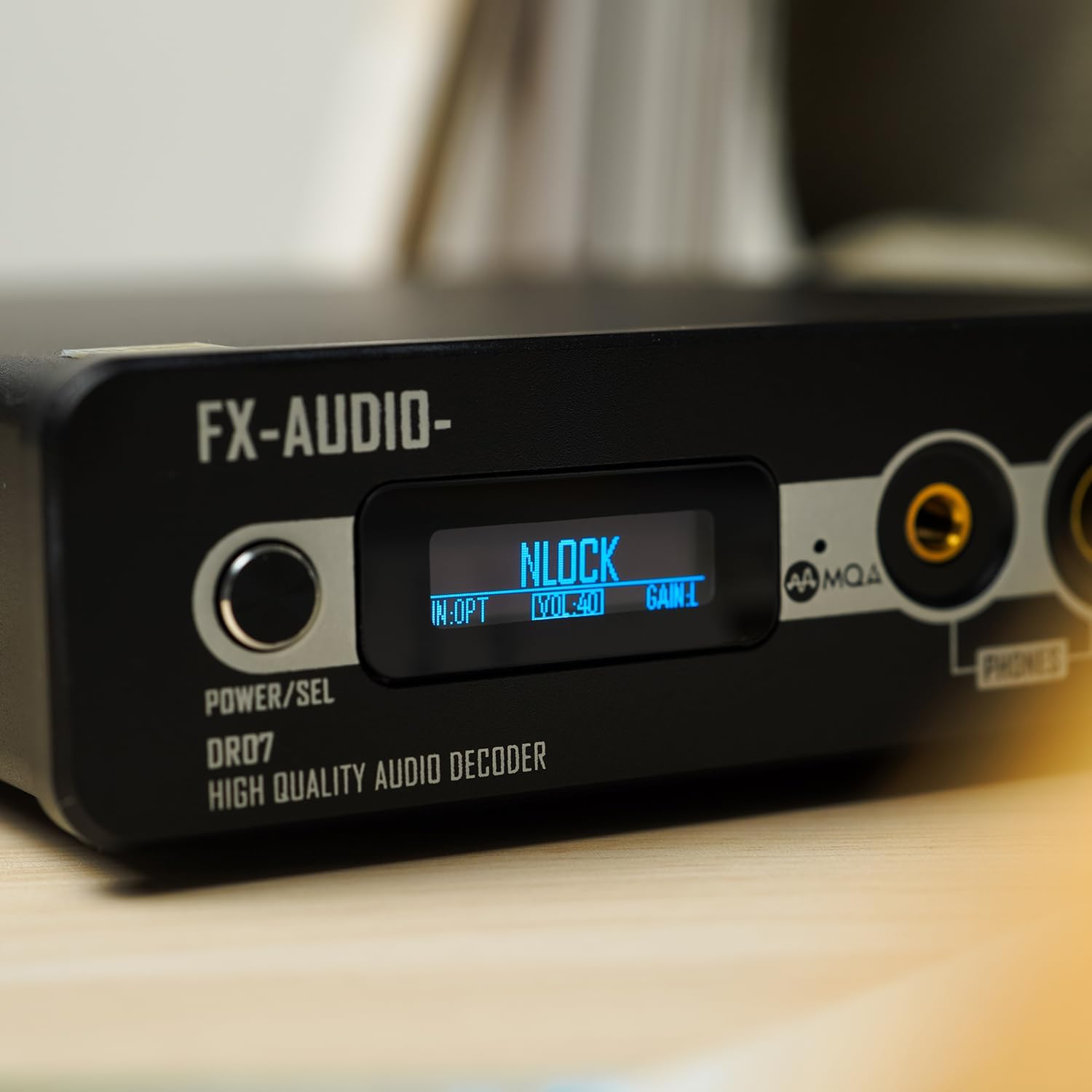
Image: Bluetooth antenna connected to the DR07 rear panel.
- Connect Power: Connect the DC 12V power adapter to the "DC 12V" input on the rear panel, then plug the adapter into a wall outlet.
- Connect Audio Source:
- USB: Connect the USB cable from your computer to the "USB IN" port on the DR07.
- Optical: Connect an optical cable from your audio source (e.g., TV, game console) to the "OPT IN" port.
- Coaxial: Connect a coaxial cable from your audio source to the "COAX IN" port.
- Bluetooth: No physical connection needed for Bluetooth. This will be paired later.
- Connect Output Device:
- Headphones: Plug your headphones into either the 3.5mm or 6.35mm headphone output on the front panel.
- Amplifier/Powered Speakers: Connect RCA cables from the "LINE OUT R/L" ports on the DR07 to your amplifier or powered speakers.
5. Operating Instructions
5.1 Power On/Off
Press the POWER/SEL button on the front panel or the power button on the remote control to turn the unit on or off.
5.2 Input Selection
Short press the POWER/SEL button on the front panel to cycle through the available input sources: USB, OPT (Optical), COAX (Coaxial), and BL (Bluetooth). The selected input will be displayed on the screen. You can also use the input selection buttons on the remote control.

Image: The DR07 display indicating "IN:OPT" for Optical input and "NLOCK" when a signal is not locked.
5.3 Volume Control
Rotate the VOLUME knob on the front panel clockwise to increase volume and counter-clockwise to decrease volume. Press the VOLUME knob to mute or unmute the audio output. The volume can also be adjusted using the volume buttons on the remote control.
5.4 Bluetooth Pairing
- Select "BL" as the input source on the DR07. The display will indicate Bluetooth mode.
- On your mobile device or computer, enable Bluetooth and search for available devices.
- Select "FX-Audio DR07" from the list of devices to pair.
- Once paired, the display on the DR07 will confirm the connection, and you can stream audio wirelessly.
5.5 MQA Decoding
The DR07 supports MQA (Master Quality Authenticated) full decoding via USB, Optical, and Coaxial inputs. When playing MQA content, the display will indicate MQA status, ensuring you experience the original master recording quality.
6. Maintenance
- Cleaning: Use a soft, dry cloth to clean the exterior of the unit. Do not use liquid cleaners or solvents, as they may damage the finish.
- Placement: Place the DR07 on a stable, flat surface away from direct sunlight, heat sources, and excessive moisture. Ensure adequate ventilation around the unit.
- Handling: Avoid dropping or subjecting the unit to strong impacts.
- Power: Disconnect the power adapter from the wall outlet if the unit will not be used for an extended period.
7. Troubleshooting
| Problem | Possible Cause | Solution |
|---|---|---|
| No power | Power adapter not connected or faulty. | Ensure the power adapter is securely connected to the unit and a working power outlet. Try a different outlet. |
| No sound output |
|
|
| Bluetooth not connecting |
|
|
| Distorted sound |
|
|
8. Specifications
| Parameter | Value |
|---|---|
| Decoder Chip | Dual AK4493 |
| Bluetooth Chip | QCC5125 |
| USB Chip | XMOS XU316 |
| Input Interfaces | USB, OPT (Optical), COAX (Coaxial), BL (Bluetooth) |
| Output Interfaces | 3.5mm Headphone, 6.35mm Headphone, OPT (Optical), RCA Line Out |
| Distortion | <0.0005% |
| Frequency Response | (10kHz-40kHz) ±0.3dB |
| SNR (Signal-to-Noise Ratio) | 120dB |
| Headphone Power Output | 1100mW + 1100mW @ 32 Ohm |
| USB Sampling Rate | 44.1kHz-768kHz, DSD64, DSD128, DSD256, DSD512 (MQA full decoder) |
| OPT/COAX Sampling Rate | 44.1kHz-192kHz (MQA full decoder) |
| Bluetooth Version | 5.1 |
| Bluetooth Formats | LDAC, aptX HD |
| Bluetooth Sampling Rate | 44.1kHz-96kHz |
| RCA Output Amplitude | 2.5Vrms |
| Housing Material | Aluminum (sandblasted oxidation) |
| Product Weight | 552g (approx. 1.22 lbs) |
9. Warranty and Support
The HiFiGo FX-Audio DR07 comes with a 1-year warranty from the date of purchase. This warranty covers manufacturing defects and malfunctions under normal use. It does not cover damage caused by misuse, accidents, unauthorized modifications, or improper installation.
For technical support, warranty claims, or any questions regarding your DR07, please contact your original retailer or visit the official HiFiGo website for customer service information. Please have your purchase receipt and product serial number ready when contacting support.