
1. Introduction
This manual provides detailed instructions for the NOTESNEE V5.3 Wireless Headset, Model BT881CD. This headset is designed for professional use, offering wireless connectivity, noise-canceling microphone technology, and extended battery life for various communication platforms.

Image 1.1: NOTESNEE V5.3 Wireless Headset with charging base and USB dongle.
2. Package Contents
Verify that all items are present in the package:
- Bluetooth Wireless Headset (1)
- USB Dongle (1)
- Charging Dock (1)
- User Manual (1)
- Type-C Cable (1)
- Noise Cancelling Microphone (integrated)
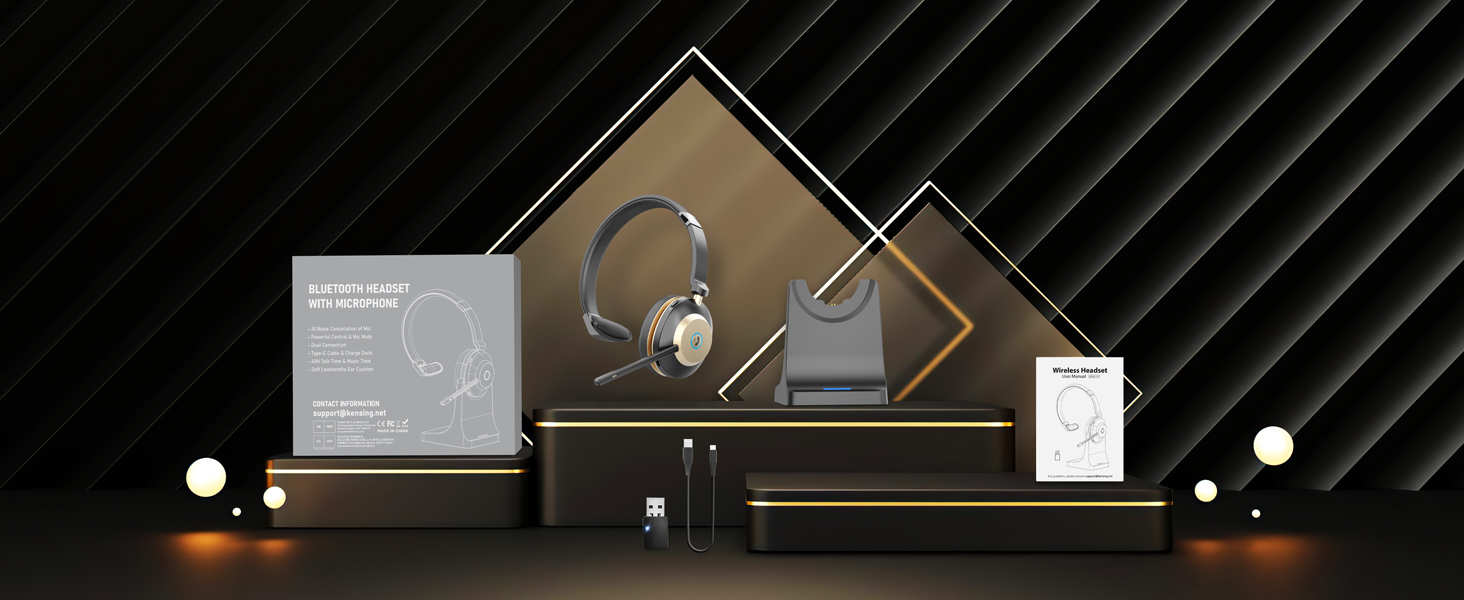
Image 2.1: Package contents including headset, charging dock, USB dongle, and cables.
3. Product Overview
The NOTESNEE BT881CD headset features an ergonomic design for comfort and intuitive controls for ease of use.
3.1. Key Features
- Comfortable Design: Lightweight (125g) with soft memory foam ear cushions, 180° rotatable ear cups, and an adjustable headband for extended wear.
- Extended Battery Life: Up to 45 hours of talk time from a 3-hour charge.
- Advanced Connectivity: Bluetooth V5.3 and Qualcomm QCC3034 chip for stable, efficient connections. Includes a USB audio dongle for non-Bluetooth devices.
- AI Noise-Canceling Microphone: Filters out up to 99.6% of background noise for clear communication.
- Mute Function: Dedicated button for privacy during calls.
- Dual Connectivity: Connects simultaneously to two devices.
- Flexible Charging: Supports charging via the charging base or a Type-C cable.
3.2. Components and Controls
Familiarize yourself with the headset's components and control buttons.

Image 3.1: Comfort features of the headset, including adjustable headband and ear cushions.

Image 3.2: The microphone boom can be adjusted 270 degrees for optimal positioning.

Image 3.3: Detail of the one-click mute button on the headset.
4. Setup
4.1. Charging the Headset
Before first use, fully charge the headset. A full charge takes approximately 3 hours and provides up to 45 hours of talk time.
- Using the Charging Dock: Place the headset onto the charging dock. Ensure the charging contacts align. The indicator light on the dock will show charging status.
- Using the Type-C Cable: Connect the provided Type-C cable to the headset's charging port and to a USB power source (e.g., computer USB port, wall adapter).

Image 4.1: The headset offers two charging methods: via the charging base or directly with a Type-C cable.
4.2. PC Connection Settings
The headset can be connected to a PC via Bluetooth or the included USB dongle.
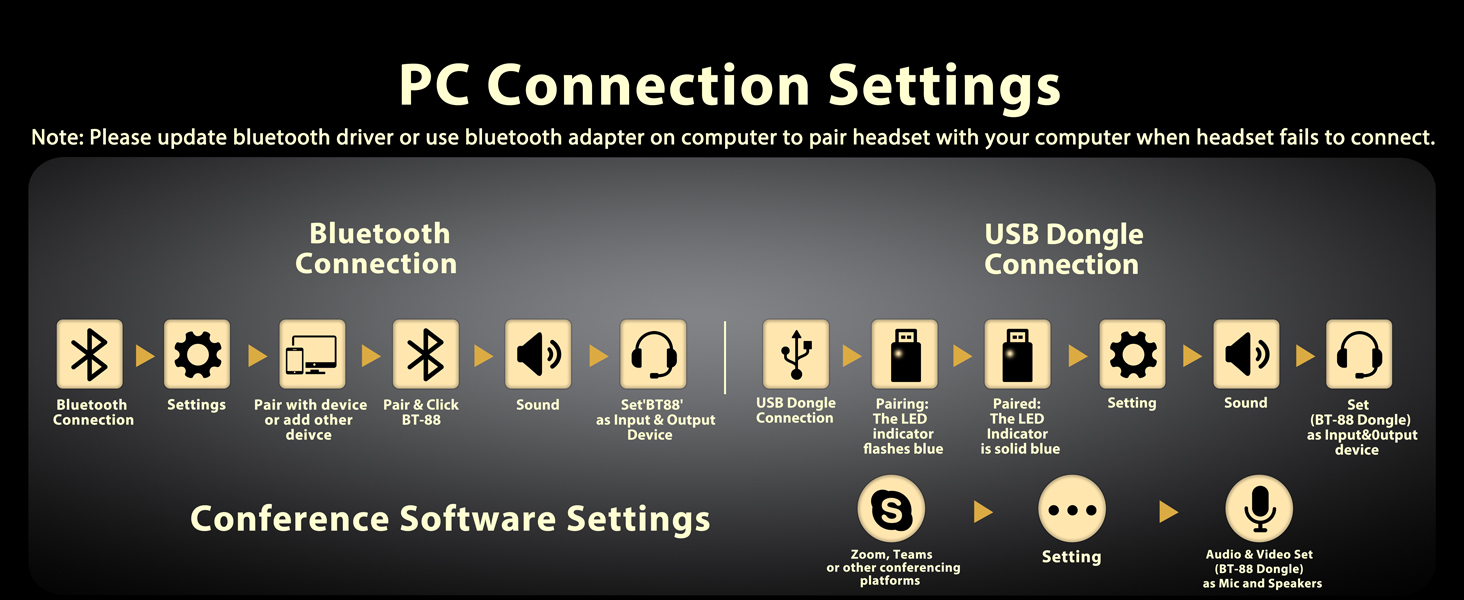
Image 4.2: Flowchart for PC connection via Bluetooth or USB Dongle, and conference software setup.
4.2.1. Bluetooth Connection
- Ensure your PC has Bluetooth enabled. If not, you may need to update your Bluetooth driver or use a Bluetooth adapter.
- Go to PC Settings > Devices > Bluetooth & other devices.
- Click Add Bluetooth or other device.
- Select Bluetooth.
- On the headset, power it on and put it into pairing mode (refer to Section 5.2).
- Select BT-881CD from the list of available devices.
- Once paired, go to Sound Settings and set BT-881CD as the Input and Output device.
4.2.2. USB Dongle Connection
- Insert the USB dongle into an available USB port on your PC.
- The LED indicator on the dongle will flash, indicating it is searching for the headset.
- Power on the headset. The dongle's LED will turn solid blue when successfully paired.
- Go to PC Sound Settings and set the USB Dongle (e.g., BT-881CD Dongle) as the Input and Output device.
4.3. Conference Software Settings
For optimal performance with communication platforms (e.g., Zoom, Microsoft Teams, Skype), configure the audio settings within the application:
- Open your preferred conference software.
- Navigate to Settings or Preferences.
- Locate the Audio & Video section.
- Set the microphone (Input) and speakers (Output) to the connected headset (e.g., BT-881CD or BT-881CD Dongle).
5. Operating Instructions
5.1. Power On/Off
- Power On: Press and hold the Power button for approximately 3 seconds until the indicator light illuminates.
- Power Off: Press and hold the Power button for approximately 3 seconds until the indicator light turns off.
5.2. Bluetooth Pairing
To pair with a new Bluetooth device:
- Ensure the headset is powered off.
- Press and hold the Power button for approximately 5-7 seconds until the indicator light flashes red and blue alternately, indicating pairing mode.
- On your device (smartphone, tablet, laptop), enable Bluetooth and search for new devices.
- Select BT-881CD from the list.
- Once connected, the indicator light will turn solid blue.
5.3. Volume Control
- Increase Volume: Press the Volume Up button.
- Decrease Volume: Press the Volume Down button.
5.4. Mute Function
During a call or meeting, press the Mute button on the headset to mute or unmute the microphone. A red indicator light on the microphone boom may illuminate when muted.
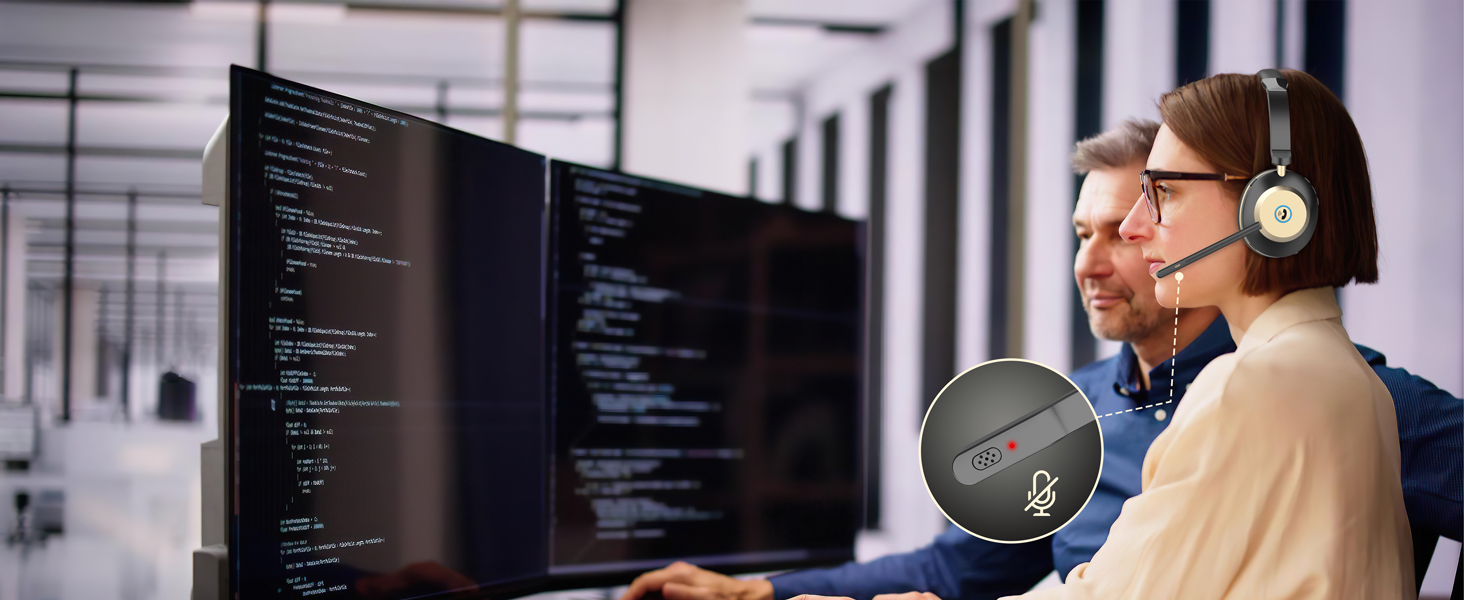
Image 5.1: The microphone features a visual mute indicator.
5.5. Answering/Ending Calls
- Answer Call: Press the Multi-function button once.
- End Call: Press the Multi-function button once during an active call.
- Reject Call: Press and hold the Multi-function button for approximately 2 seconds.
5.6. Dual Connectivity
The headset supports simultaneous connection to two devices (e.g., a PC via dongle and a smartphone via Bluetooth). This allows seamless switching between calls on different devices.

Image 5.2: The headset can connect to various devices, supporting dual connectivity.
6. Maintenance
- Clean the headset regularly with a soft, dry cloth.
- Avoid exposing the headset to extreme temperatures, moisture, or corrosive substances.
- Store the headset in a cool, dry place when not in use, preferably on its charging dock.
- Do not attempt to disassemble or repair the headset yourself, as this will void the warranty.
7. Troubleshooting
| Problem | Possible Cause | Solution |
|---|---|---|
| Headset does not power on | Low battery | Charge the headset fully. |
| Cannot connect via Bluetooth | Headset not in pairing mode; Device Bluetooth off; Out of range | Ensure headset is in pairing mode. Enable Bluetooth on device. Move headset closer to device (within 15m/49ft). |
| No audio or poor audio quality | Incorrect audio output selected; Volume too low; Interference | Check PC/device sound settings to ensure headset is selected as output. Adjust volume. Move away from other wireless devices. |
| Microphone not working | Microphone muted; Incorrect audio input selected; Microphone boom not positioned correctly | Unmute microphone. Check PC/device sound settings to ensure headset is selected as input. Adjust microphone boom closer to mouth. |
| USB dongle not connecting | Dongle not fully inserted; Headset not powered on; Driver issue | Ensure dongle is fully inserted. Power on headset. Try a different USB port. Update PC USB drivers if necessary. |
8. Specifications
| Feature | Detail |
|---|---|
| Model Name | BT881CD |
| Brand | NOTESNEE |
| Connectivity Technology | Wireless (Bluetooth V5.3) |
| Bluetooth Version | 5.3 |
| Bluetooth Range | Up to 20 meters (65 feet) |
| Noise Control | Passive Noise Cancellation (Headset), AI Noise Cancelling (Microphone) |
| Microphone | Adjustable, Noise Cancelling |
| Audio Driver Size | 40 Millimeters |
| Battery Life | Up to 45 hours (Talk Time) / 48 hours (General Use) |
| Charging Time | Approximately 3 hours |
| Charging Methods | Charging Dock, Type-C Cable |
| Item Weight | 0.53 Kilograms (approx. 1.17 pounds) |
| Material | ABS, Faux Leather, Plastic, Stainless Steel |
| Compatible Devices | PC, Laptop, Computer, Mobile Phone, Tablet, VoIP, Desktop |
| Special Features | Dual Connectivity, Mute Function, Voice Assistant, Stable Connection, Long Battery Life |
9. Warranty and Support
The NOTESNEE V5.3 Wireless Headset comes with a 24-month warranty. For any questions, technical assistance, or warranty claims, please contact our customer support team. We offer 24-hour friendly customer service.
Contact Information: Please refer to the product packaging or the official NOTESNEE website for the most up-to-date contact details.