
VALUCAM VC-PTI08-A180-PV
VALUCAM Dual-Lens 4K (8MP) TiOC Outdoor POE Camera
Model: VC-PTI08-A180-PV User Manual

1. Product Overview
The VALUCAM Dual-Lens 4K (8MP) TiOC Outdoor POE Camera (Model: VC-PTI08-A180-PV) is an advanced surveillance solution designed for both home and commercial environments. This camera features dual 4MP CMOS sensors, delivering an ultra-clear 8MP (4096 × 1860) video resolution at 20 frames per second. Its 2.8mm lenses provide a seamless 180° panoramic view, effectively eliminating blind spots.
Key functionalities include Smart Motion Detection (SMD 4.0) for accurate human and vehicle detection, dual-light technology for full-color night vision, and TiOC 2.0 active deterrence with red and blue strobe lights and customizable audio alerts. The camera supports Power over Ethernet (PoE) for simplified installation and offers versatile storage options. Its robust IP67 weatherproof design ensures reliable performance in various environmental conditions.
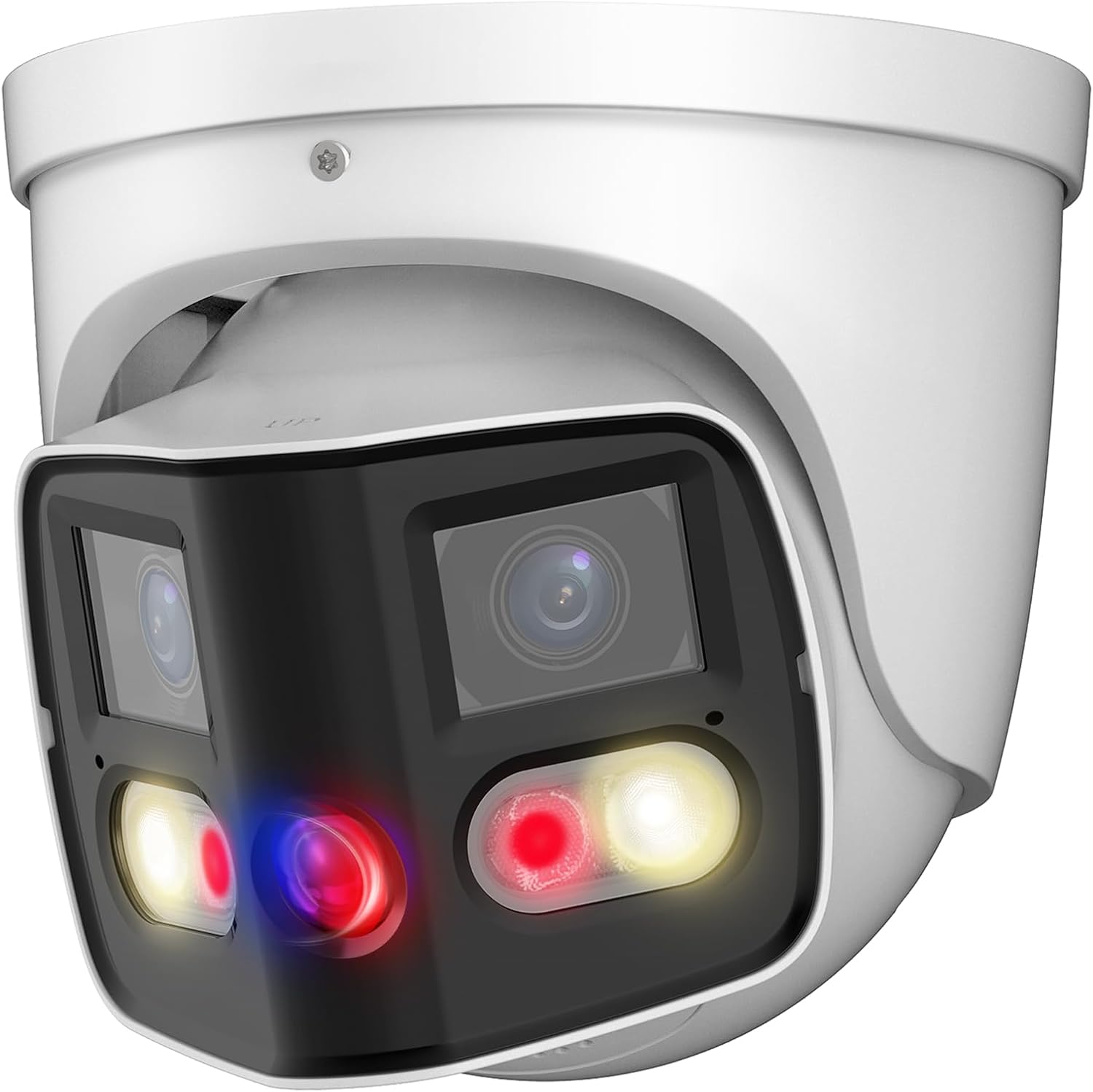
Figure 1.1: VALUCAM Dual-Lens 4K TiOC Outdoor POE Camera (VC-PTI08-A180-PV)
2. Package Contents
Before installation, please verify that all items are included in your package:
- 1 x VALUCAM 8MP Turret POE IP Camera
- 1 x Quick Start Guide
- 1 x Hexagon socket
- 1 x Positioning stickers
- Screws for mounting
- Waterproof Accessories
Note: Power adapter is not included and must be purchased separately if not using Power over Ethernet (PoE).
3. Installation Guide
3.1 Physical Installation
The camera is designed for wall mounting. Ensure the mounting surface is strong enough to support the camera's weight and withstand environmental factors.
- Select Mounting Location: Choose a location that provides the desired viewing angle and is within reach of your network cable (for PoE) or power source.
- Mark Drilling Holes: Use the provided positioning sticker to mark the drilling points on the wall.
- Drill Holes and Install Anchors: Drill holes according to the marks and insert wall anchors if necessary.
- Secure the Camera: Align the camera base with the drilled holes and secure it using the provided screws.
- Connect Cables: Connect the Ethernet cable to the camera's PoE port. If not using PoE, connect a 12V DC power supply to the power input. Ensure waterproof accessories are used for outdoor installations.

Figure 3.1: Typical Wiring Diagram for PoE and Non-PoE Setup

Figure 3.2: Camera Dimensions and Port Layout
3.2 Network and Software Setup
For initial setup and configuration, it is recommended to connect the camera directly to a computer via Ethernet or to a network with a DHCP server.
- Download Software: Obtain the latest versions of SmartPSS Lite (for PC) or DMSS (for mobile devices) from the VALUCAM official website or app stores. A configuration tool may also be available for initial IP address setup.
- Initialize Camera: Follow the instructions within the software to initialize the camera. This typically involves setting a new password for security.
- Configure Network Settings: Assign a static IP address or ensure the camera obtains an IP address from your network's DHCP server.
- Integrate with NVR (Optional): If using a Dahua/Dahua OEM/Valucam NVR, add the camera to your NVR system for centralized recording and management.
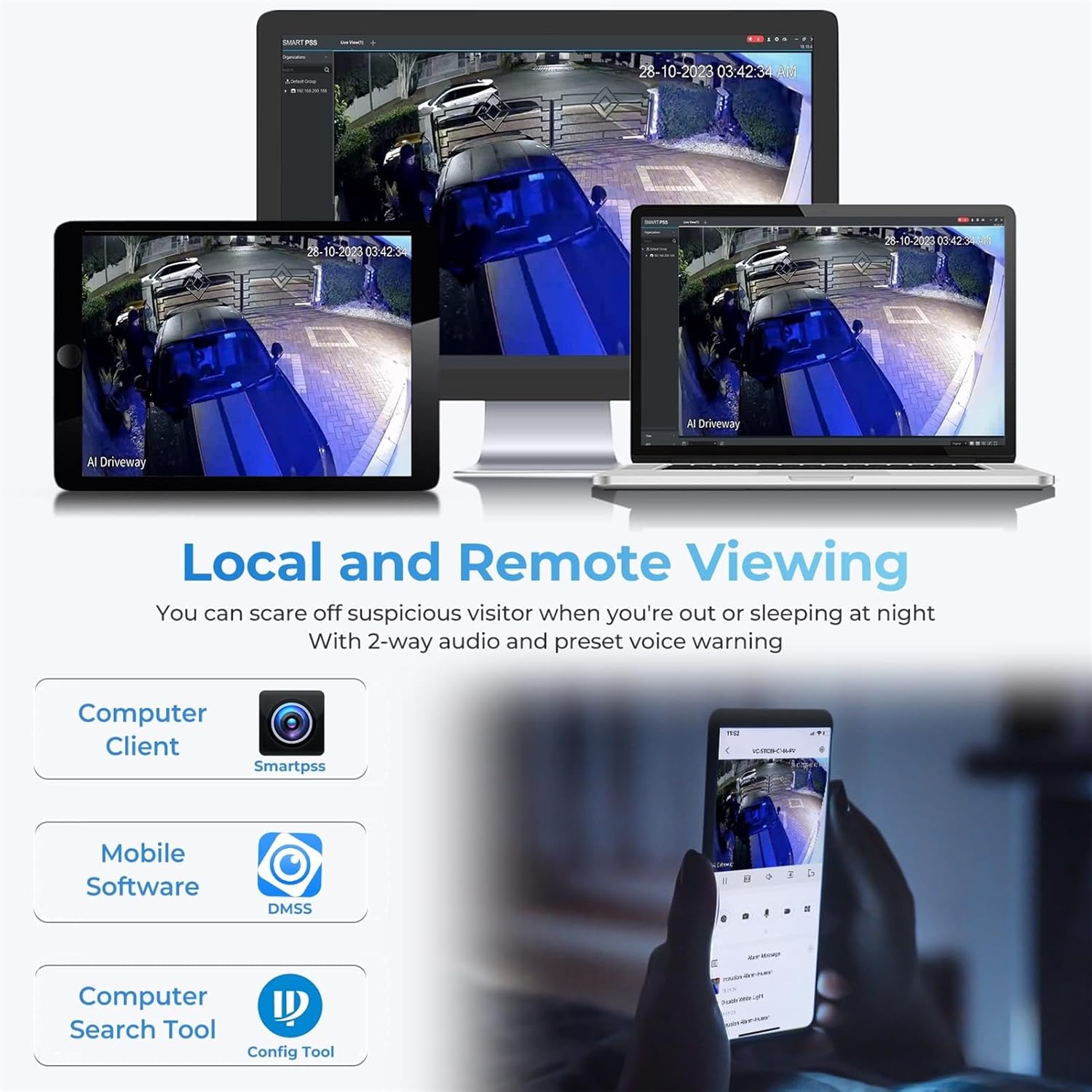
Figure 3.3: Local and Remote Viewing Options via Software
4. Operating the Camera
4.1 Live View and Recording
Access the live video feed through SmartPSS Lite on your computer or the DMSS app on your smartphone/tablet. From here, you can view real-time footage, initiate manual recordings, and take snapshots.
4.2 Key Features and Configuration
- 180° Panoramic View: The dual-lens design provides a wide, seamless 180° panoramic field of view. Configure detection areas within this panoramic view for precise monitoring.
- Smart Motion Detection (SMD 4.0): Enable SMD 4.0 to significantly reduce false alarms caused by animals or environmental factors. This feature accurately distinguishes between human and vehicle targets.
- Dual Color Night Vision (TiOC 2.0): The camera automatically switches between IR (infrared) and warm white light for full-color video capture in low-light conditions upon human/vehicle detection.
- Active Deterrence: Utilize the built-in red and blue strobe lights and customizable audio alerts to deter intruders. You can set custom voice messages via the DMSS app.
- Two-Way Audio: Engage in real-time two-way communication through the camera's built-in microphone and speaker. This allows for interaction with visitors or deterring unwanted guests.
- EPTZ (Electronic Pan, Tilt, Zoom): Digitally zoom in and track specific areas within the camera's field of view for detailed surveillance.
- Storage Options: The camera supports various storage methods including MicroSD card (up to 256GB), Network Video Recorders (NVR), Network Attached Storage (NAS), and FTP.

Figure 4.1: Seamless 180° Panoramic Coverage

Figure 4.2: SMD 4.0 for Accurate Human/Vehicle Detection

Figure 4.3: Comparison of IR and Full Color Night Vision
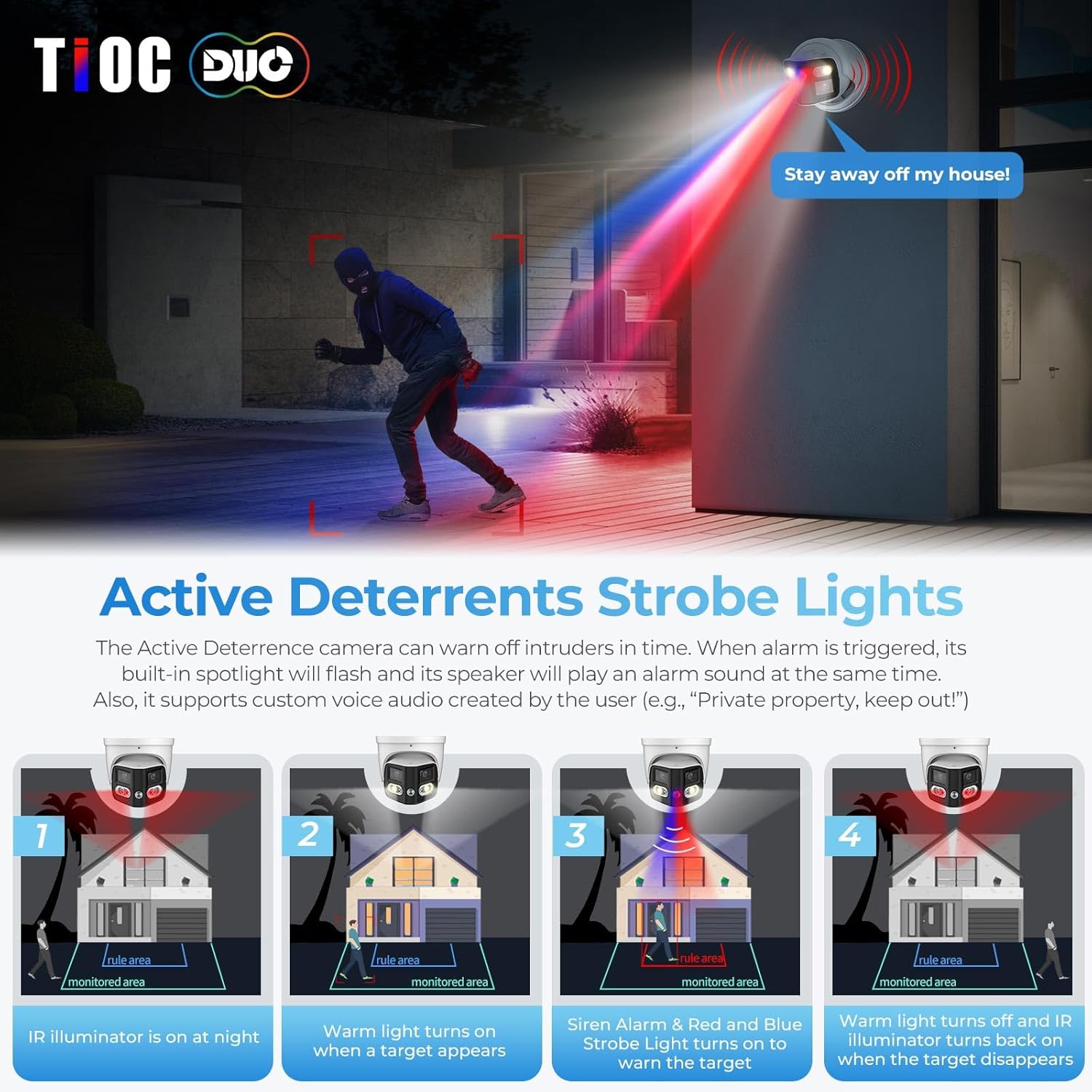
Figure 4.4: Active Deterrence with Strobe Lights and Audio
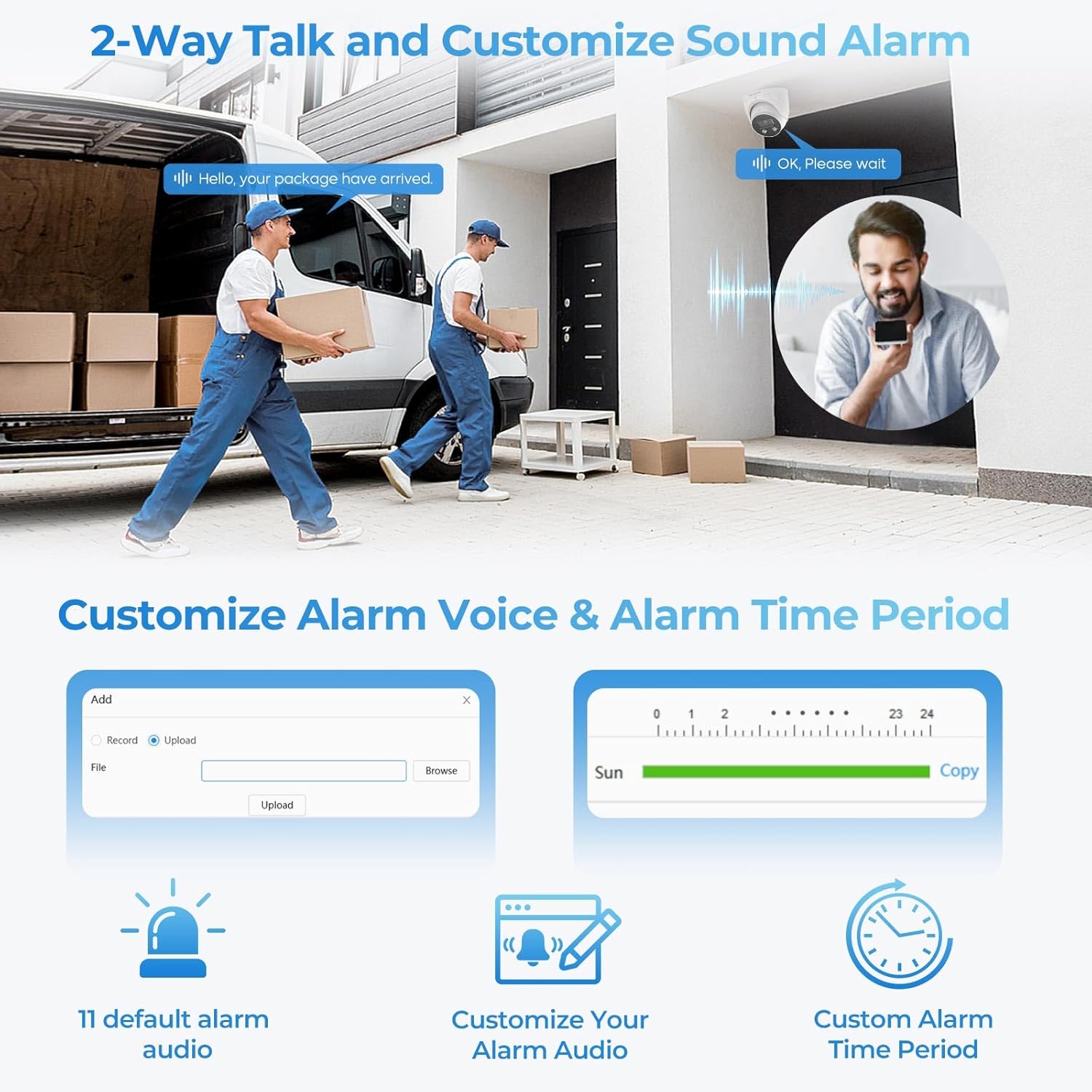
Figure 4.5: Two-Way Audio Communication Interface
5. Maintenance
- Cleaning: Regularly clean the camera lens and housing with a soft, damp cloth. Avoid abrasive cleaners or solvents that could damage the surface.
- Firmware Updates: Periodically check for and install firmware updates from the VALUCAM official website. Firmware updates often include performance improvements, new features, and security enhancements.
- Cable Inspection: For outdoor installations, periodically inspect all cables and connections for signs of wear, damage, or corrosion to ensure continuous operation and weather resistance.
6. Troubleshooting
| Problem | Possible Cause | Solution |
|---|---|---|
| No video feed | No power; Network connectivity issue; Incorrect IP address. | Check power supply/PoE connection. Verify Ethernet cable connection. Ensure camera and viewing device are on the same network segment or configured correctly. Use the Config Tool to find and set the IP address. |
| Poor image quality | Dirty lens; Low light conditions; Network bandwidth issues. | Clean the camera lens. Ensure sufficient lighting or verify night vision settings. Check network bandwidth and reduce video stream quality if necessary. |
| Frequent false alarms | Motion detection sensitivity too high; Environmental factors (e.g., swaying trees, rain). | Adjust SMD 4.0 settings to reduce sensitivity to non-human/vehicle motion. Define specific detection zones to exclude areas with frequent irrelevant motion. |
| Two-way audio not working | Microphone/speaker settings disabled; Volume too low; Network latency. | Check audio settings in the software (DMSS/SmartPSS Lite). Increase volume levels. Ensure stable network connection. |
7. Specifications
| Feature | Detail |
|---|---|
| Model Name | VC-PTI08-A180-PV |
| Indoor/Outdoor Usage | Indoor, Outdoor |
| Video Capture Resolution | 4K (8MP, 4096 × 1860) |
| Frame Rate | 20 frames per second |
| Viewing Angle | 180 Degrees (Panoramic) |
| Lens Type | 2.8mm Fixed Lens |
| Night Vision Range | 82 Feet |
| Low Light Technology | Smart Dual IR / Color Night Vision |
| Connectivity Protocol | Ethernet (PoE) |
| Storage | Micro SD card (up to 256GB), NVR, NAS, FTP |
| Audio | Built-in Dual Mic, Two-Way Audio |
| Deterrence | Red and Blue Strobe Lights, Customizable Audio Alerts |
| Detection | Human/Vehicle Detection (SMD 4.0), Perimeter Protection |
| Weather Resistance | IP67 Waterproof |
| Material | All Metal, Aluminum |
| Power Source | Corded Electric (12V DC) / PoE |
| Dimensions (L x W x H) | 5.31 x 5.31 x 5.32 inches |
| Item Weight | 2.53 pounds |
8. Warranty and Support
The VALUCAM Dual-Lens 4K (8MP) TiOC Outdoor POE Camera comes with a 2-year Valucam warranty, ensuring peace of mind regarding product quality and performance.
For technical assistance, troubleshooting, or warranty claims, please refer to the contact information provided on the official VALUCAM website or your purchase documentation. Lifetime support is available to assist you with any inquiries or issues you may encounter.
Ask a question about this manual
Ask about setup, troubleshooting, compatibility, parts, safety, or missing instructions. Manuals+ will review the question and use this page’s manual context to help answer it.