
1. Product Overview
The SINEHO 11-in-1 USB C Hub is a versatile docking station designed to expand the connectivity of your USB-C enabled devices. It integrates multiple common ports into a single, compact unit, providing solutions for video output, data transfer, network connectivity, and power delivery.
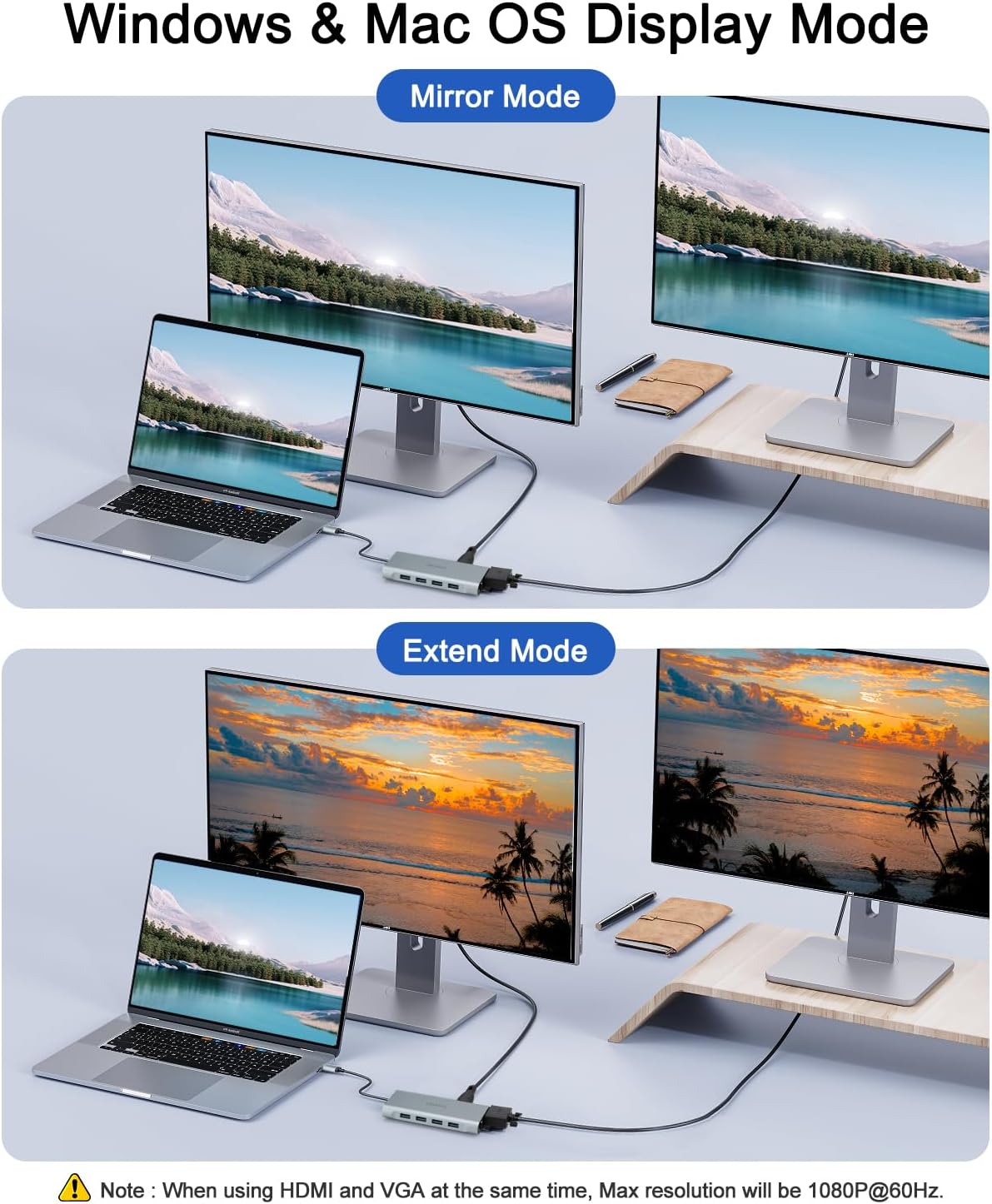
Image 1.1: Front and side view of the SINEHO 11-in-1 USB C Hub, illustrating the location and type of each port, including HDMI, VGA, Ethernet, USB 3.0, USB 2.0, SD/TF card slots, 3.5mm audio jack, and PD charging port.
Key Features:
- 11-in-1 Multi-port Design: Includes 1x USB 3.0, 3x USB 2.0, 1x 100W PD port, 1x 3.5mm audio jack, SD/TF card readers, 1x Ethernet port, 1x 4K HDMI port, and 1x VGA port.
- High-Resolution Video Output: Supports 4K@30Hz via HDMI and 1080P@60Hz via VGA. Simultaneous use of HDMI and VGA outputs 1080P resolution.
- High-Speed Data Transfer: USB 3.0 port offers up to 5 Gbps, while USB 2.0 ports provide up to 480 Mbps. SD/TF card readers support up to 104 Mbps.
- 100W Power Delivery: Charge your host device while using the hub, ensuring uninterrupted workflow.
- Wide Compatibility: Compatible with a broad range of USB-C enabled laptops and devices supporting DisplayPort Alternate Mode, power delivery, and data transfer protocols, including MacBook Pro/Air, Google Chromebook Pixel, HP Spectre X360, Dell XPS, and more.
2. Setup Instructions
The SINEHO 11-in-1 USB C Hub is designed for plug-and-play operation, requiring no driver installation for most operating systems.
- Connect to Host Device: Plug the USB-C connector of the hub into a full-featured USB-C port on your laptop, tablet, or smartphone. Ensure the USB-C port on your device supports DisplayPort Alternate Mode (DP Alt Mode), Power Delivery, and data transfer.
- Connect Power Adapter (Optional): For charging your host device and ensuring stable operation of all connected peripherals, connect your original USB-C power adapter to the hub's 100W PD port.
- Connect Peripherals: Connect your desired devices to the corresponding ports on the hub:
- HDMI/VGA: Connect external monitors or projectors.
- USB 3.0/2.0: Connect USB flash drives, external hard drives, keyboards, mice, printers, etc.
- Ethernet: Connect an RJ45 Ethernet cable for wired network access.
- SD/TF Card Slots: Insert SD or microSD cards for data access.
- 3.5mm Audio Jack: Connect headphones or speakers.

Image 2.1: A laptop connected to the SINEHO USB C Hub, demonstrating the setup with an external monitor, power adapter, and other devices, highlighting the ease of expanding connectivity.
3. Operating Instructions
3.1 Video Output (HDMI & VGA)
The hub supports extending or mirroring your display to external monitors via HDMI and VGA ports.
- HDMI Output: Connect an HDMI cable from the hub to your monitor. Supports resolutions up to 4K@30Hz.
- VGA Output: Connect a VGA cable from the hub to your monitor. Supports resolutions up to 1080P@60Hz.
- Simultaneous Use: When both HDMI and VGA ports are used simultaneously, the maximum resolution for both external displays will be 1080P.
- Display Modes:
- Mirror Mode: Duplicates your laptop screen onto the external monitor(s).
- Extend Mode: Extends your desktop across multiple screens, allowing for more workspace. Note: On Windows and Mac OS, when using extend mode with both HDMI and VGA, both external monitors will display the same extended content.

Image 3.1: Illustration of display modes (Mirror and Extend) when connecting a laptop to external monitors via the SINEHO USB C Hub, demonstrating how content can be duplicated or expanded across screens.
3.2 USB Data Ports
The hub provides four USB ports for connecting various peripherals.
- USB 3.0 Port (1x): For high-speed data transfer devices like external hard drives or SSDs, offering speeds up to 5 Gbps.
- USB 2.0 Ports (3x): Suitable for connecting keyboards, mice, printers, USB flash drives, or other devices where high-speed data transfer is not critical, offering speeds up to 480 Mbps.
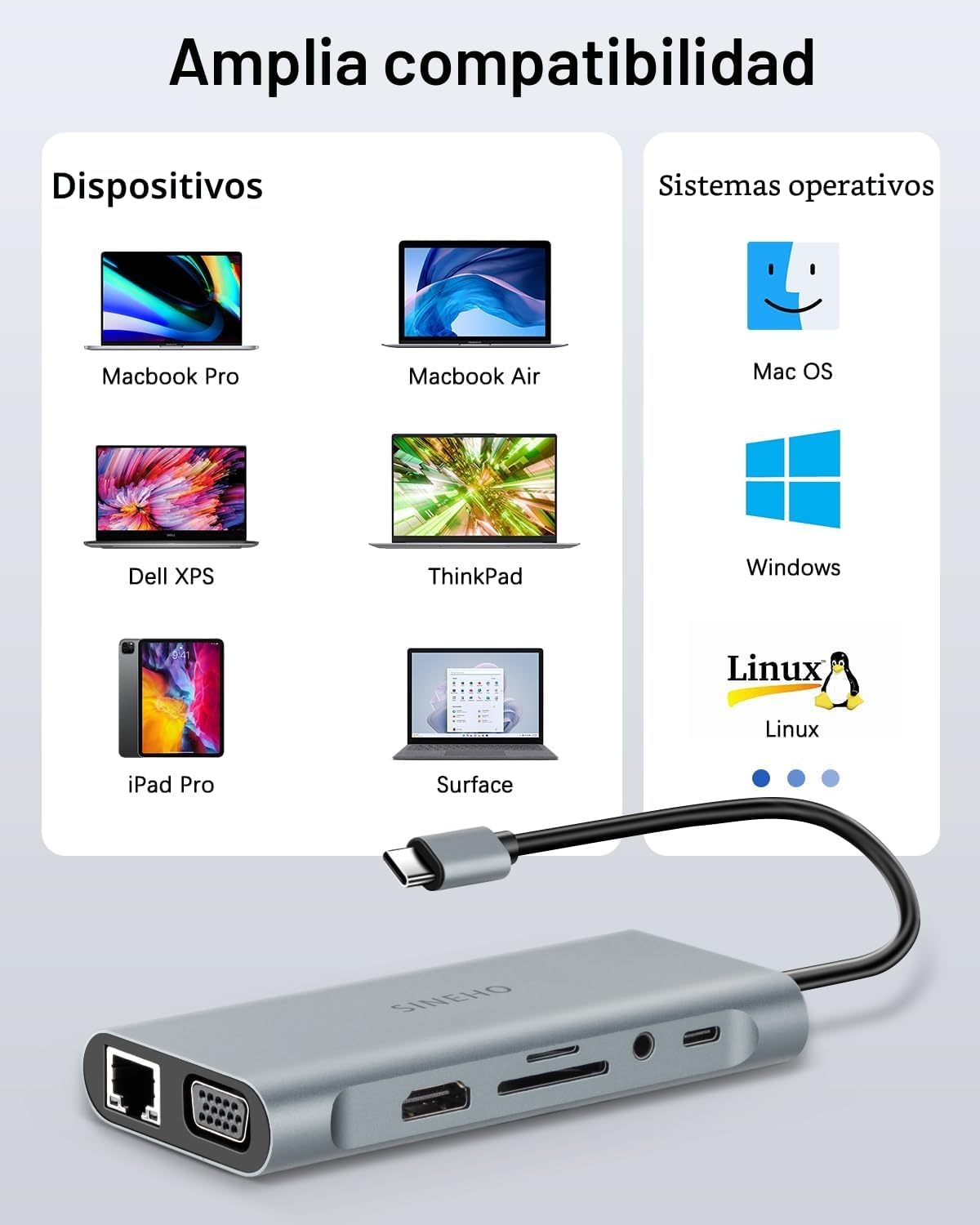
Image 3.2: The SINEHO USB C Hub connected to a laptop, illustrating the use of USB 3.0 and USB 2.0 ports for data transfer, with speed indicators for each type of port.
3.3 Power Delivery (PD) Port
The dedicated USB-C PD port allows you to charge your host device while simultaneously using the hub's other functions.
- Connect your laptop's original USB-C power adapter to the hub's PD port. The hub supports up to 100W power input.
- The actual power delivered to your laptop will be slightly less than the input due to power consumption by the hub itself (e.g., 100W input may result in 87W output to the laptop).

Image 3.3: A visual representation of the Power Delivery function, showing the SINEHO USB C Hub receiving 100W input from a wall adapter and delivering 87W output to a connected laptop, ensuring efficient charging.
3.4 SD/TF Card Reader
The integrated card reader allows for quick access to data on SD and microSD (TF) cards.
- Insert your SD card into the SD slot and your microSD (TF) card into the TF slot.
- Supports data transfer speeds up to 104 Mbps, ideal for photographers and content creators.
3.5 Ethernet Port
Connect to a wired network for stable and fast internet access.
- Plug an RJ45 Ethernet cable into the hub's Ethernet port.
- Supports 10/100 Mbps LAN networks.

Image 3.4: Close-up of the SINEHO USB C Hub's Ethernet port, demonstrating a connected RJ45 cable for stable wired network connectivity.
3.6 3.5mm Audio Jack
Connect wired headphones or speakers for audio output.
- Plug your 3.5mm audio device into the audio jack on the hub.
4. Compatibility
The SINEHO 11-in-1 USB C Hub is compatible with a wide range of devices and operating systems that support the necessary USB-C features (DisplayPort Alt Mode, Power Delivery, and data transfer).
Compatible Devices:
- MacBook Pro (2018 and newer models)
- MacBook Air (2018 and newer models)
- Google Chromebook Pixel
- HP Spectre X360
- Dell XPS 13/15/17
- iPad Pro
- Surface devices with full-featured USB-C ports
- Other laptops and devices equipped with full-featured USB-C ports.
Compatible Operating Systems:
- macOS
- Windows
- Chrome OS
- Linux

Image 4.1: A visual guide to the SINEHO USB C Hub's broad compatibility, listing various laptop models like MacBook Pro, MacBook Air, Dell XPS, ThinkPad, iPad Pro, and Surface, alongside supported operating systems such as Mac OS, Windows, Chrome OS, and Linux.
5. Troubleshooting
If you encounter issues with your SINEHO 11-in-1 USB C Hub, please refer to the following common solutions:
- No Display Output / Flickering Screen:
- Ensure your host device's USB-C port supports DisplayPort Alternate Mode.
- Check all cable connections (USB-C to hub, HDMI/VGA to monitor) are secure.
- Try a different HDMI/VGA cable.
- Reduce the resolution of the external monitor(s) in your device's display settings.
- If using both HDMI and VGA, remember the maximum resolution is 1080P.
- Disconnect and reconnect the hub.
- USB Devices Not Recognized / Slow Transfer Speeds:
- Ensure the hub is connected to a power source via the PD port, especially when connecting power-hungry devices.
- Connect USB 3.0 devices to the blue USB 3.0 port for optimal speed.
- Avoid connecting too many high-power-consumption devices simultaneously without external power.
- Try connecting the USB device directly to your computer to rule out device issues.
- Disconnect and reconnect the hub.
- Ethernet Connection Issues:
- Verify the Ethernet cable is securely connected to both the hub and your router/modem.
- Check your network settings on your computer.
- Try a different Ethernet cable.
- Ensure your router/modem is functioning correctly.
- Charging Issues (PD Port):
- Ensure your USB-C power adapter is connected to the hub's PD port and is functioning correctly.
- Verify your laptop's USB-C port supports Power Delivery.
- The hub consumes some power; ensure your power adapter provides sufficient wattage for both the hub and your laptop.
- SD/TF Card Not Detected:
- Ensure the card is fully inserted into the correct slot.
- Try a different SD/TF card to check if the card itself is faulty.
- Check your computer's file explorer or disk management to see if the card is recognized but not assigned a drive letter.
6. Maintenance
To ensure the longevity and optimal performance of your SINEHO 11-in-1 USB C Hub, follow these maintenance guidelines:
- Cleaning: Use a soft, dry cloth to wipe the exterior of the hub. Avoid using liquid cleaners, aerosols, or harsh chemicals.
- Storage: Store the hub in a cool, dry place away from direct sunlight and extreme temperatures.
- Handling: Avoid dropping the hub or subjecting it to strong impacts. Do not bend or pull the integrated USB-C cable excessively.
- Ventilation: Ensure the hub has adequate ventilation during operation to prevent overheating, especially when multiple ports are in use.
- Power: Always use a compatible power adapter with the correct voltage and wattage if external power is required.
7. Specifications
| Feature | Specification |
|---|---|
| Model | 11-in-1 USB C Hub |
| Brand | SINEHO |
| Dimensions | 17.1 x 9 x 2.1 cm |
| Weight | 110 g |
| Material | Plastic (External Material) |
| USB Ports | 1x USB 3.0 (up to 5 Gbps), 3x USB 2.0 (up to 480 Mbps) |
| HDMI Output | Up to 4K@30Hz |
| VGA Output | Up to 1080P@60Hz |
| Ethernet Port | 10/100 Mbps |
| Power Delivery (PD) | Up to 100W input |
| Card Reader | SD/TF (Micro SD), up to 104 Mbps |
| Audio Jack | 3.5mm |
| Compatible OS | macOS, Windows, Chrome OS, Linux |
| Compatible Devices | Laptops, Desktops, Monitors with full-featured USB-C ports |
8. Warranty and Support
SINEHO is committed to providing high-quality products. For any questions, technical support, or warranty claims, please contact SINEHO customer service through the retailer where you purchased the product or visit the official SINEHO website for contact information.
Please retain your proof of purchase for warranty purposes.