
1. Introduction
This manual provides comprehensive instructions for the SUIDEK External CD DVD Drive with 8-in-1 Hub, Model B36-Y. This versatile device combines an external optical drive with a multi-port hub, offering enhanced connectivity and media playback capabilities for your computer. Please read this manual thoroughly before using the product to ensure proper operation and longevity.

Image 1.1: SUIDEK External CD DVD Drive and its accessories.
2. Product Overview and Features
The SUIDEK External CD DVD Drive (Model B36-Y) is designed for convenience and functionality. It features a slim, portable design and integrates multiple ports to expand your computer's capabilities.
2.1 Key Features:
- External CD/DVD Drive: Supports reading and writing of CD±R/RW, DVD±R/RW, CD-ROM, DVD-RAM, VCD, and SVCD.
- 8-in-1 Hub: Includes 3x USB 2.0 ports, 1x USB 3.0 port, 1x SD card slot, and 1x TF card slot.
- High-Speed Data Transfer: Utilizes USB 3.0 technology for data transfer rates up to 5Gbps, backward compatible with USB 2.0.
- Plug and Play: No driver installation required for most operating systems.
- Integrated Cable: Built-in USB 3.0 and USB-C cable for convenient storage and connectivity.
- Slim and Portable Design: Easy to carry for travel or home use.
2.2 Device Layout:

Image 2.1: Side view of the SUIDEK External CD DVD Drive with labeled ports and features.
- 1. DC 5.0V Power Port: For optional external power supply to ensure stable operation.
- 2. USB 2.0 Ports (x3): Connect USB peripherals like mouse, keyboard, or flash drives.
- 3. USB 3.0 Port (x1): For high-speed data transfer with compatible devices.
- 4. SD Card Slot: Insert SD cards for data transfer.
- 5. TF Card Slot: Insert Micro SD (TF) cards for data transfer.
- 6. Indicator Light: Shows device activity.
- 7. Tray Button: Press to open/close the disc tray.
- 8. Anti-Jam Slot: Emergency eject hole for stuck discs.
3. Setup Instructions
Setting up your SUIDEK External CD DVD Drive is straightforward due to its plug-and-play design.
- Connect to your Computer:
- Locate the integrated cable on the underside of the drive.
- Connect the USB-A or USB-C end of the cable to an available USB port on your laptop or PC.
- The device is designed to be plug-and-play, meaning your operating system should automatically detect and install the necessary drivers.
- Optional External Power (for stability):
- For older computers, or when connecting multiple power-intensive USB devices, it is recommended to use the included USB A to Type C Power Cable.
- Connect the Type-C end to the DC 5.0V Power Port on the drive and the USB-A end to a separate USB power source (e.g., a wall adapter or another USB port on your computer).
- Verification: Once connected, the indicator light on the drive should illuminate, and your computer's operating system should display a notification indicating that a new device has been recognized.

Image 3.1: Plug and Play connection to a laptop.
Video 3.1: Demonstration of connecting the portable CD DVD drive to a laptop and inserting a disc.
4. Operating Instructions
4.1 Inserting and Ejecting Discs:
- Press the tray button on the front of the drive to open the disc tray.
- Carefully place a CD or DVD onto the tray, ensuring it is centered on the spindle.
- Gently push the tray back into the drive until it clicks shut.
- To eject, press the tray button again or use the eject function within your computer's operating system.
4.2 Reading and Writing Discs:
- Once a disc is inserted, your computer's operating system should recognize it. You may need to open "This PC" (Windows) or "Finder" (Mac) to access the drive.
- For playing movies or music, dedicated media player software (e.g., VLC Media Player) may be required, especially for DVDs.
- For burning data to a CD/DVD, use your operating system's built-in burning utility or third-party software.
- The drive supports Max 8x DVD Read Speed and Max 24x CD Read/Write Speed.
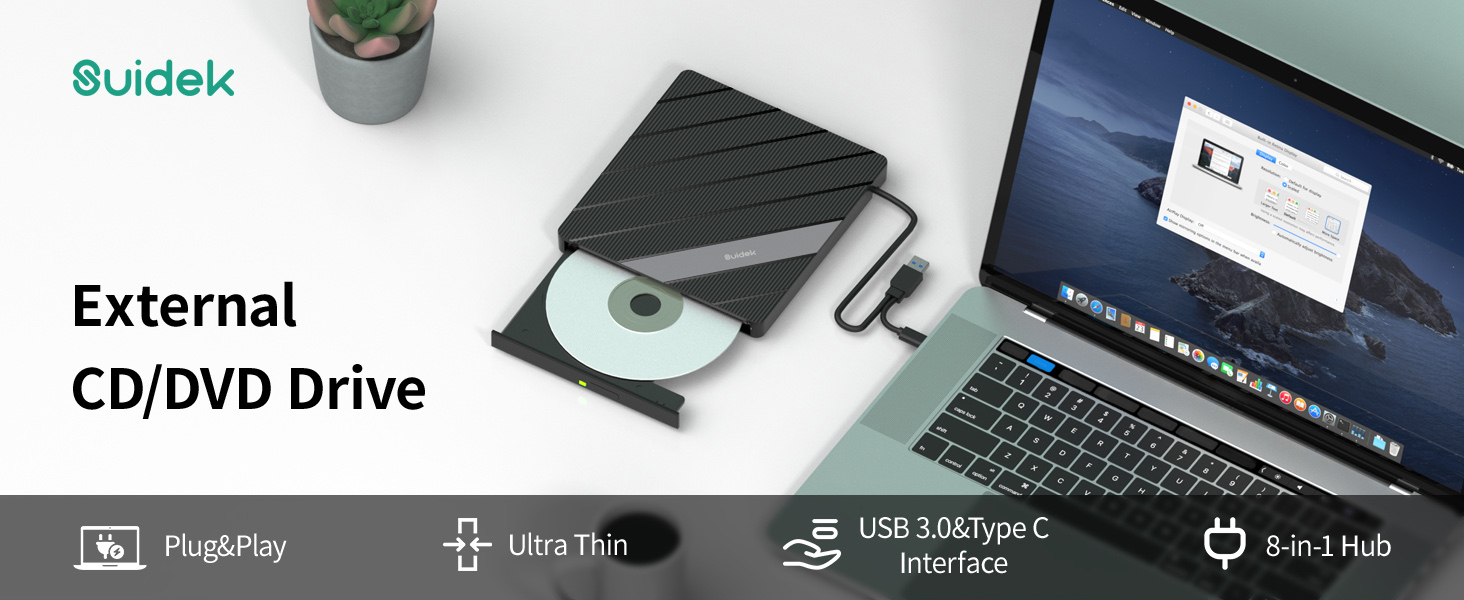
Image 4.1: Burning and reading CDs/DVDs.
4.3 Using the USB Hub and Card Readers:
- Connect USB devices (e.g., mouse, keyboard, USB flash drives) to the available USB 2.0 or USB 3.0 ports.
- Insert SD or TF (Micro SD) cards into their respective slots for data transfer. Your computer will recognize them as removable storage devices.

Image 4.2: Using the integrated USB hub and card readers.
4.4 Compatibility Notes:
- Supported Operating Systems: Windows 11/10/8/7, Windows XP/Vista, Linux, Mac OS.
- NOT Supported: TV, Car systems, Tablets, Smartphones, Blu-Ray Discs, Chromebooks.

Image 4.3: Device compatibility overview.
5. Maintenance
Proper maintenance ensures the longevity and optimal performance of your CD DVD drive.
- Cleaning the Lens: Use a specialized CD/DVD lens cleaning disc periodically to remove dust and debris that can affect reading performance.
- Handling Discs: Always handle discs by their edges to avoid fingerprints and scratches. Store discs in protective cases when not in use.
- Cleaning the Exterior: Wipe the exterior of the drive with a soft, dry cloth. Avoid using harsh chemicals or abrasive materials.
- Storage: Store the drive in a cool, dry place away from direct sunlight and extreme temperatures. Ensure the integrated cable is neatly stored in its compartment.
6. Troubleshooting
If you encounter issues with your SUIDEK External CD DVD Drive, refer to the following troubleshooting tips:
- Drive Not Recognized by Computer:
- Ensure the USB cable is securely connected to both the drive and your computer.
- Try connecting the drive to a different USB port on your computer.
- If using a desktop PC, try connecting to a USB port on the back of the computer (directly on the motherboard) for better power delivery.
- Connect the optional external power cable (USB A to Type C) if the drive is not receiving sufficient power, especially when using multiple USB devices.
- Restart your computer and try connecting the drive again.
- Disc Not Playing or Reading:
- Check if the disc is clean and free from scratches or smudges. Clean with a soft, lint-free cloth if necessary.
- Ensure the disc type (CD or DVD) is supported by the drive and your media player software.
- For DVD playback, ensure you have compatible DVD playback software installed (e.g., VLC Media Player, PowerDVD). Many operating systems no longer include native DVD playback support.
- Try a different disc to rule out a faulty disc.
- Slow Data Transfer or Intermittent Connection:
- Ensure the drive is connected to a USB 3.0 port on your computer for optimal speed.
- Avoid connecting too many power-hungry devices to the integrated USB hub simultaneously. Use the optional external power cable if needed.
- Ensure your computer's USB drivers are up to date.
- Disc Stuck in Drive:
- If the tray button does not work, locate the small emergency eject hole on the front of the drive.
- Gently insert a straightened paperclip into the hole until you feel resistance, then push firmly to manually eject the tray.
7. Specifications
| Feature | Detail |
|---|---|
| Model Number | B36-Y |
| Brand | SUIDEK |
| Hardware Platform | Laptop, PC |
| Operating System Compatibility | Windows 11/10/8/7, Windows XP/Vista, Linux, Mac OS |
| Item Weight | 12.6 ounces |
| Product Dimensions (LxWxH) | 6.06 x 5.63 x 0.55 inches |
| Hard Drive Interface | USB 2.0/3.0 |
| Optical Storage Read Speed | 24X (CD), 8X (DVD) |
| Optical Storage Write Speed | 24X (CD), 8X (DVD) |
| Special Features | LED Light, Lightweight, Plug & Play, 8-in-1 Hub |
| Included Ports | 3x USB 2.0, 1x USB 3.0, 1x SD Card Slot, 1x TF Card Slot, 1x DC 5.0V Power Port |
7.1 What's in the Box:
- 1 x External CD/DVD Drive (Model B36-Y)
- 1 x USB A to Type C Power Cable
- 1 x User Manual
8. Warranty and Support
SUIDEK products are manufactured with quality and reliability in mind. This product is covered by a standard manufacturer's warranty against defects in materials and workmanship.
- For specific warranty details, please refer to the warranty card included with your product or visit the official SUIDEK website.
- If you require technical assistance, troubleshooting beyond this manual, or have questions regarding your product, please contact SUIDEK customer support.
- Contact information can typically be found on the product packaging, the official SUIDEK website, or through your retailer.