1. Product Overview
The Nobleza 4.2L Automatic Wi-Fi Pet Feeder is designed to provide scheduled and controlled feeding for your cats and dogs. This smart feeder offers convenience and peace of mind, ensuring your pets are fed consistently even when you are away. Key features include Wi-Fi app control, flexible meal scheduling, a 10-second voice recording function, a triple-sealed food storage compartment for freshness, and a dual power supply system for reliable operation.

Image 1.1: The Nobleza Automatic Wi-Fi Pet Feeder, demonstrating its design and app control interface.
Package Contents:
- 1x Nobleza 4.2L Pet Feeder Unit
- 1x Stainless Steel Food Bowl
- 1x Desiccant Bag (pre-installed or separate)
- 1x 5V Power Adapter
- 1x User Manual (this document)
2. Setup and Installation
2.1 Unpacking and Assembly
- Carefully remove all components from the packaging.
- Insert the stainless steel bowl into the designated slot at the base of the feeder.
- Ensure the desiccant bag is placed in its compartment within the food storage lid to maintain food freshness.

Image 2.1: Disassembled components for easy setup and cleaning.
2.2 Power Supply
The feeder supports dual power supply options to ensure continuous operation:
- Primary Power: Connect the provided 5V power adapter to the feeder and a wall outlet.
- Backup Power: For uninterrupted operation during power outages, install 3x D-size batteries (not included) into the battery compartment at the bottom of the feeder.

Image 2.2: Dual power supply system for reliable operation.
2.3 App Download and Wi-Fi Connection
- Download the Aigosmart app from the App Store (iOS) or Google Play Store (Android).
- Open the app and follow the on-screen instructions to create an account or log in.
- Add a new device: Select the pet feeder from the device list.
- Connect the feeder to your 2.4GHz Wi-Fi network. The feeder only supports 2.4GHz Wi-Fi. Ensure your smartphone is also connected to a 2.4GHz network during the setup process.
- Once connected, the feeder's Wi-Fi indicator light will confirm a successful connection.

Image 2.3: App control interface and Wi-Fi connection requirements.
2.4 Filling the Food Container
Open the top lid and pour dry pet food into the container. The feeder has a 4.2L capacity. Ensure the food kibble size is between 2-15mm to prevent clogging.
3. Operating Instructions
3.1 Scheduling Meals via App
Use the Aigosmart app to customize your pet's feeding schedule:
- Meal Times: Program up to 10 meals per day.
- Portion Sizes: Each meal can be set from 1 to 24 portions. One portion is approximately 10g (±2g).
- Monitoring: The app allows you to monitor feeding times and dispensed quantities.
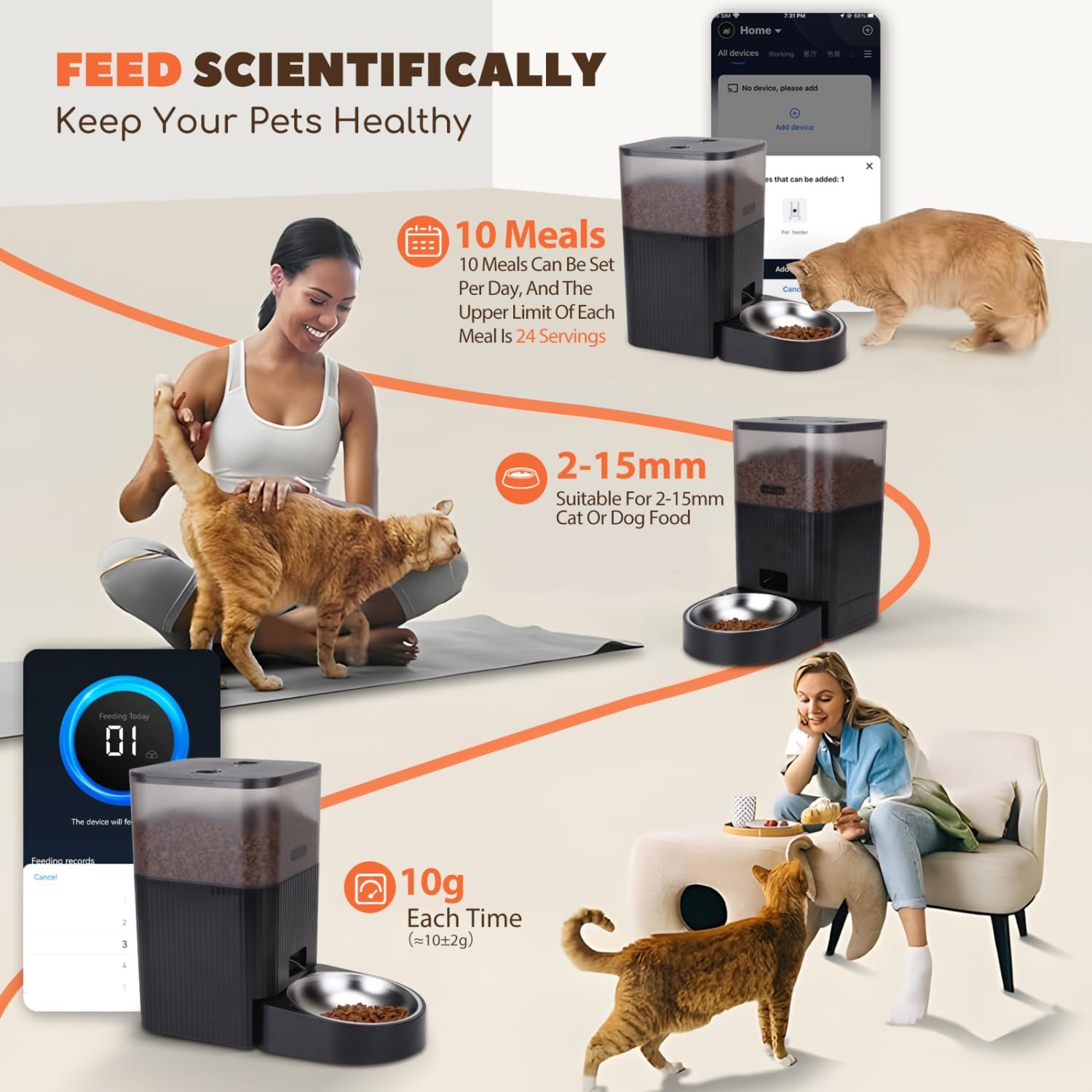
Image 3.1: Flexible meal planning and portion control.
The feeder is also compatible with Amazon Alexa and Google Assistant for voice control (requires integration through the Aigosmart app).

Image 3.2: Remote customized feeding times and amount, compatible with smart home assistants.
3.2 Voice Recording Function
Record a personalized 10-second voice message through the app. This message will play automatically before each scheduled meal, calling your pet to eat and providing a familiar sound.

Image 3.3: 10-second voice recording feature to call pets to eat.
3.3 Food Shortage Alerts and Anti-Clogging Design
The feeder is equipped with sensors to detect low food levels and will send alerts to your app, reminding you to refill. Its internal design helps prevent food from clogging during dispensing.

Image 3.4: Anti-clogging design and food shortage alerts.
4. Maintenance
4.1 Cleaning the Feeder
Regular cleaning ensures hygiene and proper functioning:
- Unplug the feeder and remove any batteries.
- Remove the stainless steel food bowl and wash it with soap and water. Rinse thoroughly.
- The food container and lid can be detached for cleaning. Wipe them with a damp cloth and mild detergent. Do not immerse the main unit (with electronics) in water.
- Ensure all parts are completely dry before reassembling and refilling with food.
4.2 Desiccant Bag Replacement
The desiccant bag helps keep the food fresh and dry. Replace it every 1-3 months, depending on humidity levels, to maintain optimal food quality.
5. Troubleshooting
- Feeder not powering on:
- Check if the power adapter is securely connected to both the feeder and the wall outlet.
- If using batteries, ensure they are correctly inserted and not depleted. Replace if necessary.
- Unable to connect to Wi-Fi:
- Confirm your Wi-Fi network is 2.4GHz. The feeder does not support 5GHz networks.
- Ensure your smartphone is connected to the same 2.4GHz network during setup.
- Move the feeder closer to your Wi-Fi router to improve signal strength.
- Restart your router and the feeder, then attempt connection again.
- Food not dispensing:
- Check if the food container is empty.
- Verify that the food kibble size is within the recommended 2-15mm range. Larger kibble may cause blockages.
- Inspect the dispensing mechanism for any obstructions.
- Ensure the feeder is properly assembled and the food container lid is securely closed.
- Voice recording not playing:
- Ensure a voice message has been successfully recorded and saved in the app.
- Check the volume settings within the app.
- App not responding:
- Close and reopen the Aigosmart app.
- Ensure your smartphone has a stable internet connection.
- Check for app updates in your device's app store.
6. Specifications
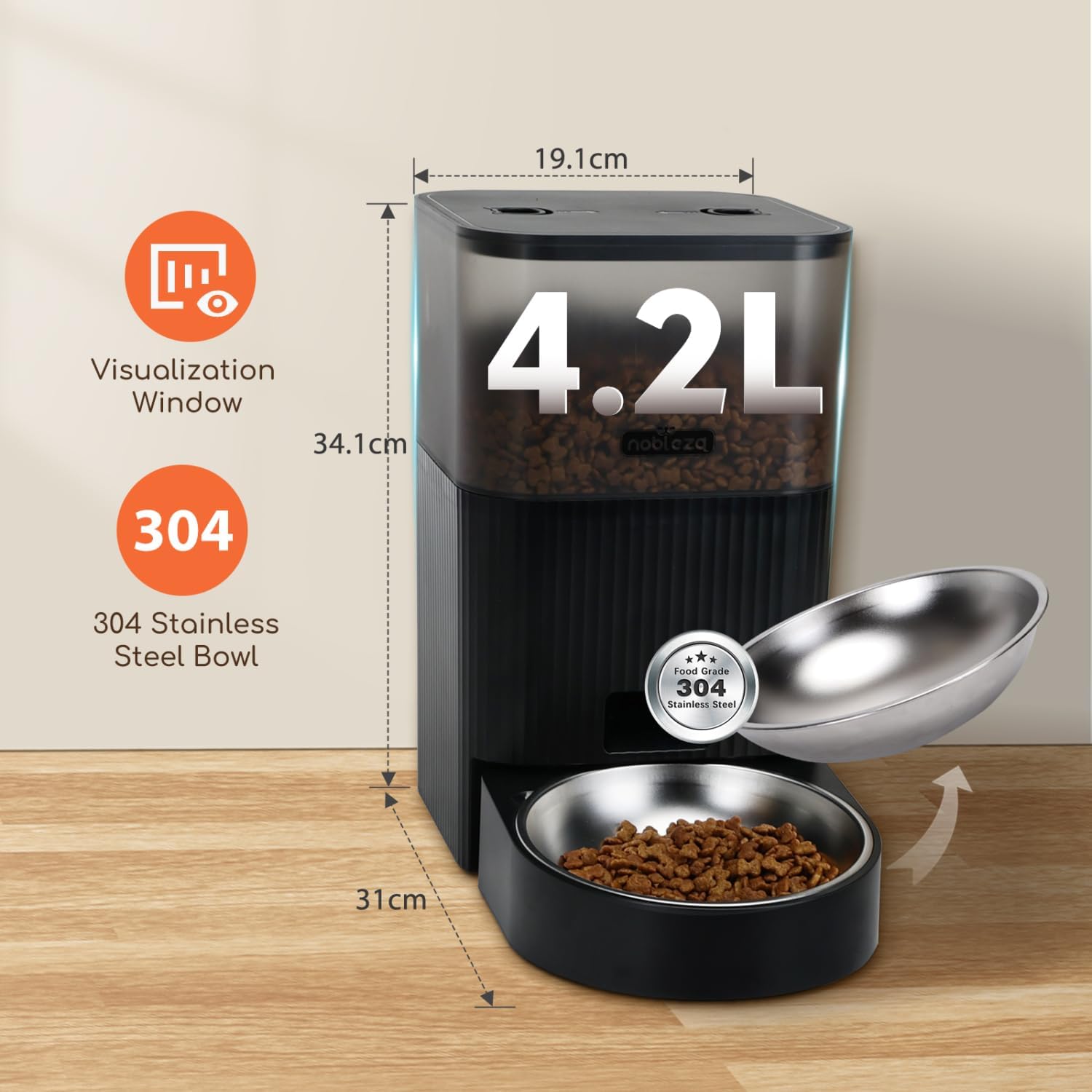
Image 6.1: Product dimensions and capacity.
| Feature | Detail |
|---|---|
| Brand | Nobleza |
| Model | 4.2L Automatic Wi-Fi Pet Feeder |
| Capacity | 4.2 Liters |
| Material | Stainless Steel (bowl), Plastic (body) |
| Color | Black |
| Dimensions (Product) | Approx. 19.1 cm (W) x 34.1 cm (H) x 31 cm (D) |
| Power Supply | 5V Adapter (included), 3x D-size Batteries (not included) |
| Connectivity | Wi-Fi (2.4GHz only) |
| Max Meals/Day | 10 |
| Portions/Meal | 1-24 portions (approx. 10g/portion) |
| Kibble Size | 2-15mm |
| Special Features | Wi-Fi App Control, Flexible Meal Planning, 10s Voice Recording, Triple Seal for Freshness, Dual Power, Food Shortage Alerts, Anti-Clogging Design |
| Target Species | Cats, Dogs |
7. Warranty and Support
For warranty information and customer support, please refer to the documentation included with your purchase or contact Nobleza customer service directly. Details are typically available on the manufacturer's official website or through your retailer.


