
1. Introduction
Thank you for choosing the Generic 4 Channel WiFi Wireless Smart Temperature Dry Contact Relay Switch Module. This device allows you to remotely control electrical appliances and monitor environmental temperature using the Smart Life/Tuya App, Amazon Alexa, and Google Home. This manual provides detailed instructions for installation, operation, and troubleshooting to ensure safe and efficient use of your smart relay module.
2. Safety Information
Please read all safety warnings and instructions carefully before installation and operation to prevent electric shock, fire, or injury.
- Ensure the power supply is disconnected before performing any wiring or maintenance.
- Do not exceed the maximum load current of 10A per channel or 16A total for all 4 channels. For higher power appliances or generators, a contactor must be used.
- This device is designed for indoor use in dry environments. Avoid exposure to moisture or extreme temperatures.
- Only connect to specified power sources: DC 5V or AC 85V-250V.
- All electrical work should be performed by a qualified electrician or in accordance with local electrical codes.
3. Product Overview
The TYWD4CH-RF is a versatile 4-channel smart relay module with WiFi, Bluetooth, and 433MHz RF capabilities. It features dry contact outputs, making it suitable for a wide range of applications.

Figure 3.1: Front view of the TYWD4CH-RF Smart Relay Module, showing input terminals, reset button, and channel control buttons.
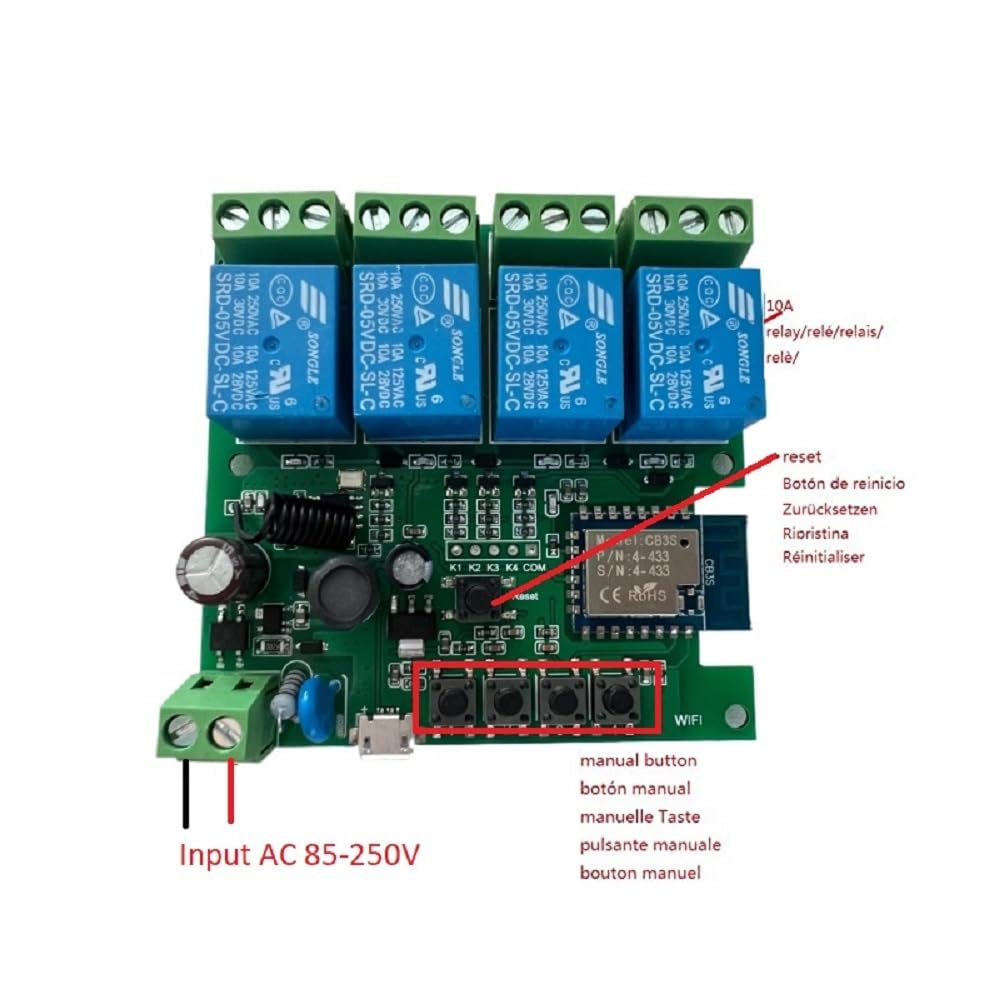
Figure 3.2: Internal view of the relay module's circuit board, highlighting the manual buttons and input terminals.
4. Specifications
| Feature | Specification |
|---|---|
| Model Number | TYWD4CH-RF |
| Input Voltage | DC 5V or AC 85V-250V |
| Power Consumption | <1W |
| Quiescent Current | 80mA |
| Max. Load Current (per channel) | 10A |
| Max. Total Load Current (4 channels) | 16A |
| Relay Model | 10A |
| Working Temperature | -20°C to 80°C (-4°F to 176°F) |
| Wireless Standard | Wi-Fi 2.4GHz b/g/n |
| Material | RF-ABS |
| Connector Type | Screw Terminal |
| Dimensions | 3.18 x 3 x 1.1 inches (81 x 76 x 28 mm) |
| Included Sensor | 1m AM2302 High Sensitive Temperature and Humidity Sensor (Measuring Range: -40~80°C, Operating Voltage: 3.0-5.5V) |
5. Setup Guide
5.1 Wiring Instructions
Ensure power is OFF before wiring. The module supports various wiring configurations based on the desired operating mode.
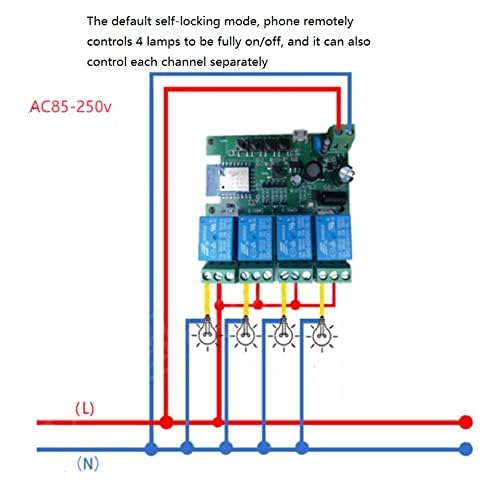
Figure 5.1: Wiring for Self-locking Mode. In this configuration, each channel can be independently turned ON/OFF, controlling up to four separate loads.

Figure 5.2: Wiring for Inching and Interlock Modes. The top diagram shows a setup for inching mode, while the bottom diagram illustrates wiring for interlock mode, typically used for motor control where only one direction can be active at a time.
5.2 App Installation and Pairing
- Download the Smart Life or Tuya Smart app from your mobile device's app store (available on iOS and Android).
- Register or log in to your account.
- Power on the TYWD4CH-RF module.
- Ensure your phone's Bluetooth is enabled and your phone is connected to a 2.4GHz WiFi network. Note: 5GHz WiFi networks are not supported.
- Open the Smart Life/Tuya Smart app. Your phone's Bluetooth should automatically detect the device. Tap to add and configure it.
- Follow the on-screen instructions in the app to complete the pairing process. It is recommended to place the switch close to your router during pairing.
- Once paired, you can control the device via WiFi. If the device goes offline, you can still control it via Bluetooth through the Tuya app if within available distance.
6. Operating Modes and Features
The module supports three primary working modes, configurable within the Smart Life/Tuya app:

Figure 6.1: Visual representation of the three optional operating modes and their corresponding app interface.

Figure 6.2: Detailed explanation of Self-locking, Interlocking, and Inching modes.
6.1 Mode Descriptions
- Self-locking Mode: Each of the four channels can be controlled independently. Turning one channel ON/OFF does not affect the state of the other channels. This is the default mode.
- Interlock Mode: Only one channel can be active (ON) at any given time. If one channel is turned ON, any previously ON channel will automatically turn OFF. This mode is ideal for applications like controlling garage doors or window blinds where only one direction of movement should be active.
- Inching Mode (Momentary): When a channel is turned ON, it will automatically turn OFF after a preset duration. The duration can be customized in the app from 2 seconds to 1 hour. This mode is useful for momentary actions like triggering a gate opener.
6.2 Key Features
- Remote ON/OFF: Control connected electrical devices from anywhere using the Smart Life/Tuya App over Wi-Fi or 2/3/4G mobile network.
- Temperature Control: Utilize the included AM2302 sensor to monitor ambient temperature and humidity. Set temperature ranges to automatically turn appliances ON/OFF.
- Power Consumption Monitoring: Monitor daily power consumption in real-time directly within the Tuya Smart Life app.
- Voice Control: Seamlessly integrate with Amazon Alexa and Google Home for convenient voice command control.
- Timing Function: Create schedules, countdown timers, loop timers, and smart scenes based on sunrise/sunset for automated control of your devices.
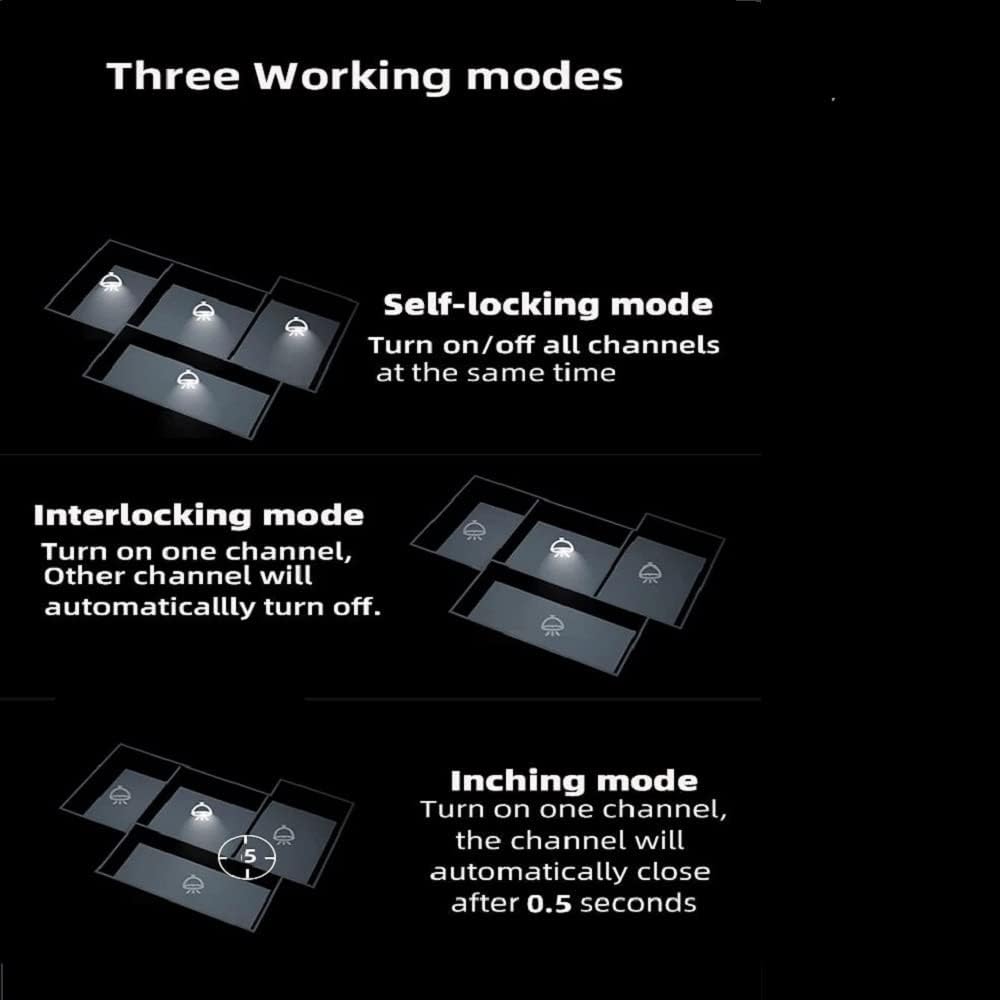
Figure 6.3: Example of setting up timing functions within the Smart Life app to automate device operation.
- Bluetooth & RF Function: In addition to WiFi, the module supports Bluetooth control via the Tuya app when offline (within range) and can be programmed with fixed code 433MHz RF remotes (not included).
7. Maintenance
The Generic 4 Channel WiFi Smart Relay Module is designed for low maintenance. To ensure optimal performance and longevity:
- Keep the device clean and free from dust. Use a soft, dry cloth for cleaning.
- Avoid exposing the module to excessive moisture or direct water contact.
- Ensure proper ventilation around the module to prevent overheating.
- Regularly check wiring connections to ensure they are secure.
8. Troubleshooting
- Device not connecting to WiFi:
- Ensure your WiFi router is broadcasting a 2.4GHz network. 5GHz networks are not supported.
- Place the switch close to your router during the pairing process.
- Check your WiFi password and ensure it is entered correctly in the app.
- Restart your router and the relay module.
- Device frequently goes offline:
- Check the strength of your 2.4GHz WiFi signal at the module's location.
- Ensure there are no strong interferences from other wireless devices.
- Verify your internet connection is stable.
- Relay not switching or unresponsive:
- Check the power supply to the module (DC 5V or AC 85-250V).
- Ensure the load current does not exceed 10A per channel or 16A total. Overloading can cause damage or malfunction. Use a contactor for high-power loads.
- Verify all wiring connections are secure and correct according to the desired operating mode.
- Voice control not working:
- Ensure the device is successfully linked to your Amazon Alexa or Google Home account within the Smart Life/Tuya app.
- Check your voice assistant's internet connection.
- Try re-discovering devices in your voice assistant app.
9. Warranty and Support
Specific warranty information for this product is not provided in this manual. For warranty details, technical support, or service inquiries, please contact the retailer or manufacturer directly. Keep your purchase receipt as proof of purchase.