
1. Introduction
This manual provides detailed instructions for the installation, operation, and maintenance of your Hodozzy Android Car Radio. This unit is designed to enhance your driving experience with advanced features such as a 9-inch IPS touchscreen, Android 13 operating system, wireless CarPlay and Android Auto, Bluetooth 5.0, integrated DSP, GPS navigation, and WiFi connectivity.
Please read this manual thoroughly before installation and use to ensure proper function and to maximize the benefits of your new car radio.
2. Package Contents
Verify that all items listed below are included in your package:
- Car Radio Player x1
- Dashboard Kit Frame x1
- Power Cable x1
- CANBUS Decoder x1
- Radio Antenna x1
- Antenna Adapter x1
- GPS Antenna x1
- RCA Cable x1
- USB Cables x2
- Rear View Camera Input Cable x1
- Mounting Brackets x2
- Screws x4
- Microphone x1
- Rear Camera x1
- Installation Tool x1
- Instruction Manual x1

Image: Overview of the Hodozzy Android Car Radio, its frame dimensions, and all included accessories such as cables, antennas, camera, and installation tools.
3. Specifications
- System: Android 13
- Chipset: 8257 (8-core CPU)
- Screen Size: 9-inch IPS Touchscreen
- Memory: 4GB RAM + 64GB ROM
- Screen Resolution: 1280*720
- Power Output: 4*45W
- Operating Temperature: -20℃ to 75℃
- Wireless Connectivity: Wireless CarPlay & Android Auto
- Mirror Link: Supported (USB or WiFi for Android, Wireless for iOS)
- Bluetooth Version: 5.0 (with A2DP for hands-free calls and music streaming)
- DSP: Integrated (36-band equalizer with preset styles)
- Steering Wheel Control: Supported
- Radio Band: FM/RDS
- Rear Camera Input: AHD/CVBS
- Video Output: Supported
- External Microphone: Supported
- Tachograph/DAB+/OBD2: Supported
- Split Screen: Supported
- Maps: Built-in offline maps (requires internet for data download)
- WiFi: Supported
- USB: Dual USB interface
- Audio Format Support: APE/FLAC/WAV/MP3/WMA, etc.
- Video Format Support: MKV/RMVB/AVI/MP4/MDV, etc.
- Image Format Support: PNG/JPEG/JPG/GIF/WBMP/BNP, etc.
- Factory Keyword: 1234

Image: Visual representation of the car radio's internal components, highlighting the 8-core processor, 4GB RAM, and 64GB ROM, alongside GPS navigation and WiFi connection capabilities.
4. Setup
Proper installation is crucial for the optimal performance of your car radio. It is recommended that installation be performed by a qualified professional.
4.1. Pre-Installation Checks
- Ensure the vehicle's ignition is off and the battery is disconnected before starting installation.
- Verify all package contents against the list in Section 2.
- Familiarize yourself with your vehicle's dashboard and existing wiring.
4.2. Installation Steps
- Remove Original Radio: Carefully remove your vehicle's existing car radio and dashboard trim using the provided installation tool.
- Connect Wiring Harness: Connect the supplied power cable and CANBUS decoder to the car radio and your vehicle's original wiring harness. Ensure all connections are secure.
- Connect Antennas: Connect the GPS antenna and radio antenna to their respective ports on the car radio. Position the GPS antenna in a location with a clear view of the sky for optimal signal reception.
- Connect Rear Camera (Optional): If installing the rear camera, route the camera cable to the rear of the vehicle and connect it to the 'Rear Camera Input' on the car radio. Connect the camera's power to the vehicle's reverse light circuit.
- Connect USB Cables: Connect the USB cables to the car radio. These can be routed to a convenient location in the glove compartment or center console for easy access.
- Mount the Unit: Secure the car radio into the dashboard opening using the mounting brackets and screws.
- Reconnect Battery: Reconnect the vehicle's battery.
- Test Functionality: Turn on the vehicle's ignition and test all functions of the car radio (power, audio, touchscreen, GPS, Bluetooth, camera, steering wheel controls).
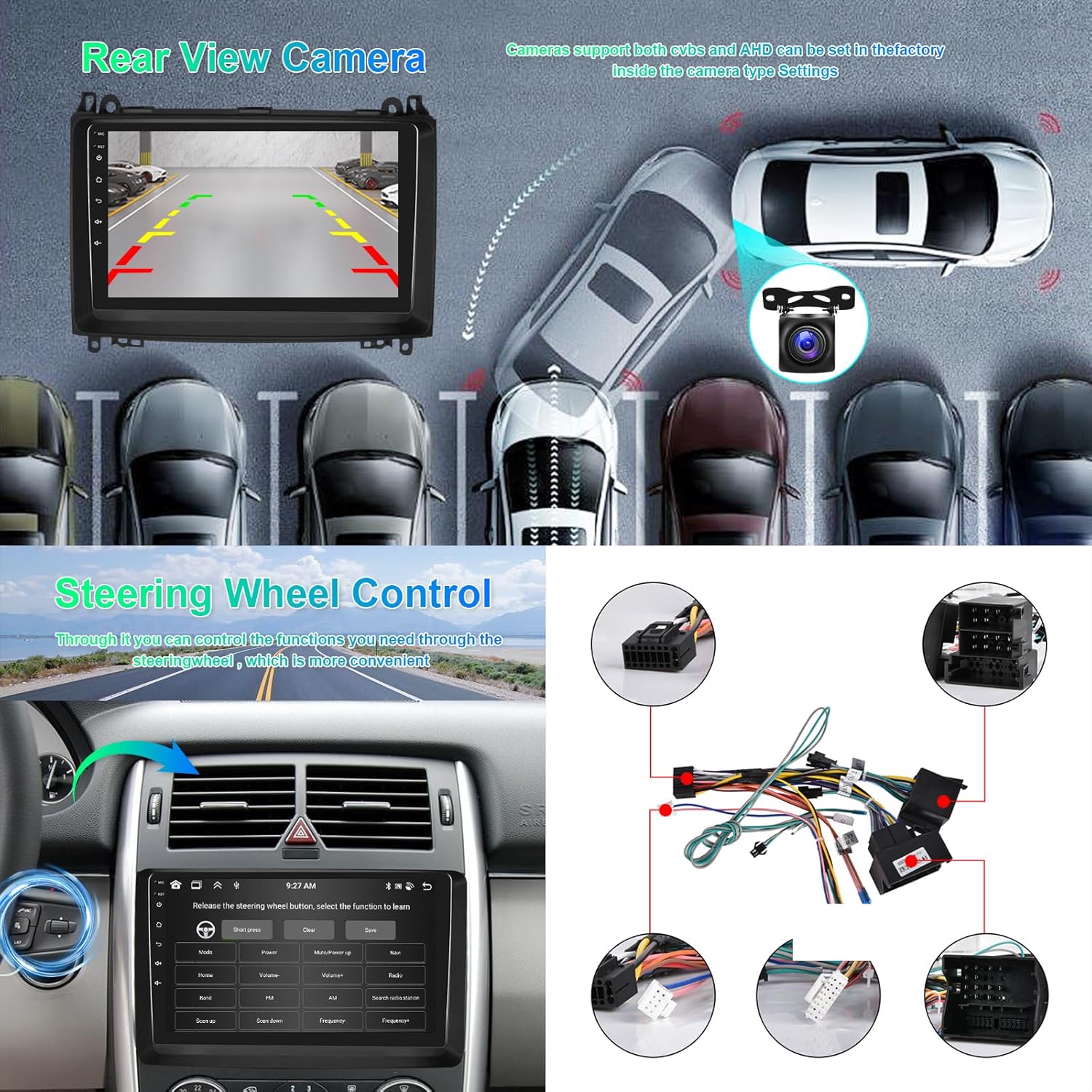
Image: Detailed view of the wiring harness connections for the car radio, including power, CANBUS, and other accessories, along with an illustration of rear view camera installation and steering wheel control integration.
5. Operating Instructions
5.1. Basic Operation
- Power On/Off: Press the power button on the unit or use the vehicle's ignition.
- Touchscreen Navigation: Use the 9-inch IPS touchscreen to navigate through menus and applications. The interface supports multi-touch gestures.
- Volume Control: Adjust volume using the physical buttons or on-screen controls.
5.2. CarPlay & Android Auto
Connect your smartphone for seamless integration:
- Wireless Connection: Enable Bluetooth and Wi-Fi on your smartphone and connect to the car radio. Follow the on-screen prompts to activate Wireless CarPlay or Android Auto.
- Wired Connection: Connect your smartphone to one of the USB ports using a compatible USB cable.
- Access navigation, messaging, calls, and music directly from the car radio display.
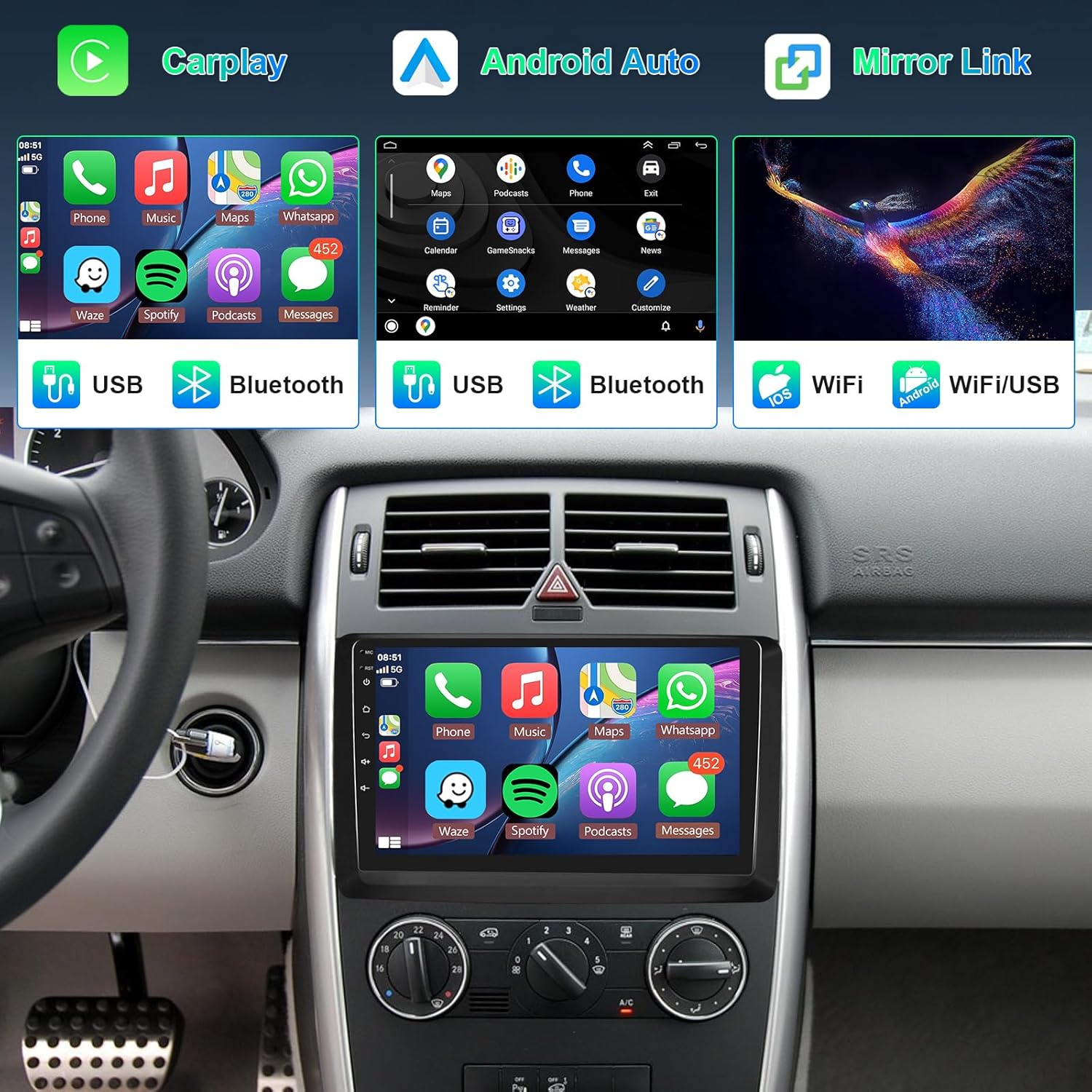
Image: The car radio screen showing the interfaces for Apple CarPlay, Android Auto, and Mirror Link, illustrating how smartphones can connect via USB, Bluetooth, or WiFi for integrated functionality.
5.3. Bluetooth Functionality
- Pairing: Go to the Bluetooth settings on the car radio, enable Bluetooth, and search for your device. Select your device to pair.
- Hands-Free Calls: Make and receive calls directly through the car radio. Your phonebook can be synchronized.
- Music Streaming: Play audio from your smartphone wirelessly via A2DP.
5.4. GPS Navigation
- The unit comes with built-in offline maps. To download map data, connect to the internet via WiFi.
- For real-time traffic and updated maps, connect to a WiFi hotspot and use online navigation applications.
5.5. FM/RDS Radio
- Access the radio application to scan for FM stations.
- RDS (Radio Data System) provides station information and traffic announcements where available.
- Save your favorite stations for quick access.

Image: The car radio screen displaying a Bluetooth call interface, the 36-band Digital Sound Processor (DSP) settings, and the FM radio interface with RDS information.
5.6. Digital Sound Processor (DSP)
- The integrated DSP allows for precise audio customization with a 36-band equalizer.
- Choose from various preset sound styles (Rock, Pop, Jazz, Classic) or create your own custom profile.
5.7. Steering Wheel Control
- The unit supports your vehicle's original steering wheel controls.
- Configure the buttons in the settings menu to control functions like volume, track skipping, and mode switching.
5.8. Mirror Link
- Connect your Android phone via USB or WiFi, or your iOS phone wirelessly, to mirror its screen onto the car radio display.
5.9. Split Screen
- Utilize the split-screen feature to run two applications simultaneously, such as navigation and music playback.
5.10. Customization
- Choose from multiple UI desktop themes and 19 wallpaper options to personalize your interface.
- Customize the display of your home screen applications.

Image: The car radio's IPS screen showcasing its touch responsiveness, various user interface desktop themes, and multiple wallpaper options for personalization.
5.11. Rear View Camera
- When the vehicle is in reverse gear, the car radio automatically displays the rear camera feed, assisting with parking and maneuvering.
6. Maintenance
To ensure the longevity and optimal performance of your Hodozzy Android Car Radio, follow these maintenance guidelines:
- Cleaning: Use a soft, dry cloth to clean the screen and exterior. Avoid abrasive cleaners or solvents that could damage the surface.
- Software Updates: Periodically check for available software updates through the system settings. Updates can improve performance and add new features.
- Temperature: Avoid exposing the unit to extreme temperatures, both hot and cold, for extended periods.
- Power Management: Ensure the vehicle's electrical system is in good condition to prevent power fluctuations that could affect the unit.
7. Troubleshooting
If you encounter issues with your car radio, refer to the following common problems and solutions:
- No Power:
- Check all power connections and fuses.
- Ensure the vehicle's ignition is on.
- No Sound:
- Verify speaker connections.
- Check volume levels and mute settings.
- Ensure the correct audio source is selected.
- GPS Signal Loss:
- Ensure the GPS antenna is properly connected and has a clear view of the sky.
- Move the vehicle to an open area away from tall buildings or dense foliage.
- Bluetooth Connection Issues:
- Ensure Bluetooth is enabled on both the car radio and your smartphone.
- Delete previous pairings and try pairing again.
- Restart both devices.
- Touchscreen Unresponsive:
- Restart the unit.
- If the issue persists, a factory reset may be necessary. (Factory Keyword: 1234)
- Slow Performance:
- Close unnecessary background applications.
- Clear cache from applications.
- Ensure sufficient storage space is available.
If you are unable to resolve an issue using these steps, please contact customer support.
8. Warranty and Support
8.1. Manufacturer Warranty
This Hodozzy product comes with a 2-year manufacturer's warranty. This warranty covers defects in materials and workmanship under normal use. Please retain your proof of purchase for warranty claims.
8.2. Return Policy
For information regarding returns or replacements, please refer to the retailer's return policy where you purchased the product. Typically, a 30-day return/replacement policy is offered.
8.3. Customer Support
For technical assistance, troubleshooting beyond this manual, or warranty inquiries, please contact Hodozzy customer support through the retailer's platform or the official Hodozzy website. Hodozzy is committed to providing quality products and good service to every customer.


