1. Introduction
Thank you for choosing the TD Systems 24-inch Smart TV. This television combines a compact design with advanced smart features, powered by Google TV and Android 11. It offers a high-definition viewing experience, integrated digital tuners, and a wide range of connectivity options to enhance your entertainment.
This manual provides essential information for setting up, operating, and maintaining your new television. Please read it thoroughly before use to ensure proper functionality and safety.
2. Safety Information
Always observe the following safety precautions to prevent electric shock, fire, or damage to the device:
- Do not expose the TV to rain or moisture.
- Do not block ventilation openings.
- Ensure the power cord is not pinched or walked on.
- Disconnect the power plug during lightning storms or when unused for long periods.
- Refer all servicing to qualified service personnel.
- Keep batteries out of reach of children.
3. Package Contents
Verify that all items are present in the box:
- TD Systems 24-inch Smart TV
- Remote Control
- 2 x AAA Batteries (for remote control)
- 2 x Legs (Left, Right)
- User Manual (this document)

Image: The TD Systems 24-inch Smart TV, showcasing its sleek design and included stand.
4. Setup
4.1 Attaching the Stand
- Carefully place the TV screen-down on a soft, flat surface to prevent scratches.
- Identify the left and right legs.
- Align each leg with the corresponding screw holes on the bottom of the TV.
- Secure each leg using the provided screws. Do not overtighten.
4.2 Connecting Power
Plug the power cord into the TV's power input, then into a wall outlet. Ensure the power outlet is easily accessible.
4.3 Initial Power On
Press the power button on the TV or the remote control. Follow the on-screen instructions to complete the initial setup, including language selection, network connection, and channel scanning.

Image: The 24-inch TD Systems Smart TV seamlessly integrated into a modern kitchen environment, demonstrating its compact size and versatile placement options.

Image: Detailed dimensions of the TD Systems 24-inch Smart TV, including width, height, and depth, useful for planning placement.
5. Operating Instructions
5.1 Remote Control Overview
The included remote control allows you to navigate the TV's features. Insert the 2 AAA batteries into the remote control, ensuring correct polarity.

Image: The remote control for the TD Systems Smart TV, highlighting the dedicated buttons for popular streaming services and the voice assistant.
5.2 Basic Functions
- Power: Press the Power button to turn the TV on or off.
- Volume: Use the Volume +/- buttons to adjust the sound level.
- Channel: Use the Channel +/- buttons to change channels.
- Input: Press the Input button to select different input sources (HDMI, AV, etc.).
- Navigation: Use the directional Arrow buttons and OK button to navigate menus.
6. Connectivity
Your TD Systems Smart TV offers a variety of ports for connecting external devices:
- HDMI (x2): For connecting high-definition devices like Blu-ray players, game consoles, or set-top boxes.
- USB: For connecting USB storage devices to play media files.
- AV Composite Input: For connecting older devices using RCA cables.
- Headphone Output: For connecting headphones or external speakers.
- Optical Digital Audio Output: For connecting to a soundbar or home theater system for high-quality audio.
- CI+ Port: For inserting a Conditional Access Module (CAM) to access encrypted channels.
- Ethernet (RJ45): For a wired internet connection.
- Wi-Fi: For wireless internet connection.
- Bluetooth: For connecting wireless accessories like headphones or speakers.

Image: A visual representation of the various input and output ports available on the TD Systems Smart TV, including HDMI, USB, DVB-T2/C/S2, AV, Optical, and Headphone Jack.
7. Smart TV Features
Your TD Systems Smart TV runs on Android 11 with Google TV, providing a personalized and intuitive user experience.
7.1 Google TV Interface
Google TV organizes your favorite content from various streaming services into one central hub. It offers personalized recommendations based on your viewing habits.

Image: The vibrant Google TV interface displayed on the TD Systems Smart TV, showing various streaming app icons and content recommendations.
7.2 Supported Applications
Access a wide range of popular streaming applications directly from your TV, including:
- YouTube
- Netflix
- Disney+
- HBO Max
- Prime Video
You can download thousands of additional applications from the Google Play Store.

Image: The Google TV ecosystem on the TD Systems Smart TV, illustrating access to over 5000 apps via Google Play, including popular streaming services.
7.3 Voice Control with Google Assistant
Use your voice to control the TV, search for content, get answers, and manage smart home devices. Simply press the Google Assistant button on your remote and speak your command.

Image: The TD Systems remote control with a microphone icon and sound waves, demonstrating the voice control capability powered by Google Assistant.
7.4 Chromecast Built-in
Easily cast movies, shows, photos, and more from your phone, tablet, or laptop directly to your TV screen using the built-in Chromecast feature.
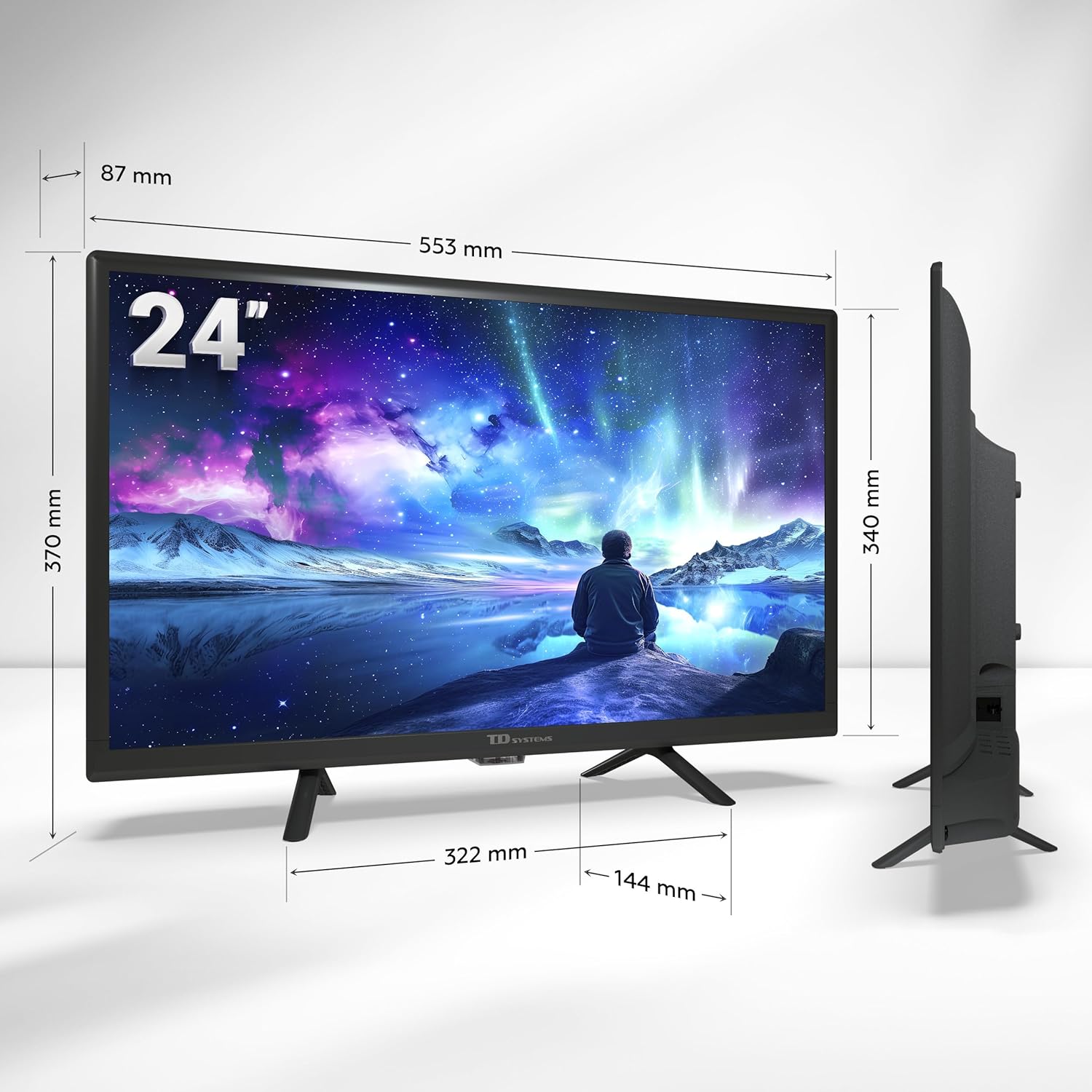
Image: A smartphone displaying content being wirelessly cast to the TD Systems Smart TV, illustrating the Chromecast built-in functionality.
8. Maintenance
Proper care ensures the longevity of your TV:
- Screen Cleaning: Gently wipe the screen with a soft, lint-free cloth. For stubborn marks, use a screen-specific cleaning solution applied to the cloth, not directly to the screen.
- Cabinet Cleaning: Wipe the TV cabinet with a soft, dry cloth. Do not use abrasive cleaners or solvents.
- Ventilation: Ensure the ventilation openings on the back of the TV are not blocked to prevent overheating.
- Power Cord: Regularly check the power cord for any damage.
9. Troubleshooting
If you encounter issues with your TV, refer to the following common problems and solutions:
| Problem | Possible Cause | Solution |
|---|---|---|
| No Power | Power cord disconnected; no power from outlet. | Check power cord connection; test outlet with another device. |
| No Picture, but Sound is Present | Incorrect input source selected; external device issue. | Press the Input button to select the correct source; check external device connection. |
| No Sound, but Picture is Present | Volume muted or too low; external audio system issue. | Unmute volume or increase level; check connections to external audio devices. |
| Cannot Connect to Wi-Fi | Incorrect password; router issue; TV too far from router. | Re-enter password; restart router; move TV closer to router or use Ethernet. |
| Remote Control Not Working | Batteries depleted or incorrectly inserted; obstruction. | Replace batteries; ensure correct polarity; remove obstructions between remote and TV. |
If the problem persists after trying these solutions, please contact customer support.
10. Specifications
| Feature | Description |
|---|---|
| Brand | TD Systems |
| Model Number | PRIME24C19GLE |
| Screen Size | 24 Inches (60 cm) |
| Display Technology | LED |
| Resolution | 1366 x 768 pixels (HD) |
| Refresh Rate | 60 Hz |
| Operating System | Android TV (Android 11) with Google TV |
| Audio | Dolby Digital Plus |
| Tuners | DVB-T2/C/S2 (Digital Terrestrial, Cable, Satellite) |
| Connectivity | 2x HDMI, 1x USB, AV Composite, Headphone Out, Optical Digital Audio Out, CI+, Ethernet (RJ45), Wi-Fi, Bluetooth |
| Special Features | Google Assistant (Voice Control), Chromecast Built-in, Access to Google Play Store |
| Power Consumption (Energy Efficiency) | Class E |
| Included Components | TV, Remote Control, 2x AAA Batteries, 2x Legs |
11. Warranty and Support
11.1 Manufacturer's Warranty
This TD Systems Smart TV comes with a 24-month manufacturer's warranty from the date of purchase. This warranty covers defects in materials and workmanship under normal use. Please retain your proof of purchase for warranty claims.
11.2 Customer Support
TD Systems is committed to providing high-quality products and exceptional customer service. If you have any questions, require technical assistance, or need to report an issue, please contact our support team. Your satisfaction is our priority.
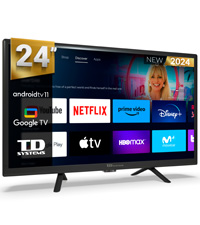
Image: A customer service representative, symbolizing the dedicated support available for TD Systems products.


