
1. Introduction
This user manual provides detailed instructions for the setup, operation, maintenance, and troubleshooting of your iiyama Prolite XUB2792UHSU-B6 27-inch 4K IPS monitor. Please read this manual thoroughly before using the product to ensure proper and safe operation. Keep this manual for future reference.
The iiyama Prolite XUB2792UHSU-B6 is a high-performance 27-inch monitor featuring a 4K UHD (3840 x 2160) IPS panel, offering exceptional color accuracy, wide viewing angles, and crisp image quality. It includes a height-adjustable stand with pivot functionality and versatile connectivity options including USB-C, DisplayPort, and HDMI.
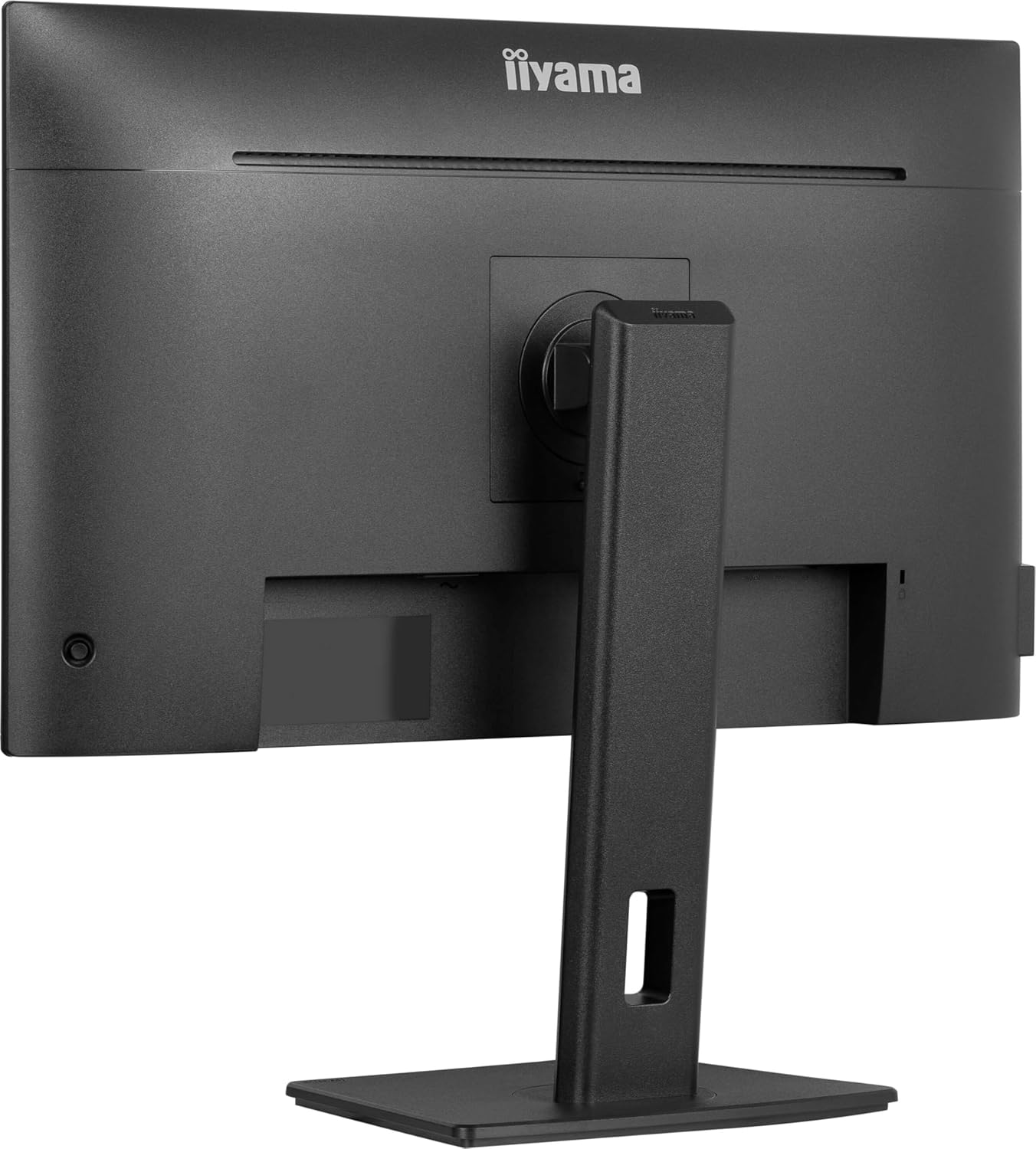
Figure 1.1: iiyama Prolite XUB2792UHSU-B6 Monitor Front View
2. Safety Information
Always observe the following safety precautions to prevent fire, electric shock, or damage to the product.
- Do not expose the monitor to rain or moisture.
- Do not open the monitor casing. Refer all servicing to qualified service personnel.
- Ensure the power cord is properly grounded and connected to a suitable power outlet.
- Avoid placing the monitor in direct sunlight or near heat sources.
- Use only the power adapter and cables supplied by the manufacturer.
- Clean the monitor with a soft, dry cloth. Do not use liquid cleaners or aerosol cleaners.
3. Package Contents
Before proceeding with the setup, please verify that all items listed below are included in your package. If any items are missing or damaged, please contact your retailer or iiyama support.
- iiyama Prolite XUB2792UHSU-B6 Monitor
- Power Cable
- USB Cable
- HDMI Cable
- DisplayPort Cable
- User Manual (this document)
- Quick Start Guide

Figure 3.1: Included Cables
4. Setup
4.1 Assembling the Stand
- Carefully remove the monitor and stand components from the packaging.
- Attach the stand base to the stand neck, securing it with the provided screw.
- Align the assembled stand with the mounting holes on the back of the monitor.
- Gently push the stand into place until it clicks securely. Ensure it is firmly attached.
4.2 Connecting the Monitor
The monitor offers multiple connectivity options. Choose the appropriate cable for your device.
- Power Connection: Connect the power cable to the monitor's power input and then to a wall outlet.
- Video Connection:
- DisplayPort: Connect one end of the DisplayPort cable to your computer's DisplayPort output and the other end to the monitor's DisplayPort input.
- HDMI: Connect one end of the HDMI cable to your computer's HDMI output and the other end to the monitor's HDMI input.
- USB-C: Connect a USB-C cable from your compatible device to the monitor's USB-C input. This connection can carry video, audio, and power (15W) simultaneously.
- USB Hub Connection: To enable the monitor's USB 3.2 hub, connect the included USB cable from your computer's USB port to the monitor's USB upstream port.

Figure 4.1: Rear Connectivity Ports

Figure 4.2: Side USB Ports
4.3 Initial Power On
After connecting all necessary cables, press the power button on the monitor. The power indicator light will illuminate, and the monitor will display the input source. If no image appears, ensure your computer is powered on and the correct input source is selected on the monitor.
5. Operating the Monitor
5.1 Power On/Off
Press the power button located on the monitor's bezel to turn the monitor on or off. The power LED indicates the monitor's status (e.g., blue for on, amber for standby).
5.2 On-Screen Display (OSD) Menu
The OSD menu allows you to adjust various monitor settings. Use the control buttons (usually located on the back or bottom right of the monitor) to navigate the menu.
- Brightness/Contrast: Adjust the overall luminance and contrast ratio of the display.
- Color Settings: Modify color temperature, gamma, and individual RGB levels.
- Input Select: Manually switch between DisplayPort, HDMI, and USB-C inputs.
- Picture Mode (i-Style Color): Select from various preset picture modes optimized for different content types (e.g., Standard, Text, Game, Movie).
- AdaptiveSync: Enable or disable AdaptiveSync technology for smoother gaming experiences by synchronizing the monitor's refresh rate with your graphics card's frame rate.
- Dynamic Energy Saving (DPS): Activate this function for intelligent brightness adjustment, optimizing energy efficiency without compromising visual quality.
- Blue Light Filter: Reduce blue light emission to minimize eye strain, especially during prolonged use.
5.3 Ergonomic Adjustments
The Prolite XUB2792UHSU-B6 features a versatile stand for optimal viewing comfort:
- Height Adjustment: Adjust the monitor's height by gently pushing or pulling the display up or down.
- Tilt: Tilt the screen forward or backward to find your preferred viewing angle.
- Swivel: Rotate the monitor horizontally on its base.
- Pivot: Rotate the screen 90 degrees to switch between landscape and portrait orientations.
6. Maintenance
6.1 Cleaning the Monitor
To clean the monitor, ensure it is turned off and unplugged from the power outlet.
- Screen: Gently wipe the screen with a soft, lint-free cloth. For stubborn marks, slightly dampen the cloth with water or a specialized screen cleaner (do not spray directly onto the screen).
- Casing: Use a soft, dry cloth to wipe the monitor casing. Avoid using abrasive cleaners or solvents.
6.2 Storage
If storing the monitor for an extended period, disconnect all cables and pack it in its original packaging to protect it from dust and physical damage. Store in a cool, dry place.
7. Troubleshooting
If you encounter issues with your monitor, refer to the following common problems and solutions before contacting support.
| Problem | Possible Cause | Solution |
|---|---|---|
| No image on screen | Monitor not powered on; Incorrect input source; Loose video cable. | Press power button; Select correct input via OSD; Reconnect video cable securely. |
| Image is blurry or distorted | Incorrect resolution; Graphics driver issue. | Set resolution to 3840x2160; Update graphics drivers. |
| No sound from speakers | Volume too low; Incorrect audio output selected on PC; No audio signal via cable. | Increase monitor/PC volume; Select monitor as audio output; Ensure video cable supports audio. |
| OSD menu not appearing | Buttons locked; Malfunction. | Refer to manual for OSD button unlock procedure; Power cycle monitor. |
8. Specifications
Detailed technical specifications for the iiyama Prolite XUB2792UHSU-B6 monitor.
| Feature | Specification |
|---|---|
| Screen Size | 27 inches |
| Panel Type | IPS LED |
| Resolution | 3840 x 2160 (4K UHD) |
| Refresh Rate | 60 Hz |
| Aspect Ratio | 16:9 |
| Brightness | 350 cd/m² |
| Contrast Ratio | 1300:1 (Typical), 80Mio:1 (ACR) |
| Response Time | 4ms (GtG) |
| Viewing Angles | 178° horizontal / 178° vertical |
| Video Inputs | 1x DisplayPort, 1x HDMI, 1x USB-C (15W power delivery) |
| USB Hub | 3x USB 3.2 ports |
| Audio | Built-in Speakers, Headphone Jack |
| Ergonomics | Height Adjustment (150mm), Tilt, Swivel, Pivot |
| Dimensions (WxHxD) | 24.19 x 15.65 x 8.25 inches (with stand) |
| Weight | 13.77 pounds |
| Special Features | Flicker-Free LED, Blue Light Filter, AdaptiveSync, i-Style Color, Dynamic Energy Saving (DPS) |
9. Warranty and Support
Your iiyama Prolite XUB2792UHSU-B6 monitor is covered by a manufacturer's warranty. Please refer to the warranty card included in your product packaging for specific terms and conditions, including warranty period and coverage details.
For technical support, service, or further inquiries, please visit the official iiyama website or contact their customer service department. Keep your purchase receipt and product serial number handy when seeking support.
Online Support: www.iiyama.com


