
1. Introduction
This manual provides detailed instructions for the installation, operation, and maintenance of your Dual Electronics XDM17BT Single DIN Car Stereo. This unit features AM/FM radio, Bluetooth connectivity for audio streaming and hands-free calling, USB and AUX inputs, and voice control capabilities. Please read this manual thoroughly before using your new car stereo to ensure proper operation and to maximize your listening experience.
2. What's in the Box
Upon opening the package, verify that all components are present:
- Dual Electronics XDM17BT Car Stereo Unit
- Wiring Harness
- Quick Start Guide
- Mounting Hardware

Figure 2.1: Packaging of the Dual Electronics XDM17BT Car Stereo. The brown cardboard box indicates the product model and UPC.

Figure 2.2: Included wiring harness with color-coded wires for various connections, along with mounting brackets and rubber stoppers.
3. Setup and Installation
Installation of the XDM17BT requires basic automotive electrical knowledge. If you are unsure about any steps, it is recommended to seek professional installation. Always disconnect the vehicle's battery before beginning installation.
3.1 Wiring Connections
Refer to the wiring diagram provided in the Quick Start Guide and the included wiring harness. Connect the power, ground, speaker, and accessory wires to the corresponding wires in your vehicle's wiring harness. Ensure all connections are secure and properly insulated.

Figure 3.1: Rear panel of the XDM17BT, illustrating the main wiring harness connector, antenna input, and RCA audio outputs.
3.2 Mounting the Unit
The XDM17BT features a shallow mount design for flexible installation in various dashboards. Secure the unit into the vehicle's dashboard opening using the provided mounting hardware. Ensure the unit is firmly seated and does not obstruct any vehicle controls.
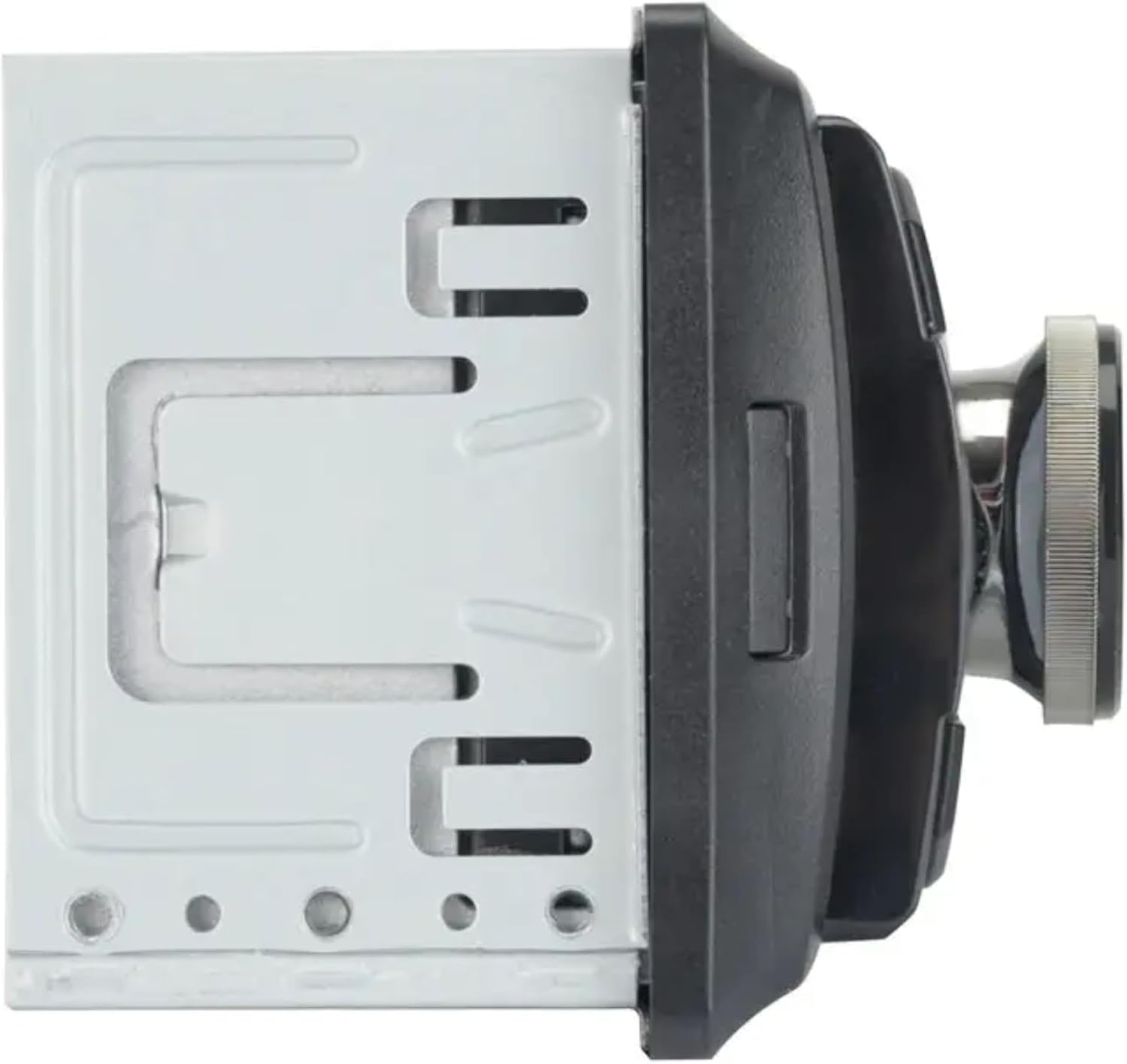
Figure 3.2: Side profile of the XDM17BT, highlighting its compact and shallow mounting depth for easier installation.
4. Operating Instructions
This section details the primary functions and controls of your XDM17BT car stereo.

Figure 4.1: Front panel layout of the XDM17BT, showing the display, control knob, USB port, AUX input, and various function buttons.
4.1 Basic Operations
- Power On/Off: Press the Power/Mode button (usually the main knob) to turn the unit on. Press and hold to turn off.
- Volume Control: Rotate the main Volume Knob clockwise to increase volume, counter-clockwise to decrease.
- Mode Selection: Press the Mode button to cycle through available sources (AM/FM, Bluetooth, USB, AUX).
4.2 Bluetooth Connectivity
The XDM17BT features built-in Bluetooth for wireless audio streaming and hands-free calling.
- Pairing: Ensure Bluetooth is enabled on your smartphone. Select "XDM17BT" from the list of available devices on your phone. A confirmation tone will sound upon successful pairing.
- Audio Streaming: Once paired, audio from your smartphone will stream wirelessly to the stereo. Use the stereo's controls or your phone to play, pause, and skip tracks.
- Hands-Free Calling: When a call comes in, the stereo display will show caller information. Press the Call Answer button (often integrated with the main knob or a dedicated button) to answer. The built-in microphone allows for hands-free conversation.
- Voice Assistant: Press the Push-to-Talk button (if available, or long-press a specific button) to activate your smartphone's voice assistant (Siri or Google Assistant) for voice commands.
4.3 AM/FM Radio
- Tuning: Press the Band button to select AM or FM. Use the Seek Up/Down buttons to automatically tune to the next strong station.
- Presets: The unit supports 30 station presets. To save a station, tune to the desired frequency, then press and hold one of the numbered preset buttons (1-6) until you hear a confirmation beep. To recall a preset, simply press the corresponding numbered button.
4.4 USB and AUX Inputs
- USB Playback: Insert a USB drive into the front panel USB port. The unit will automatically switch to USB mode and begin playing compatible audio files (e.g., MP3).
- AUX Input: Connect an external audio device (e.g., MP3 player) to the front panel 3.5mm AUX input using a standard audio cable. Select AUX mode to play audio from the connected device.
4.5 Audio Settings
- Tone Control: Access the audio menu (usually by pressing the Audio/Menu button) to adjust Bass and Treble levels.
- Equalizer (EQ): Select from 4 preset EQ curves: Classic, Rock, Pop, and Flat to optimize sound for different music genres.
5. Maintenance
To ensure long-lasting performance of your XDM17BT car stereo, follow these maintenance guidelines:
- Cleaning: Use a soft, dry cloth to clean the front panel and display. Avoid abrasive cleaners or solvents.
- Connections: Periodically check all wiring connections to ensure they are secure and free from corrosion.
- Software Updates: Check the manufacturer's website for any available firmware updates for your model.
6. Troubleshooting
If you encounter issues with your XDM17BT, refer to the following common problems and solutions:
| Problem | Possible Cause | Solution |
|---|---|---|
| No Power | Blown fuse, incorrect wiring, loose connection. | Check vehicle's fuse box and the stereo's fuse. Verify all power and ground wires are correctly connected and secure. |
| No Sound | Volume too low, incorrect source selected, speaker wires disconnected, mute function active. | Increase volume. Ensure correct audio source is selected. Check speaker wire connections. Deactivate mute. |
| Bluetooth Not Connecting | Bluetooth not enabled on phone, stereo not in pairing mode, interference. | Ensure phone's Bluetooth is on and discoverable. Put stereo in Bluetooth pairing mode. Try restarting both devices. |
| Poor Radio Reception | Antenna not connected, damaged antenna, weak signal area. | Check antenna connection at the back of the unit. Inspect antenna for damage. Try tuning in a different location. |
| USB Playback Issues | Incompatible file format, corrupted USB drive, drive too large. | Ensure audio files are in a compatible format (e.g., MP3). Try a different USB drive or reformat the current one. |
If the problem persists after attempting these solutions, contact Dual Electronics customer support.
7. Specifications
| Feature | Detail |
|---|---|
| Model Number | XDM17BT |
| Brand | Dual Electronics |
| Connectivity Technology | Bluetooth |
| Controller Type | Android (also compatible with iOS via Bluetooth) |
| Special Feature | Equalizer |
| Compatible Devices | Smartphone |
| Connector Type | RCA, USB, 3.5mm AUX |
| Audio Output Mode | Stereo |
| Output Power | 50 Watts x 4 channels (200 Watts total) |
| Number of Channels | 2 (Stereo output) |
| Item Weight | 12.3 ounces |
| Package Dimensions | 8.35 x 3.66 x 3.35 inches |
8. Warranty and Support
For warranty information or technical support, please refer to the Quick Start Guide included with your product or visit the official Dual Electronics website. Keep your proof of purchase for warranty claims.
Online Support: www.dualav.com/support (Example link, actual link may vary)


