
Tekswamp Tesira SERVER-IO
User Manual: Biamp Tesira SERVER-IO Digital Signal Audio Network Server
Model: Tesira SERVER-IO | Brand: Tekswamp
1. Introduction
This manual provides comprehensive instructions for the setup, operation, and maintenance of the Biamp Tesira SERVER-IO Digital Signal Audio Network Server. This device is designed for professional audio applications, offering robust digital signal processing and network audio capabilities.
The Tesira SERVER-IO is a 3RU rack-mountable unit equipped with 14 card slots for various audio input/output configurations.
2. Setup and Installation
2.1 Unboxing and Inspection
Carefully remove the Tesira SERVER-IO from its packaging. Verify that all components, including the server unit and power cord, are present and undamaged. Inspect the unit for any signs of physical damage incurred during shipping.
2.2 Physical Installation
The Tesira SERVER-IO is a 3RU (Rack Unit) device. Install the unit into a standard 19-inch equipment rack using appropriate rack-mounting hardware (not included unless specified). Ensure adequate ventilation around the unit to prevent overheating.
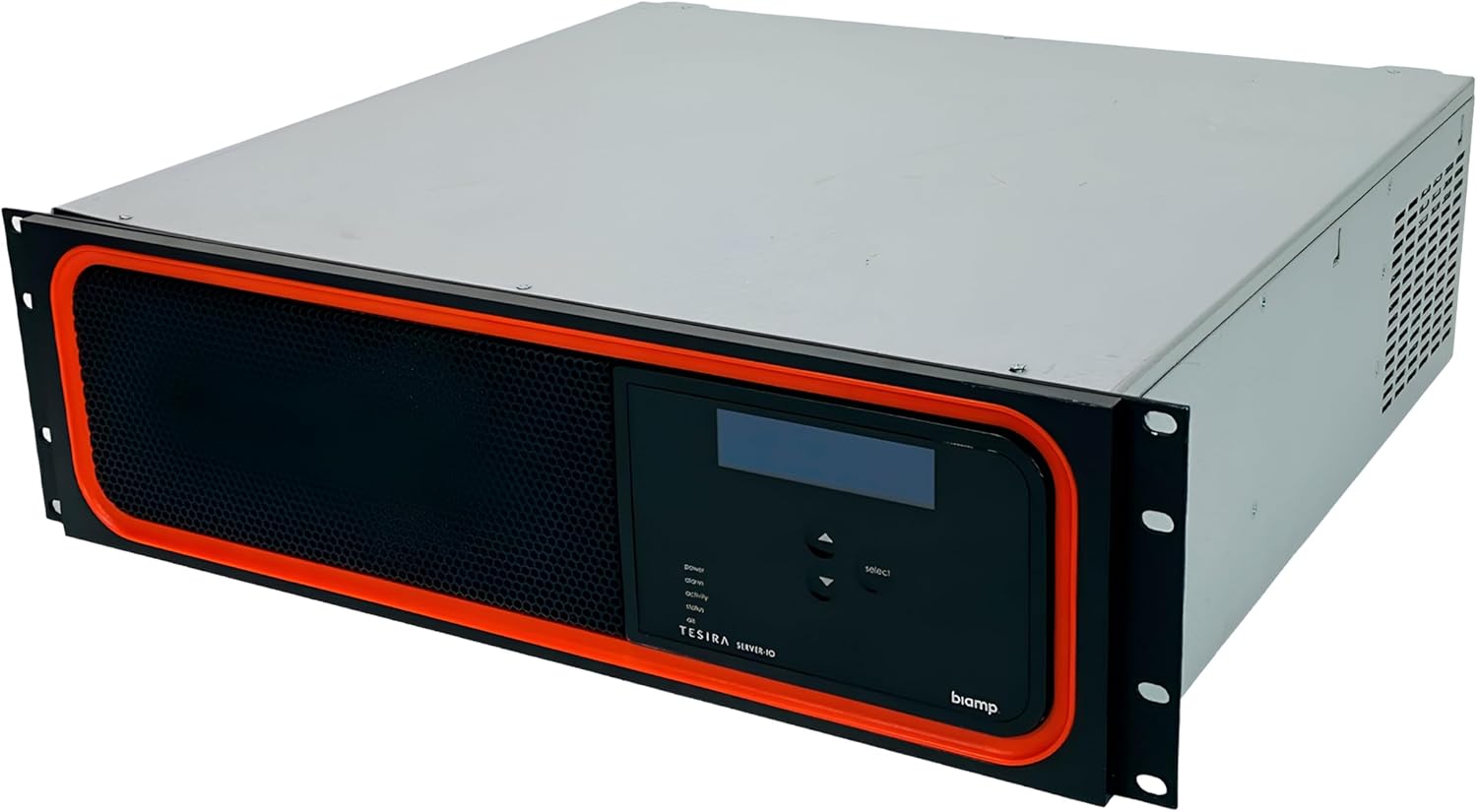
Figure 2.1: Front angled view of the Biamp Tesira SERVER-IO, showing its rack-mountable design and front panel.
2.3 Connecting Power
Connect the provided power cord to the AC inlet on the rear of the SERVER-IO unit. Plug the other end into a suitable power outlet (100-240V~, 50/60Hz, 5.5-2.3A).

Figure 2.2: Close-up of the rear panel, highlighting the power input and various card slots, including SNC-1a, AVB-1, and STC-2.
2.4 Network and Audio Connections
Connect the unit to your network via the Ethernet ports. The Tesira SERVER-IO supports network connectivity for control and audio transport. Utilize the various card slots on the rear panel for specific audio input and output requirements. The unit comes with 14 cards pre-installed.

Figure 2.3: Detailed view of the rear panel audio card connections. Black connectors are Outputs, Blue connectors are ANC Inputs, Orange connectors are AEC Inputs, and Green connectors are general Inputs.

Figure 2.4: Full rear view of the Tesira SERVER-IO, showing all 14 card slots, network ports, and serial connections.
2.5 Initial Power On
Once all connections are secure, power on the unit. The front panel display will show a "Starting device..." message during boot-up. After initialization, it will display device information such as "DEVICE: cdc corp 8" and "HOSTNAME: TesiraServer83334858".
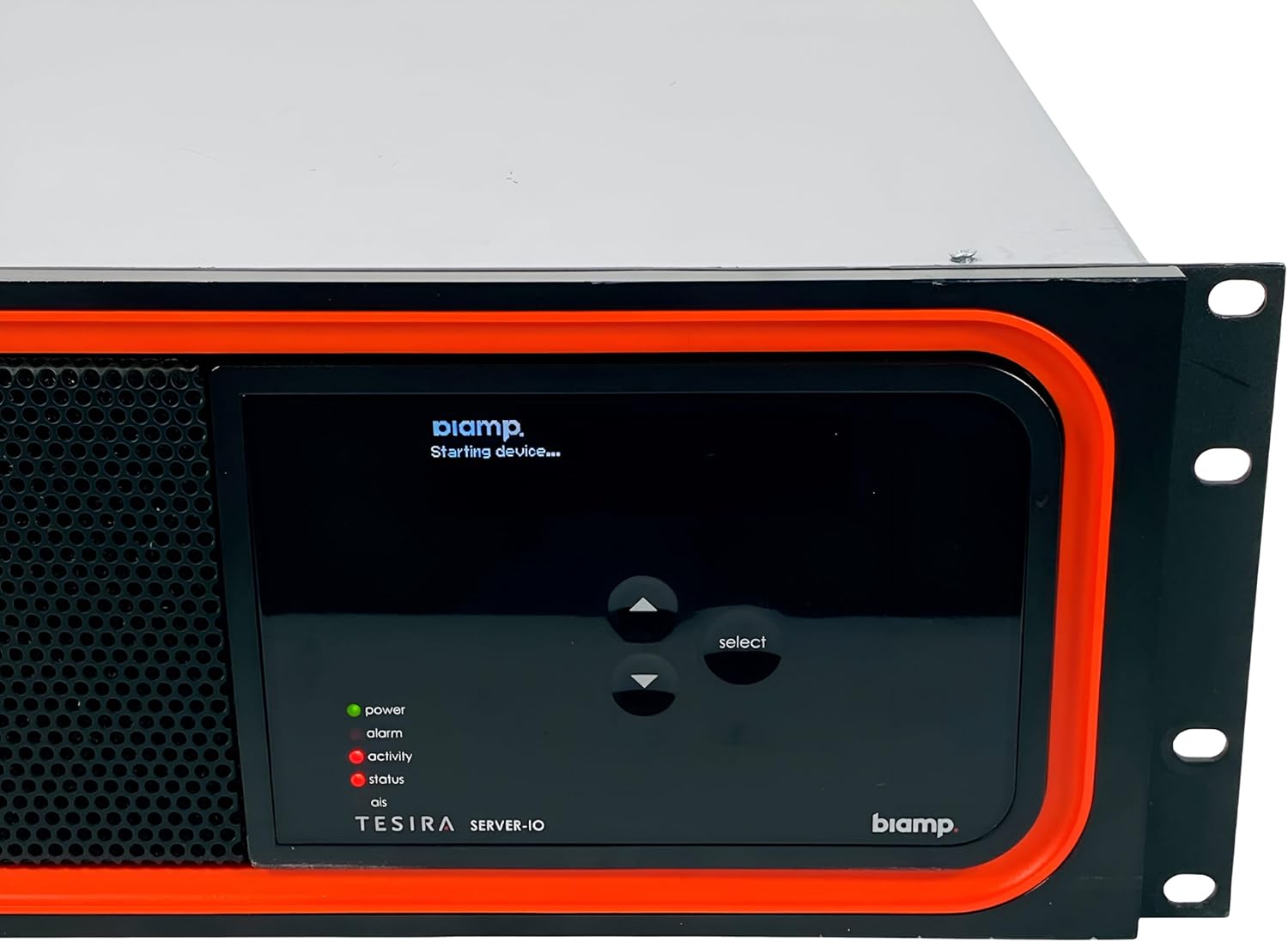
Figure 2.5: Front panel display indicating the device is starting up.

Figure 2.6: Front panel display showing operational status and device identification after successful boot.
3. Operation
3.1 Front Panel Controls and Indicators
The front panel features a display screen and navigation buttons (up, down, select) for basic configuration and status monitoring. LED indicators provide quick visual feedback on the unit's status:
- Power (Green): Indicates the unit is powered on.
- Alarm (Red): Indicates a system error or warning. Refer to the display for details.
- Activity (Amber): Indicates network or processing activity.
- Status (Green/Amber): Indicates overall system health.

Figure 3.1: Front panel showing the display, navigation buttons, and status LEDs (power, alarm, activity, status).
3.2 Software Control
For advanced configuration, routing, and system management, the Tesira SERVER-IO is controlled via dedicated software, typically running on a Windows operating system. Refer to the Biamp Tesira software documentation for detailed instructions on software installation and usage.
4. Maintenance
To ensure optimal performance and longevity of your Tesira SERVER-IO, follow these maintenance guidelines:
- Cleaning: Use a soft, dry cloth to clean the exterior of the unit. Do not use liquid cleaners or aerosols.
- Ventilation: Ensure that the ventilation grilles on the sides of the unit are not obstructed. Regularly check for dust buildup and clean as necessary to maintain proper airflow.
- Firmware Updates: Periodically check the manufacturer's website for firmware updates to ensure your unit has the latest features and bug fixes.

Figure 4.1: Side view of the Tesira SERVER-IO, showing the ventilation grilles that must remain unobstructed.
5. Troubleshooting
This section provides basic troubleshooting steps for common issues. For more complex problems, consult the full Biamp Tesira documentation or contact technical support.
5.1 Power Issues
- No Power: Ensure the power cord is securely connected to both the unit and the power outlet. Verify the power outlet is active.
- Power LED Off: If the green Power LED is off, check power connections.
5.2 Alarm LED (Red)
If the red Alarm LED illuminates, it indicates a system fault. Check the front panel display for specific error messages. Common causes include hardware malfunctions or critical software errors. Power cycling the unit may resolve temporary issues.
5.3 Network Connectivity Issues
Ensure Ethernet cables are properly connected. Verify network settings within the Tesira software. Check network switch/router status.
6. Specifications
| Feature | Description |
|---|---|
| Brand | Biamp (Product Manufacturer) / Tekswamp (Seller) |
| Model | Tesira SERVER-IO |
| Type | Digital Audio Server |
| Analog/Digital | Digital |
| Rack Unit Height | 3RU |
| ASIN | B0CZS8RTXM |
| Compatible Devices | Speaker |
| Operating System | Windows (for control software) |
| Connectivity Technology | Ethernet |
| Number of Channels | 48 |
7. Warranty and Support
For warranty information and technical support, please refer to the official documentation provided by Biamp Systems or contact the seller, Tekswamp. You can visit the Tekswamp Store on Amazon for more information.
Ask a question about this manual
Ask about setup, troubleshooting, compatibility, parts, safety, or missing instructions. Manuals+ will review the question and use this page’s manual context to help answer it.