
1. Introduction
Thank you for choosing the Squirrey Electric Height Adjustable Smart Desk Model 119. This desk is designed to enhance your workspace ergonomics by allowing seamless transitions between sitting and standing positions. Please read this manual thoroughly before assembly and operation to ensure safe and efficient use of your new desk.
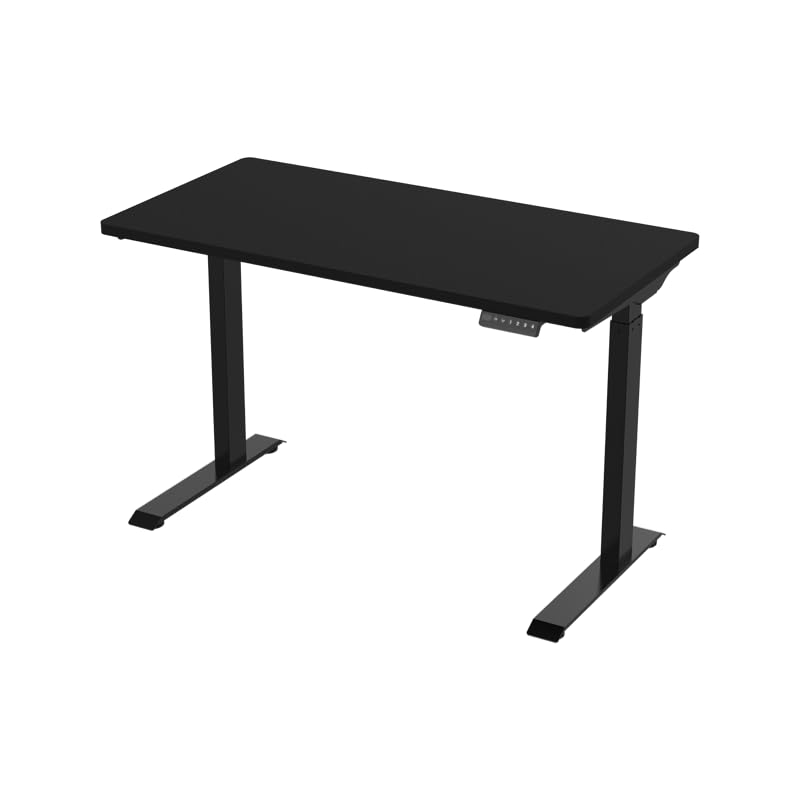
Figure 1: Squirrey Electric Height Adjustable Smart Desk. This image shows the desk in a typical office setting, highlighting its sleek design and adjustable height feature.
2. Safety Information
To prevent injury or damage to your desk, please observe the following safety precautions:
- Ensure all connections are secure before operation.
- Do not exceed the maximum weight capacity of 120 kg (264 lbs).
- Keep children and pets away from the desk during operation.
- Avoid placing objects that could be damaged by movement under or on the desk.
- Do not open or attempt to repair the electrical components yourself. Contact qualified service personnel.
- The desk is equipped with an anti-collision system. However, always be aware of your surroundings during height adjustments.
- Only use the desk indoors in a dry environment.
3. Package Contents
Please check that all components are present before beginning assembly:
- Desk Frame (Legs, Crossbar, Feet)
- Table Top
- Control Panel with LED Display
- Power Adapter and Cable
- Assembly Hardware (Screws, Allen Keys, etc.)
- User Manual (this document)
4. Setup and Assembly
Assembly typically involves attaching the desk legs to the crossbar, securing the feet, and then mounting the tabletop. Follow the detailed instructions provided in the separate assembly guide included with your package.
- Unpack all components and verify against the package contents list.
- Assemble the desk frame according to the assembly guide. Ensure all screws are tightened securely.
- Carefully place the tabletop onto the assembled frame and secure it using the provided hardware.
- Connect the control panel and power adapter to the desk frame's motor system.
- Plug the power cable into a suitable electrical outlet.
Note: For optimal stability, ensure the desk is placed on a level surface.
5. Operating Instructions
5.1 Basic Height Adjustment
The desk can be adjusted between 720mm (sitting height) and 1210mm (standing height).
- To raise the desk: Press and hold the UP button on the control panel. Release the button when the desired height is reached.
- To lower the desk: Press and hold the DOWN button on the control panel. Release the button when the desired height is reached.
The current height will be displayed on the LED screen of the control panel.
5.2 Memory Presets
The desk allows you to store up to 4 preferred height settings for quick recall.
- Adjust the desk to your desired height using the UP or DOWN buttons.
- Press the "M" button (Memory button). The LED display will show "S-".
- Within 3 seconds, press one of the numbered preset buttons (1, 2, 3, or 4). The display will show "S-1", "S-2", etc., confirming the height has been saved to that preset.
- To recall a saved height: Simply press the corresponding numbered preset button (1, 2, 3, or 4). The desk will automatically move to the saved position.
5.3 Anti-Collision System
The Squirrey Smart Desk is equipped with an anti-collision safety system. If the desk encounters an obstruction during height adjustment, it will automatically stop and reverse slightly to prevent damage to the desk or objects. This feature is designed to protect your desk and its surroundings.
Important: While the anti-collision system provides protection, always ensure the path of the desk is clear during operation.
6. Maintenance
Regular maintenance ensures the longevity and optimal performance of your desk.
- Cleaning: Wipe the desk surface and frame with a soft, damp cloth. Avoid abrasive cleaners or solvents.
- Inspections: Periodically check all screws and connections to ensure they are tight. Retighten if necessary.
- Cable Management: Ensure power cables and other cords are neatly managed and not pinched or tangled, which could impede desk movement.
- Power: Unplug the desk from the power outlet before performing any cleaning or maintenance.
7. Troubleshooting
If you encounter issues with your Squirrey Smart Desk, please refer to the following common solutions:
| Problem | Possible Cause | Solution |
|---|---|---|
| Desk does not move. | Power cable disconnected; Overload; Motor error. | Check power connections. Reduce weight on desk. Unplug for 10 seconds, then plug back in. |
| Desk moves unevenly or makes unusual noise. | Loose connections; Obstruction; Uneven weight distribution. | Check all assembly screws. Ensure no obstructions. Redistribute weight evenly. |
| Anti-collision system frequently triggers. | Obstruction in path; Sensor sensitivity. | Ensure clear path for desk movement. If issue persists, contact support. |
| LED display shows an error code. | System malfunction. | Refer to the specific error code in the full assembly guide or contact customer support for assistance. |
If the problem persists after trying these solutions, please contact Squirrey customer support.
8. Specifications
| Feature | Detail |
|---|---|
| Model | Squirrey 119 |
| Height Adjustment Range | 720 mm - 1210 mm (28.3 in - 47.6 in) |
| Weight Capacity | 120 kg (264 lbs) |
| Material | Alloy Steel Frame, (Tabletop material not specified, assuming standard desk material) |
| Product Dimensions (at lowest height) | 60D x 120W x 72H cm (23.6D x 47.2W x 28.3H inches) |
| Control Type | Electric with LED Display |
| Memory Presets | 4 programmable settings |
| Safety Features | Anti-collision system, Overload protection |
| Certifications | CE, FCC, RoHS |
9. Warranty and Support
For warranty information, please refer to the documentation provided with your purchase or contact your retailer. Squirrey is committed to providing quality products and customer satisfaction.
If you require further assistance, have questions about assembly, operation, or troubleshooting that are not covered in this manual, please contact Squirrey customer support through their official website or the contact information provided at the point of purchase.
Online Resources: For additional support and FAQs, visit the official Squirrey website.