
1. Introduction
The summina 4-Channel USB Audio Interface is a professional-grade sound card designed for high-quality audio recording, live streaming, and various entertainment applications. Featuring a 24-bit/192kHz sampling rate, it delivers clear audio with minimal noise. This manual provides essential information for setting up, operating, and maintaining your device.
2. Safety Information
3. Setup
This audio interface is designed for plug-and-play operation with most computers and smartphones, requiring no additional drivers for basic functionality.
3.1 Package Contents
- summina 4-Channel USB Audio Interface
- USB-C to USB-A Cable
- USB-A to USB-C Adapter
- User Manual (this document)
3.2 Powering the Device
Connect the provided USB-C to USB-A cable from the interface's 5V DC input to a USB port on your computer or a compatible USB power adapter. The device is powered directly via USB, eliminating the need for an external power supply in most cases.

Figure 3.2.1: Connectivity options for the summina audio interface, including smartphone (OTG) and computer (USB 2.0).
3.3 Connecting to a Computer/Smartphone
- Connect the USB-C end of the cable to the 'PC USB' port on the rear of the audio interface.
- Connect the USB-A end of the cable to an available USB port on your computer. If connecting to a smartphone, use the provided USB-A to USB-C adapter.
- The device is plug-and-play and should be recognized automatically by your operating system (Windows, macOS, iOS, Android).
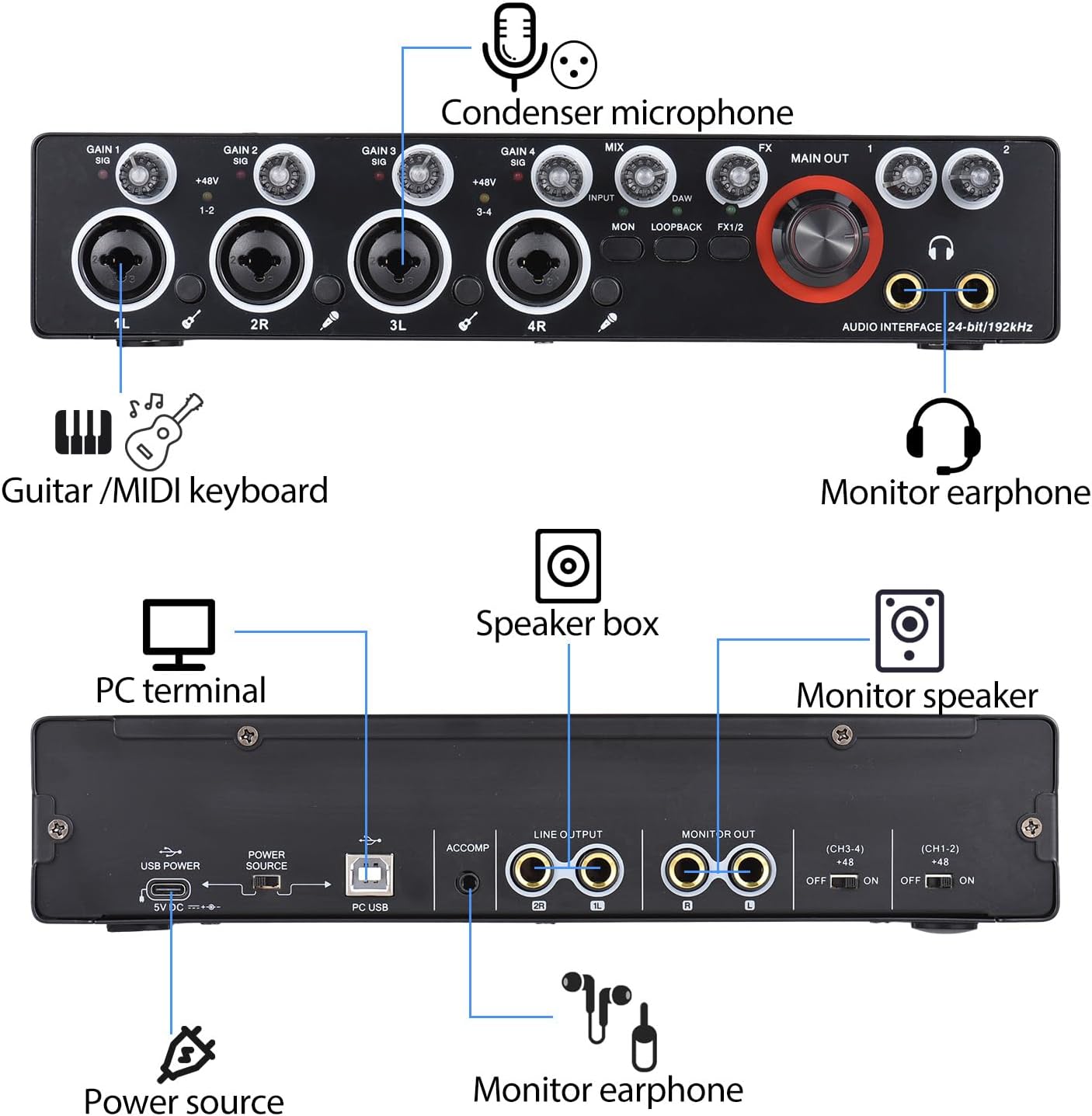
Figure 3.3.1: Comprehensive connection diagram for the summina 4-Channel USB Audio Interface.
3.4 Connecting Microphones and Instruments
The front panel features four MIC/LINE/XLR input interfaces (1L, 2R, 3L, 4R).
- Microphones: Connect XLR microphones to any of the four input jacks.
- Instruments (e.g., Guitar/MIDI Keyboard): Connect instruments using 1/4-inch TRS cables to the input jacks.
3.5 Connecting Output Devices
- Main Output: Use the 'LINE OUT' (1L, 2R, 3, 4) jacks on the rear panel to connect to studio monitors or an amplifier.
- Monitor Output: Use the 'MONITOR OUT' (L, R) jacks on the rear panel to connect to additional monitoring devices.
- Headphones: Connect headphones to the 6.5mm or 3.5mm headphone jacks on the front panel for real-time monitoring.
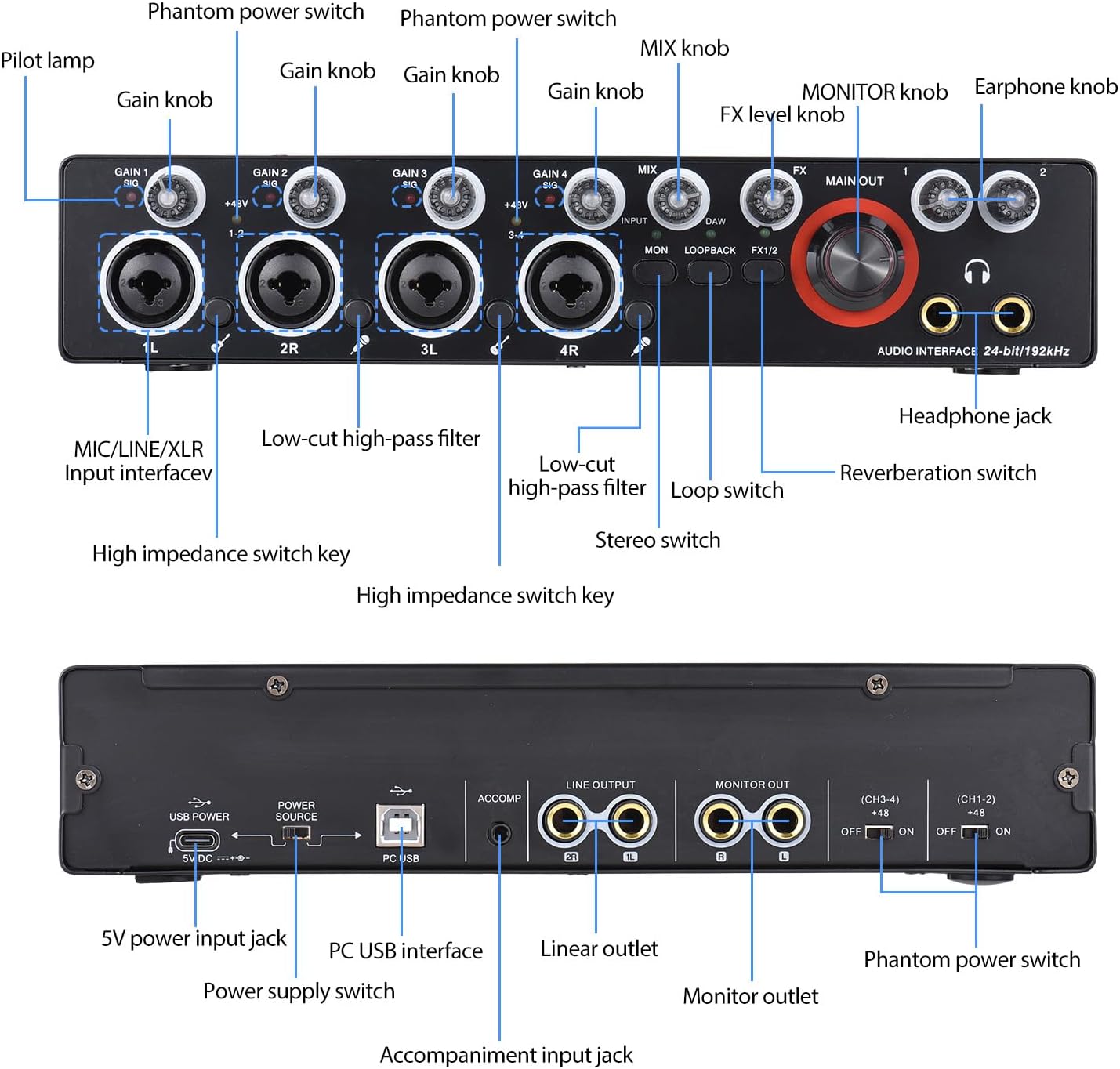
Figure 3.5.1: Front and rear panel overview with labeled connections.
4. Operating Instructions
4.1 Input Gain Control
Each input channel (1L, 2R, 3L, 4R) has an independent gain knob. Adjust these knobs to set the input level for your microphones or instruments. The signal indicators next to each knob will help you monitor the input levels, turning red if the signal is clipping (too high).
4.2 Phantom Power (+48V)
For condenser microphones, activate the +48V phantom power switches located on the rear panel for channels (CH1-2) and (CH3-4). Ensure phantom power is only used when required by your microphone type.
4.3 High/Low Impedance Switch
The interface offers switchable high and low impedance modes for inputs. Use the high impedance mode for instruments like guitars to achieve a wider dynamic range and fuller sound.
4.4 Headphone Monitoring
Connect your headphones to the dedicated 6.5mm or 3.5mm jacks on the front panel. Use the 'Earphone knob' to adjust the headphone volume independently for real-time monitoring.
4.5 Reverb and Delay Effects
The interface includes an onboard reverb adjustment knob and microphone delay modification. Adjust these controls to simulate various acoustic environments and add depth to your audio recordings or live streams.
4.6 Direct Monitoring
The direct monitoring feature allows you to hear your input signal directly through your headphones without any latency from computer processing. This is useful for checking your input signal quality in real-time.
4.7 Loopback Function
The loopback function allows you to record audio from your computer (e.g., background music, game audio) simultaneously with your microphone input. This is particularly useful for live streaming and podcasting.
5. Specifications
- Model Number: EJK9309343333896GV
- Brand: summina
- Channels: 4-in / 4-out
- Sampling Rate: 24-bit/192kHz
- Connectivity: USB
- Compatible Devices: Microphone, Instruments
- Supported Software: Standard Audio Drivers for Windows, macOS, iOS, and Android
- Phantom Power: +48V (switchable for pairs of channels)
- Headphone Outputs: 6.5mm and 3.5mm jacks with dedicated volume control
- Dimensions: 10.24 x 3.9 x 2.05 inches (26cm x 10cm x 5.2cm)
- Item Weight: 2.67 pounds

Figure 5.1: Product dimensions.
6. Maintenance
- Cleaning: Use a soft, dry cloth to clean the device. Avoid liquid cleaners or solvents.
- Storage: Store the device in a cool, dry place away from direct sunlight and extreme temperatures.
- Handling: Avoid dropping the device or subjecting it to strong impacts.
7. Troubleshooting
- No Sound/Recognition:
- Ensure all cables are securely connected.
- Verify the device is powered on (check power indicator light).
- Check your computer's sound settings to ensure the summina audio interface is selected as the input/output device.
- Try a different USB port or cable.
- Input Signal Too Low/High:
- Adjust the individual gain knobs for each channel.
- Ensure +48V phantom power is enabled for condenser microphones.
- Check the high/low impedance switch for instruments.
- Latency Issues:
- Use the direct monitoring feature to bypass computer processing latency.
- If using a Digital Audio Workstation (DAW), adjust its buffer size settings to a lower value (this may increase CPU load).
- Only Two Channels Recognized (Windows):
- Some operating systems or software may default to stereo (2-channel) input. Check your recording software's input settings to ensure all 4 channels are selected or configured correctly.
8. Warranty and Support
For warranty information and technical support, please refer to the documentation included with your purchase or visit the official summina website. Keep your proof of purchase for warranty claims.