
1. Introduction
Thank you for choosing the CZUR Wireless Bluetooth QWERTY Keyboard. This ultra-thin, lightweight, and rechargeable keyboard with an integrated touchpad is designed for seamless connectivity across multiple devices and operating systems. This manual provides essential information for setting up, operating, maintaining, and troubleshooting your new keyboard to ensure optimal performance.

Figure 1.1: CZUR Wireless Bluetooth QWERTY Keyboard
2. Product Overview and Features
The CZUR Keyboard K1S offers a versatile and efficient typing experience with its key features:
- Wide Compatibility: Supports desktop computers, laptops, tablets, phones, and Smart TVs. Compatible with Windows, macOS, Android, and iOS operating systems.
- Stable Wireless Connection: Connects quickly and reliably via Bluetooth, eliminating the need for cables or USB receivers. Offers a wireless range of up to 10 meters (33 feet).
- Rechargeable Battery: Features a built-in rechargeable battery, reducing the need for frequent battery replacements. Includes an on/off switch and an auto-sleep function to conserve power.
- Integrated Touchpad: A large, high-sensitive touchpad provides intuitive navigation and multi-touch gesture support.
- Portable Design: Thin and lightweight, making it easy to carry for on-the-go productivity.
- QWERTY Layout: Standard 81-key QWERTY layout for comfortable typing.
Note: This keyboard supports Bluetooth connection only. It does not support wired connection or external wireless receivers.

Figure 2.1: Multifunctional Keyboard Layout with Indicators

Figure 2.2: Compatibility Across Various Devices and Operating Systems
3. Setup
3.1. Package Contents
- CZUR Wireless Bluetooth QWERTY Keyboard
- USB Charging Cable
- User Manual (this document)
3.2. Charging the Keyboard
Before first use, ensure the keyboard is fully charged. The keyboard has a built-in 500mAh rechargeable battery.
- Locate the charging port on the keyboard (typically on the side or top edge).
- Connect the provided USB charging cable to the keyboard's charging port.
- Connect the other end of the USB cable to a USB power source (e.g., computer USB port, USB wall adapter).
- The Power LED indicator (blue light, as shown in Figure 2.1) will illuminate during charging.
- A full charge typically takes approximately 2 hours. The Power LED will turn off or change color when charging is complete.

Figure 3.1: Charging the Keyboard
3.3. Bluetooth Pairing
Follow these steps to pair your CZUR keyboard with your device:
- Ensure the keyboard is charged and turned on using the power switch (usually on the side).
- Activate Bluetooth on your device (PC, laptop, tablet, phone, Smart TV).
- On the keyboard, press and hold the Bluetooth pairing button (often indicated by a Bluetooth icon or 'BT' near the touchpad, refer to Figure 2.1) for a few seconds until the Pairing LED indicator (blue light) starts blinking. This indicates the keyboard is in pairing mode.
- On your device, search for available Bluetooth devices. You should see "CZUR Keyboard K1S" or a similar name appear in the list.
- Select the keyboard from the list to initiate the pairing process.
- If prompted, enter the pairing code displayed on your device's screen using the CZUR keyboard, then press Enter.
- Once successfully paired, the Pairing LED indicator on the keyboard will stop blinking and remain solid or turn off, and your device will confirm the connection.
4. Operating Instructions
4.1. Keyboard Functions
The keyboard features a standard QWERTY layout with 81 keys, including function keys (F1-F12) and dedicated keys for various operations. Some function keys may have secondary functions accessible by pressing the 'Fn' key simultaneously. Refer to the key legends for specific functions.
4.2. Touchpad Functions
The integrated touchpad supports various gestures for efficient navigation:
- Single Finger Tap: Left-click.
- Two Finger Tap: Right-click.
- Two Finger Scroll: Drag two fingers up or down to scroll vertically; drag left or right to scroll horizontally.
- Pinch to Zoom: Place two fingers on the touchpad and pinch them together to zoom out, or spread them apart to zoom in.
- Three Finger Swipe Up: Typically opens Task View (Windows) or Mission Control (macOS).
- Three Finger Swipe Down: Typically shows desktop (Windows) or hides all windows (macOS).
- Three Finger Swipe Left/Right: Switches between open applications or desktops.

Figure 4.1: Touchpad Gesture Examples
5. Maintenance
To ensure the longevity and optimal performance of your CZUR keyboard, follow these maintenance tips:
- Cleaning: Use a soft, dry, lint-free cloth to wipe the keyboard and touchpad surfaces. For stubborn dirt, slightly dampen the cloth with water or a mild, non-abrasive cleaner. Avoid excessive moisture.
- Avoid Liquids: Do not spill liquids on the keyboard. If a spill occurs, immediately turn off the keyboard, disconnect it from any power source, and allow it to dry completely before reuse.
- Storage: Store the keyboard in a cool, dry place away from direct sunlight and extreme temperatures.
- Battery Care: To maximize battery life, turn off the keyboard when not in use for extended periods. The auto-sleep function helps conserve power during short idle times. Avoid fully discharging the battery frequently.
- Handling: Handle the keyboard with care. Avoid dropping it or subjecting it to strong impacts.
6. Troubleshooting
If you encounter issues with your CZUR keyboard, try the following troubleshooting steps:
| Problem | Possible Cause | Solution |
|---|---|---|
| Keyboard does not turn on. | Battery is low or depleted. | Charge the keyboard for at least 2 hours. |
| Cannot pair the keyboard via Bluetooth. | Keyboard not in pairing mode; Bluetooth off on device; interference. | Ensure keyboard is on and in pairing mode (blinking BT LED). Turn device's Bluetooth off/on. Move closer to the device. Remove previous pairings. |
| Keyboard disconnects frequently or lags. | Low battery; too far from device; interference. | Charge the keyboard. Ensure it's within 10 meters (33 feet) of the device. Minimize other wireless devices nearby. |
| Keys are unresponsive or typing errors occur. | Low battery; software glitch; physical obstruction. | Charge the keyboard. Restart your device. Clean under the keys if visible debris. Re-pair the keyboard. |
| Touchpad is unresponsive or gestures don't work. | Low battery; software glitch; dirty touchpad surface; specific gesture not supported by OS. | Charge the keyboard. Clean the touchpad surface. Restart your device. Verify OS settings for touchpad gestures. Some users report right-click issues; ensure firm press or use two-finger tap. |
| Keyboard goes to sleep too quickly. | Default auto-sleep setting. | The keyboard has an automatic sleep function to conserve battery. There is no user-adjustable setting to change the sleep timer. Simply press any key to wake it up. |
7. Specifications
| Feature | Detail |
|---|---|
| Brand | CZUR |
| Model Number | Keyboard K1S |
| Connectivity Technology | Bluetooth |
| Compatible Devices | Laptop, PC, Smartphone, Tablet, Smart TV |
| Special Feature | Integrated Touchpad |
| Keyboard Description | Multi-functional, QWERTY |
| Number of Keys | 81 |
| Battery Composition | Lithium-ion |
| Product Dimensions | 33.5L x 11W x 0.7H centimeters (13.19L x 4.33W x 0.28H inches) |
| Included Components | USB Cable |
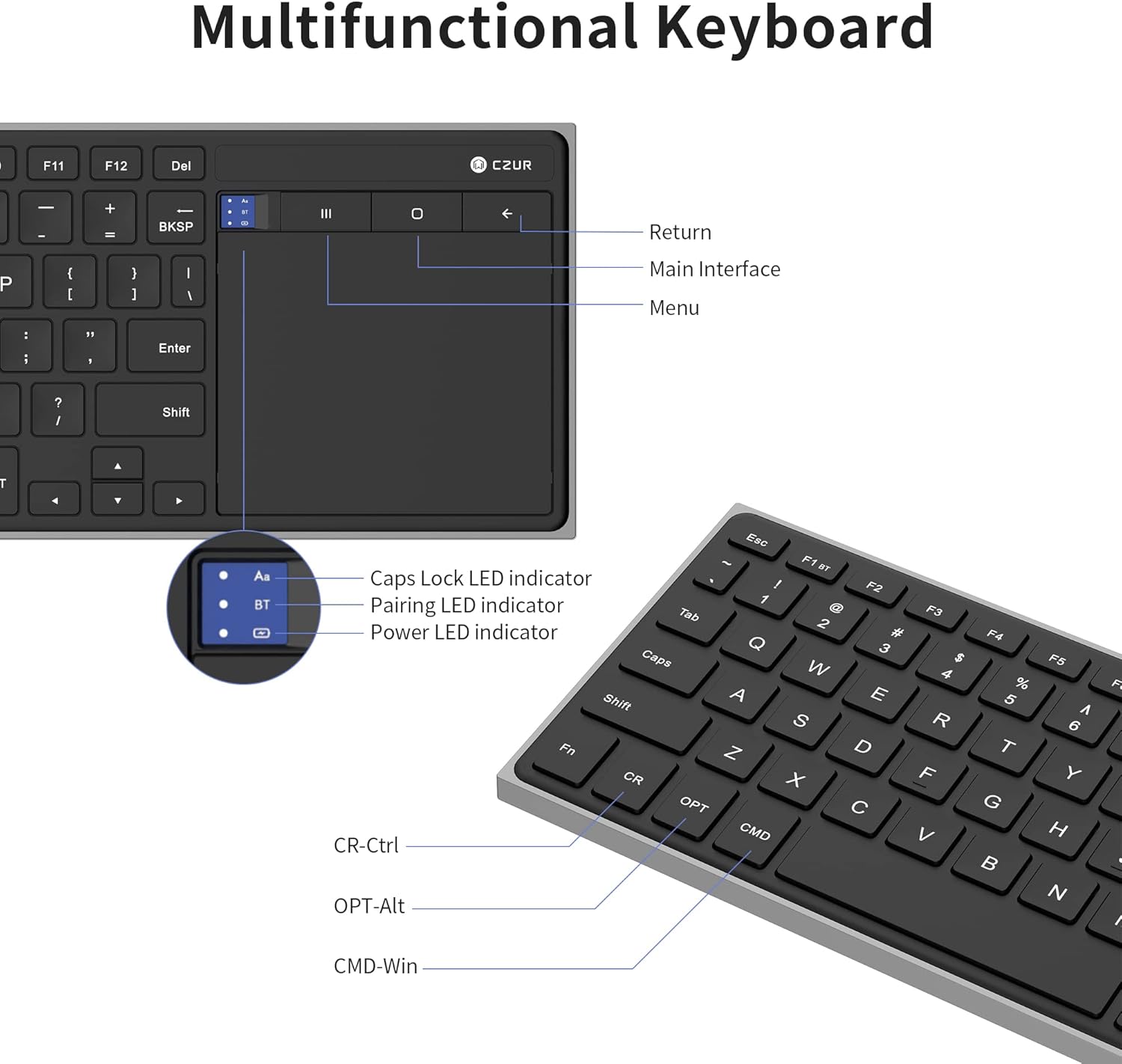
Figure 7.1: Keyboard Dimensions
8. Warranty and Support
Specific warranty information for the CZUR Wireless Bluetooth QWERTY Keyboard (Model K1S) is not provided in this manual. For details regarding warranty coverage, returns, or technical support, please refer to the documentation included with your purchase, contact the retailer where you purchased the product, or visit the official CZUR website.
For further assistance, you may also refer to the product page on Amazon.com.be or contact CZUR customer service directly.


