
1. Introduction
Thank you for choosing the Rock Series RKS-4500D 2 DIN Car Stereo. This manual provides essential information for the proper installation, operation, and maintenance of your new car stereo. Please read this manual thoroughly before using the product to ensure optimal performance and safety.
2. Safety Information
- Professional Installation Recommended: Due to the complexity of car audio systems, professional installation is highly recommended to prevent damage to the unit or your vehicle.
- Power Supply: This unit is designed for a 12V DC negative ground electrical system.
- Avoid Distractions: Do not operate the unit's functions that require prolonged attention while driving. Always prioritize road safety.
- Temperature: Avoid exposing the unit to extreme temperatures or direct sunlight for extended periods.
- Moisture: Keep the unit away from water and excessive moisture.
3. Package Contents
Verify that all items are present in the package:
- 1x Rock Series RKS-4500D 2 DIN Car Stereo
- 1x Remote Control
- 1x Rear View Camera
- 1x User Manual
4. Product Overview
Familiarize yourself with the components of your Rock Series RKS-4500D car stereo.
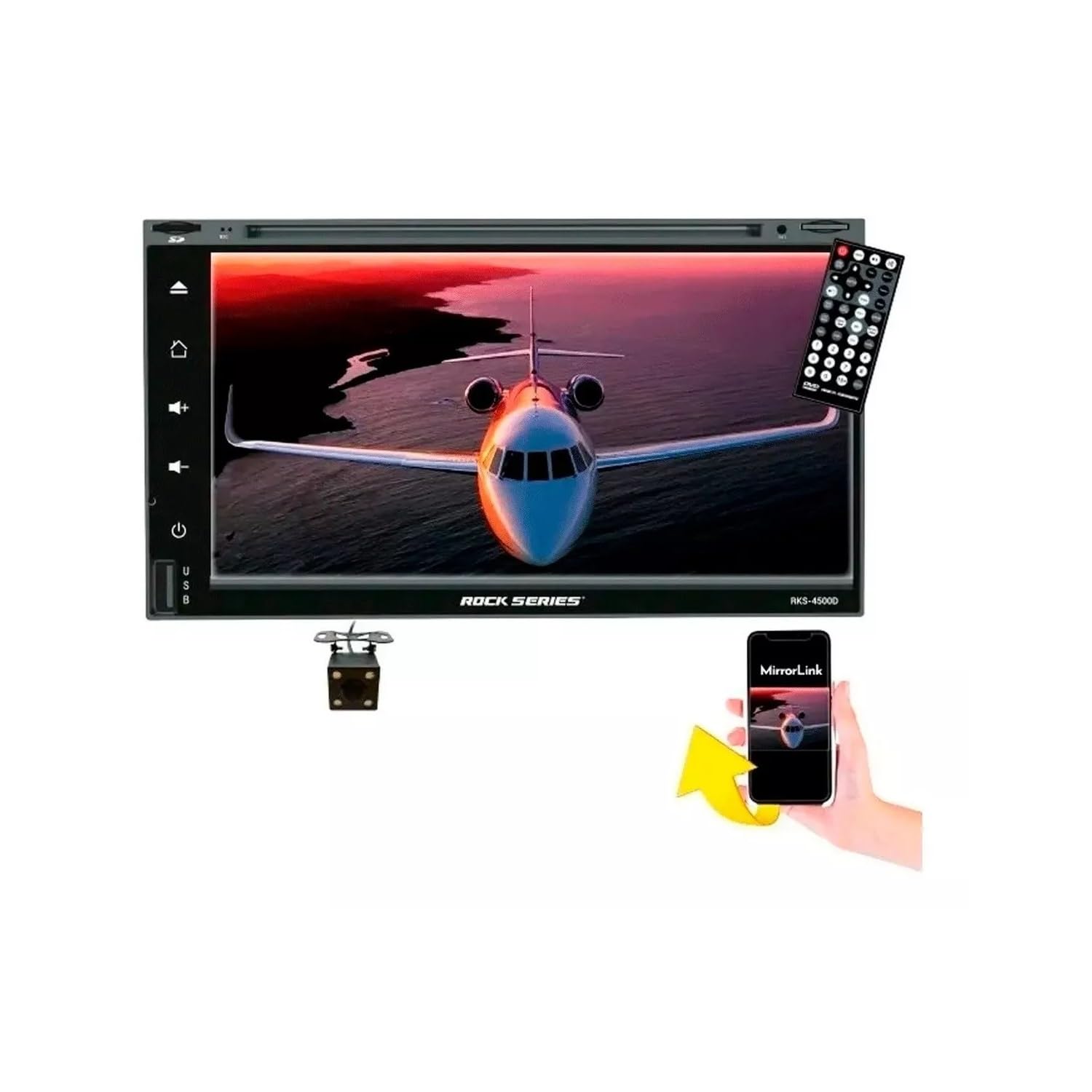
Figure 4.1: Rock Series RKS-4500D Car Stereo, remote control, and reverse camera, shown with its retail packaging.

Figure 4.2: Side view of the RKS-4500D unit, showing the mounting brackets and ventilation.

Figure 4.3: Rear panel of the RKS-4500D, displaying various input/output ports including RCA pre-outs, camera inputs, and antenna connection.

Figure 4.4: Retail packaging of the RKS-4500D, emphasizing MirrorLink compatibility for Android and iOS devices.
5. Setup and Installation
5.1. Installation Guidelines
The RKS-4500D is a 2 DIN car stereo designed to fit standard double-DIN openings. Ensure your vehicle has the appropriate space. For detailed wiring and mounting, consult a professional installer or refer to the specific wiring diagram provided with the unit (if applicable).
- Mounting: Securely mount the unit in the dashboard using the provided brackets.
- Wiring: Connect the power, ground, speaker, and accessory wires according to your vehicle's wiring harness and the unit's diagram. Ensure all connections are secure to prevent short circuits.
- Antenna: Connect your vehicle's FM antenna to the unit.
- Reverse Camera: Install the included reverse camera at the rear of your vehicle and connect its video and power cables to the designated inputs on the stereo.
5.2. Initial Power On
After installation, turn on your vehicle's ignition. The unit should power on automatically. Follow any on-screen prompts for initial setup, such as language selection or time setting.
6. Operating Instructions
6.1. Basic Controls
The RKS-4500D features a 6.95-inch touchscreen display for most operations. Physical buttons on the unit provide quick access to essential functions.
- Power Button: Press to turn the unit on/off or mute audio.
- Volume Control: Use the on-screen controls or physical buttons (if available) to adjust volume.
- Home Button: Returns to the main menu.
- Source Selection: Tap the 'Source' icon on the touchscreen to switch between Radio, Bluetooth, USB, SD, DVD, AUX, and Camera inputs.
6.2. Bluetooth Connectivity
The unit supports Bluetooth v4.0 for hands-free calling and wireless audio streaming (A2DP).
- Enable Bluetooth on your mobile device.
- On the RKS-4500D, select the Bluetooth source.
- Search for available devices on your phone and select "RKS-4500D" (or similar name).
- Confirm pairing on both devices. Once connected, you can make/receive calls and stream audio wirelessly.
6.3. Mirror Link Functionality
The RKS-4500D supports Mirror Link for Android (up to version 10) and iOS (up to version 14), allowing you to display your smartphone screen on the stereo's display.
- Connect your smartphone to the stereo via a USB cable.
- On the stereo, select the Mirror Link source.
- Follow the on-screen instructions or prompts on your phone to enable screen mirroring.
6.4. Media Playback
- USB/MicroSD: Insert a USB drive (up to 32GB) or MicroSD card (up to 32GB) into the designated port/slot. The unit will automatically detect and play compatible audio (MP3) and video (MP4) files.
- DVD/CD: Insert a DVD or CD into the disc slot. The unit will automatically switch to DVD/CD mode and begin playback.
- AUX Input: Connect an external audio device to the front auxiliary port using a 3.5mm audio cable. Select the AUX source on the stereo.
6.5. FM Radio
Select the FM Radio source. Use the touchscreen to scan for stations, save presets, and switch between frequencies.
6.6. Reverse Camera
When the vehicle is shifted into reverse gear, the stereo will automatically display the feed from the connected rear view camera, providing assistance for parking and maneuvering.
6.7. Steering Wheel Controls
The unit supports steering wheel controls. If your vehicle has compatible controls, they can be configured to operate basic functions of the stereo (e.g., volume, track skip, mode). Refer to the installation guide for wiring and programming details.
7. Maintenance
- Cleaning the Screen: Use a soft, lint-free cloth to gently wipe the touchscreen. Do not use abrasive cleaners or solvents.
- General Cleaning: Keep the unit free from dust and debris. Use a dry cloth for cleaning the exterior.
- Disc Care: Handle DVDs and CDs by their edges. Clean discs with a soft, dry cloth from the center outwards.
8. Troubleshooting
| Problem | Possible Cause | Solution |
|---|---|---|
| No power | Incorrect wiring; Blown fuse | Check power and ground connections. Inspect and replace fuse if necessary. |
| No sound | Volume too low; Mute activated; Incorrect speaker wiring | Increase volume. Deactivate mute. Check speaker connections. |
| Bluetooth not connecting | Bluetooth not enabled; Device out of range; Pairing issue | Ensure Bluetooth is on for both devices. Move devices closer. Delete previous pairing and re-pair. |
| Mirror Link not working | Incorrect USB cable; Phone OS version not supported; App not installed | Use a high-quality USB cable. Check phone OS compatibility (Android up to 10, iOS up to 14). Ensure necessary Mirror Link app is installed on phone. |
| Disc playback issues | Dirty or scratched disc; Incompatible disc format | Clean the disc. Try a different disc. Ensure disc format is supported. |
9. Specifications
| Feature | Specification |
|---|---|
| Model | RKS-4500D |
| Display Size | 6.95 inches (LCD Touchscreen) |
| Display Resolution | 800 x 400 pixels |
| Bluetooth Version | v4.0 (10-meter range) |
| Mirror Link Compatibility | Android (up to v10), iOS (up to v14) |
| Media Playback | DVD, CD, USB (up to 32GB), MicroSD (up to 32GB) |
| Supported Formats | MP3, MP4 |
| Amplifier | MOSFET 300W, 4 channels |
| Pre-out Voltage | 2 Volts RCA (without distortion) |
| Inputs | Front AUX, Front Camera, Rear Camera |
| Dimensions (Product) | 25 x 20 x 28 cm |
| Weight (Product) | 1 kg |
10. Warranty and Support
For warranty information, technical support, or service inquiries, please refer to the warranty card included with your product or contact Rock Series customer service through their official website or authorized distributors. Keep your purchase receipt as proof of purchase for warranty claims.