
Saiyana G915
Replacement ALT Keycap User Manual
Model: G915 Series Compatible Keycaps | Brand: Saiyana
1. Product Overview
This replacement ALT keycap is designed for specific mechanical keyboard models, including the G915, G913, G813, and G913TKL. It serves as a direct replacement for your existing ALT key, ensuring continued functionality and aesthetic consistency with your keyboard.

Figure 1.1: Front view of the black replacement ALT keycap.
2. Key Features
- Enhanced Control: Provides precise and responsive keystrokes essential for gaming and professional tasks.
- Durable Construction: Manufactured from high-quality plastic for long-lasting durability and resistance to wear.
- Ergonomic Design: Offers a comfortable typing experience, even during extended use.
- Precise Fit: Engineered for a stable and accurate fit on compatible keyboard models, ensuring optimal performance.
- Compatibility: Specifically designed for G915, G913, G813, and G913TKL mechanical keyboards.
3. Compatibility
This ALT keycap is compatible with the following mechanical keyboard models:
- G915
- G913
- G813
- G913TKL
Ensure your keyboard model matches one of the listed compatible models for proper fit and function.
4. Setup and Installation
Follow these steps to replace your ALT keycap:
- Prepare Your Keyboard: Ensure your keyboard is powered off or disconnected from your computer to prevent accidental inputs during the replacement process.
- Remove the Old Keycap: Gently pull the existing ALT keycap straight up from the keyboard switch. You may use a keycap puller tool for easier and safer removal, or carefully use your fingers. Avoid twisting or prying forcefully, as this could damage the switch.

Figure 4.1: Location of the ALT key on a compatible keyboard.
- Inspect the New Keycap: Before installation, examine the underside of the new ALT keycap to understand its mounting mechanism. It typically has a cross-shaped stem designed to fit onto the keyboard switch.

Figure 4.2: Underside view of the ALT keycap, showing the stem for switch attachment.
- Install the New Keycap: Align the stem of the new ALT keycap with the cross-shaped post on the keyboard switch. Press down firmly and evenly until the keycap snaps securely into place. You should feel a slight click or resistance as it seats properly.
- Test Functionality: Reconnect your keyboard and test the new ALT keycap to ensure it is stable and registers presses correctly.
5. Operating the Keycap
The replacement ALT keycap functions identically to the original keycap it replaces. Once installed, it will perform the standard "Alt" function as programmed by your operating system or keyboard software. No special operation is required beyond normal keyboard use.
6. Maintenance
To ensure the longevity and appearance of your ALT keycap:
- Cleaning: Use a soft, lint-free cloth slightly dampened with water or a mild, non-abrasive cleaning solution. Avoid harsh chemicals or abrasive materials that could damage the keycap's surface or legends.
- Dust Removal: Periodically use compressed air to remove dust and debris from around and under the keycap.
- Avoid Excessive Force: While durable, avoid applying excessive force or prying the keycap unnecessarily, as this can loosen its fit or damage the keyboard switch.
7. Troubleshooting
Keycap Does Not Fit or Feels Loose:
- Check Compatibility: Verify that your keyboard model (G915, G913, G813, G913TKL) is listed as compatible.
- Proper Alignment: Ensure the keycap's stem is perfectly aligned with the switch's cross-shaped post before pressing down.
- Even Pressure: Apply firm, even pressure when installing. Do not force it if it doesn't align.
- Inspect Switch: Check the keyboard switch for any damage or bent pins that might prevent proper seating.
Keycap Feels Sticky or Unresponsive:
- Clean Around Keycap: Dust or debris might be trapped around the keycap or switch. Remove the keycap and clean the area thoroughly.
- Switch Issue: If cleaning doesn't resolve the issue, the problem might be with the keyboard switch itself, not the keycap.
8. Specifications
| Attribute | Detail |
|---|---|
| Brand | Saiyana |
| Model Number | G915 (Compatible with G913, G813, G913TKL) |
| Material | Plastic |
| Color | Black (Other colors may be available separately) |
| Number of Keys | 1 (Single ALT keycap) |
| Keyboard Description | Gaming (Designed for gaming mechanical keyboards) |
| Hand Orientation | Ambidextrous (Keycap design is universal for left/right ALT) |
9. Additional Product Views

Figure 9.1: Comparison of black and white ALT keycaps.

Figure 9.2: Front view of the white replacement ALT keycap.
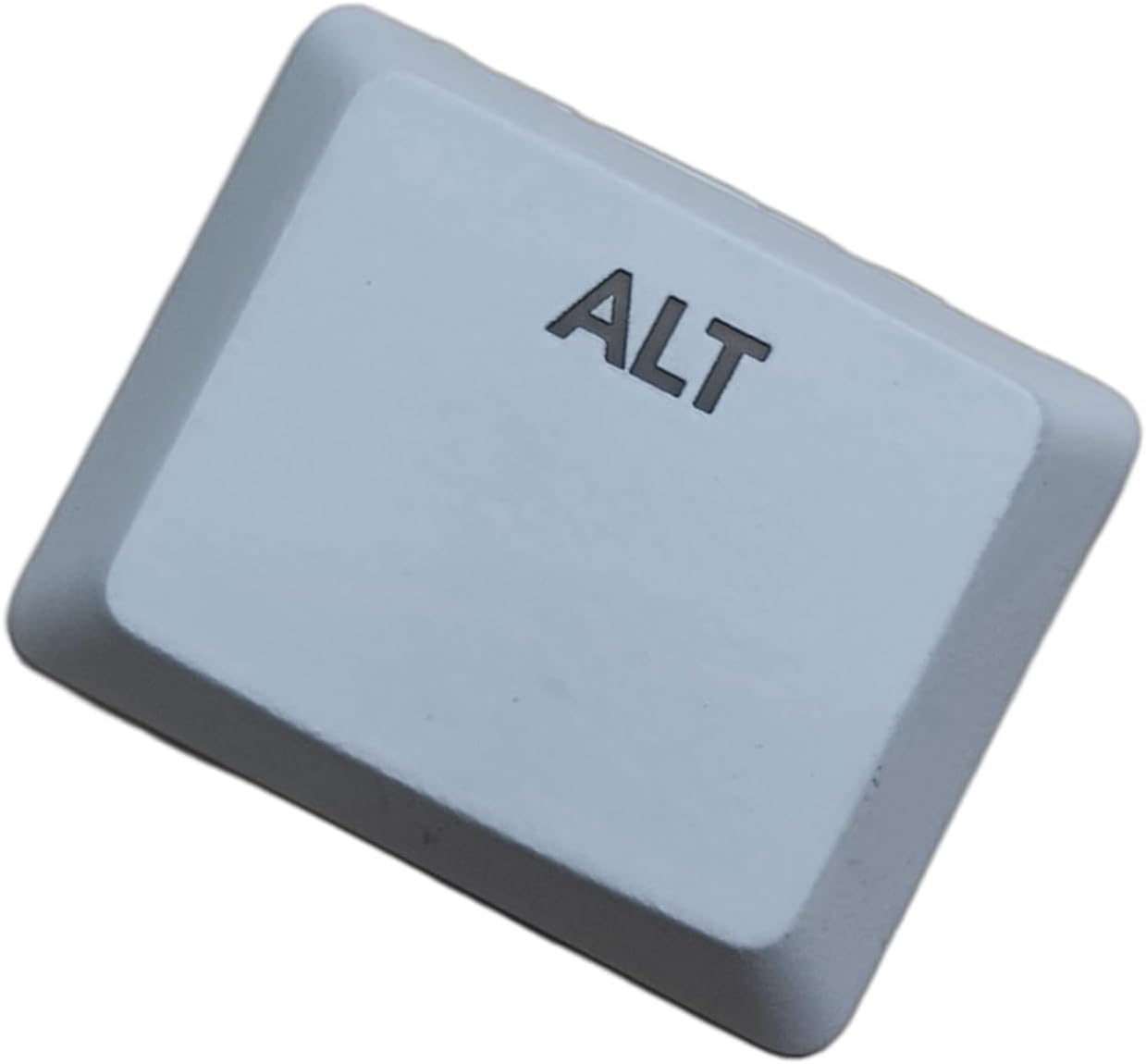
Figure 9.3: Angled view of the white replacement ALT keycap.

Figure 9.4: Angled view of the black replacement ALT keycap.
Ask a question about this manual
Ask about setup, troubleshooting, compatibility, parts, safety, or missing instructions. Manuals+ will review the question and use this page’s manual context to help answer it.