
1. Introduction and Overview
The Xsarius Q12 is an advanced Android 12-based 4K UHD IP Receiver designed for high-speed multimedia streaming. It features a powerful ARM Cortex A53 Quad Core chipset, offering a smooth and responsive user experience. Equipped with Gigabit 1000M LAN and WiFi 6 connectivity, it ensures fast and stable streaming of 4K UHD content. The device also includes Bluetooth 5.0 for convenient remote control operation and supports the Xsarius PremiumTV+ platform for accessing local and virtual media.
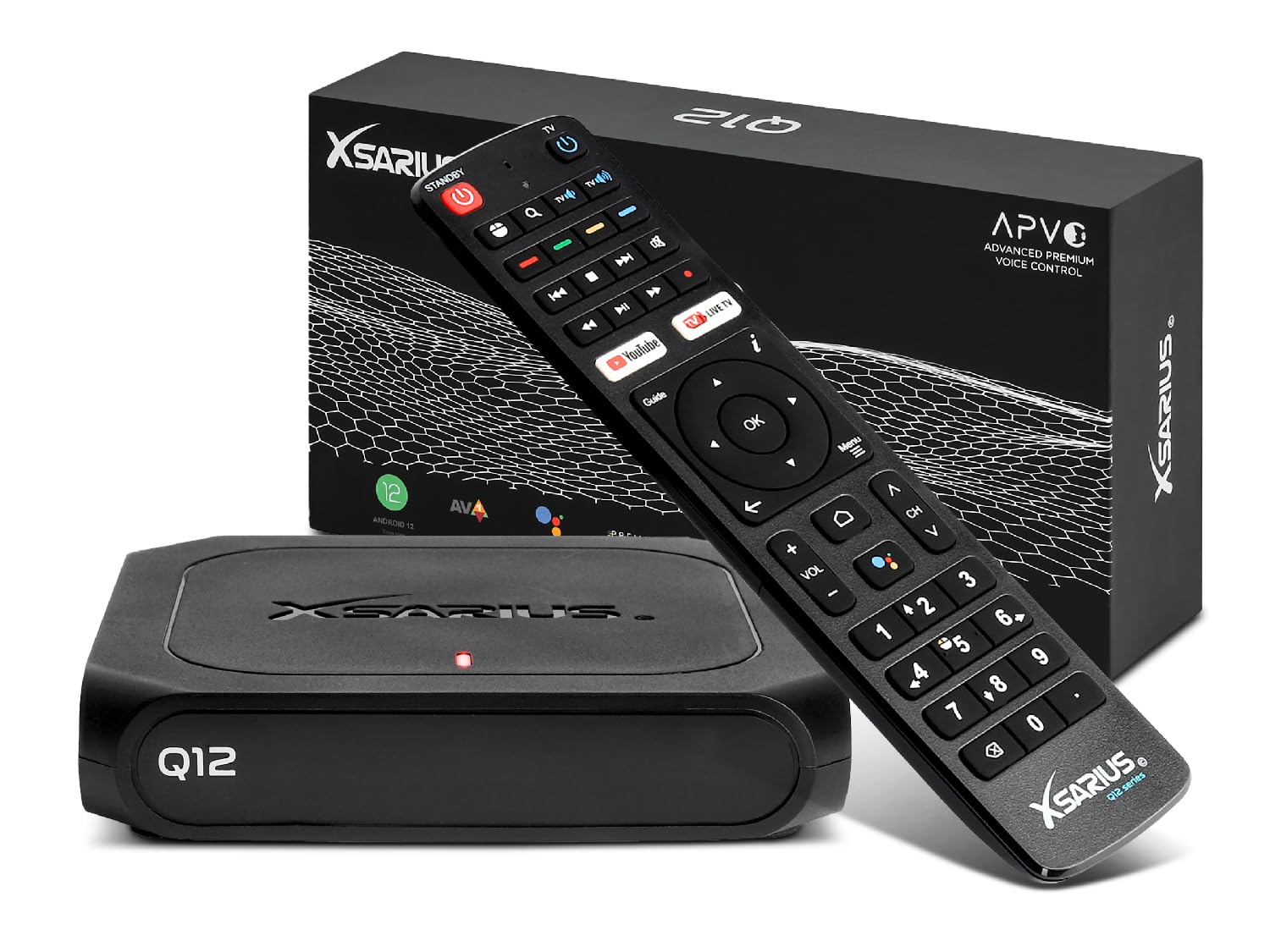
Figure 1.1: Xsarius Q12 IP Receiver, showing the top-front view with the Xsarius logo, Q12 model designation, and a green LED indicator light.
The Q12 is available in configurations with 2GB DDR RAM and 16GB Flash storage, providing ample space for applications and media. Its compact design allows for discreet placement near or behind your television.
2. Setup Guide
2.1 Unboxing and Components
Carefully remove all components from the packaging. Ensure the following items are present:
- Xsarius Q12 IP Receiver
- Power Adapter
- HDMI Cable
- Bluetooth Remote Control
- User Manual (this document)

Figure 2.1: The retail packaging for the Xsarius Q12, displaying key features and branding.
2.2 Connecting the Device
- Connect to TV: Insert one end of the HDMI cable into the HDMI port on the Xsarius Q12 and the other end into an available HDMI input on your television.
- Connect to Power: Plug the power adapter into the 12V DC input port on the Xsarius Q12, then connect the adapter to a power outlet.
- Network Connection (Optional):
- Wired: For a stable connection, connect an Ethernet cable from your router to the LAN port on the Xsarius Q12.
- Wireless: The device supports WiFi 6. You will configure this during the initial setup process.

Figure 2.2: Rear panel of the Xsarius Q12, illustrating the 12V DC power input, SPDIF audio output, HDMI port, and Gigabit Ethernet port.
2.3 Initial Boot-up and Configuration
After connecting the device, turn on your television and select the correct HDMI input. The Xsarius Q12 will power on automatically. Follow the on-screen instructions to complete the initial setup, which typically includes:
- Language selection
- Network configuration (WiFi setup if not using Ethernet)
- Google account login (optional, but recommended for app access)
- Time zone settings
3. Operating Instructions
3.1 Remote Control
The Xsarius Q12 comes with a Bluetooth remote control, allowing for flexible operation without direct line-of-sight. Ensure the remote's batteries are installed correctly. The remote will typically pair automatically during initial setup. If not, refer to the on-screen instructions for Bluetooth device pairing.

Figure 3.1: Top-down view of the Xsarius Q12 Bluetooth remote control, showing various navigation, playback, and numerical buttons.
3.2 Navigating the Android 12 Interface
Use the directional pad and 'OK' button on the remote to navigate through the Android 12 home screen and menus. The home screen provides quick access to installed applications, settings, and media content.
3.3 Using PremiumTV+
Xsarius PremiumTV+ is a dedicated platform for managing and playing your media. Launch the PremiumTV+ application from the home screen. Within PremiumTV+, you can access various content sources, including live TV, video-on-demand, and local media files.
3.4 Installing and Managing Applications
Access the Google Play Store from the home screen to download and install additional applications. You can manage installed apps through the Android settings menu, where you can uninstall, clear data, or force stop applications.
3.5 Media Playback
The Xsarius Q12 supports 4K UHD resolution for a high-quality viewing experience. Play media files from connected USB devices (via USB 3.0 ports), TF cards, network shares, or streaming services. The device's high-speed connectivity ensures smooth playback.
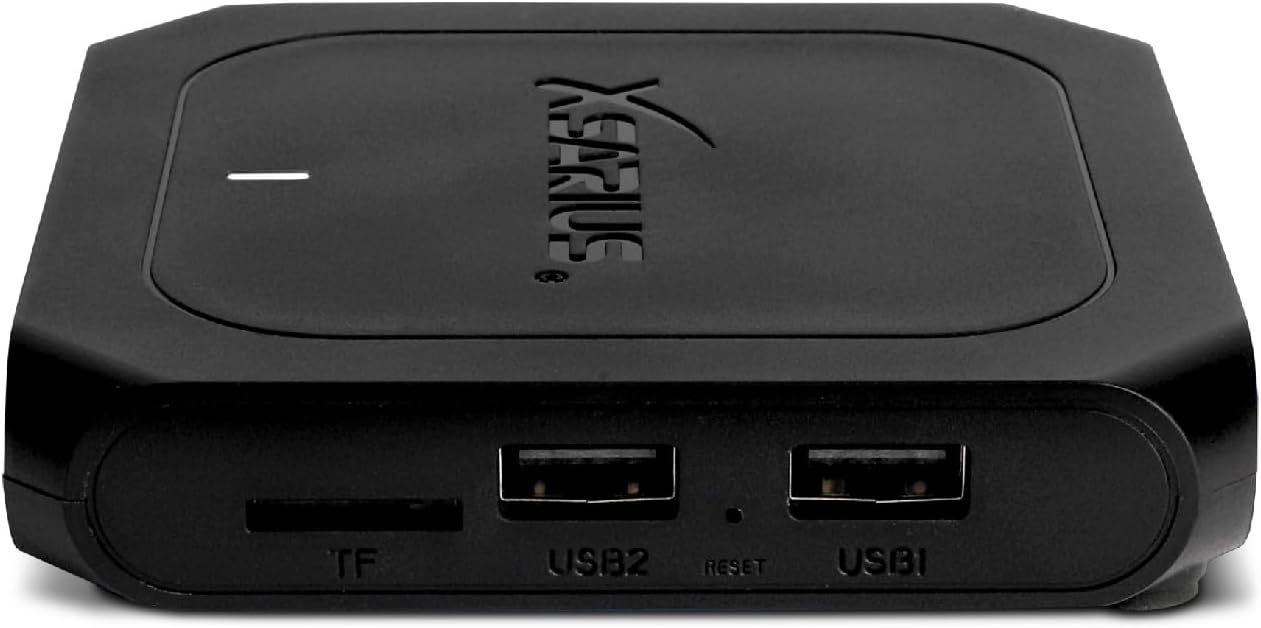
Figure 3.2: Side view of the Xsarius Q12, highlighting the two USB ports (USB1, USB2) and the TF (microSD) card slot for external storage.
4. Maintenance
4.1 Cleaning
To clean the device, disconnect it from the power supply. Use a soft, dry cloth to wipe the exterior. Avoid using liquid cleaners or abrasive materials, as they may damage the finish or internal components.
4.2 Software Updates
The Xsarius Q12 runs on Android 12. Periodically check for system updates in the device settings. Keeping the software updated ensures optimal performance, security, and access to new features.
4.3 Storage Management
Regularly manage the device's internal storage (16GB or 32GB Flash) by uninstalling unused applications and deleting unnecessary files. You can also utilize external storage via USB drives or TF cards to expand capacity.
5. Troubleshooting
This section addresses common issues you might encounter with your Xsarius Q12.
- No Power: Ensure the power adapter is securely connected to both the device and a working power outlet. Check if the power outlet is functional.
- No Signal on TV: Verify that the HDMI cable is properly connected to both the Q12 and your TV. Ensure your TV is set to the correct HDMI input source.
- Network Connection Issues:
- Wired: Check the Ethernet cable connection. Ensure your router is working correctly.
- Wireless: Go to network settings and re-scan for WiFi networks. Ensure you are entering the correct password. Try restarting your router.
- Applications Crashing or Freezing: Try force-stopping the application from the Android settings menu (Apps & Notifications > See all apps > [App Name] > Force stop). If the issue persists, clear the app's cache or data, or uninstall and reinstall it.
- Remote Control Not Responding: Check the batteries in the remote control. If the remote is Bluetooth, ensure it is paired correctly in the device's Bluetooth settings.
- Device Unresponsive: If the device becomes completely unresponsive, you may need to perform a hard reset. Locate the small 'RESET' button (often recessed) on the side or bottom of the device (refer to Figure 3.2 for approximate location near USB ports). Use a paperclip to press and hold the button for a few seconds. This will restart the device.
6. Specifications
| Feature | Specification |
|---|---|
| Brand | Xsarius |
| Model Name | Q12 |
| Operating System | Android 12 |
| Chipset | ARM Cortex A53 Quad Core |
| RAM | 2GB DDR (Q12) / 4GB DDR (Q12 Plus) |
| Internal Storage | 16GB Flash (Q12) / 32GB Flash (Q12 Plus) |
| Resolution | 4K UHD |
| Wired Connectivity | Gigabit 1000M LAN (Ethernet) |
| Wireless Connectivity | WiFi 6, Bluetooth 5.0 |
| Ports | HDMI, USB 3.0 (x2), TF Card Slot, 12V DC Power, SPDIF |
| Compatible Devices | Television |
| Dimensions (L x W x H) | 25L x 15W x 5H centimeters |
7. Warranty Information
Warranty information for the Xsarius Q12 is not available in the provided product details. Please refer to the retailer or manufacturer's official website for specific warranty terms and conditions.
8. Support
For technical support or further assistance with your Xsarius Q12, please contact the retailer from whom you purchased the device or visit the official Xsarius support website. Support contact details are not available in the provided product information.


