1. Introduction
This manual provides comprehensive instructions for the safe and effective operation of your ZonQoonz 40-Channel DMX Controller. Please read this manual thoroughly before using the device to ensure proper setup, programming, and maintenance. Retain this manual for future reference.
2. Safety Information
Observe the following safety precautions to prevent damage to the device or personal injury:
- Do not open the device housing. There are no user-serviceable parts inside. Opening the housing voids the warranty and poses a risk of electric shock.
- Keep the device away from water, moisture, and extreme temperatures.
- Use only the specified power adapter (Type-C 5V-2A) for charging.
- Ensure proper ventilation around the device during operation.
- Avoid dropping or subjecting the device to heavy impacts.
- Dispose of batteries according to local regulations.
3. Package Contents
Verify that all items are present in the package:
- 1 x ZonQoonz DMX Controller Console
- 1 x USB Type-C Charging Cable
- 1 x User Manual
4. Product Overview
Familiarize yourself with the components and controls of your DMX controller.

Figure 4.1: Front view of the ZonQoonz 40-Channel DMX Controller, showing faders, buttons, and display.

Figure 4.2: Close-up of the control panel, highlighting the 8 channel faders, 5 program selection buttons, and control buttons (Manual, Chase, Delete, Up/Down arrows).

Figure 4.3: Detail of the illuminated buttons and digital display, indicating operational status and selected parameters.

Figure 4.4: Rear panel connections, including the standard 3-pin DMX output, USB Type-C charging port, and power switch.
5. Setup
5.1 Charging the Controller
The ZonQoonz DMX Controller features a built-in rechargeable lithium battery for portable operation. To charge the device:
- Connect the provided USB Type-C charging cable to the Type-C port on the rear of the controller.
- Connect the other end of the cable to a compatible 5V-2A USB power adapter (not included).
- The power indicator light will show charging status. A full charge provides several hours of operation.
5.2 Connecting DMX Devices
The controller uses a standard 3-pin DMX output to connect to your lighting fixtures.
- Ensure all DMX lighting fixtures are powered off before connecting.
- Connect one end of a 3-pin DMX cable to the DMX OUT port on the rear of the controller.
- Connect the other end of the DMX cable to the DMX IN port of your first lighting fixture.
- For multiple fixtures, daisy-chain them by connecting the DMX OUT of the first fixture to the DMX IN of the next, and so on.
- Ensure each fixture has a unique DMX address set according to its manual. The controller supports up to 40 channels.
6. Operating Instructions
6.1 Powering On/Off
Use the power switch located on the rear panel to turn the controller on or off.
6.2 Manual Mode Operation
In Manual mode, you can directly control DMX channels using the faders.
- Press the MANUAL button to enter Manual mode. The button will illuminate.
- The 8 faders correspond to DMX channels 1-8. Adjust a fader to control the corresponding DMX parameter (e.g., dimmer, color, strobe).
- To access channels 9-40, use the 5 program selection buttons (labeled 1-5 on the left side). Each button selects a bank of 8 channels (e.g., button 1 for channels 1-8, button 2 for channels 9-16, etc.).
- The digital display will show the current channel and its value.
6.3 Programming Chase Effects
The controller supports up to 5 chase effects, each with up to 50 individual steps. A chase is a sequence of scenes that play back automatically.
- When the controller is idle, press and hold the CHASE button to enter programming mode. All 5 program selection buttons will illuminate.
- Select the desired CHASE number (1-5) to be programmed by pressing the corresponding program selection button.
- The controller will enter single-step processing status.
- Adjust the faders to create the desired scene effect for the current step. This is similar to operating in Manual mode.
- Press the UP arrow button to save the current step and proceed to edit the next step in the chase.
- Repeat steps 4 and 5 to add more steps to the chase.
- After editing all desired steps, press the MANUAL button to exit programming status and complete saving the chase.
6.4 Playing Chase Effects
- Press the CHASE button (do not hold) to enter Chase playback mode.
- Select the desired CHASE number (1-5) using the program selection buttons.
- The selected chase will begin playing automatically.
- Use the UP and DOWN arrow buttons to adjust the speed of the chase playback.
- Press MANUAL to exit Chase playback mode.
6.5 Power Failure Memory
The controller features power failure memory. If power is interrupted, the device will automatically resume its previous operating mode (Manual or Chase) and settings upon restart.
6.6 Light Raise Function
When device address settings are aligned to 8 channels, the push buttons provide luminous prompts, making the operating status clear at a glance.
7. Maintenance
To ensure the longevity and optimal performance of your DMX controller:
- Cleaning: Use a soft, dry cloth to clean the exterior of the device. Do not use abrasive cleaners or solvents.
- Storage: Store the controller in a cool, dry place away from direct sunlight and extreme temperatures when not in use.
- Battery Care: For optimal battery life, avoid fully discharging the battery frequently. If storing for extended periods, charge the battery to approximately 50% every few months.
8. Troubleshooting
If you encounter issues with your ZonQoonz DMX Controller, refer to the following table:
| Problem | Possible Cause | Solution |
|---|---|---|
| Controller does not power on. | Battery is discharged. Power switch is off. | Charge the controller using the USB Type-C cable. Ensure the power switch is in the ON position. |
| Lights are not responding to the controller. | Incorrect DMX connections. Incorrect DMX addresses on fixtures. Fixtures not powered on. | Verify DMX cable connections. Check DMX addresses on all fixtures. Ensure all lighting fixtures are powered on. |
| Chase effects are not saving or playing correctly. | Programming steps not completed or saved. | Ensure you press the UP button after each step and MANUAL to exit programming mode and save. |
| Faders or buttons are unresponsive. | Device malfunction. | Try restarting the controller. If the issue persists, contact customer support. |
9. Specifications
Technical specifications for the ZonQoonz DMX Controller (Model ZQ12072EU):
- Model Number: ZQ12072EU
- DMX Channels: 40
- Input Power: 90-240V, 50-60Hz
- Charging Port: USB Type-C (5V-2A)
- Battery: Built-in rechargeable Lithium battery (1 CR2 battery included for internal functions)
- Material: Iron
- Product Dimensions: 32.5 x 16.5 x 11 cm (12.8 x 6.5 x 4.3 inches)
- Item Weight: 1.16 kg (2.56 lbs)
- Chase Effects: 5 (up to 50 steps per effect)
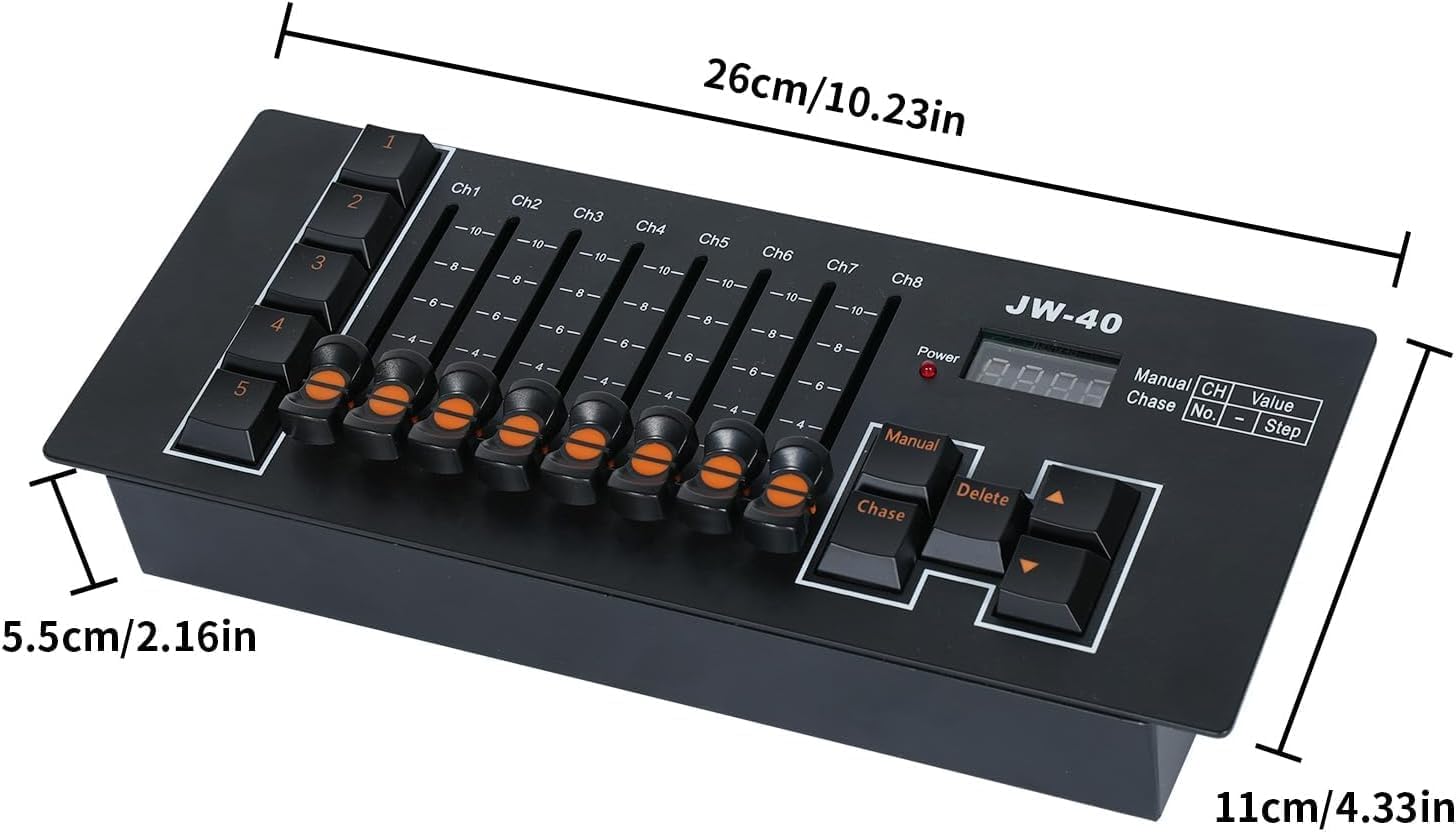
Figure 9.1: Diagram illustrating the dimensions of the ZonQoonz DMX Controller.
10. Warranty and Support
For warranty information or technical support, please refer to the documentation provided with your purchase or contact your retailer. Keep your proof of purchase for warranty claims.