
NOVOO NHM14S-632B1
NOVOO 14-in-1 USB C Docking Station User Manual
Model: NHM14S-632B1
Brand: NOVOO
1. Introduction
Thank you for choosing the NOVOO 14-in-1 USB C Docking Station. This versatile device expands the connectivity of your USB-C enabled laptop, tablet, or smartphone, transforming it into a powerful workstation. It provides multiple ports for video output, data transfer, network connectivity, and power delivery, enhancing your productivity and multimedia experience.
2. Product Overview
The NOVOO 14-in-1 USB C Docking Station is equipped with a comprehensive array of ports to meet diverse connectivity needs. Below is an overview of its features and available ports:
- Video Output: 1 x DisplayPort (DP) supporting up to 8K@30Hz/4K@120Hz, 2 x HDMI ports supporting up to 4K@60Hz.
- USB Data Ports: 2 x USB-A 3.0 ports (up to 5Gbps), 1 x USB-C data transfer port (up to 5Gbps), 3 x USB 2.0 ports.
- Power Delivery: 1 x USB-C PD 100W charging port for laptop charging.
- Network: 1 x Gigabit RJ45 Ethernet port (1000Mbps).
- Card Reader: SD and Micro SD card slots.
- Audio: 1 x 3.5mm audio/microphone combo port.

Figure 2.1: Detailed view of the NOVOO 14-in-1 Docking Station with all ports and their specifications.
3. Setup Instructions
Follow these steps to set up your NOVOO 14-in-1 USB C Docking Station:
- Compatibility Check: Ensure your laptop's USB-C port supports Thunderbolt 3, Thunderbolt 4, or DisplayPort Alt Mode. This is crucial for video output and full functionality.
- Connect to Host Device: Plug the integrated USB-C cable from the docking station into the compatible USB-C port on your laptop, tablet, or smartphone.
- Connect Power (Optional but Recommended): For stable operation and charging your host device, connect a USB-C Power Delivery (PD) charger (65W or higher recommended, not included) to the docking station's PD input port.
- Connect Peripherals:
- Displays: Connect your monitors to the DP and HDMI ports using appropriate cables.
- USB Devices: Plug in your USB flash drives, keyboards, mice, or other USB-A/USB-C peripherals.
- Network: Connect an Ethernet cable to the RJ45 port for a wired network connection.
- Audio: Connect headphones or a microphone to the 3.5mm audio jack.
- Memory Cards: Insert SD or Micro SD cards into the respective slots for data access.
- Plug and Play: The docking station is plug-and-play, requiring no driver or software installation. Your connected devices should be recognized automatically.

Figure 3.1: The docking station connected to a laptop, demonstrating various peripheral connections.

Figure 3.2: Important compatibility check for your laptop's USB-C port, highlighting required features like Thunderbolt or DisplayPort Alt Mode.
4. Operating Instructions
4.1 Display Modes
The docking station supports various display configurations depending on your operating system.
Windows OS:
On Windows systems, the docking station supports MST (Multi-Stream Transport) for extended and mirrored displays across multiple monitors.

Figure 4.1: Windows display modes, including mirror (A-AAA) and extended (A-BC, A-BCD) configurations for up to three monitors.
macOS:
macOS supports mirrored displays or a single extended display. MST multi-monitor functionality is not supported.

Figure 4.2: macOS display modes, illustrating mirror (A-AAAA) and extended (A-BBB) configurations.

Figure 4.3: Example of a triple monitor setup for enhanced productivity.
4.2 Power Delivery
The USB-C PD port allows you to charge your laptop while using the docking station. Connect your laptop's original USB-C power adapter to the PD port on the docking station. The docking station can deliver up to 100W of power to your host device.
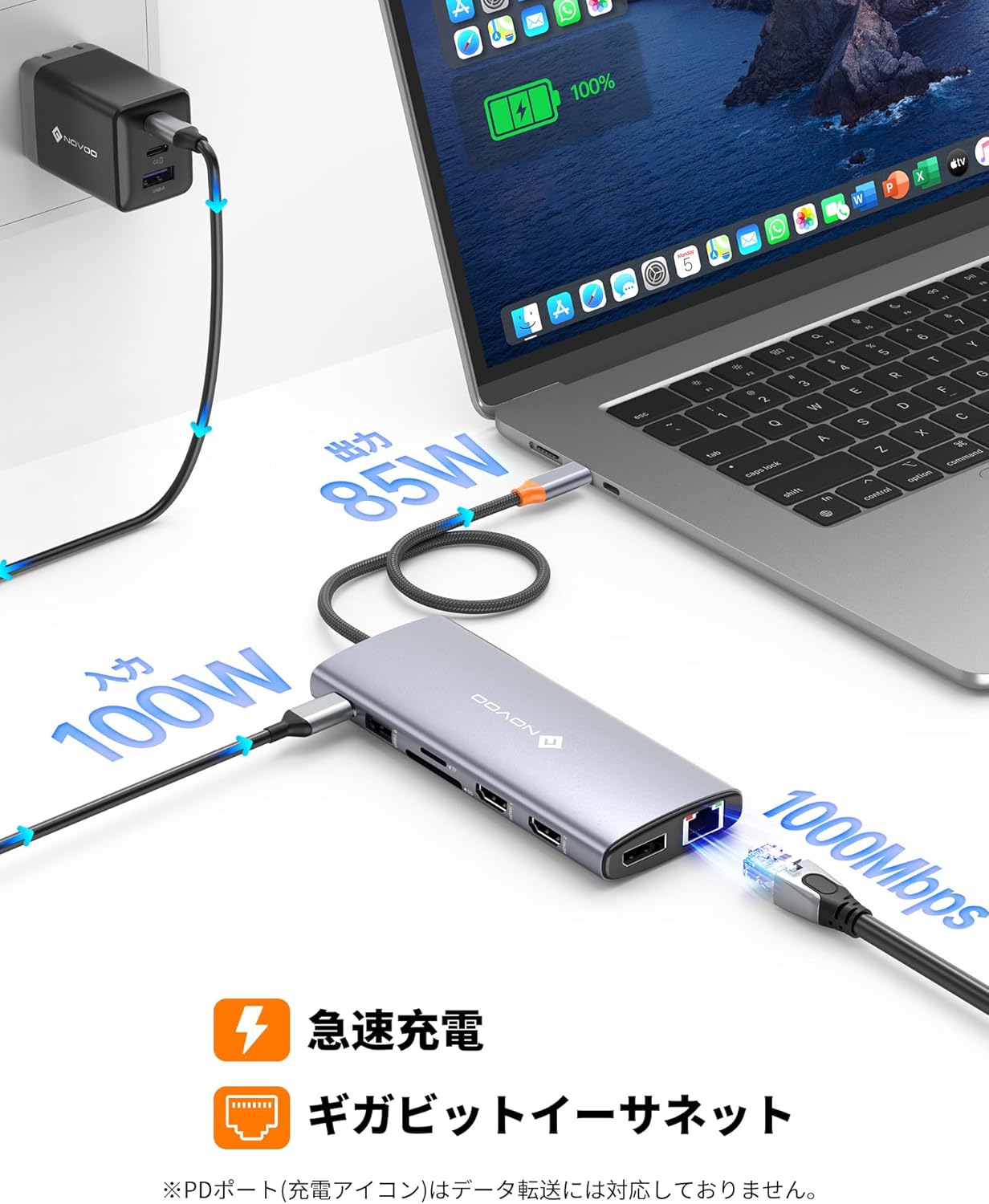
Figure 4.4: Power delivery functionality, showing power input to the dock and output to the laptop.
4.3 High-Speed Data Transfer
Utilize the USB 3.0 and USB-C data ports for rapid file transfers, reaching speeds of up to 5Gbps. The USB 2.0 ports are ideal for connecting standard peripherals like keyboards and mice.

Figure 4.5: High-speed data transfer capabilities of the USB ports.
4.4 Gigabit Ethernet and Audio
The RJ45 Gigabit Ethernet port provides a stable and fast wired network connection at 1000Mbps. The 3.5mm audio/microphone combo port allows you to connect headphones or external microphones for clear audio communication.

Figure 4.6: Connectivity for wired network and audio devices.
5. Maintenance
To ensure the longevity and optimal performance of your NOVOO 14-in-1 USB C Docking Station, please follow these maintenance guidelines:
- Cleaning: Use a soft, dry cloth to clean the surface of the docking station. Avoid using liquid cleaners, aerosols, or abrasive materials, as they may damage the device.
- Storage: Store the docking station in a cool, dry place away from direct sunlight and extreme temperatures.
- Handling: Handle the device with care. Avoid dropping it or subjecting it to strong impacts.
- Cable Management: Do not bend or crimp the integrated USB-C cable excessively, as this can damage the internal wires.
- Ventilation: Ensure the docking station has adequate ventilation to prevent overheating, especially during prolonged use with multiple connected devices.
6. Troubleshooting
If you encounter issues with your docking station, please refer to the following common troubleshooting tips:
- No Display Output:
- Ensure your laptop's USB-C port supports DisplayPort Alt Mode or Thunderbolt.
- Check that display cables (HDMI/DP) are securely connected to both the docking station and the monitors.
- Try connecting only one monitor at a time to isolate the issue.
- Verify monitor input settings are correct (e.g., HDMI 1, DisplayPort).
- Restart your laptop and reconnect the docking station.
- No Power Delivery/Charging:
- Ensure you are using a USB-C PD charger (65W or higher recommended) connected to the docking station's PD input port.
- Check if your laptop's USB-C port supports power input.
- Verify the power adapter and cable are functioning correctly.
- USB Devices Not Recognized:
- Ensure the docking station is properly connected to your host device.
- Try connecting the USB device to a different port on the docking station.
- Connect the USB device directly to your laptop to confirm it works independently.
- For high-power USB devices, ensure sufficient power is supplied to the docking station via the PD port.
- Ethernet Connection Issues:
- Check the Ethernet cable connection to both the docking station and your router/modem.
- Verify network settings on your computer.
- Try a different Ethernet cable.
- Audio Not Working:
- Ensure your headphones/speakers are properly plugged into the 3.5mm audio jack.
- Check your computer's audio output settings to ensure the docking station's audio device is selected.
If these steps do not resolve the issue, please contact NOVOO customer support for further assistance.
7. Specifications
| Feature | Description |
|---|---|
| Model Number | NHM14S-632B1 |
| Total USB Ports | 7 |
| Compatible Devices | USB flash drives, Laptops, Projectors, Monitors, Desktop PCs, Tablets, Game Consoles, Printers, Mice, Smartphones |
| Battery Usage | No |
| Brand Name | NOVOO |
| Manufacturer | NOVOO |
| Compatible OS | Windows, macOS, Android, Linux |
| Other Features | Fast Charging, High-Speed Data Transfer, Lightweight, Plug and Play, Portable, Indicator Light |
| Size | 14in1 2*HDMI+DP |
| Material | Aluminum |
| Product Dimensions | 13.8 x 5.5 x 1.7 cm |
| Item Weight | 118 grams |
| Hardware Interface | 3.5mm Audio, MicroSD |
8. Warranty and Support
NOVOO is committed to providing high-quality products and excellent customer service.
- Product Warranty: This product comes with a 2-year product warranty from the date of purchase.
- Customer Support: We offer 24/7 year-round customer support. Our expert support team is available to assist you with any questions or issues you may encounter during the use of your docking station.
For support, please refer to the contact information provided with your product packaging or visit the official NOVOO website.
Related Documents - NHM14S-632B1
 |
NOVOO 230 Portable Power Station User Manual Comprehensive user manual for the NOVOO 230 portable power station, detailing its features, operation, and specifications for outdoor backup and travel. |
 |
NOVOO NH04S-116A 4-Port USB 3.0 Hub User Manual Official user manual for the NOVOO NH04S-116A Ultra Slim 4-port USB 3.0 Hub. Features 5Gbps data transfer, a 5V/2.1A power supply port, and compatibility with various systems. Includes interface details, package contents, and FCC compliance information. |
 |
NOVOO Portable Power Station User Manual (NOESS301DJJ100-UK) Comprehensive user manual for the NOVOO Portable Power Station (Model NOESS301DJJ100-UK), covering specifications, operation, safety guidelines, and warranty information. |
 |
NOVOO Portable Power Station 1000W User Manual Comprehensive user manual for the NOVOO Portable Power Station 1000W (Model: NEP1000S-208-EU). Learn about its features, safety instructions, specifications, operation methods, charging, power output, and troubleshooting. |
 |
NOVOO Bluetooth-Ortungsanhänger: EU-Daten-Gesetz Informationen & Datenverarbeitung Erfahren Sie mehr über die vorvertraglichen Informationen für NOVOO Bluetooth-Ortungsanhänger gemäß der EU-Datenverordnung. Dieses Dokument erläutert, wie Daten generiert, gespeichert und von Drittanbietern wie Apple und Google verarbeitet werden. |
 |
NOVOO Bluetooth Tracker: European Data Protection Information Understand how NOVOO Bluetooth smart trackers handle your data, in compliance with EU regulations. Learn about data generation, storage, access, and deletion. |