
1. Introduction
The AUSEK WiFi Repeater is designed to extend the coverage of your existing wireless network, eliminating Wi-Fi dead zones and providing a strong, stable signal throughout your home or office. With a maximum transmission rate of 300Mbps, it supports seamless streaming, online gaming, and browsing. This device offers two primary operating modes: Repeater Mode and Access Point (AP) Mode, ensuring versatile connectivity options. It features secure internet encryption (WPA/WPA2) and wide compatibility with various wireless devices and routers.
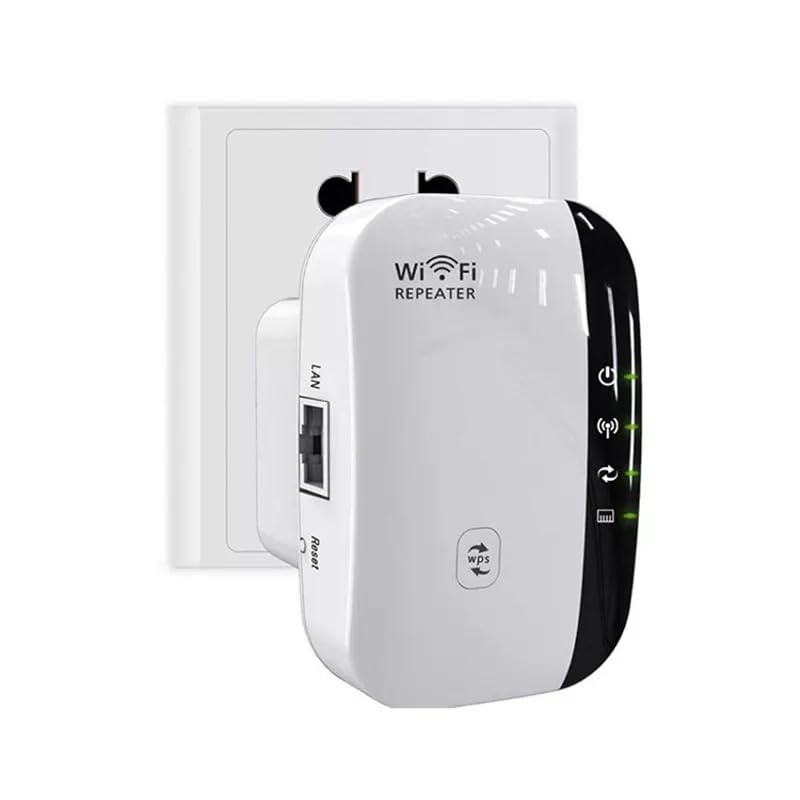
Image 1.1: The AUSEK WiFi Repeater, a compact device designed to plug directly into a wall outlet to extend Wi-Fi coverage.
2. Product Overview
2.1 Package Contents
Before you begin, please verify that all items are present in the package:
- 1 x AUSEK Wireless WiFi Repeater
- 1 x RJ-45 Networking Cable
- 1 x Installation Manual
2.2 Device Components
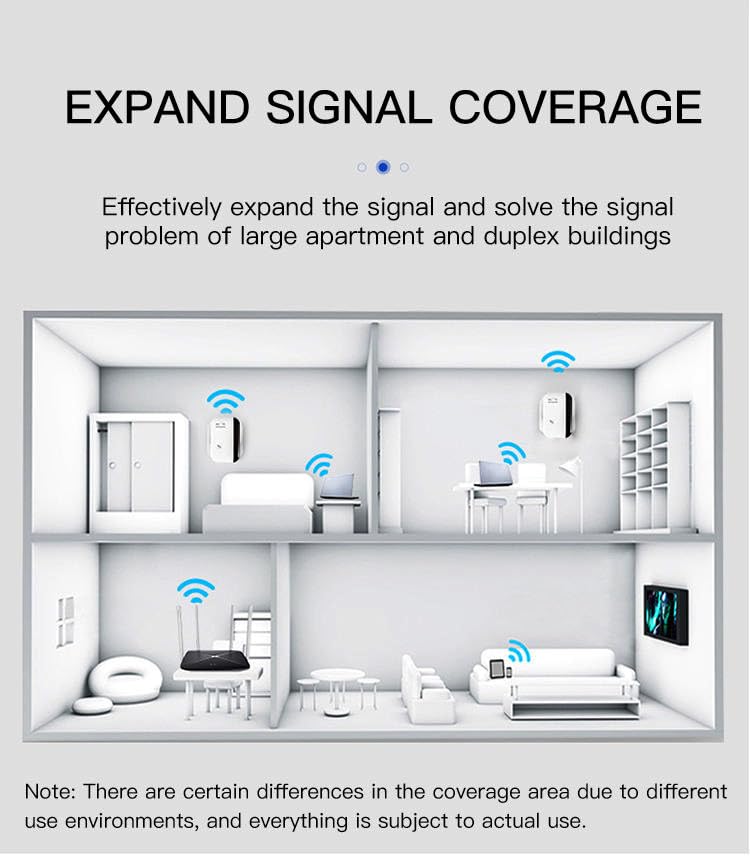
Image 2.1: A diagram illustrating the various ports and indicator lights on the AUSEK WiFi Repeater, including the Power LED, WiFi LED, WPS LED, LAN LED, WPS Button, LAN Port, Reset Button, and Power Plug.
Familiarize yourself with the following components:
- Power LED: Indicates if the device is powered on.
- WiFi LED: Indicates wireless activity.
- WPS LED: Indicates WPS function status.
- LAN LED: Indicates Ethernet port activity.
- WPS Button: For quick, secure setup with WPS-enabled routers.
- LAN Port: For wired connection in AP mode or connecting a wired device.
- Reset Button: Used to restore factory default settings.
- Power Plug: For connecting the device to an electrical outlet.
3. Setup
3.1 Initial Placement
For optimal performance, place the WiFi Repeater in a location that is roughly halfway between your wireless router and the area where you want to extend the Wi-Fi signal. Avoid placing it near large metal objects, concrete walls, or other devices that may cause interference.

Image 3.1: Visual guide for optimal placement of the WiFi extender to achieve full signal coverage, illustrating how to avoid weak signal areas by positioning it appropriately between the router and the desired coverage zone.
3.2 Powering On
Plug the AUSEK WiFi Repeater into a standard electrical outlet. The Power LED should illuminate, indicating the device is receiving power.
3.3 Operating Modes
The device supports two main operating modes:
- Repeater Mode: Extends the range of an existing wireless network. The repeater connects wirelessly to your router and re-broadcasts the signal, ideal for eliminating dead zones.
- Access Point (AP) Mode: Converts a wired internet connection into a wireless access point. Connect the repeater to your modem or router via an Ethernet cable, and it will create a new Wi-Fi network.
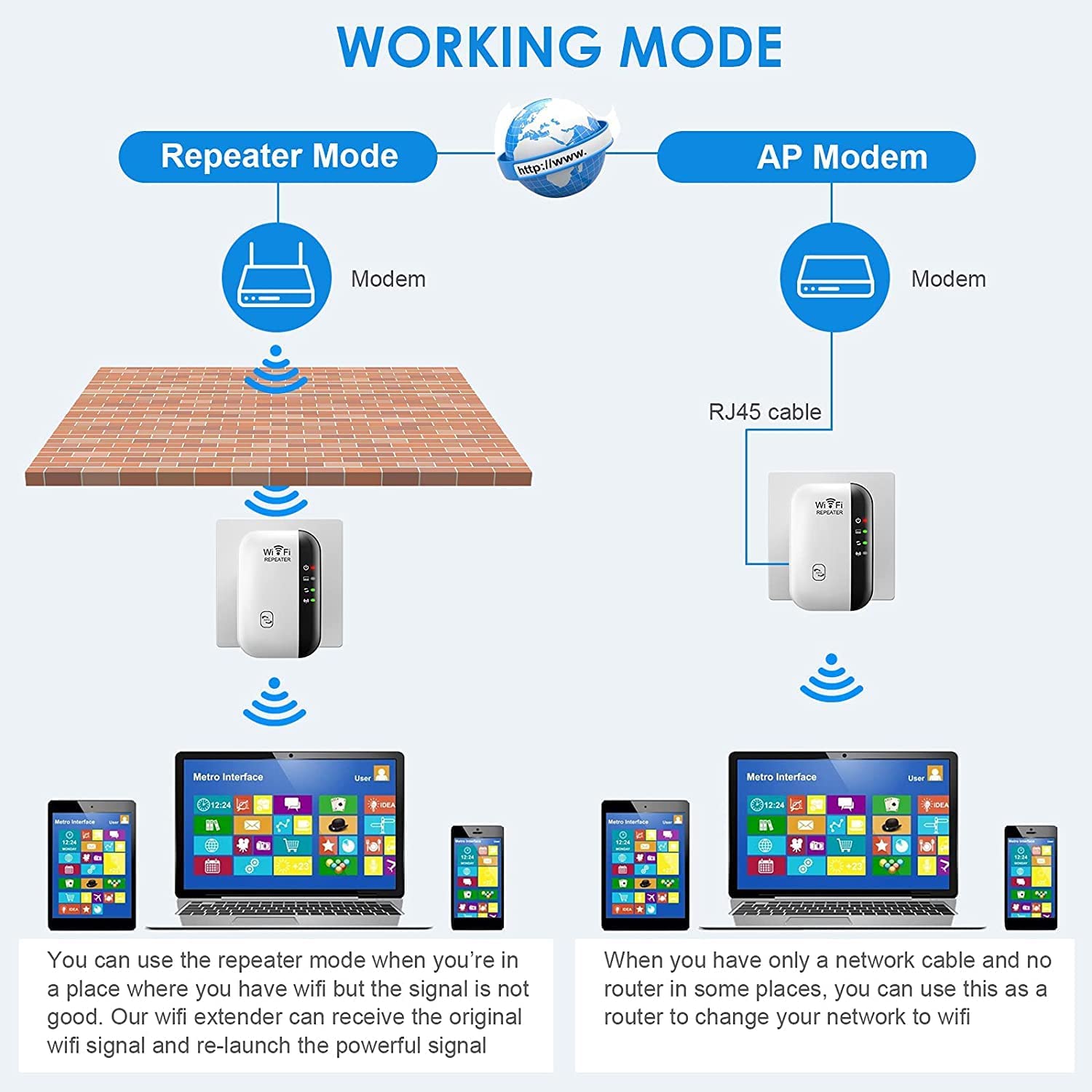
Image 3.2: A visual comparison of Repeater Mode, where the device extends an existing Wi-Fi signal, and AP Mode, where it creates a new Wi-Fi network from a wired connection.
3.4 WPS Quick Setup (Recommended)
WPS (Wi-Fi Protected Setup) allows for a quick and secure connection without manual configuration. Your host router must support WPS.
- Plug the AUSEK WiFi Repeater into an electrical outlet near your main router.
- Press the WPS button on your main router.
- Within 2 minutes, press the WPS button on the AUSEK WiFi Repeater.
- Wait for 1-2 minutes. The WPS LED on the repeater should turn solid, indicating a successful connection.
- Once connected, you can unplug the repeater and move it to your desired location (refer to Section 3.1).
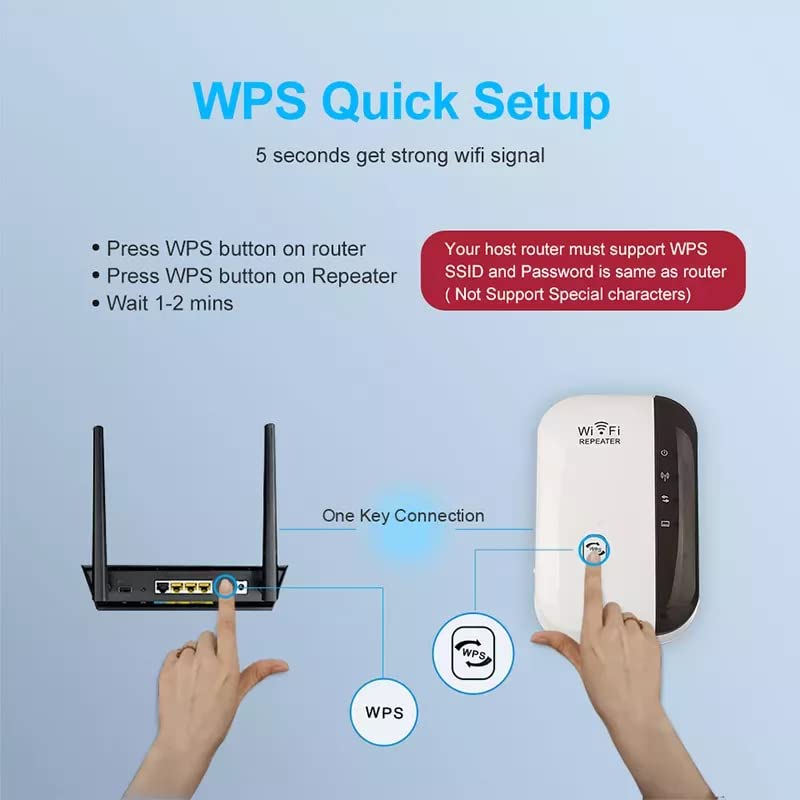
Image 3.3: A visual guide demonstrating the WPS quick setup process, highlighting the interaction between the router's WPS button and the repeater's WPS button for a fast connection.
3.5 Manual Setup (Web Browser)
If your router does not support WPS, or for more advanced configuration, use the web browser method:
- Plug the AUSEK WiFi Repeater into an electrical outlet.
- On your computer or smartphone, connect to the Wi-Fi network named "WiFi Repeater" (or similar, without a password).
- Open a web browser and enter
http://ap.setuporhttp://192.168.10.1in the address bar. - Enter the default username and password (usually admin for both).
- Select your desired operating mode (Repeater Mode or AP Mode).
- If in Repeater Mode, select your home Wi-Fi network (SSID) from the list and enter its password.
- Follow the on-screen prompts to complete the setup. The device will restart.
- Once restarted, connect your devices to the new extended Wi-Fi network (usually your original network name with "_EXT" or "_Plus" appended, or a new name if you configured it).

Image 3.4: A step-by-step visual guide detailing the manual setup process for the WiFi repeater using a web browser interface on a smartphone, from connecting to the repeater's Wi-Fi to completing the configuration.
4. Operating the Repeater
4.1 Extending Wi-Fi Coverage
Once successfully configured, the AUSEK WiFi Repeater will broadcast an extended wireless signal. Devices connected to this extended network will benefit from improved signal strength and coverage in areas previously affected by weak or no Wi-Fi.

Image 4.1: A graphic illustrating how the WiFi repeater helps eliminate dead zones by extending signal coverage throughout a multi-story home, permeating through walls and floors.
4.2 Device Compatibility
The AUSEK WiFi Repeater is compatible with any wireless network devices that comply with the 802.11N/B/G standards. This includes a wide range of devices such as laptops, personal computers, smartphones, tablets, smart TVs, and more.

Image 4.2: A visual representation of the universal compatibility of the AUSEK WiFi Repeater, showing it works with various devices including PCs, laptops, smartphones, TV boxes, tablets, and smart TVs.
4.3 Network Security
The repeater supports WPA/WPA2 wireless security protocols to maximize network security, prevent unauthorized access, and protect your data from interference and privacy issues.
5. Maintenance
To ensure the longevity and optimal performance of your AUSEK WiFi Repeater, consider the following maintenance tips:
- Keep Clean: Regularly wipe the device with a soft, dry cloth to prevent dust accumulation. Do not use liquid cleaners or aerosols.
- Ventilation: Ensure the device is placed in a well-ventilated area and its ventilation holes are not obstructed.
- Environmental Conditions: Avoid exposing the device to extreme temperatures, high humidity, or direct sunlight.
- Firmware Updates: Periodically check the manufacturer's website for any available firmware updates to ensure the best performance and security.
6. Troubleshooting
6.1 Common Issues and Solutions
- No Power: If the Power LED is off, ensure the repeater is securely plugged into a working electrical outlet. Try a different outlet.
- Cannot Access Setup Page:
- Ensure your device is connected to the repeater's Wi-Fi network (e.g., "WiFi Repeater").
- Verify that you are entering the correct IP address (
http://192.168.10.1) or domain (http://ap.setup) in your browser. - Clear your browser's cache or try a different browser.
- Temporarily disable any VPN or firewall software.
- Weak or No Signal After Setup:
- Relocate the repeater closer to your main router. The ideal location is halfway between the router and the dead zone.
- Ensure there are no major obstructions (thick walls, large metal objects) between the repeater and your router.
- Check the signal strength of your main router. If the original signal is too weak, the repeater cannot effectively extend it.
- WPS Setup Failed:
- Ensure your router supports WPS and that the WPS function is enabled.
- Press the WPS buttons on both devices within the specified time frame (usually 2 minutes).
- Try the manual web browser setup method (Section 3.5).
- Forgotten Password: If you forget the repeater's login password or the extended Wi-Fi password, you can perform a factory reset by pressing and holding the Reset button for 5-10 seconds. This will revert all settings to default.
7. Specifications
| Feature | Description |
|---|---|
| Brand | AUSEK |
| Model Name | Wifi Booster |
| Product Dimensions | 10 x 6 x 9 cm |
| Item Model Number | Wifi Repeater |
| Compatible Devices | Laptop, Personal Computer, Smartphone, Tablet |
| Special Features | Easy setup, Frequency band: 2.4GHz, Maximum transmission rate of 300Mbps, Two working modes: AP mode and Repeater mode, Wide compatibility |
| Data Transfer Rate | 300 Megabytes Per Second |
| Wireless Type | 802.11a/b/g/n |
| GSM Frequencies | 2.4 GHz |
| Wireless Communication Standard | 802.11a/b/g/n |
| Frequency Band Class | Dual-Band |
8. Warranty and Support
8.1 Warranty Information
This AUSEK WiFi Repeater comes with a 1 Year Warranty from the date of purchase. Please retain your proof of purchase for warranty claims. The warranty covers manufacturing defects and malfunctions under normal use. It does not cover damage caused by misuse, accidents, unauthorized modifications, or external factors.
8.2 Customer Support
For technical assistance, troubleshooting, or warranty inquiries, please contact AUSEK customer support:
- Customer Support Contact: 08048977694
Please have your product model and purchase details ready when contacting support.


